
How to Link a Discussion to a Course, Pathway, Event or Knowledge Article
How to Link a Discussion to a Course, Pathway, Event or Knowledge Article
In this article:
- Overview
- How to link a discussion to a learning item
- Things to keep in mind
- FAQs
- Who can do this
Overview
Linking a discussion to a piece of learning keeps the conversation attached to the thing it's about. A linked discussion shows up both on the Discussions hub and in the in-context Discussions panel on that learning item's page, so learners can talk about a course, pathway, event or Knowledge article right where they're studying it.
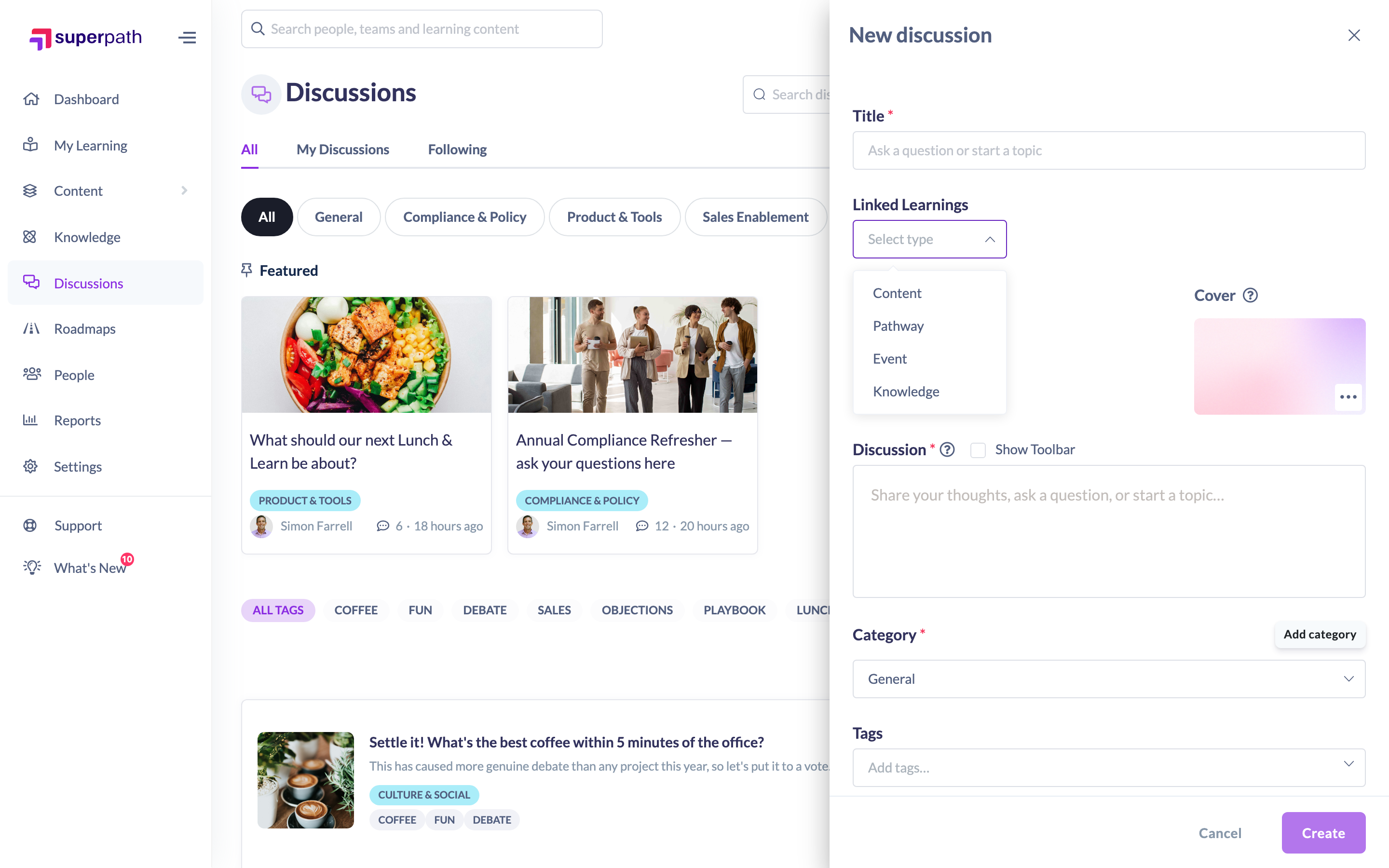
How to link a discussion to a learning item
- Start a new discussion from Discussions → Start discussion (see "How to Start a Discussion").
- In the New discussion panel, find the Linked Learnings field.
- From the type dropdown, choose what you're linking to: Content, Pathway, Event or Knowledge.
- Select the specific item:
- For Pathway and Event, pick it from the dropdown list.
- For Content and Knowledge, start typing in the search box and choose the matching result.
- Finish the rest of the discussion and click Create. The discussion is now tagged with that learning item, and its title is shown against the thread.
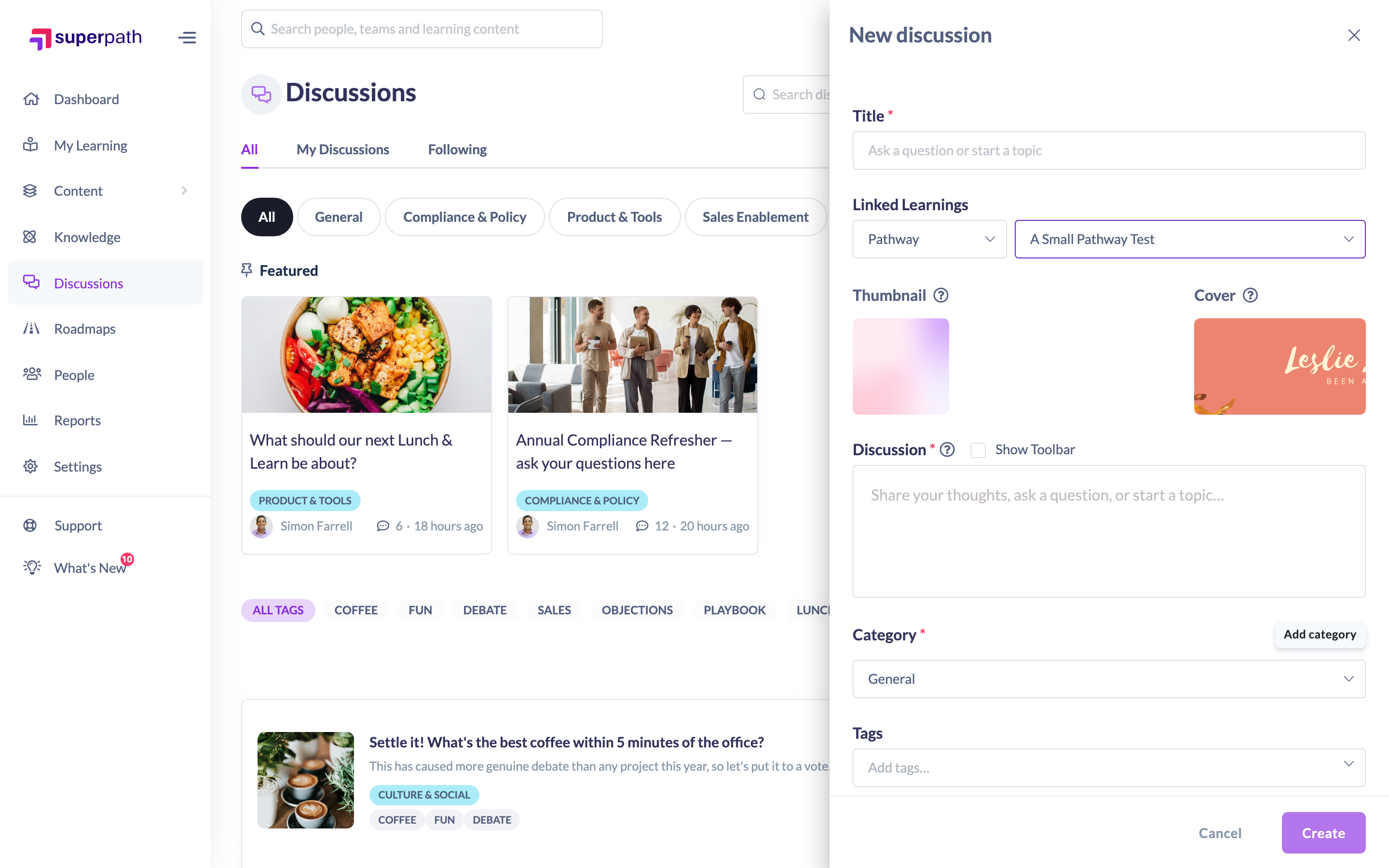
Good to know: When you link a Pathway or Event, its image and cover are used for the discussion's thumbnail and banner automatically, so linked threads look consistent with the learning they belong to.
Things to keep in mind
- You can link a discussion to four types of learning only: Content (courses), Pathways, Events and Knowledge articles. Roadmap levels are not supported as a linked type.
- A discussion can be linked to one learning item at a time.
- If you start a discussion from a learning item's own Discussions panel, the link is filled in and locked to that item — you won't be able to change it (see "How to Start a Discussion From a Course or Pathway Page").
- Linking is optional. A discussion with no linked learning simply lives on the hub.
FAQs
Which types of learning can I link to?
Content (courses), Pathways, Events and Knowledge articles. Roadmap levels aren't available as a link target.
Can I link to more than one item?
No — each discussion links to a single learning item.
Why can't I change the linked item on some discussions?
If the discussion was started from a learning item's Discussions panel, it's locked to that item by design so the conversation stays scoped correctly.
Where do linked discussions appear?
On the Discussions hub like any other, and in the Discussions panel on the linked learning item's page.
Who can do this
Linking is part of the discussion form, so anyone who can start (or edit) a discussion can link it. On the Discussions hub that's Owners, Admins and Managers; on a learning item's in-context panel it follows your organisation's "who can create discussions" setting. A discussion's author can also set or change the link when editing their own discussion, unless it was created pre-linked from a learning item. Restricted users cannot create or edit discussions.
Updated on: 16/07/2026
Thank you!