
How to Order Knowledge Categories on the Homepage
How to Order Knowledge Categories on the Homepage
In this article:
- Overview
- How categories are ordered
- Choose which categories show on the homepage
- Things to keep in mind
- FAQs
- Who can do this
Overview
Your Knowledge Homepage displays the categories you've chosen to feature, giving learners a clear way into your content. It's worth knowing up front that SuperPath does not currently support manually reordering categories — there is no drag-and-drop or position setting. Categories always appear in alphabetical order by title. What you can control is which categories show on the homepage, using a per-category toggle. This article explains both.
How categories are ordered
Categories on the Knowledge Homepage are sorted alphabetically by title, automatically. There is no drag-and-drop, no up/down arrows and no order field — the sequence follows the category names.
Because the order follows the title, the practical way to influence the sequence is to name your categories so their alphabetical order matches what you want. For example, a leading number or letter in the title (such as "1. Onboarding", "2. Policies") will group and order them accordingly.
Choose which categories show on the homepage
Each category has a toggle that controls whether it appears on the Knowledge Homepage.
- Go to Settings → Features.
- In the Knowledge categories section, click Manage Knowledge Categories.
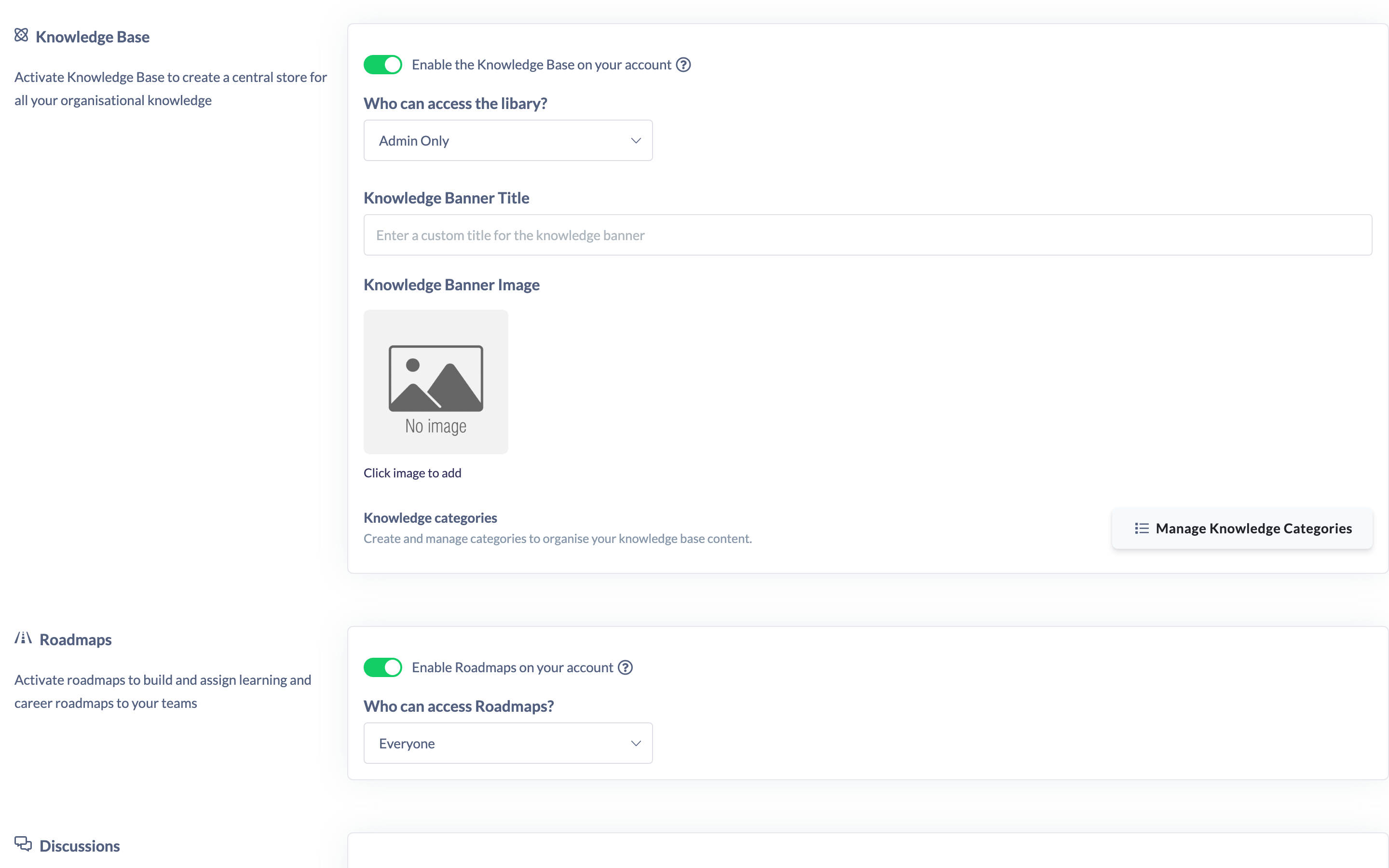
- Find the category you want and click the pencil icon to edit it (or click Add Category to create a new one).
- Turn on Show on Knowledge Homepage — the toggle turns green when enabled. Turn it off to hide the category from the homepage.

- Click Save (or Add for a new category).
The categories list shows a Home Page column indicating Yes or No for each category, so you can see at a glance which ones are featured.
Things to keep in mind
- There is no manual reorder for categories — the homepage always lists them alphabetically by title.
- Only top-level categories with Show on Knowledge Homepage turned on appear on the homepage.
- Articles within a category are also listed alphabetically by title. There is no control to reorder articles either.
- Knowledge categories can only be managed on a desktop or tablet, not on a mobile device.
FAQs
Can I drag categories into a custom order on the homepage?
No. The homepage always lists categories alphabetically by title — there is no drag-and-drop or position setting.
Then how do I influence the order?
Rename your categories so their alphabetical order matches the sequence you want, for example by adding a leading number to each title.
Can I reorder the articles inside a category?
No. Articles are also displayed alphabetically by title, and there is no ordering control for them.
How do I stop a category appearing on the homepage?
Edit the category and turn off the Show on Knowledge Homepage toggle, then save.
Who can do this
Owners and Admins can manage Knowledge categories and their homepage visibility. This is managed from Settings, which only Owners and Admins can access — Managers, Content Managers, People Managers, Instructors, Employees and Restricted users cannot reach it, regardless of their Knowledge permissions.
Updated on: 19/07/2026
Thank you!