
Adding Images, Videos & Interactive Elements
Adding Images, Videos & Interactive Elements
In this article:
- Overview
- Who can do this
- Adding an image
- Adding a video
- Adding an interactive element
- Things to keep in mind
- FAQs
Overview
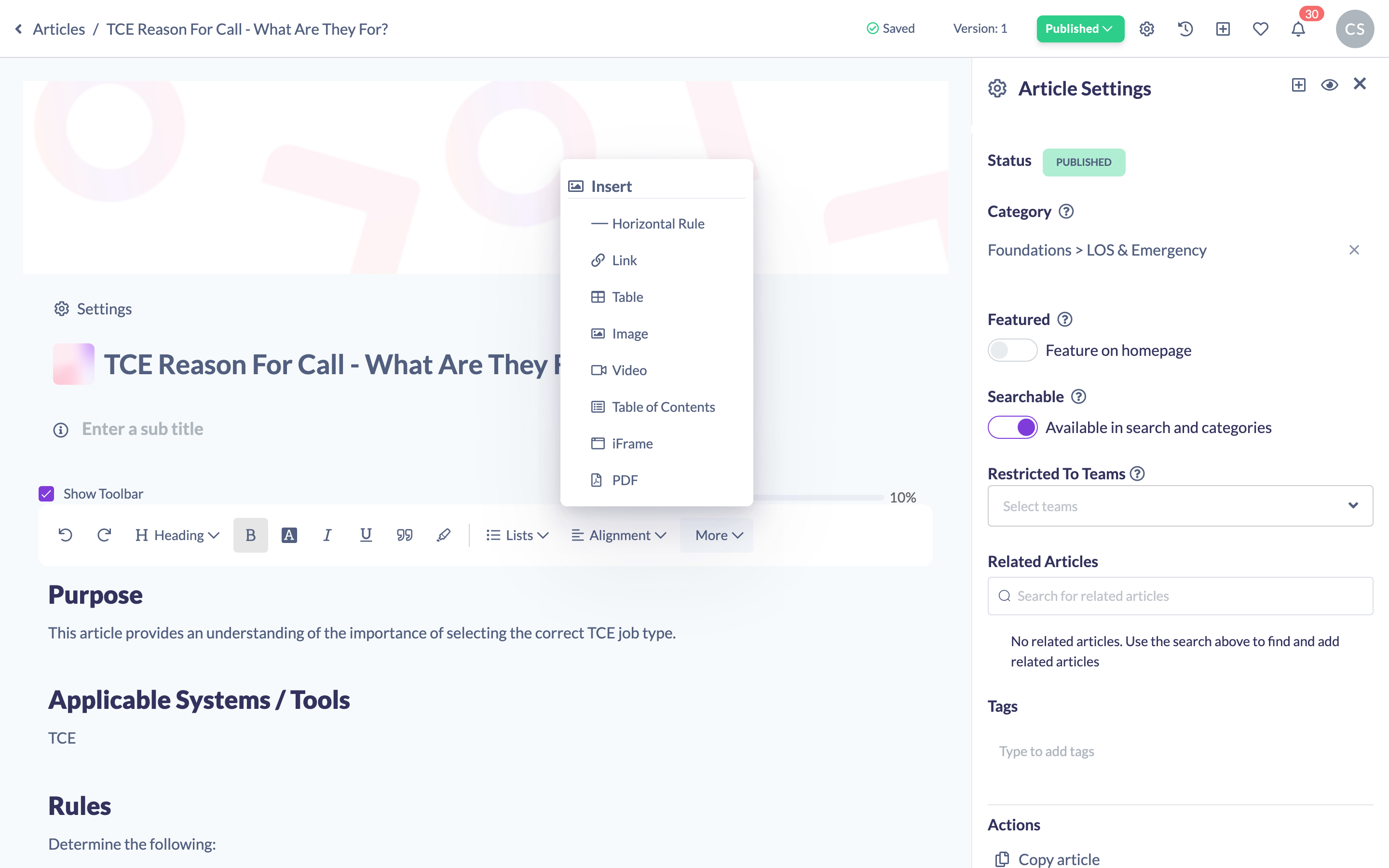
Knowledge articles are more engaging when they include visuals. From the article editor you can add images, embed videos, and drop in interactive content such as Genially experiences. Everything is added from the More menu in the editor toolbar, under its Insert section, and each item is inserted at your cursor so you can position it exactly where you want it.
Who can do this
Owners, Admins, Managers and Content Managers can create and edit Knowledge articles, so they can add images, videos and interactive elements. People Managers, Instructors, Employees and Restricted users have read-only access and cannot edit article content.
Adding an image
- Open the article in the editor, then place your cursor where you want the image.
- In the toolbar, click More, then choose Image.
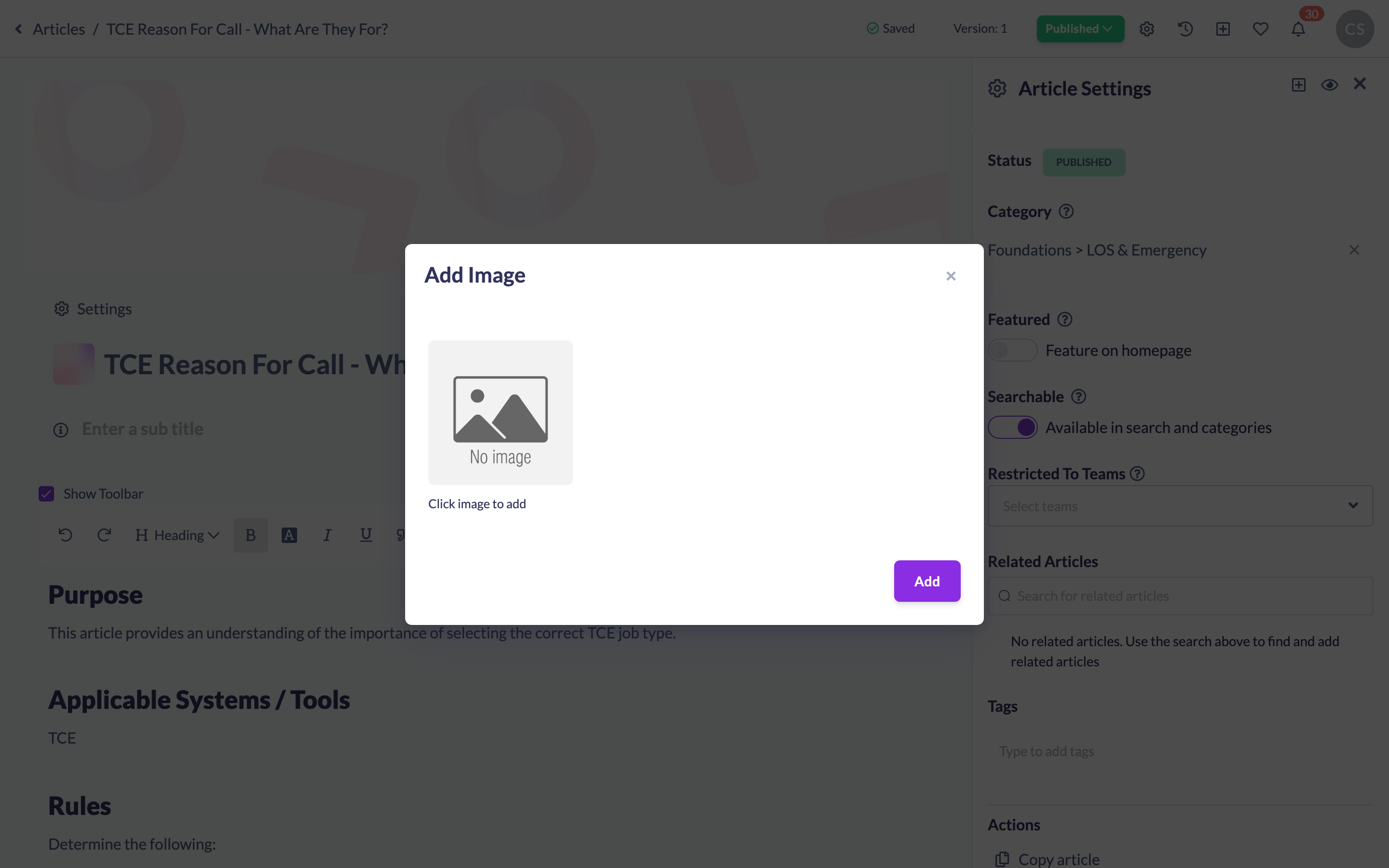
- In the Add Image window, search Unsplash for a free image or upload your own.
- Click Add.
- To resize the image, select it and drag the resize handle at its corner.
Good to know: You can also place an image inside a table cell.
Adding a video
- Place your cursor where you want the video, then click More in the toolbar and choose Video.
- Choose Upload video URL to paste a link, or Upload video to upload a file from your computer.
- For a link, paste the URL into the Link field.
- Click Add.

Note: Video links are supported from YouTube, Loom, Vimeo, Synthesia and Wistia.
Adding an interactive element
- Place your cursor where you want the element, then click More in the toolbar and choose iFrame.
- In the Insert iFrame Code window, either paste the embed URL into the Iframe URL field (and set a height), or paste the full embed code into the Iframe code box.
- Click Add.
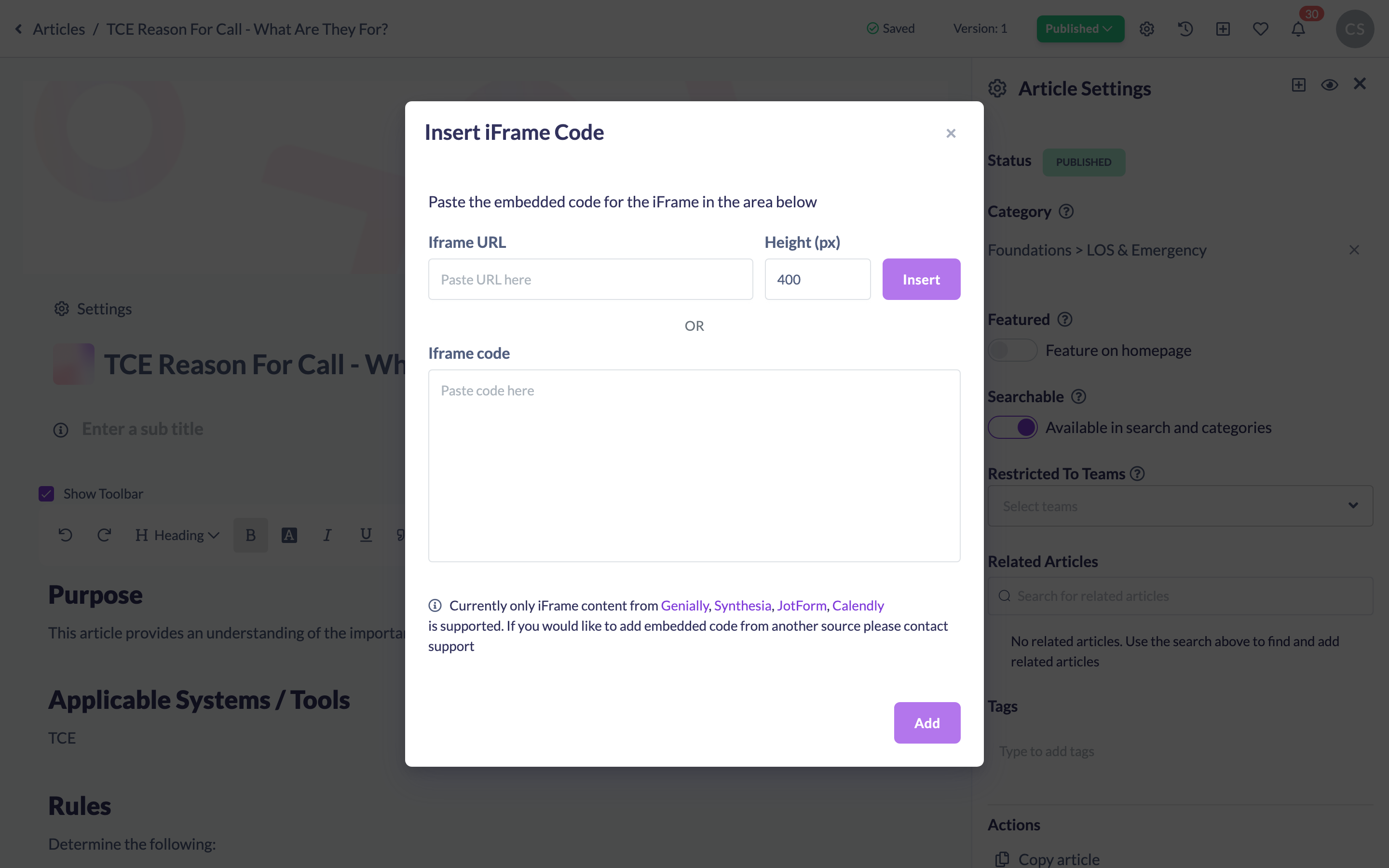
Note: Interactive embeds are supported from Genially, Synthesia, JotForm and Calendly. If you would like to embed content from another source, please contact support.
Things to keep in mind
- The More menu's Insert section also lets you add tables, PDFs, links, horizontal rules and a table of contents.
- On a very wide screen, Insert may appear as its own toolbar button instead of sitting under More — the items and modals are the same either way.
- Uploaded images must be a JPEG, JPG, PNG or GIF.
- Embedded content only loads from the supported sources listed above; other URLs and embed code are rejected.
FAQs
Which video services can I embed?
You can embed videos from YouTube, Loom, Vimeo, Synthesia and Wistia, or upload a video file directly.
Can I embed interactive tools other than Genially?
Yes. Genially, Synthesia, JotForm and Calendly are all supported. For anything else, contact support.
Updated on: 25/07/2026
Thank you!