
How to Add a PDF to the Knowledge Base
How to Add a PDF to the Knowledge Base
In this article:
- Overview
- Import a PDF as a Knowledge Article
- Embed a PDF inside an article
- Things to keep in mind
- FAQs
- Who can do this
Overview
There are two ways to bring a PDF (or Word document) into SuperPath's Knowledge base, depending on what you want to end up with. Use Import when you want the document turned into an editable Knowledge Article — SuperPath extracts the text and uses AI to format it for readability while keeping your original wording. Alternatively, you can embed a PDF directly inside an article, so learners read the original file inline without it being converted. This article covers both.
Import a PDF as a Knowledge Article
Use this when you want existing documents — policies, SOPs, guides, reference material — to become Knowledge Articles you can edit, tag and publish.
- In the sidebar, go to Knowledge.
- On the Knowledge hub, click Manage Articles.
- Click the Create article button and choose Import from the dropdown.
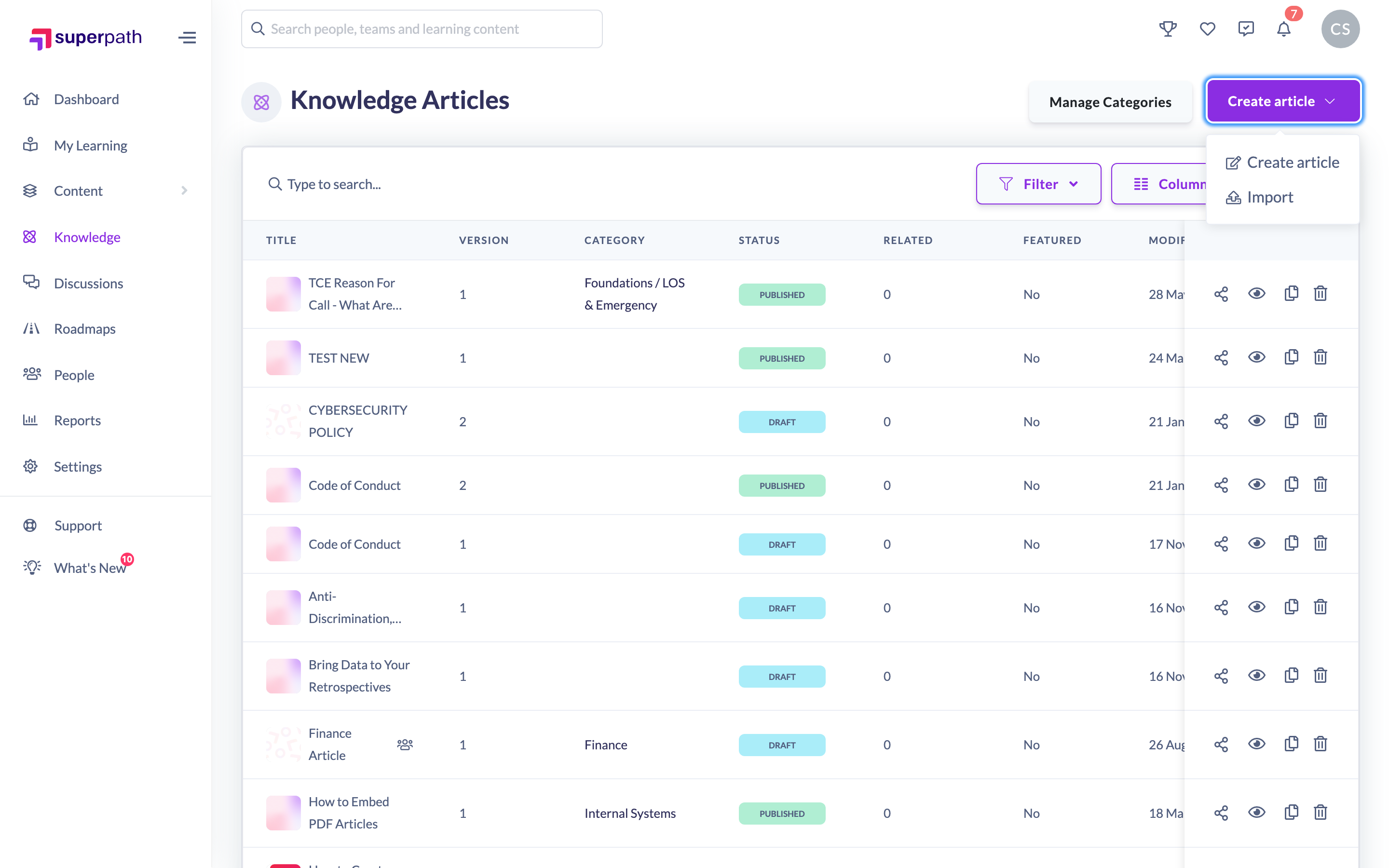
- In the Import window, add your files — you can upload up to 10 files at a time. Supported formats are PDF, DOC, DOCX, TXT and MD.
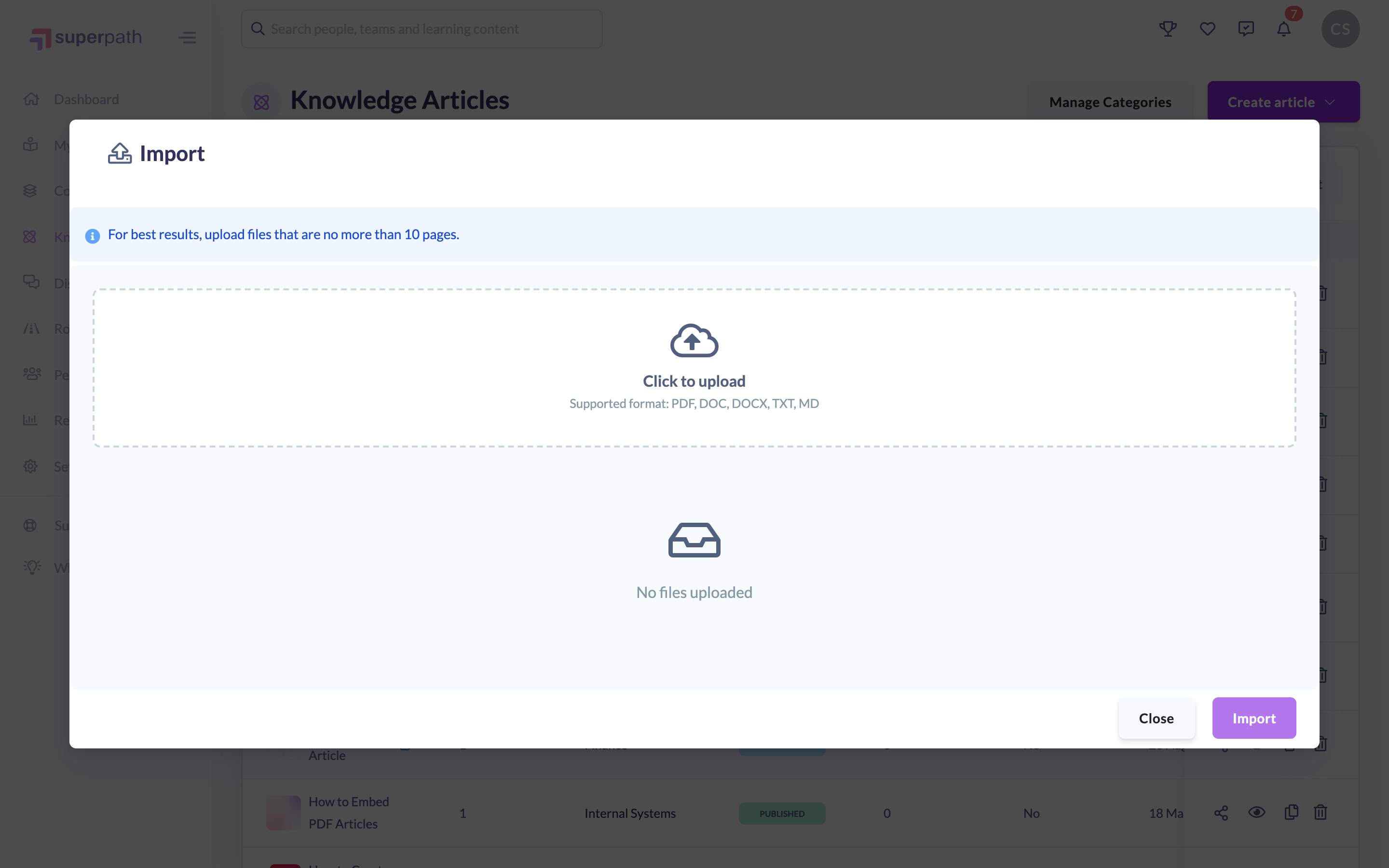
- Click Import. SuperPath uploads each file, extracts the text, and uses AI to structure it into a clean, readable article. Your original wording is preserved — the AI formats the content into headings, paragraphs and lists rather than summarising or rewriting it.
- Wait while the files process — progress is shown as each file is handled, and this may take a little time. When it finishes, your new articles appear as drafts in the Knowledge list.
- Open each new article to review the content, adjust formatting, add a category or tags, and publish when you're ready.
Tip: For best results, keep each document to around 10 pages or fewer, and make sure the PDF contains selectable text (not just scanned images). If you're importing a large backlog, split it into batches of up to 10 files.
Embed a PDF inside an article
Use this when you want to keep the original PDF intact and let learners read it inside an article — for example a form, a printable checklist or a document you don't want reformatted.
- Open the article in the editor — from Knowledge → Manage Articles, open an existing article or create a new one.
- In the editor toolbar, open the insert menu and choose PDF.
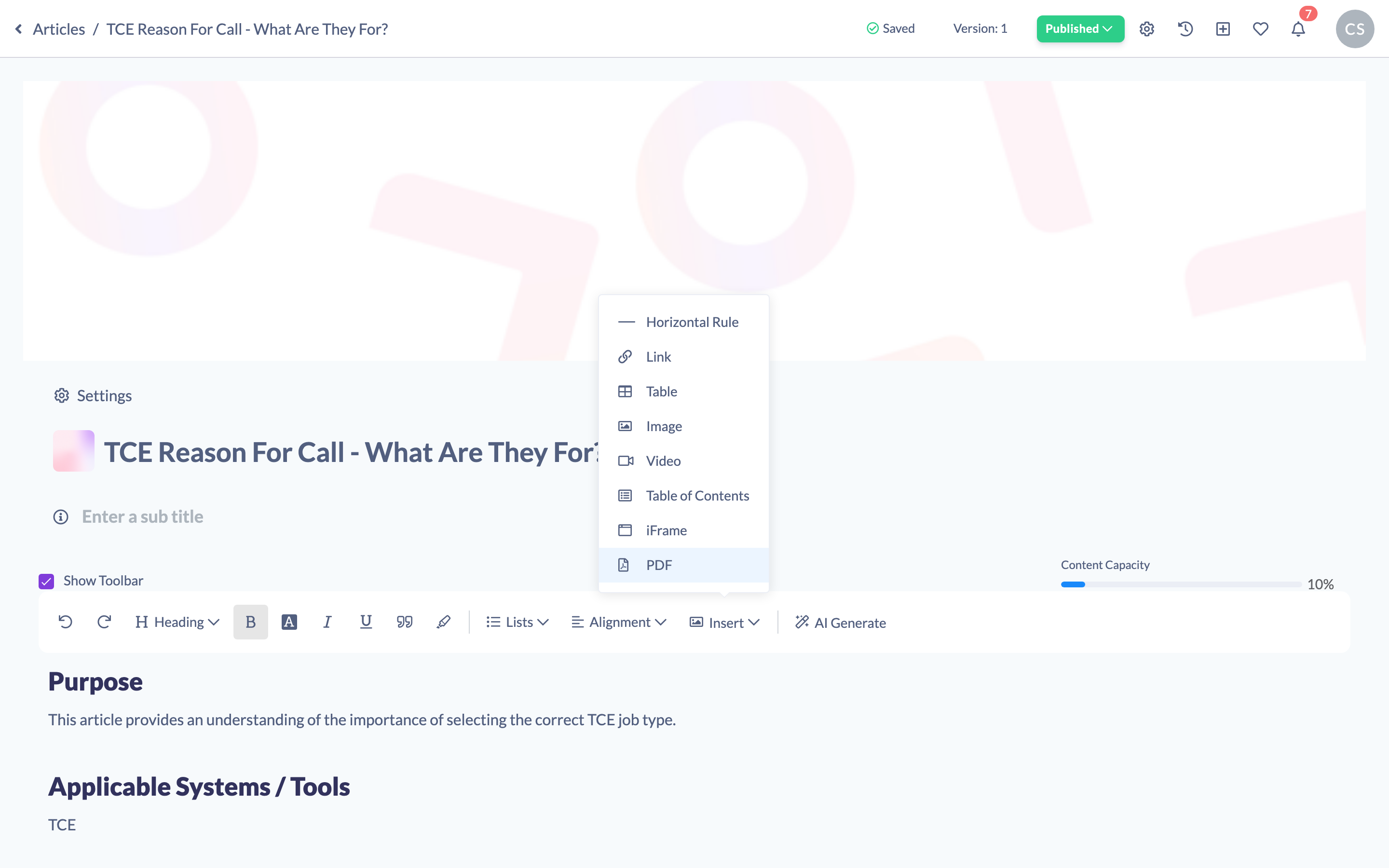
- Upload your .pdf file. Once uploaded, the PDF is embedded inline as a viewer, so learners can read it without leaving the article.
- Continue editing, then publish the article as usual.
Things to keep in mind
- Importing uses AI to format your content. It is instructed to keep your wording verbatim, but it is still an automated transform — always review each imported article before publishing.
- The ~10-page guidance is advisory. Very long documents may have their content truncated during import, so shorter, well-structured files import most reliably.
- PDFs that are scanned images, encrypted, or contain almost no selectable text can fail to import, because there is no text to extract. Use a text-based PDF where possible.
- Import accepts PDF, DOC, DOCX, TXT and MD files, up to 10 per batch, with a maximum size of 1.5 GB per file.
- An embedded PDF is shown as an inline viewer within the article, not as a converted, editable article — it stays as the original file.
FAQs
What file types can I import?
PDF, DOC, DOCX, TXT and MD. You can add up to 10 files in a single import.
Does the AI change my content when I import?
It reformats the text into headings, paragraphs and lists for readability and strips boilerplate such as page numbers, but it is instructed to keep your original wording rather than summarise or rewrite it. Review each article after import to be sure.
My PDF failed to import — why?
The most common cause is a PDF that is scanned, image-only or encrypted, so SuperPath can't extract any text from it. Try a text-based version of the document.
Should I import the PDF or embed it?
Import when you want the content as an editable Knowledge Article. Embed when you want learners to view the original PDF unchanged inside an article.
Who can do this
Owners, Admins, Managers and Content Managers can import and embed PDFs in the Knowledge base. People Managers, Instructors, Employees and Restricted users have read-only access to Knowledge and cannot.
Updated on: 16/07/2026
Thank you!