
Edit Knowledge Category
Edit Knowledge Category
In this article:
- Overview
- Edit a category
- Things to keep in mind
- FAQs
- Who can do this
Overview
Knowledge categories organise your articles and give learners a clear way into your content. Editing a category lets you keep it accurate over time — you can update its name and description, move it under a different parent, change its icon or image, and control whether it appears on the Knowledge Homepage. This article explains how. To create a new category instead, see Create Knowledge Categories.
Edit a category
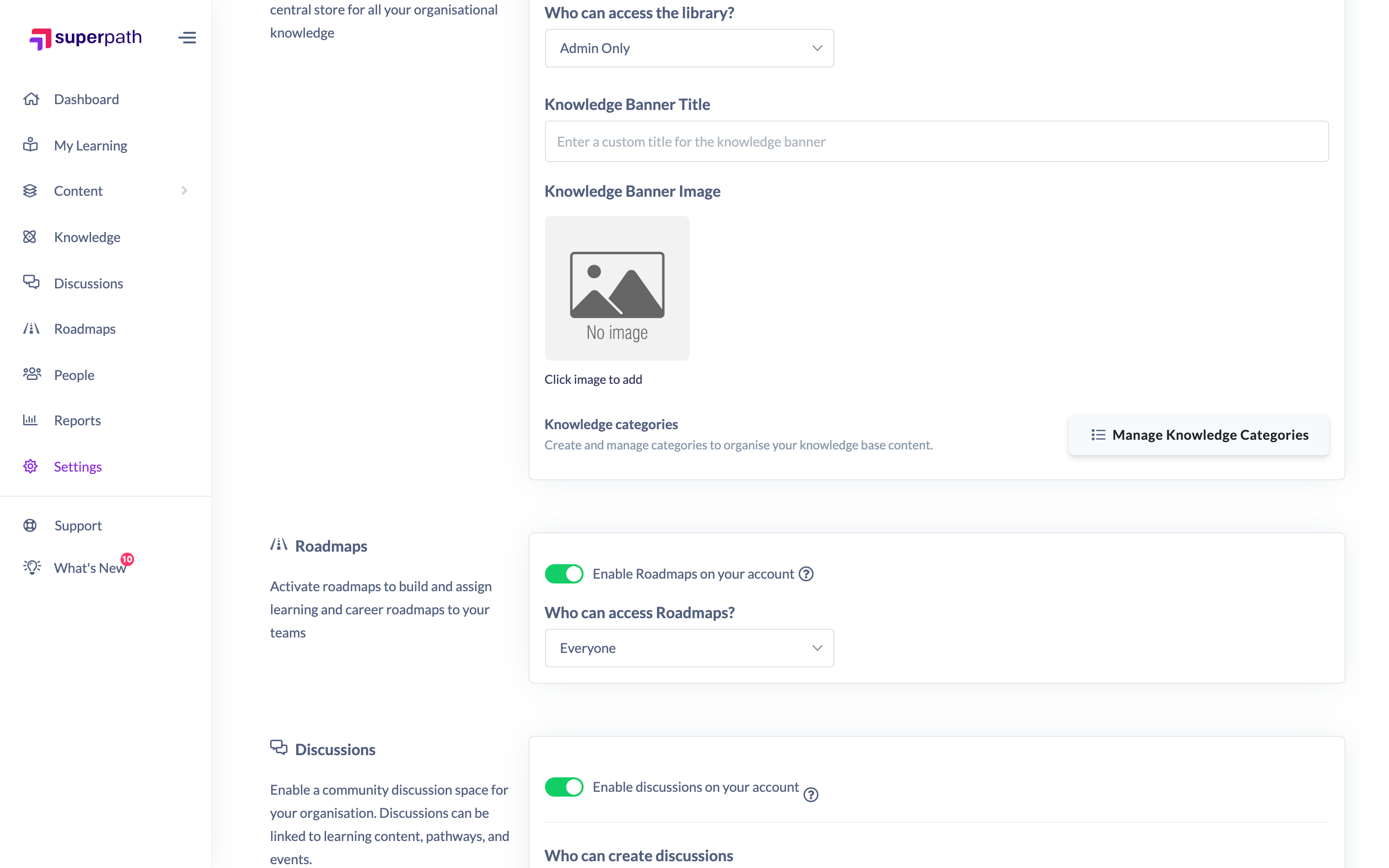
- Go to Settings → Features.
- In the Knowledge categories section, click Manage Knowledge Categories.
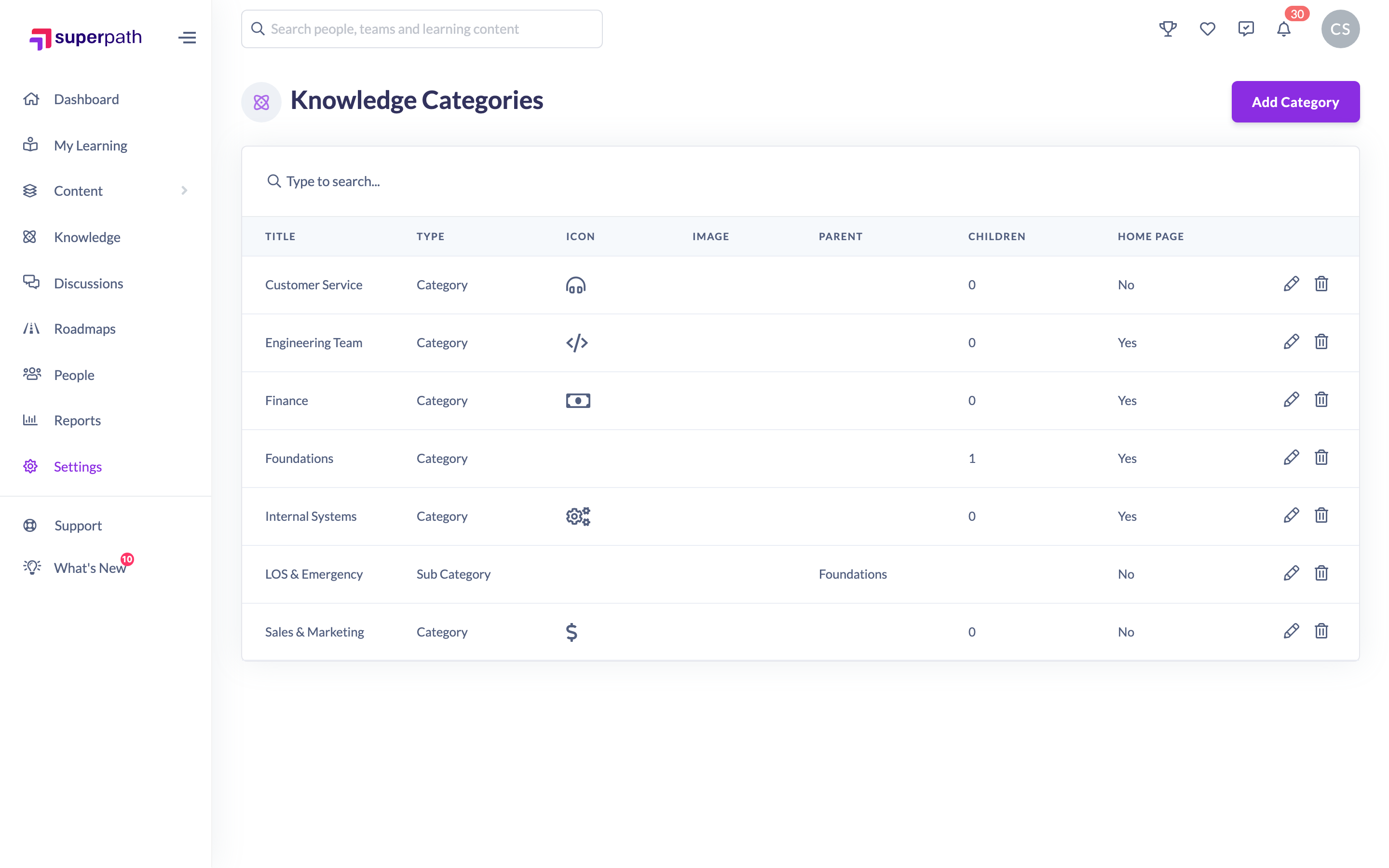
- In the categories table, find the category you want to change.
- In that row, click the pencil icon (tooltip Edit Category) to open it in edit mode.
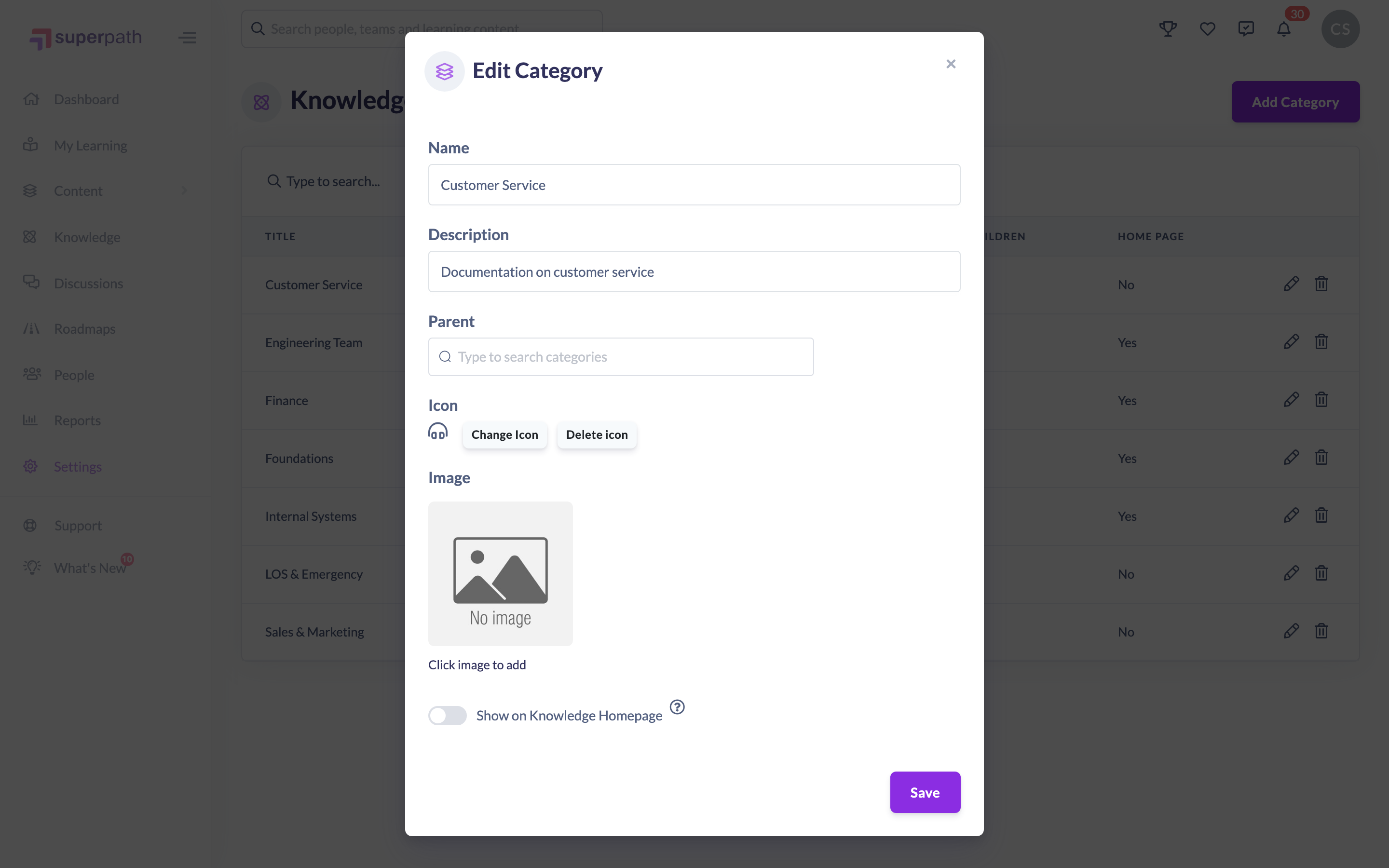
- In the Edit Category window, update any of the fields you need:
- Name and Description — the category's title and summary.
- Parent — search for and select a parent category to make this a sub-category, or remove the parent to make it a top-level category.
- Icon — click Select icon or Change icon to choose an icon.
- Image — click the image to choose one from Unsplash, your Library or Canva, or to upload your own.
- Show on Knowledge Homepage — turn this on to display the category on your Knowledge Homepage, or off to hide it.
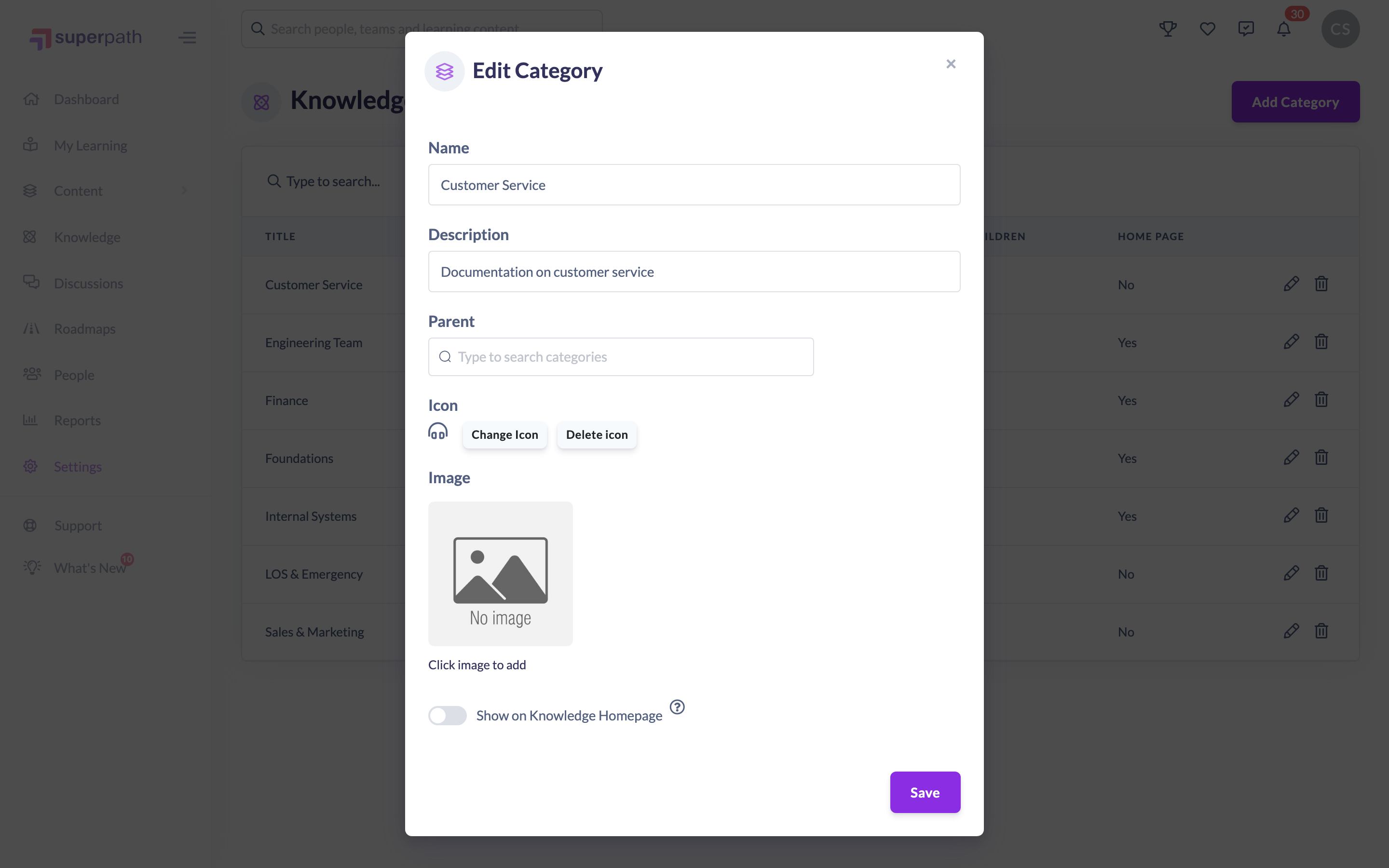
- Click Save to apply your changes.
Note: Category management lives under Settings, which only Owners and Admins can open. A Manage Categories button also appears on the Knowledge Articles list, but it links to the same Settings screen, so other roles can't use it to reach it.
Things to keep in mind
- Knowledge categories can only be managed on a desktop or tablet, not on a mobile device.
- Setting a Parent turns the category into a sub-category filed under that parent; removing it makes the category top-level again.
- Turning off Show on Knowledge Homepage hides the category from the homepage without deleting it or its articles.
FAQs
How do I make a category a sub-category?
Open the category, set a Parent in the Edit Category window, and save. The category is then filed under the parent you chose.
How do I stop a category showing on the homepage?
Edit the category, turn off the Show on Knowledge Homepage toggle, and save. The category stays in place but no longer appears on the homepage.
Where do I edit categories?
Under Settings → Features → Manage Knowledge Categories.
Who can do this
Owners and Admins can edit Knowledge categories. Although Managers and Content Managers can create and edit Knowledge articles, category management sits under Settings, which is restricted to Owners and Admins — so Managers, Content Managers, People Managers, Instructors, Employees and Restricted users cannot edit categories.
Updated on: 25/07/2026
Thank you!