
How to Start a Discussion
How to Start a Discussion
In this article:
- Overview
- How to start a discussion
- Things to keep in mind
- FAQs
- Who can do this
Overview
Discussions give your organisation a place to ask questions, share ideas and talk about learning together. Starting a discussion creates a new thread on the Discussions hub that others can read, comment on and react to. This article covers the core details — the title, opening statement, category and tags. Polls, linked learning and access restrictions each have their own article.
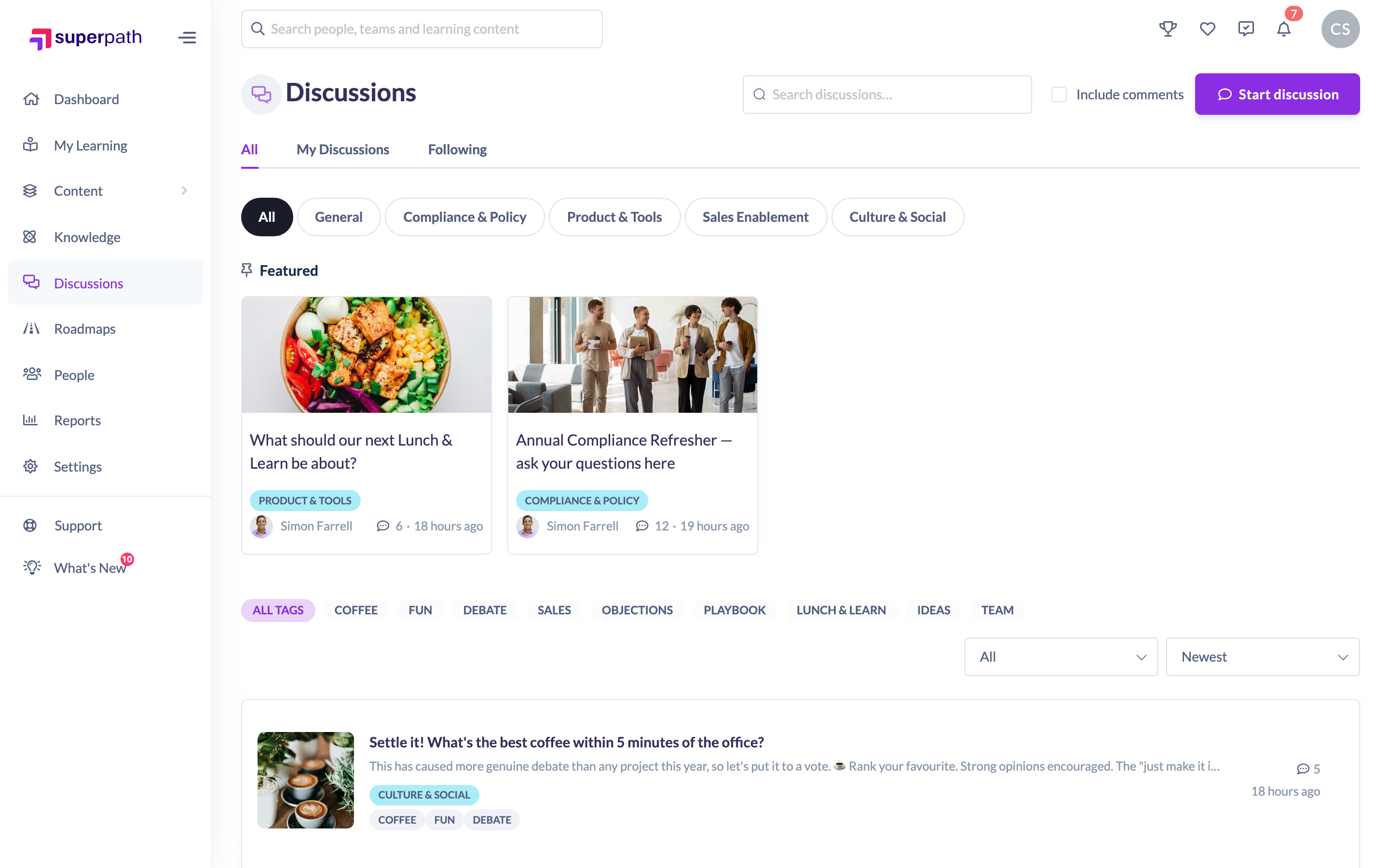
How to start a discussion
- Go to Discussions in the main navigation (the
/discussionshub). - Click Start discussion in the top right. A New discussion panel slides in from the right.
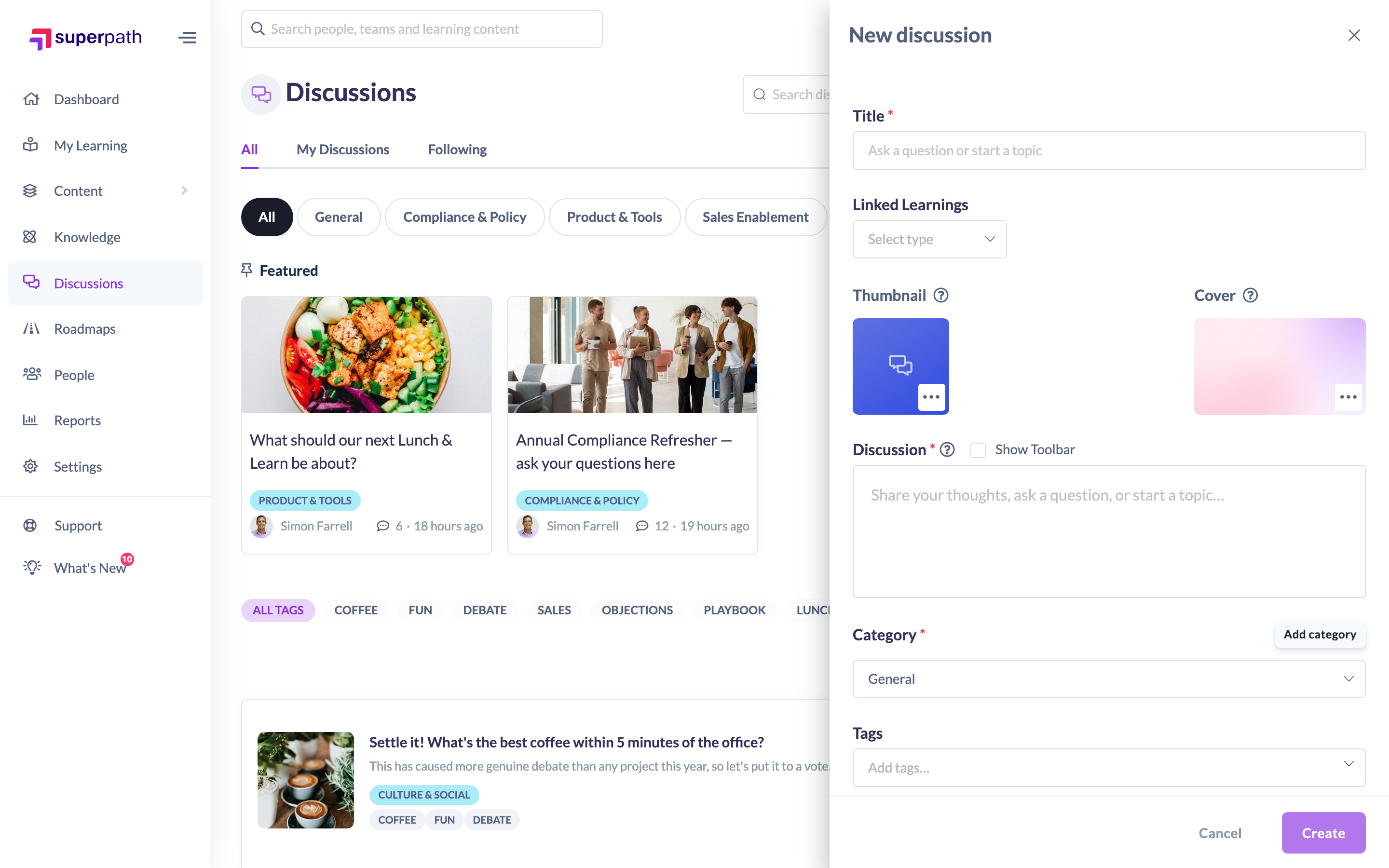
- In Title, enter a clear headline for your thread. The title must be between 5 and 140 characters — the placeholder suggests "Ask a question or start a topic".
- In the opening statement, write the body of your discussion. This is a rich-text field and must be at least 10 characters.
- Choose a Category from the dropdown. If your organisation has a default category set, it is selected for you automatically.
- (Optional) Add Tags to help people find your discussion. You can add up to 8 tags, either choosing from the suggested list or typing your own.
- (Optional) Add a thumbnail or cover image, link the discussion to a learning item, add a poll, or restrict who can see it — see the related articles below.
- Click Create. You'll see a "Discussion created successfully" confirmation and the new thread appears on the hub.
Tip: By default a new discussion is Open to everyone in your organisation. Change the Access type before creating it if you want to limit who can see it.
Things to keep in mind
- The title must be 5–140 characters and the opening statement at least 10 characters, or the Create button stays disabled.
- A category is required when your organisation has categories set up. If none exist yet, you can create the discussion without one.
- You can add a maximum of 8 tags per discussion. Tags are stored in lower case and duplicates are removed automatically.
- The Start discussion button on the hub is only shown to certain roles — see Who can do this below. Learners can start discussions from a linked learning item's Discussions panel if your organisation allows it.
FAQs
How long can the title be?
Between 5 and 140 characters. Anything shorter or longer is rejected before you can create the discussion.
Do I have to pick a category?
Only if your organisation has categories set up. When categories exist you must choose one; a default is pre-selected if your admin has configured one.
Can I change the details after creating a discussion?
Yes. Open the discussion and click Edit — see "How to Edit a Discussion".
Who can see my discussion?
That depends on the Access type you choose: Open (everyone in your organisation), Invite-only (only people you invite) or Team-only (members of selected teams).
Who can do this
On the Discussions hub, the Start discussion button is shown to Owners, Admins and Managers. This hub button is a fixed rule and does not follow your organisation's "who can create discussions" setting. Other roles — including Content Managers, People Managers, Instructors and Employees — can still start discussions from a learning item's in-context Discussions panel when your organisation's setting allows it (see "How to Start a Discussion From a Course or Pathway Page"). Restricted users can never start a discussion on any surface.
Updated on: 16/07/2026
Thank you!