
Certificates Report
Certificates Report
In this article:
- Overview
- How to run the report
- What the report shows
- Exporting and saving
- Things to keep in mind
- FAQs
- Who can do this
Overview
The Certificates Report focuses on a single Certificate and lists everyone who has been awarded it, along with when it was awarded, when it expires, and whether it's still valid. It's the report to use when you want to check compliance for one specific Certificate — for example, "who currently holds a valid First Aid certificate?".
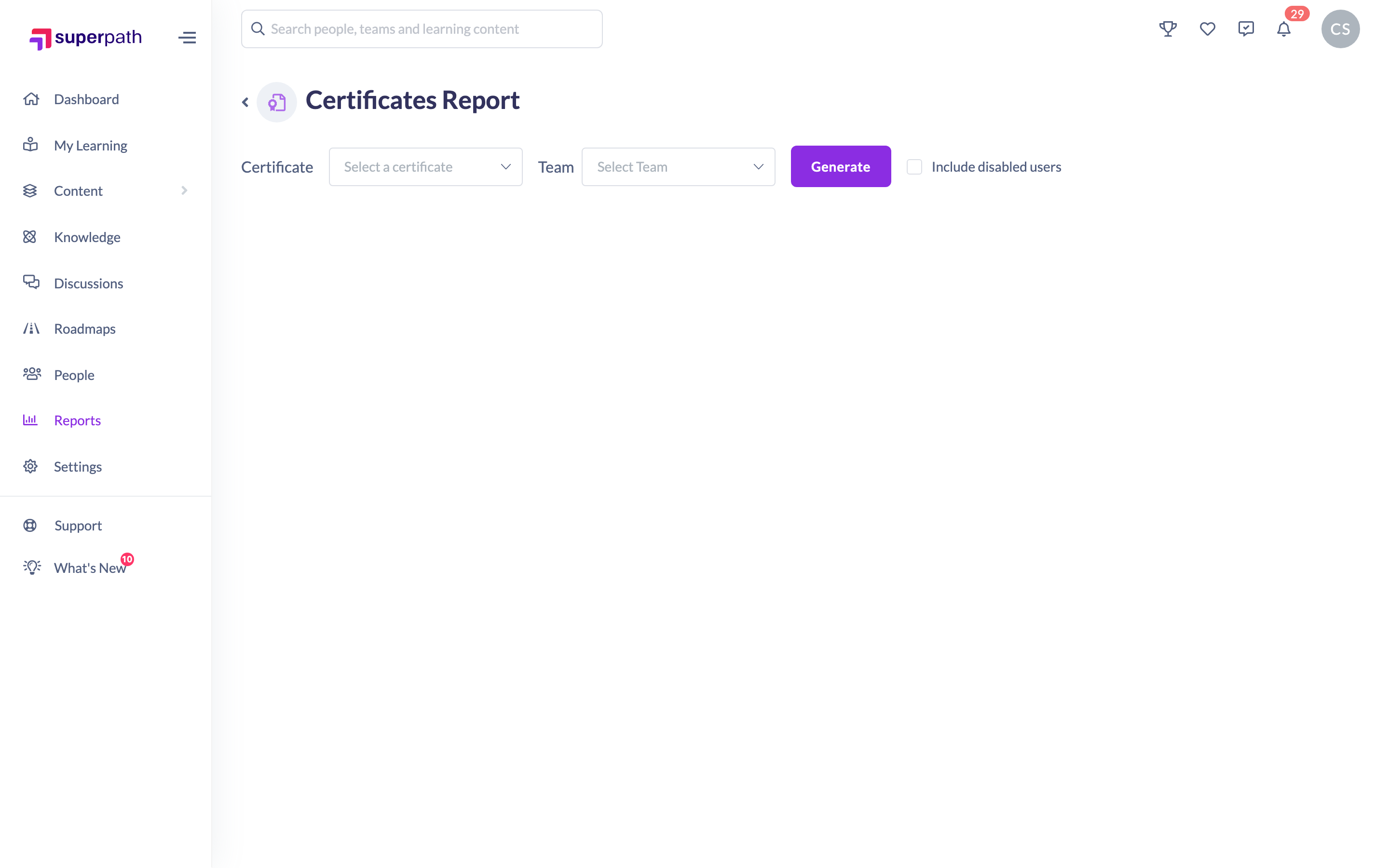
How to run the report
- In the left-hand menu, open Reports.
- On the Reports page, click the Certificates Report tile.
- Choose a Certificate from the Certificate dropdown.
- Optionally narrow the results with the Team dropdown — it defaults to All.
- Tick Include disabled users if you want disabled accounts included.
- Click Generate.
What the report shows
The results table lists each person who has been awarded the selected Certificate, with these columns:
- Title — the person's name (disabled accounts are badged).
- Awarded — the date the Certificate was awarded.
- Expires — the expiry date, where one is set.
- Status — Valid or Expired, based on the expiry date.
- File — a link to the Certificate file, where one is attached.
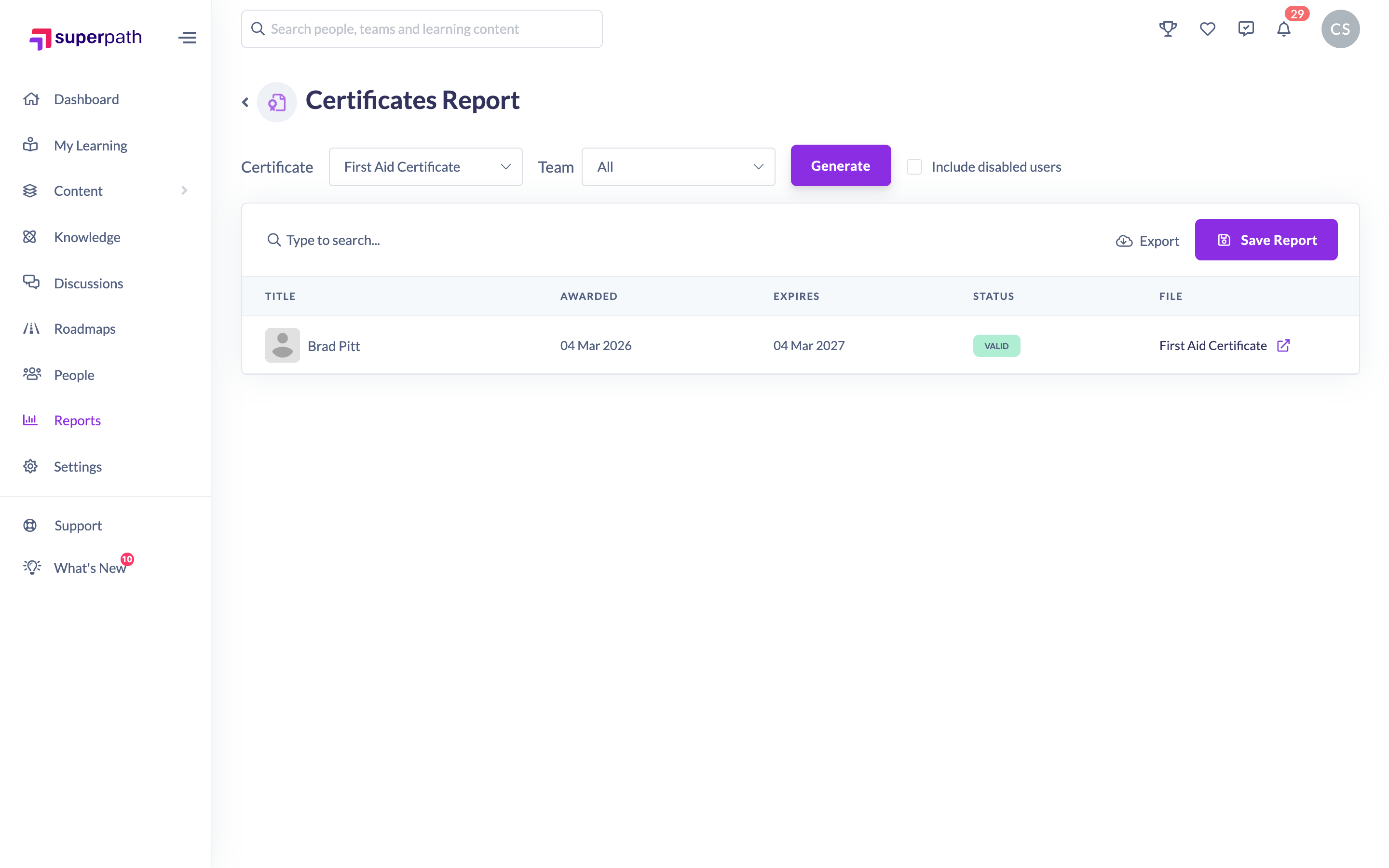
Use the search box above the table to filter by name, and sort by any column.
Exporting and saving
Once the report is generated you can:
- Export — click the Export button to choose which columns to include and download a CSV (see How to Export a Report to CSV and How to Choose Which Columns to Export). The export can include First Name, Last Name, Certificate, Description, Provider, URL, Date Awarded, Expired, Date Expires and Learning Content Title.
- Save — click Save Report, give it a name you'll recognise in the Saved Reports tab, and click Save so you can reopen it later (see How to Save a Report).
Things to keep in mind
- The report covers one Certificate at a time. To compare several Certificates across people, use the Certificate Matrix Report instead.
- Whether a person shows as Valid or Expired depends on the Certificate's expiry date; Certificates with no expiry date stay valid.
- Managers and People Managers can only report on their own Teams; Owners and Admins can select any Team.
FAQs
How is this different from the Certificate Matrix Report?
This report looks at one Certificate and everyone who holds it. The Certificate Matrix compares many people against many Certificates at once in a grid.
Someone has the Certificate but isn't listed — why?
Check the Team filter (set it to All) and, if the person's account is disabled, tick Include disabled users. Managers and People Managers only see people in the Teams they manage.
Can I open the Certificate file?
Yes — where a file is attached, the File column links to it.
Who can do this
The Certificates Report is reached from the Reports page, which is available to Owners, Admins, Managers and People Managers; the report tile also requires Certificates to be enabled for your platform. Managers and People Managers can only report on their own Teams, while Owners and Admins can select any Team. Content Managers, Instructors, Employees and Restricted users don't have access to the Reports area.
Updated on: 24/07/2026
Thank you!