
Skills Matrix Report
Skills Matrix Report
In this article:
- Overview
- Running the report
- Reading the matrix
- Editing, exporting and saving
- Things to keep in mind
- FAQs
- Who can do this
Overview
The Skills Matrix Report shows, at a glance, which of your people hold which Skills. You choose the people or Teams to include and the Skills to check, and SuperPath builds a grid showing who has each Skill and who doesn't — ideal for spotting gaps and planning development.
Running the report
- Go to Reports in the left-hand menu (the New Reports tab).
- Click the Skills Matrix card.
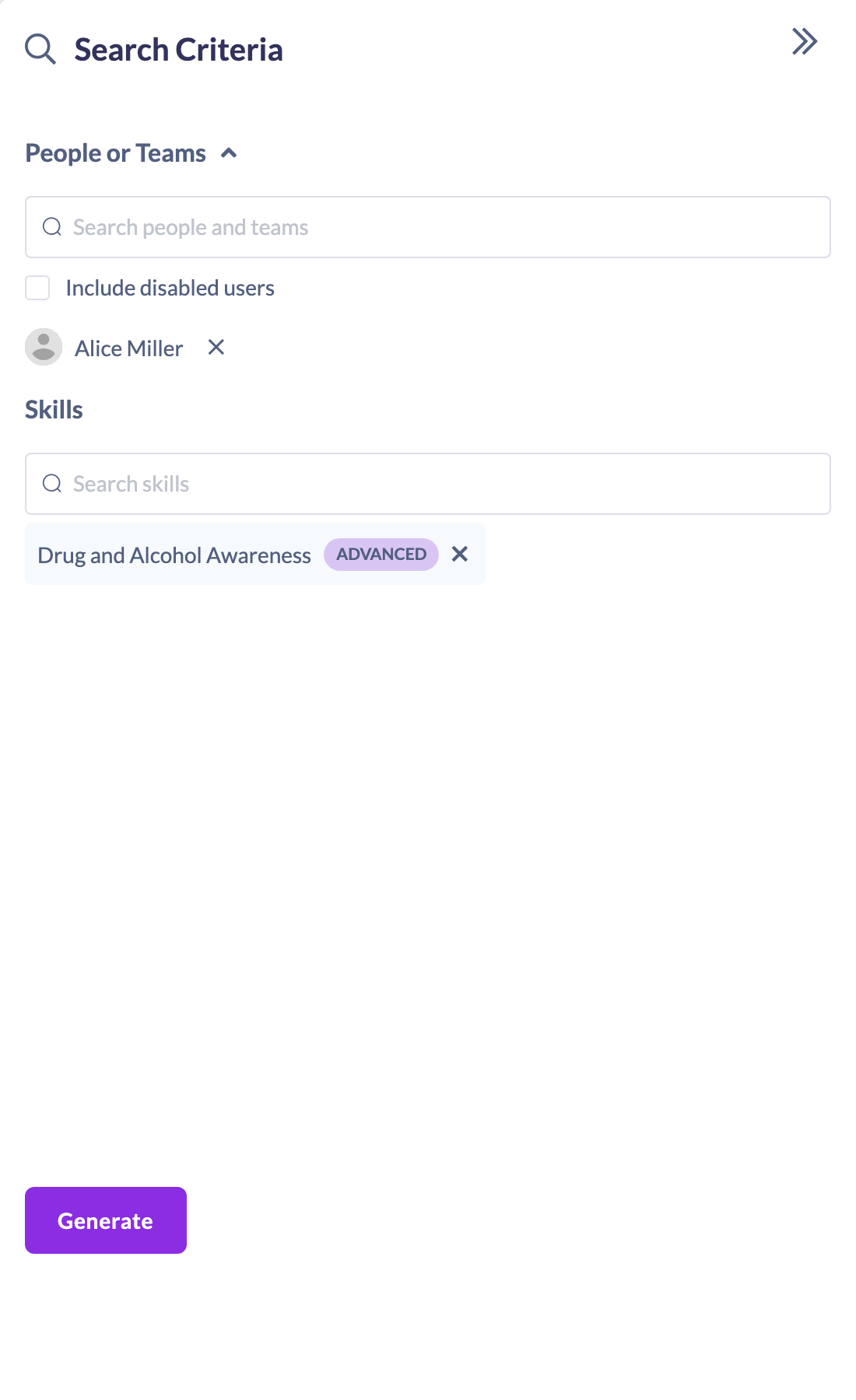
- In the Search people and teams box, add the people and/or Teams you want to report on. Each one appears below as a removable chip, so you can build up the exact group you need.
- Tick Include disabled users if you want deactivated people counted too.
- Under Skills, start typing a Skill and click it to add it. Add as many Skills as you want to check.
- Click Generate.
Reading the matrix
The report lists everyone in your selection down the side and the chosen Skills across the top. Each cell shows the person's status for that Skill:
- A green tick — Has skill.
- A red cross — Does not have skill.
A legend above the matrix shows the same key. You can search within the results to find a specific person.

Editing, exporting and saving
- Click Edit to reopen the criteria panel and change the people, Teams or Skills, then click Generate again to refresh the matrix.
- Click Export to download the data as a CSV. You'll first choose which columns to include, then the file is saved to your Downloads folder (see How to Choose Which Columns to Export).
- Click Save Report to store the report's settings so you can run it again later. Give it a name you'll recognise on the Saved Reports tab, then click Save.

Things to keep in mind
- You need at least one person or Team and at least one Skill selected before Generate becomes available.
- The matrix reflects Skills held at the moment you generate it — re-generate to pick up recent changes.
- A saved report stores its criteria, not a snapshot, so re-opening it re-runs against live data.
FAQs
Can I mix individuals and whole Teams?
Yes. Add any combination of people and Teams in the Search people and teams box; everyone in the selection appears in the matrix.
What do the tick and cross mean?
A green tick means the person holds that Skill; a red cross means they don't. The legend above the matrix shows the key.
Can I change the report after generating it?
Yes. Click Edit, adjust the people, Teams or Skills, then click Generate again.
Who can do this
Owners, Admins, Managers and People Managers can reach the Reports area and run the Skills Matrix Report. Content Managers, Instructors, Employees and Restricted users do not have access to the Reports area.
Updated on: 24/07/2026
Thank you!