
How to Comment on Superpath Dashboard
How to Comment on the SuperPath Dashboard
In this article:
- Overview
- How to star a post
- How to comment on a post
- How to enable comments
- Showing only team-related activity
- Things to keep in mind
- FAQs
- Who can do this
Overview
The activity feed on your dashboard is a social space where learners can react to what's happening across your platform — someone joining, a completed learning, a finished Pathway. You can show appreciation by starring a post, and (when comments are enabled) join the conversation by commenting. This article covers both, plus how an Owner or Admin turns commenting on.
How to star a post
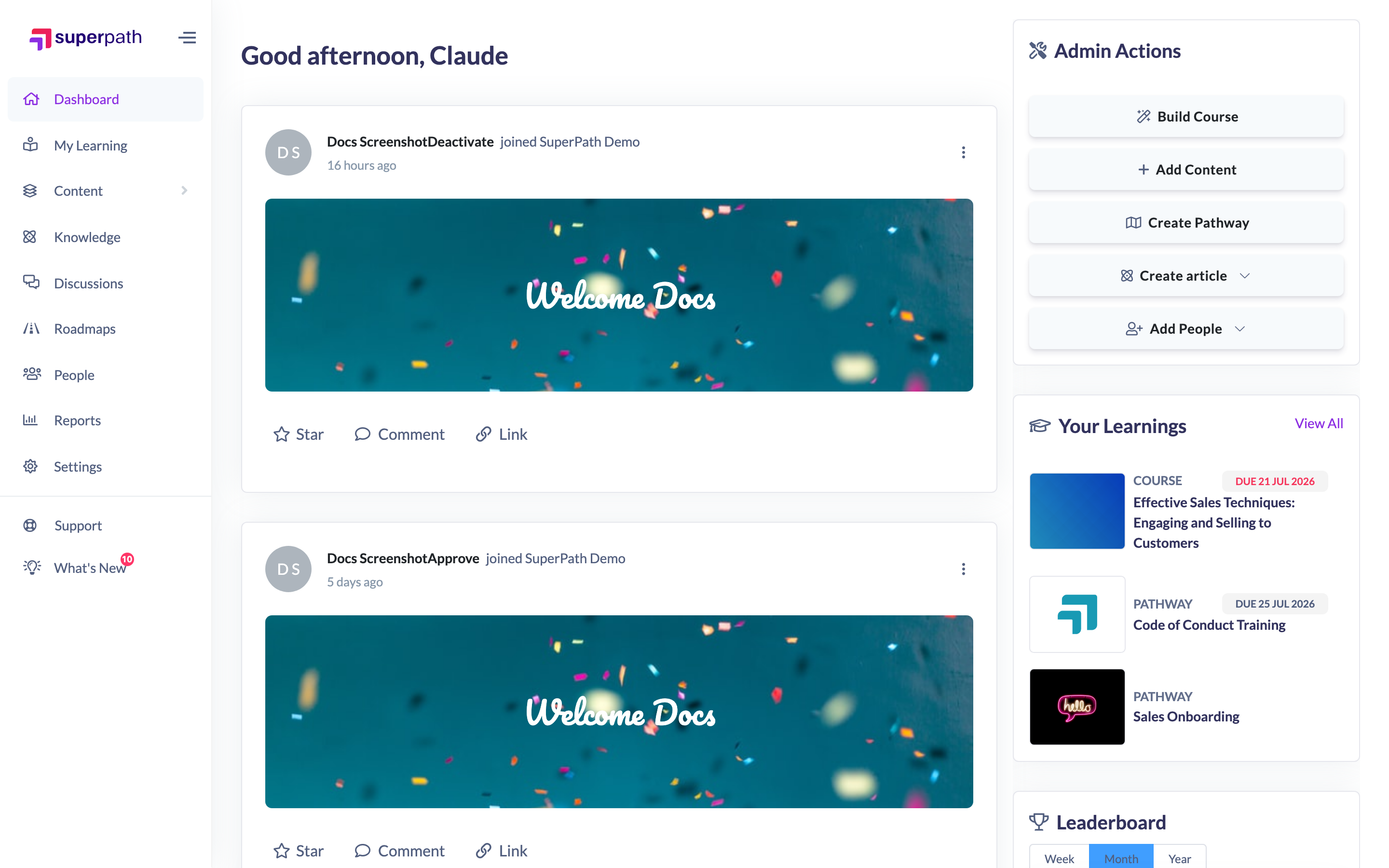
- Open your Dashboard from the left-hand menu and find a post in the activity feed.
- Click Star beneath the post to like it. The star fills in and the star count goes up by one. Click Star again to remove it.
Starring works on any post — a new employee joining, a completed learning, or a Pathway completion. For more detail, see How to Star (Like) an Activity Feed Post.
How to comment on a post
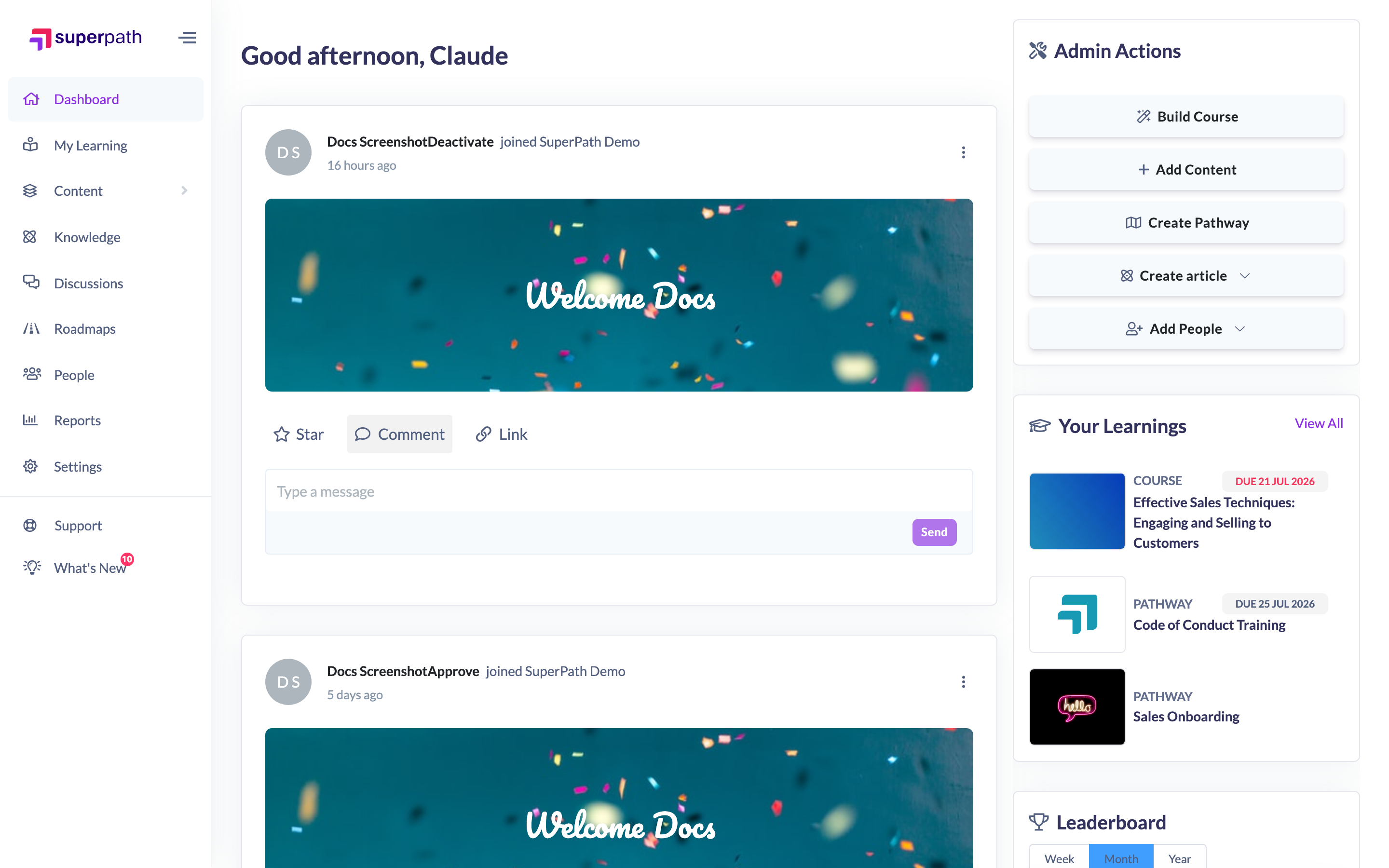
- Beneath a post, click Comment to open the message box.
- Type your comment in the Type a message box.
- Click Send.
You can comment on any post in the feed. Once posted, your comment appears under the post for others to see.
How to enable comments
If you can't see the Comment action, commenting may be switched off for your platform. An Owner or Admin can turn it on:
- Go to Settings → Features.
- In the Dashboard section, turn on Enable comments in the dashboard feed.
Once it's on, learners will see the Comment action under each post.

Showing only team-related activity
In the same Dashboard section of Settings → Features, you can choose to restrict the dashboard feed so it only shows activity relating to a learner's own team. You'll need teams set up for this to work — if a learner belongs to more than one team, the feed uses their first team alphabetically.
Things to keep in mind
- The activity feed only appears when the social feed is enabled for your platform, and commenting only appears when comments in the feed are enabled.
- Starring is always available wherever the feed is shown; commenting depends on the comments setting.
- The number next to a post is the total stars or comments from everyone, not just you.
FAQs
Why can't I see the Comment option?
Comments are probably switched off for your platform. An Owner or Admin can enable them under Settings → Features → Dashboard.
Is a star the same as a like?
Yes — a star is the feed's version of a like, and clicking it again removes your star.
Can I limit the feed to my team's activity?
Yes — an Owner or Admin can restrict the dashboard feed to team-related activity under Settings → Features. Teams must be set up for this to work.
Who can do this
Any signed-in user who can see the activity feed can star and comment on posts — that's all users with the dashboard and social feed enabled, except Restricted users, who are taken to My Learning instead. Commenting also needs comments to be enabled for your platform. Turning comments on, and restricting the feed to team-related activity, is done in Settings → Features — only Owners and Admins can change those settings.
Updated on: 24/07/2026
Thank you!