
Scheduled Learnings
Scheduled Learnings
In this article:
- Overview
- Opening the report
- Reading the list view
- Using the calendar view
- Things to keep in mind
- FAQs
- Who can do this
Overview
Scheduled Learnings shows every learning that has been set to assign automatically on a schedule — one-off or recurring — across your organisation. Use it to see what's coming up, who it's going to and whether each schedule is still active, in either a list or a calendar view.
Opening the report
- Go to Reports in the left-hand menu (the New Reports tab).
- Click the Scheduled Learnings card.
Reading the list view
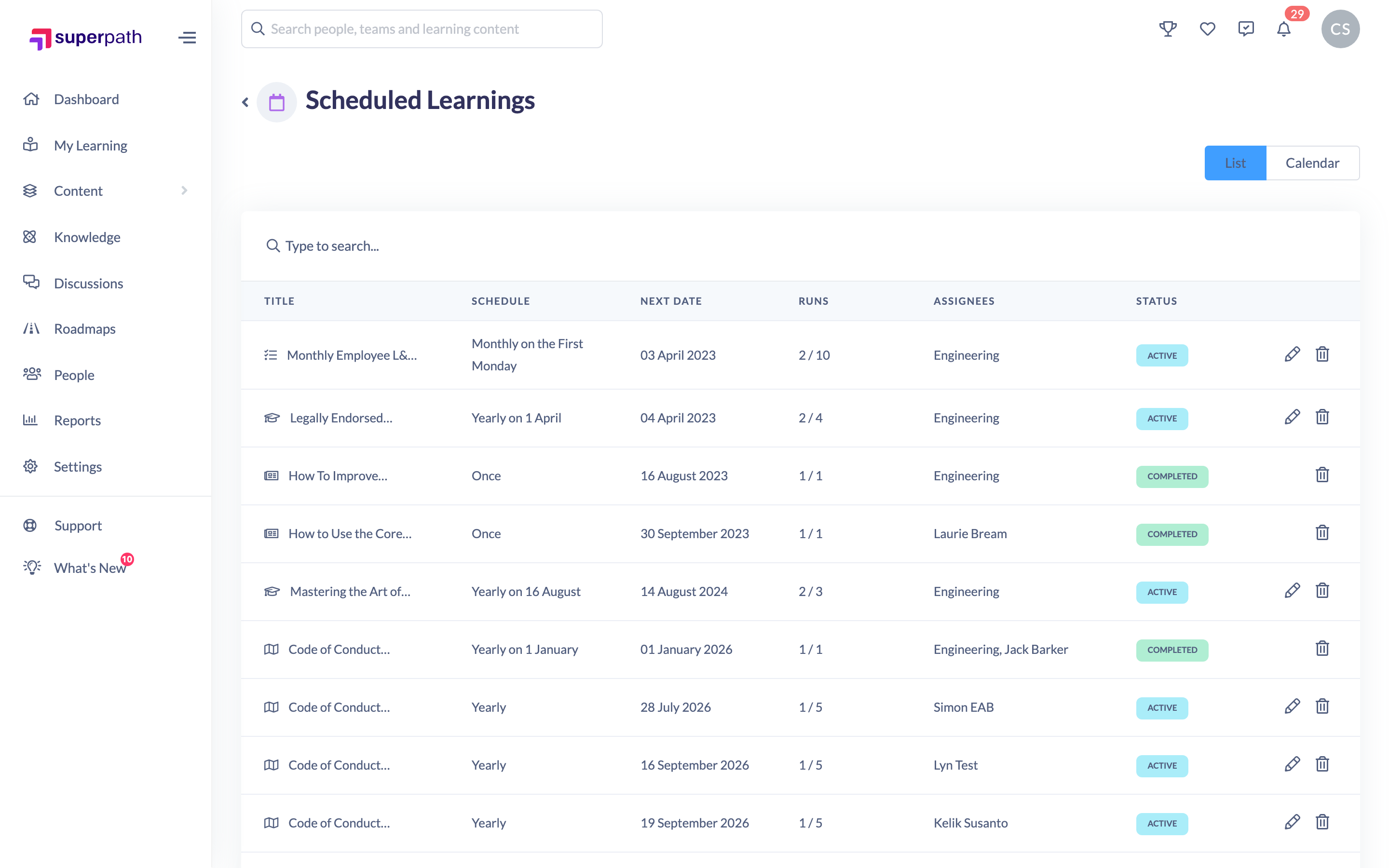
The list view shows every scheduled learning, with these columns:
- Title — the learning being scheduled.
- Schedule — whether it's a one-off or recurring, and how often it recurs.
- Next Date — the next date the learning is due to assign.
- Runs — how many times the schedule has run so far.
- Assignees — the individuals or Teams the learning is scheduled to.
- Status — whether the schedule is still active or has finished.
You can sort by any column and search to find a specific scheduled learning.
Using the calendar view
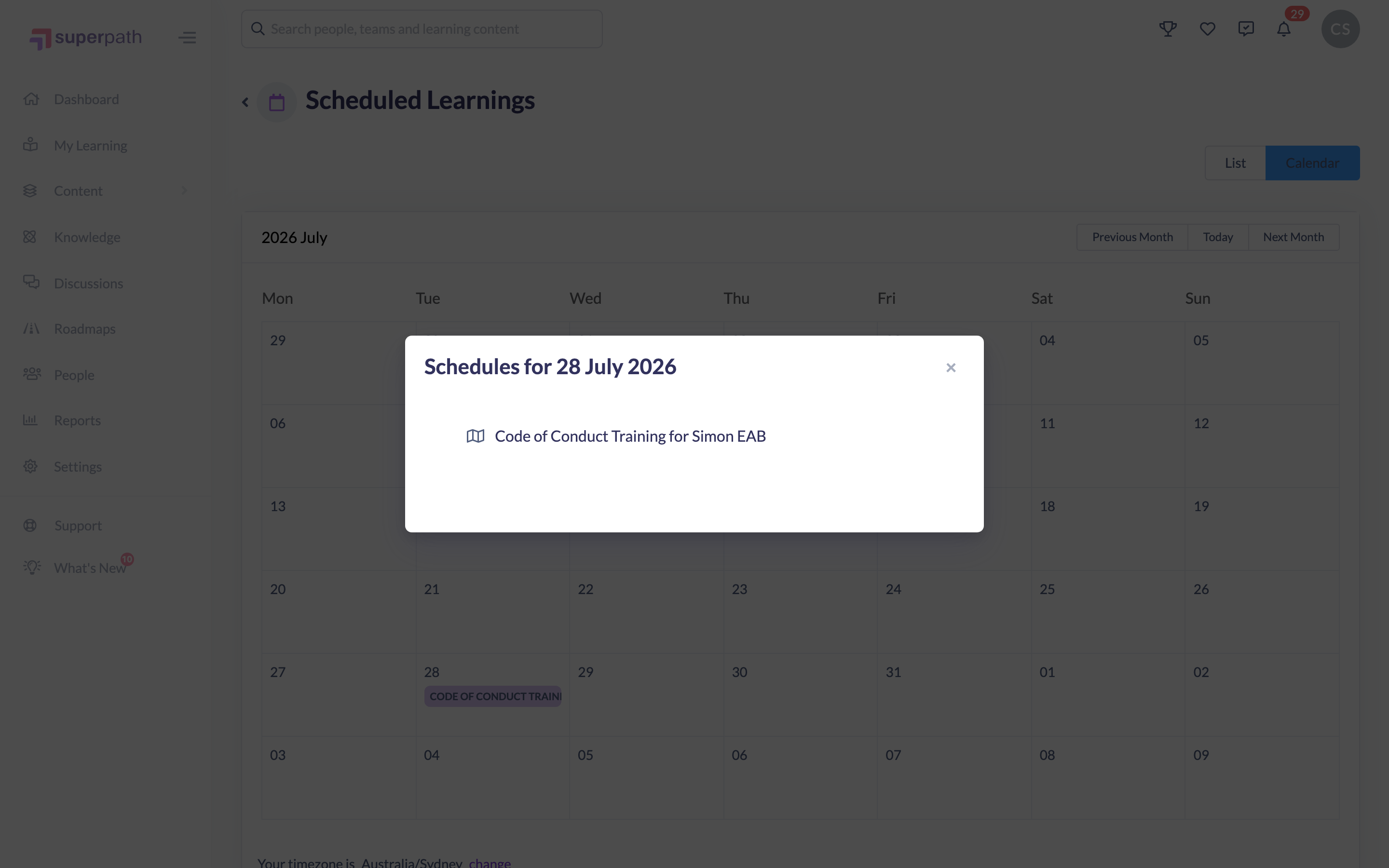
Switch to the calendar using the Calendar toggle above the list to see scheduled learnings laid out by month.
- Move between months with the calendar's Previous month, Today and Next month controls.
- Click a date that has a learning scheduled to open a panel listing what's scheduled that day, with a link through to each item.
Things to keep in mind
- Scheduled Learnings is a read-only overview of schedules that already exist — you set schedules up when assigning a learning, not from this report.
- Next Date shows the upcoming assignment date, so a recurring learning's date moves forward each time it runs.
- A schedule's Status shows as finished once its final occurrence has passed.
FAQs
Does this show one-off learnings too?
Yes. The Schedule column distinguishes one-off learnings from recurring ones and shows the recurrence frequency.
Can I see who a learning is scheduled to?
Yes. The Assignees column lists the individuals and Teams; hover for the full list where it's long.
What's the difference between the list and calendar views?
They show the same schedules — the list is best for scanning and sorting, the calendar for seeing what falls on a given day.
Who can do this
Owners, Admins, Managers and People Managers can reach the Reports area and view Scheduled Learnings. Content Managers, Instructors, Employees and Restricted users do not have access to the Reports area.
Updated on: 24/07/2026
Thank you!