
How to Add a Certificate to an Event
How to Add a Certificate to an Event
In this article:
Overview
A Certificate is awarded to a learner automatically when they complete an Event. Adding one is a great way to formally recognise attendance and give your learners something to show for the time they invested.
You create and attach the Certificate directly from the Event editor, so everything lives in one place.
Adding a certificate to an event
- Go to Events in the left-hand menu and open the Event you want to add a Certificate to.
- Scroll down to the Certificate section, marked with the certificate icon, and click the Certificate button.
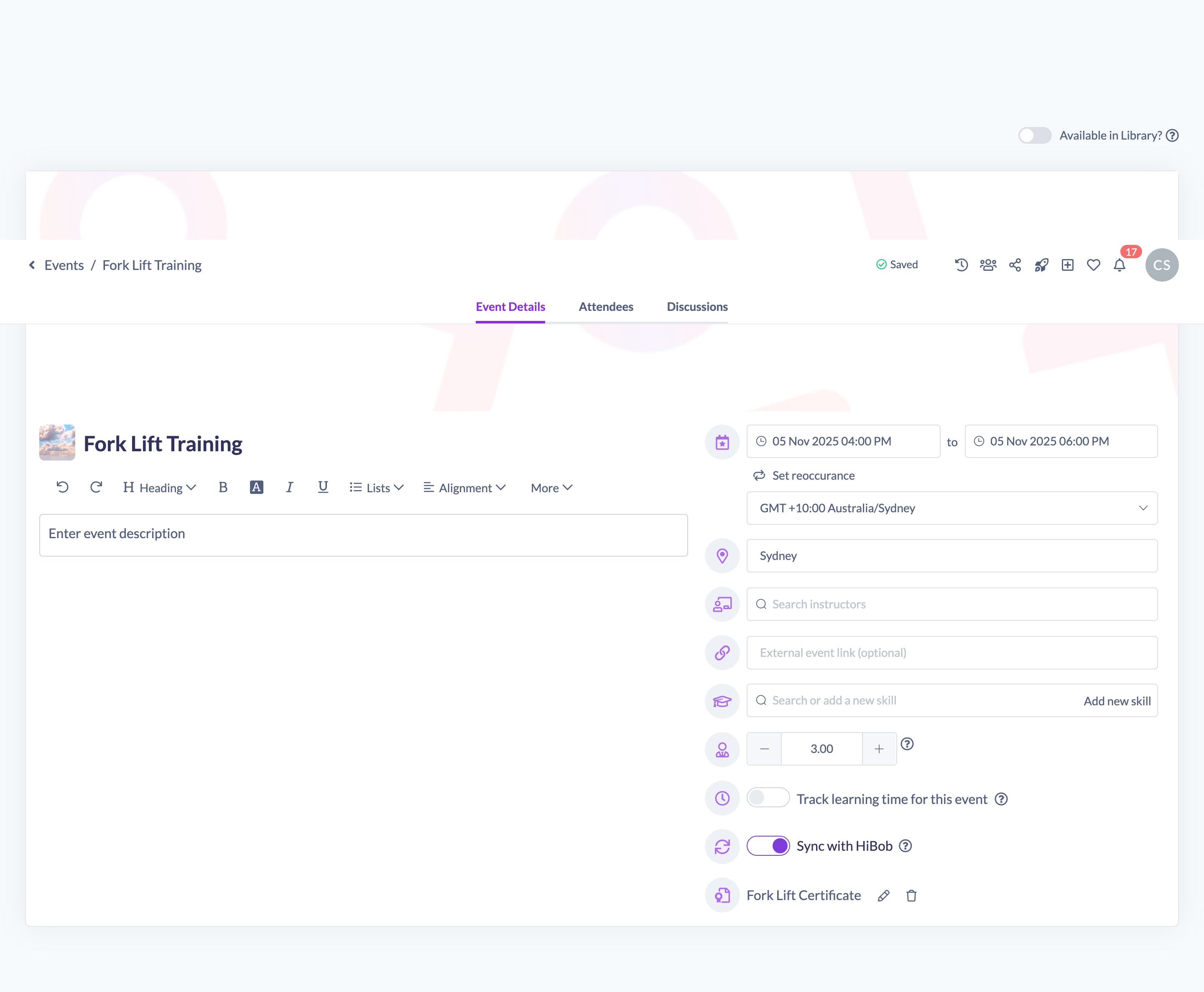
- Fill in the Certificate details — its name, description, and any provider or validity settings you need — then confirm.

- Click Save in the unsaved-changes bar at the top of the page to store your changes.
Once saved, learners will earn this Certificate on completion of the Event.
Things to keep in mind
Note: The Certificate section only appears if Certificates are enabled for your organisation. If you can't see it, ask an Owner or Admin to enable Certificates in your settings.
- Each Event has a single Certificate. Editing the Certificate updates it for everyone who earns it.
- A Certificate can be set to expire after a fixed period, so learners are prompted to re-attend and re-qualify. You configure this when you create or edit the Certificate.
FAQs
When does a learner receive the certificate?
Automatically, on completion of the Event.
Can I reuse a certificate across several events?
Certificates are created and attached per Event from the Event editor. Set up the Certificate on each Event where you want it awarded.
I can't see the certificate option — why?
Certificates need to be enabled for your organisation. Once enabled, the Certificate section appears in the Event editor.
Who can do this
Owners, Admins, Managers, Content Managers and Instructors can edit Events and add a Certificate. People Managers, Employees and Restricted users have read-only access to Events and cannot. The Certificate section is also only shown when Certificates are enabled for your organisation.
Updated on: 19/07/2026
Thank you!