
How to Track Learning Time for an Event
How to Track Learning Time for an Event
In this article:
Overview
Learning time lets you record how long an Event takes, so that time attended can be counted as learning time in your reporting. It's useful when you need to demonstrate the total time your people have spent learning.
Tracking learning time for an event
- Go to Events in the left-hand menu and open the Event you want to update.
- Find the Track learning time for this event toggle, marked with the clock icon, and turn it on.
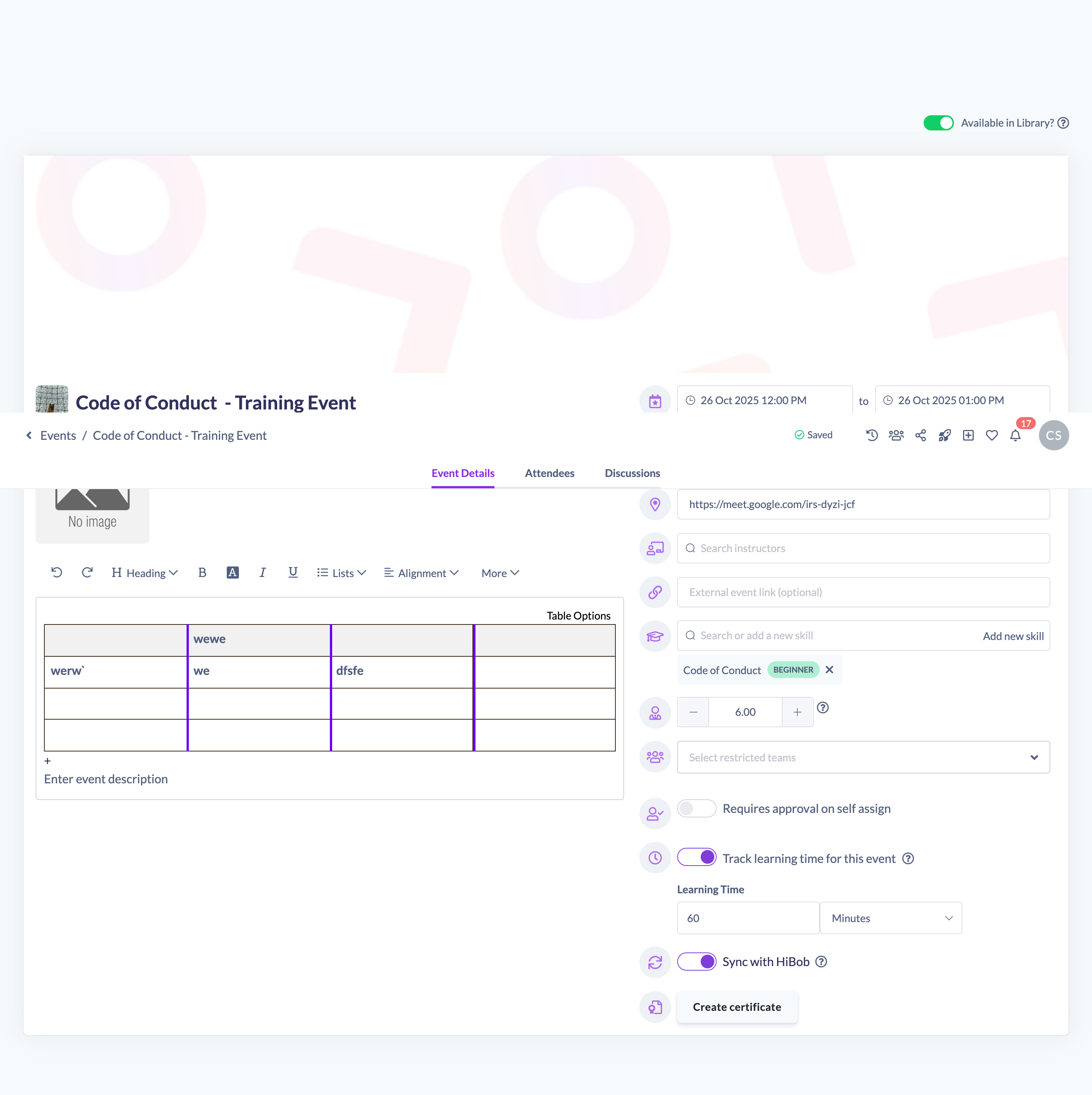
- Enter the Learning Time value, then choose a Time unit — either minutes or hours.
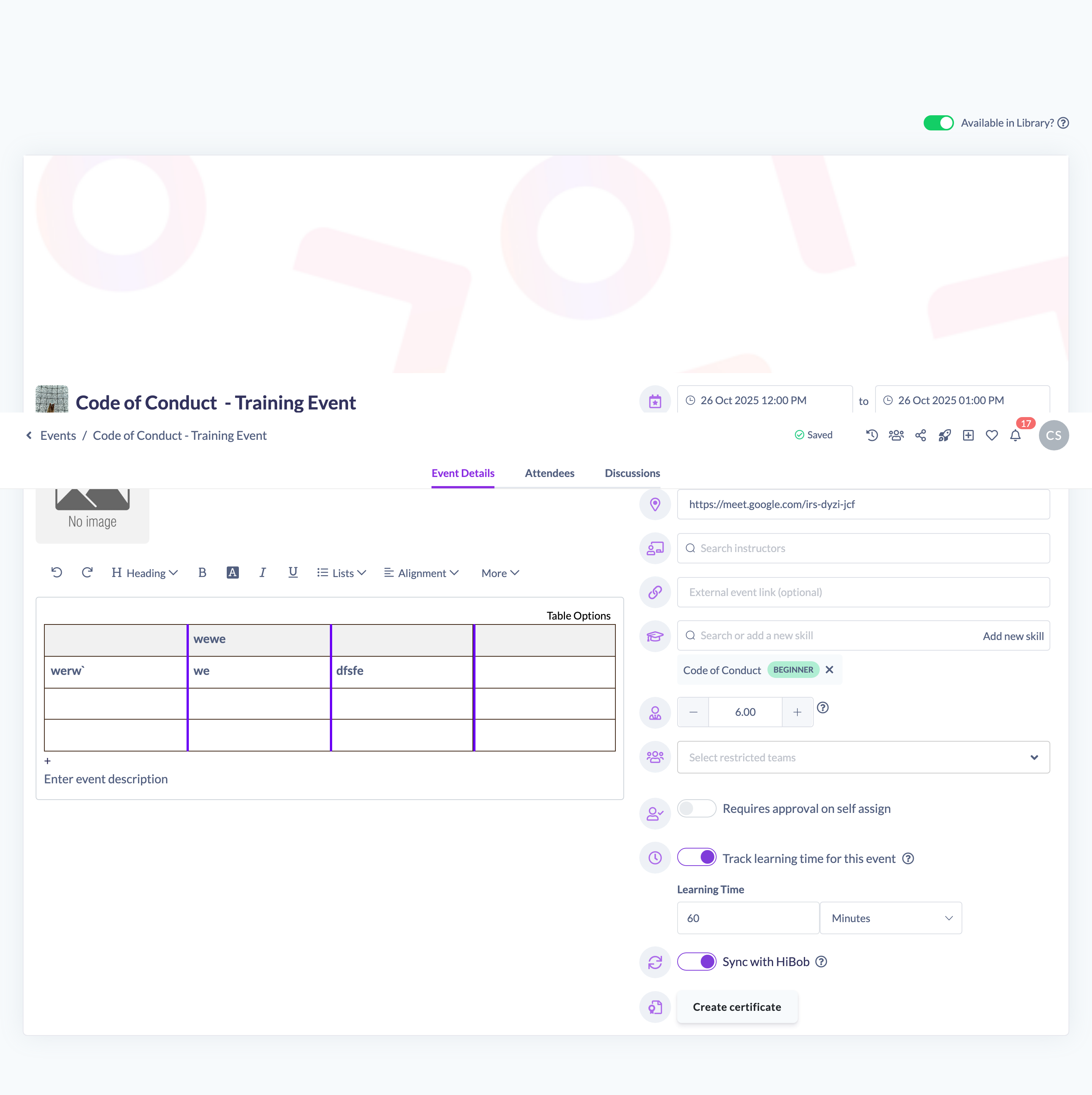
- Click Save in the unsaved-changes bar at the top of the page to store your changes.
Things to keep in mind
- Turning on learning time allows time at this Event to be tracked as learning time in reporting.
- The time unit can be set to minutes or hours.
- If you turn the toggle off, the Event's learning time is no longer recorded.
FAQs
Where does the learning time appear?
Time attended is counted as learning time in your reporting once the toggle is on and a value is set.
What units can I use?
You can record learning time in either minutes or hours.
Who can do this
Owners, Admins, Managers, Content Managers and Instructors can edit Events and set learning time. People Managers, Employees and Restricted users have read-only access to Events and cannot.
Updated on: 19/07/2026
Thank you!