
How to connect Google Calendar
How to Connect Google Calendar
In this article:
- Overview
- How to connect Google Calendar
- How to disconnect Google Calendar
- Things to keep in mind
- FAQs
- Who can do this
Overview
Connecting your Google Calendar means learning Events are added to your calendar automatically, so you never miss one. It's a great way to keep on top of the training, sessions and events coming up for you and your Teams.
This is a personal connection you make on your own profile — it links your own Google account to SuperPath. It isn't an organisation-wide integration, so each person connects their own calendar. Connecting also lets you generate Google Meet links straight from the Event editor (see How to generate a Google Meet link for an event).
You can connect Google Calendar or Outlook Calendar, but not both at once. See How to connect Outlook Calendar if that's what your organisation uses instead. If an Event owner has turned on calendar invites for one of their Events, you receive that Event as a calendar invitation from the owner rather than as a copy added quietly in the background. You never get both, so there's no duplicate. See How to send calendar invites for an event for more on that.
How to connect Google Calendar
- Go to your own profile page.
- Open the Settings tab.
- Click Connect Google Calendar.
- Choose the Google account you want to connect and grant access when prompted.
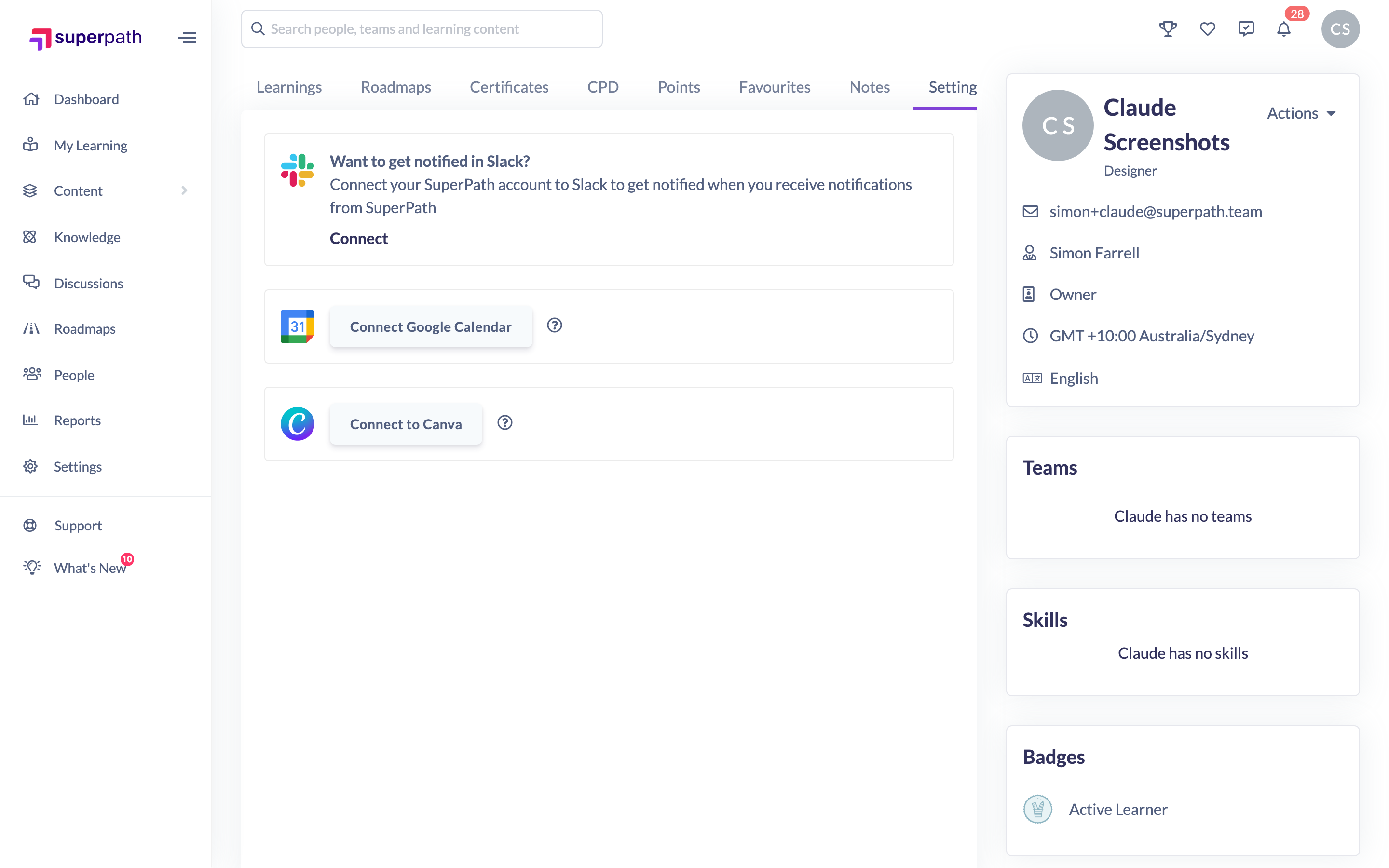
Once you've approved access, you're returned to SuperPath and your calendar is connected. The button changes to Disconnect Google Calendar, and new learning Events will start appearing on your Google Calendar.
How to disconnect Google Calendar
- Go to your profile page and open the Settings tab.
- Click Disconnect Google Calendar.
- If you own any Events that send calendar invites, the dialog tells you how many and warns that disconnecting stops those invites going out.
- Confirm in the dialog by clicking Remove.
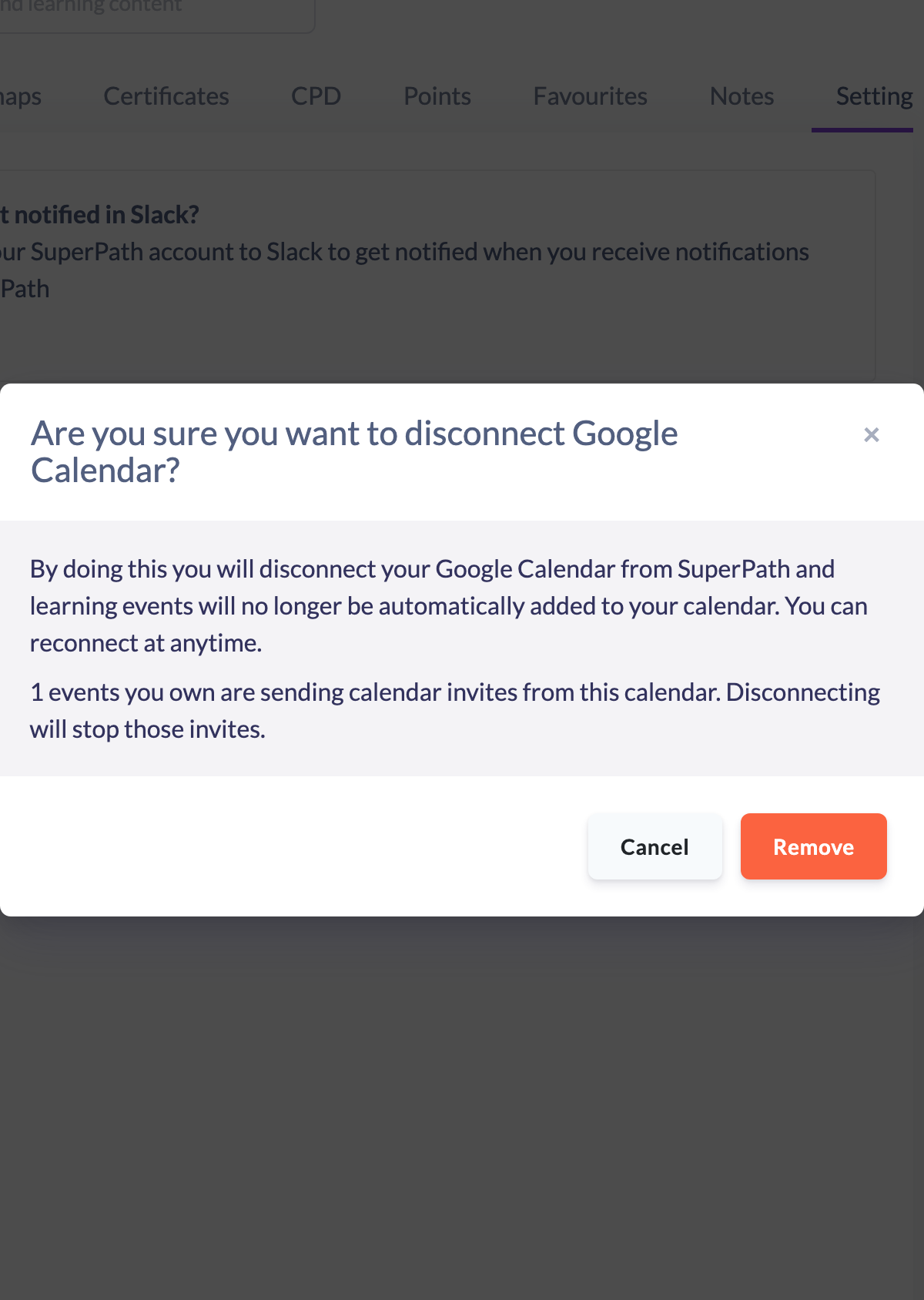
Learning Events will no longer be added to your calendar automatically. You can reconnect at any time by following the steps above.
Things to keep in mind
- This is a per-user setting — you connect your own Google account, and it doesn't affect anyone else in your organisation.
- Once connected, learning Events are added to your Google Calendar automatically so you don't have to add them by hand.
- You can only have one calendar connected at a time. If you'd rather use Outlook Calendar, disconnect Google Calendar first, then connect Outlook.
- If you own Events with calendar invites turned on, those Events arrive as invitations rather than being synced automatically. This doesn't change whether your calendar is connected, just how that particular Event gets there.
- Generating a Google Meet link for an Event relies on your own Google Calendar being connected — if it isn't, the generate button won't appear in the Event editor.
- Disconnecting stops Events being added automatically; it doesn't remove Events already on your calendar. If you own Events sending calendar invites, disconnecting also stops those invites.
FAQs
Is this an organisation-wide integration?
No. It's a personal connection on your own profile that links your own Google account. Each person connects their own calendar.
What does connecting actually do?
It automatically adds your learning Events to your Google Calendar, so you never miss one.
How do I disconnect?
Go to your profile's Settings tab and click Disconnect Google Calendar, then confirm.
Do I need this to generate a Google Meet link?
Yes. Generating a Meet link for an Event uses your own connected Google account — see How to generate a Google Meet link for an event.
Can I connect both Google Calendar and Outlook Calendar?
No. You connect one calendar at a time. Disconnect the one you have before connecting the other.
Why did I get a calendar invite for an Event instead of it just appearing on my calendar?
The Event owner has turned on calendar invites for that Event, so it arrives as an invitation from them rather than as a synced copy. You still don't need to connect anything for this — see How to send calendar invites for an event.
Who can do this
Connecting Google Calendar is a personal setting on your own profile, so any user can do it for their own account — it isn't an admin action and doesn't need special permissions.
Updated on: 18/09/2026
Thank you!