
How to Set an Event's Date, Time and Timezone
How to Set an Event's Date, Time and Timezone
In this article:
- Overview
- How to set the start and end
- How to set the timezone
- Saving your changes
- Things to keep in mind
- FAQs
- Who can do this
Overview
Each Event has a start and an end, and a timezone that they are anchored to. Setting these correctly means your learners see the right local time and any calendar invites line up with the real Event.
You set the date, time and timezone in the Event editor, on the Event's Details tab. To open it, go to Events in the left-hand menu and click the Event you want to edit.
How to set the start and end
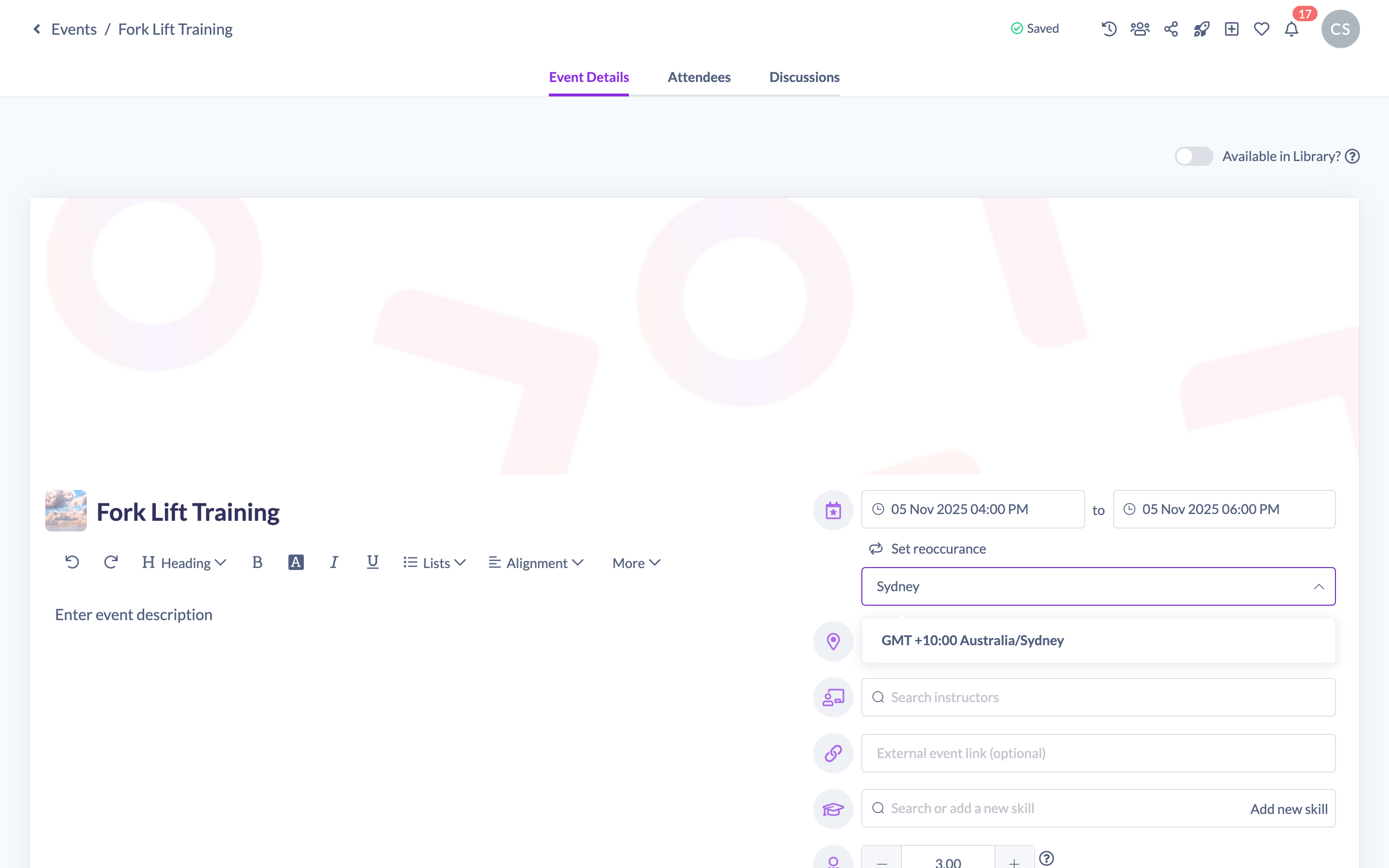
The start and end sit next to the calendar icon at the top of the Event card.
- Click the first date field (Select a start date) and choose the start date and time.
- Click the second date field (Select a end date) and choose the end date and time.

Note: If you set a start but leave the end empty, SuperPath fills the end in to match the start. If you pick an end that is before the start, it is pulled back to the start so the Event can't end before it begins.
How to set the timezone
Below the dates is the timezone selector.
- Click the timezone field (Choose timezone).
- Start typing to filter the list, then choose the timezone the Event runs in.
When you change the timezone, the start and end times stay on the clock as shown and are re-anchored to the timezone you picked, so double-check the times still read correctly afterwards.
Saving your changes
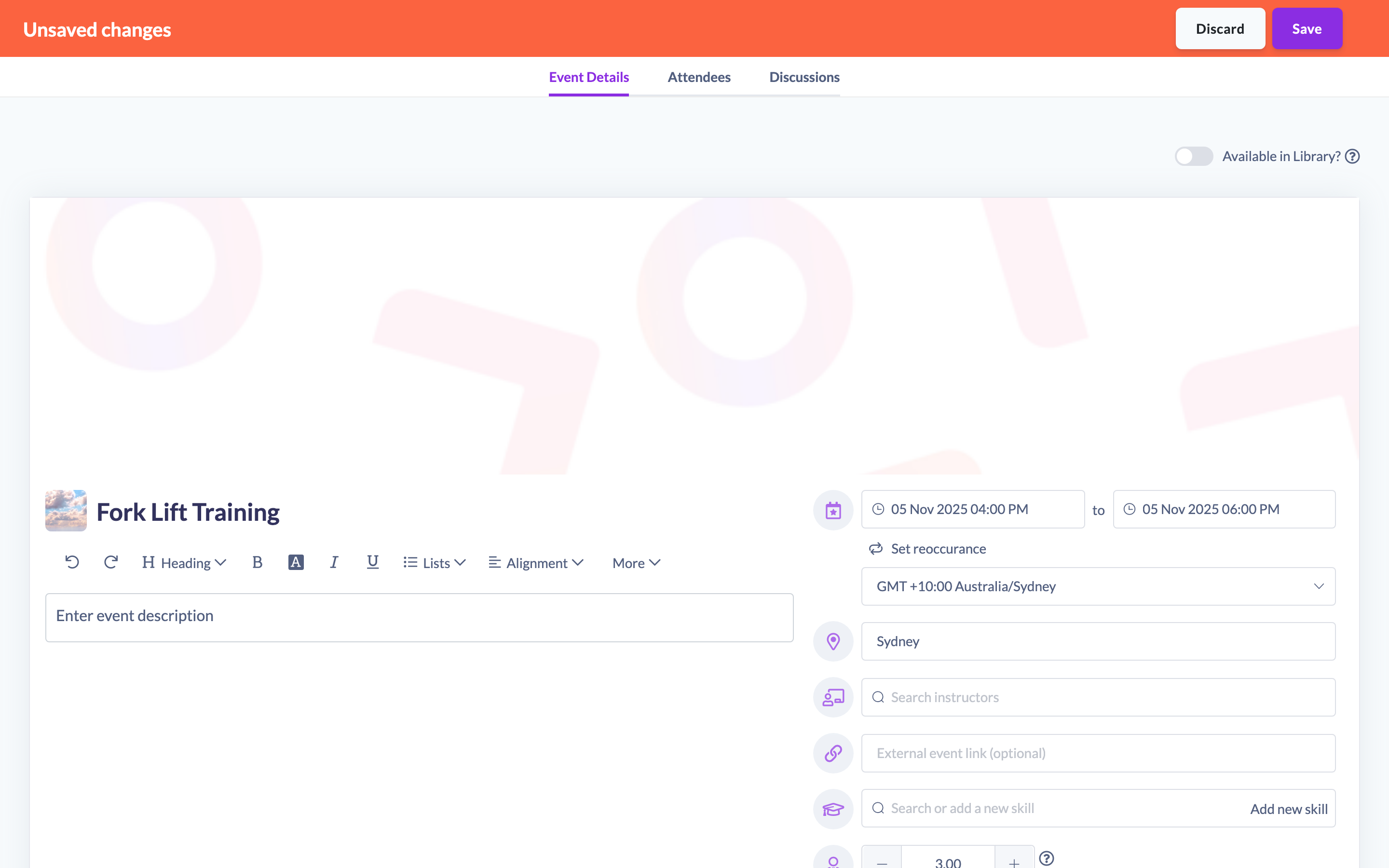
As you edit, an Unsaved changes bar appears at the top of the page.
- Set the start, end and timezone.
- In the Unsaved changes bar, click Save to apply them.
- To undo everything since you opened the Event, click Discard and confirm.
Things to keep in mind
- Date, time and timezone changes are staged — they only take effect when you click Save.
- Times are stored against the Event's timezone, so learners in other regions see the Event converted to their own local time where relevant.
- To make the Event repeat on a schedule, set the start and end first, then follow How to make an event recurring.
FAQs
What happens if I only set a start date?
SuperPath sets the end date to match the start, so the Event still has a valid end.
Do I have to save after changing the times?
Yes. Changes are held in the Unsaved changes bar until you click Save.
Why did my times shift when I changed the timezone?
Changing the timezone re-anchors the start and end to the new zone. Always re-check the displayed times after switching timezones.
Who can do this
Owners, Admins, Managers, Content Managers and Instructors can set an Event's date, time and timezone. People Managers, Employees and Restricted users cannot — they have read-only access to Events.
Updated on: 19/07/2026
Thank you!