
How to create an event
How to Create an Event
In this article:
- Overview
- How to create an event
- Filling in the details
- Things to keep in mind
- FAQs
- Who can do this
Overview
At SuperPath we believe every learning counts, so Events let you track and manage the learning that happens outside your courses — conferences, external courses, training sessions, or even regular mentoring and catch-ups. Creating an Event gives that learning a home in SuperPath, where you can assign it, track attendance and keep everyone up to date.
Creating an Event is quick: you add it from the Events list, then fill in the details in the Event editor.
How to create an event
- Go to Events in the left-hand menu.
- Click Create in the top right of the Events list.
- SuperPath creates a new Untitled event and opens it in the Event editor, ready for you to fill in the details.
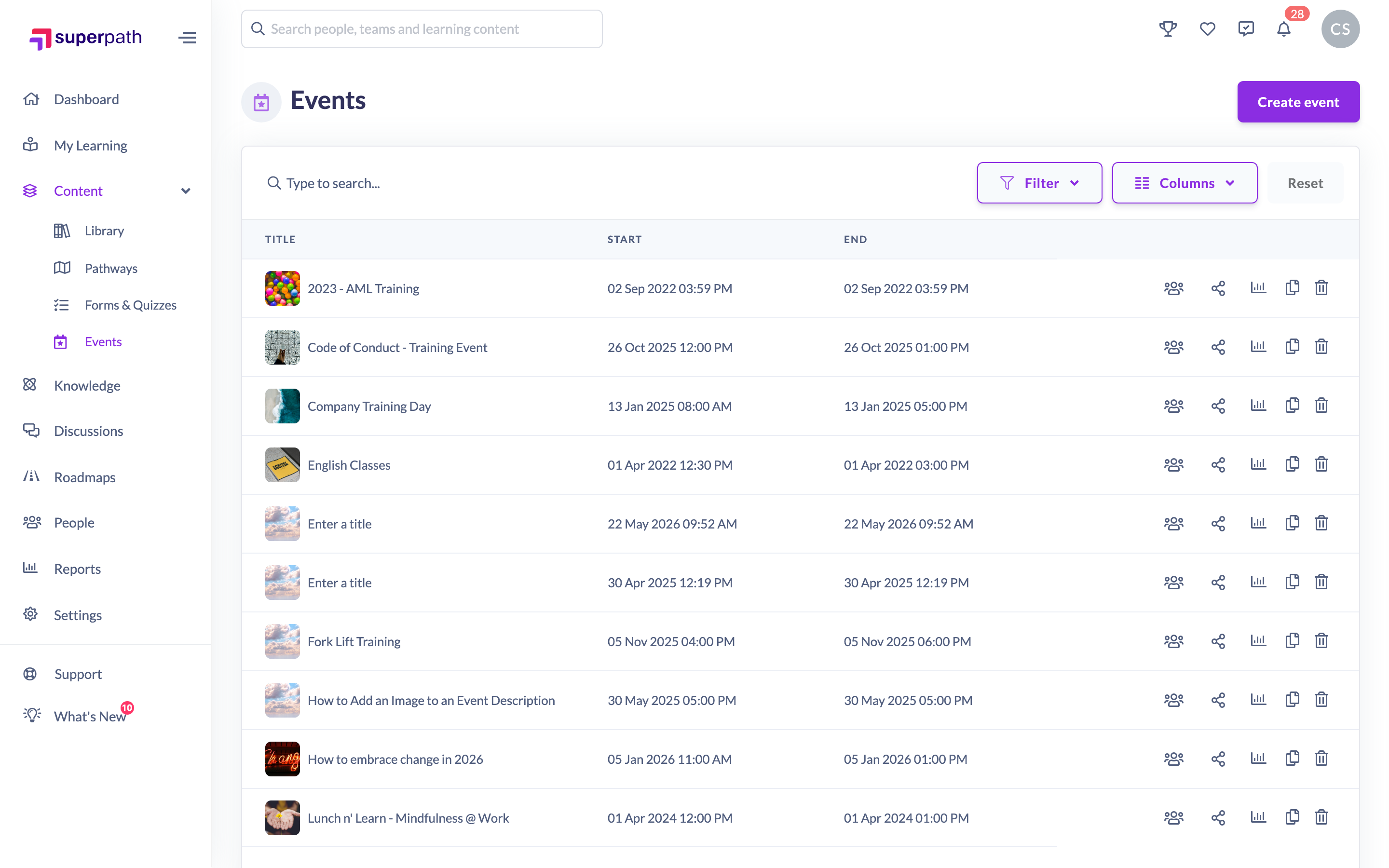
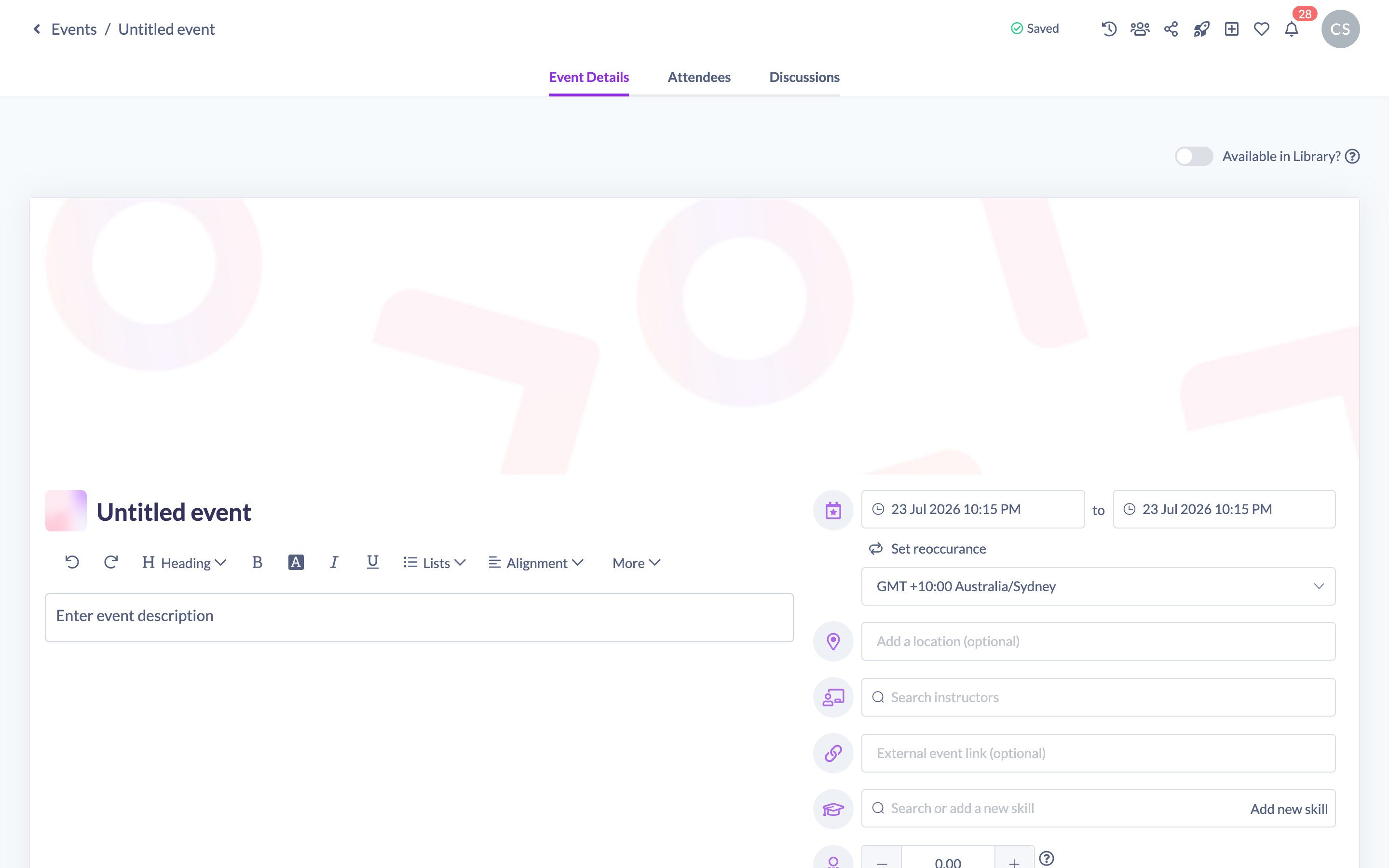
Note: Creating and editing Events is a desktop action — the Create button isn't shown on mobile.
Filling in the details
Your new Event starts as Untitled event with placeholder details, which you then replace in the editor. Each part of the Event has its own guide:
- Title, description, location and external link — see How to edit an event's details.
- Date, time and timezone — see How to set an event's date, time and timezone.
- Cover image — see How to add a cover image to an event.
- Thumbnail and library image — see How to add a thumbnail and library image to an event.
- Making it a repeating Event — see How to make an event recurring.
- Making it available for learners to find and register — see How to make an event available in the Library.
As you edit, SuperPath shows an Unsaved changes bar at the top of the page — click Save there to apply your changes, or Discard to undo them.
Things to keep in mind
- The Event is created the moment you click Create — it exists as Untitled event even before you've edited anything. If you created one by mistake, you can remove it (see How to delete an event).
- A title is required, so you can't save an Event with an empty title.
- By default a new Event is available in the Events area; use the Available in Library? toggle when you want learners to be able to find and register for it themselves.
FAQs
I clicked Create and an "Untitled event" appeared — is it already live to learners?
The Event is created straight away, but you control what learners see. Fill in the details, then use the Available in Library? toggle if you want learners to find and register for it. See How to make an event available in the Library.
Where do I set the date, image or make the Event repeat?
Each of these has its own guide — see How to set an event's date, time and timezone, How to add a cover image to an event, and How to make an event recurring.
Can I create an Event on my phone?
No. Creating and editing Events is a desktop action; the Create button isn't available on mobile.
Who can do this
Owners, Admins, Managers, Content Managers and Instructors can create Events. People Managers, Employees and Restricted users cannot — they have read-only access to Events and don't see the Events management area.
Updated on: 23/07/2026
Thank you!