
How to Add an Instructor to an Event
How to Add an Instructor to an Event
In this article:
- Overview
- How to add an instructor
- How to change or remove an instructor
- Things to keep in mind
- FAQs
- Who can do this
Overview
Adding an Instructor to an Event tells your learners who is running the session — a facilitator, trainer, mentor or host. The Instructor's name and profile photo appear on the Event, and when the Event is shown in the Library learners can see at a glance who to expect.
How to add an instructor
- Go to Events and click the Event you want to edit to open it.
- On the Event Details tab, find the Instructor row (marked with a chalkboard icon) and click into the Search instructors box.
- Start typing a person's name or email address — matching people from your organisation appear as you type.
- Click the person you want from the list to set them as the Instructor.
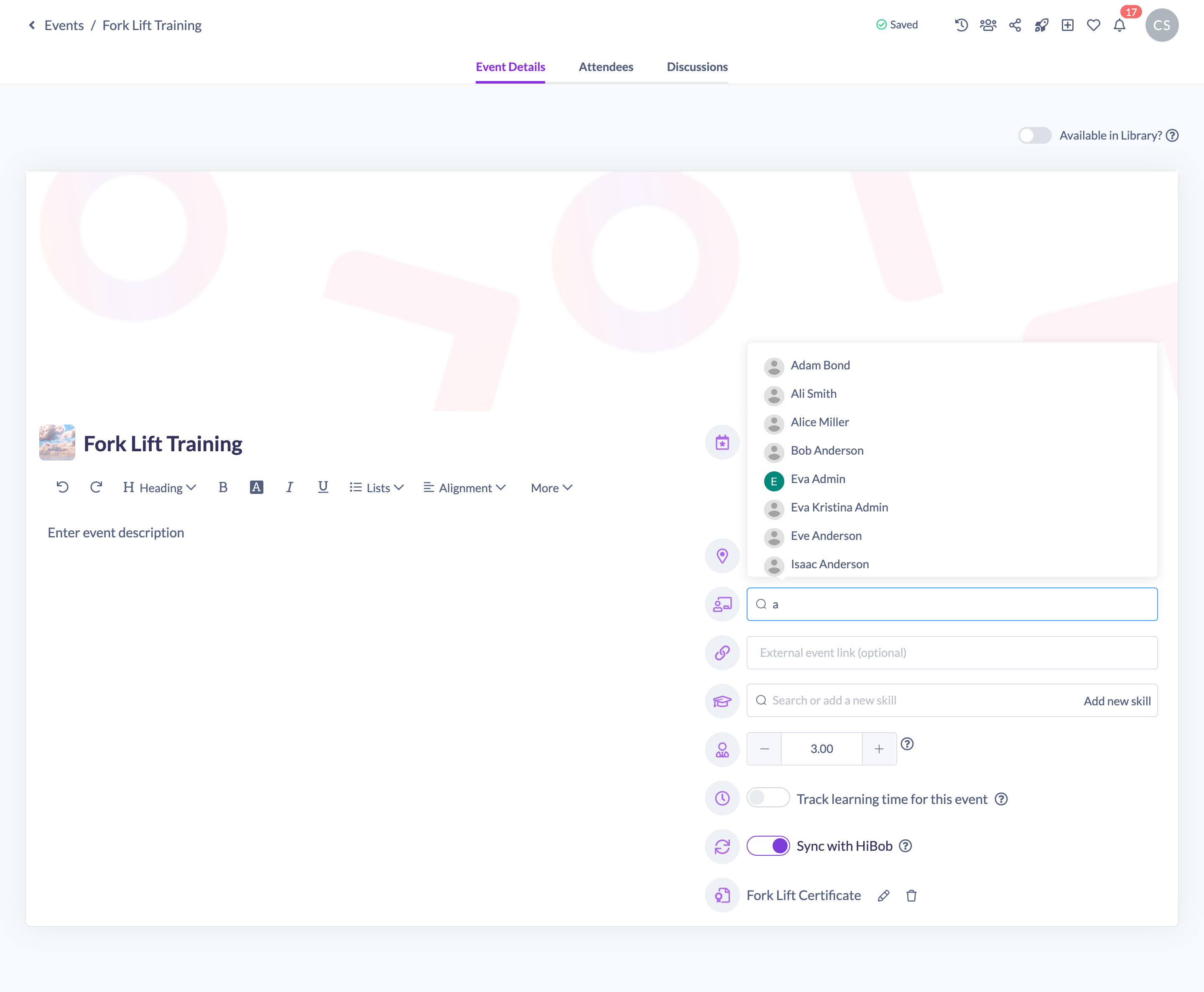
Their name and avatar are added to the Event straight away, and your change is saved automatically.
Note: Anyone in your organisation can be searched for and chosen as an Instructor — they do not need a special role.
How to change or remove an instructor
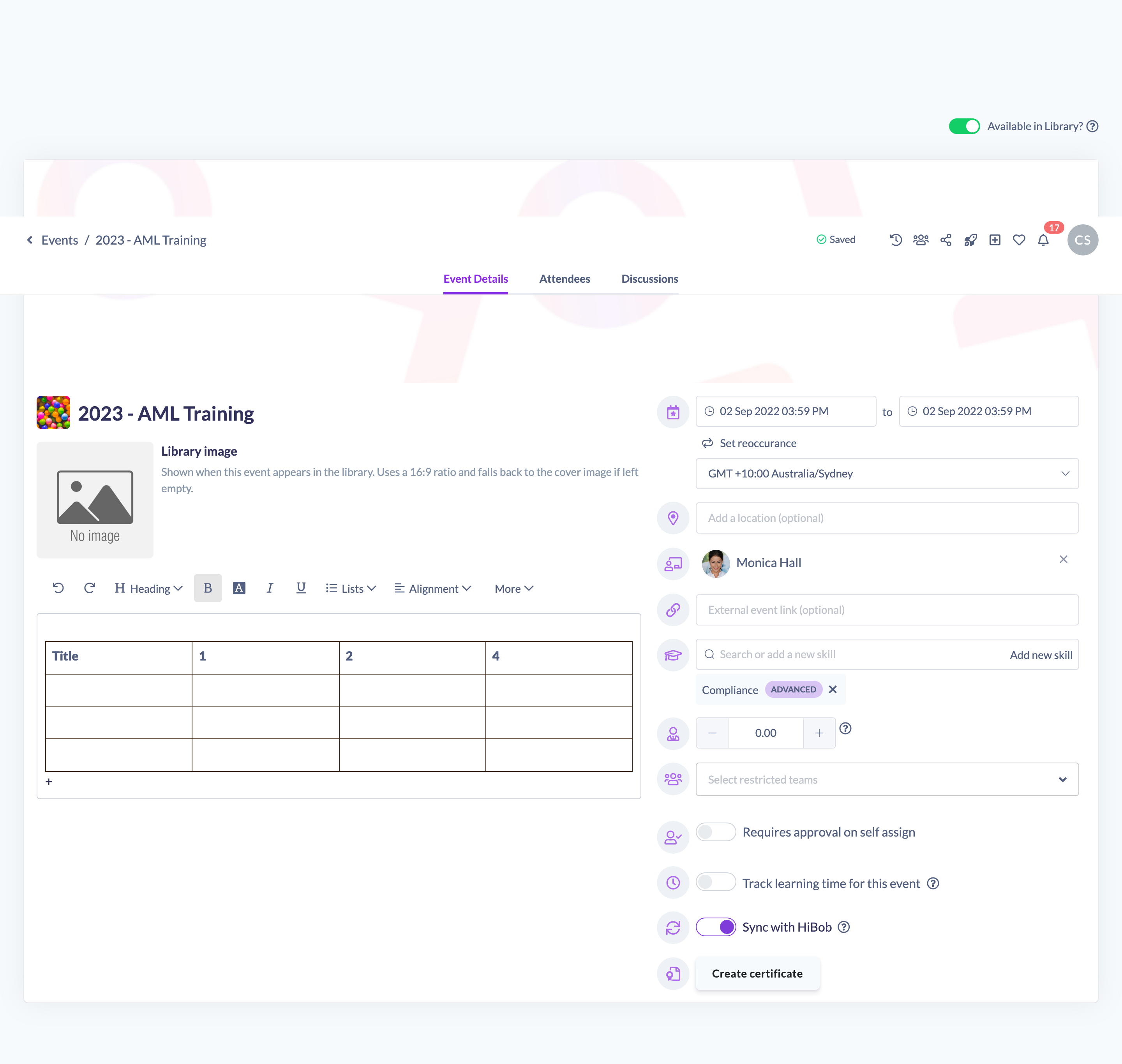
- Open the Event and stay on the Event Details tab.
- To remove the current Instructor, click the ✕ next to their name. The search box reappears so you can pick someone else.
- To change the Instructor, remove the current one and then search for and select the new person.
Things to keep in mind
- An Event has a single Instructor at a time — selecting a new person replaces the previous one.
- The Instructor is set from your existing people; if the person you want isn't found, check they have been added to your organisation first.
- When you duplicate an Event, the Instructor is copied across to the new copy.
FAQs
Does the Instructor get notified or assigned the Event?
No. Setting the Instructor records who is running the session and displays them on the Event — it does not assign the Event to them or send them a notification. Assign the Event separately if the Instructor should also be a learner.
Where does the Instructor appear?
On the Event itself, and on the Event's card and detail page in the Library when the Event is made Available in the Library.
Who can do this
Owners, Admins, Managers, Content Managers and Instructors can edit Events and set an Instructor. People Managers, Employees and Restricted users have read-only access to Events and cannot edit them.
Updated on: 19/07/2026
Thank you!