
How to Add Tags to a Knowledge Article
How to Add Tags to a Knowledge Article
In this article:
- Overview
- Open the article settings
- Add tags
- Remove tags
- Things to keep in mind
- FAQs
- Who can do this
Overview
Tags are free-text labels you add to a Knowledge article to help with search and filtering. You manage them from the article's settings panel inside the editor. This article covers how to add and remove them.
Open the article settings
- Open the Knowledge article you want to edit so it loads in the editor.
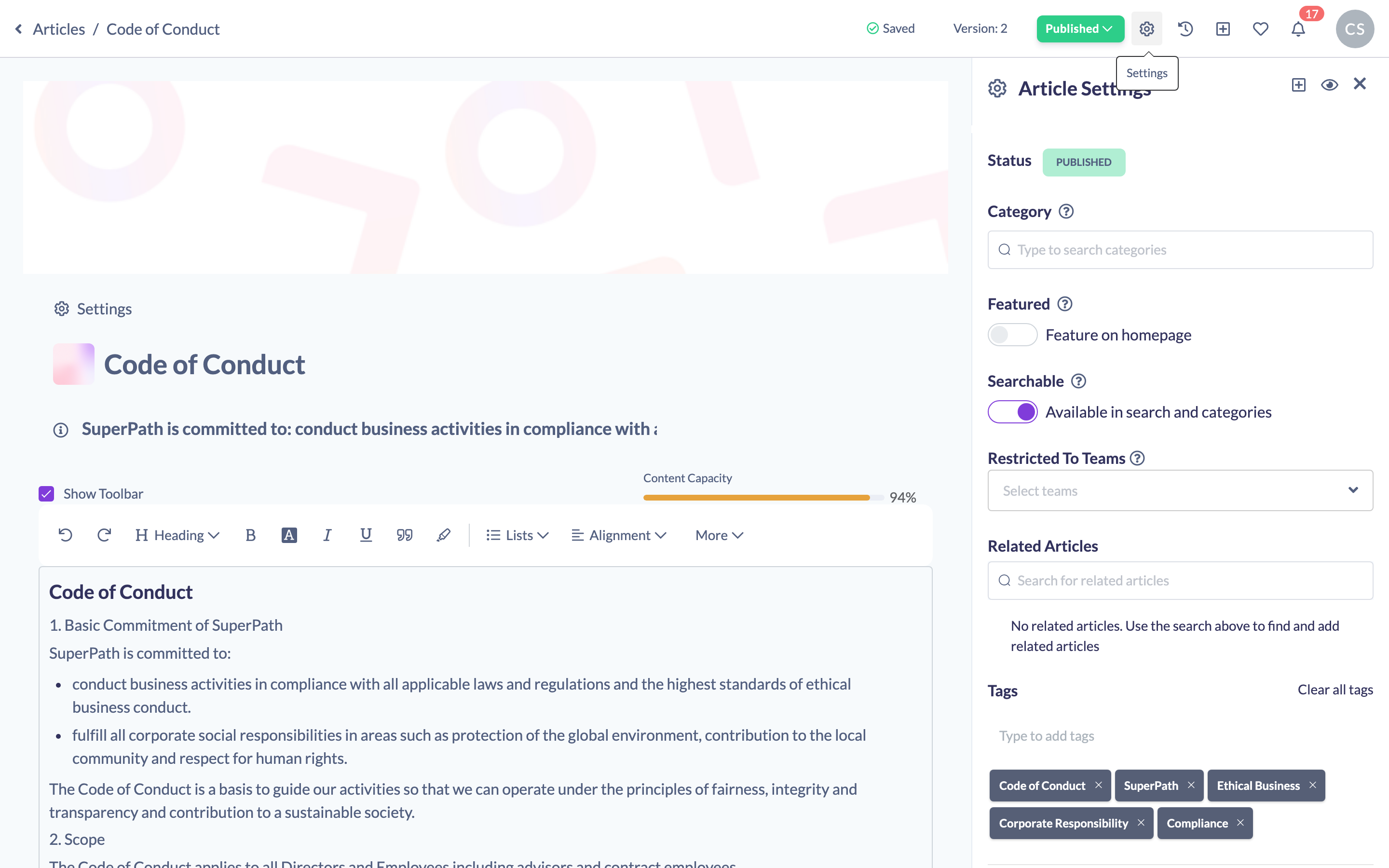
- In the top navigation, click the cog icon (tooltip Settings) to open the Article Settings panel on the right.
Add tags
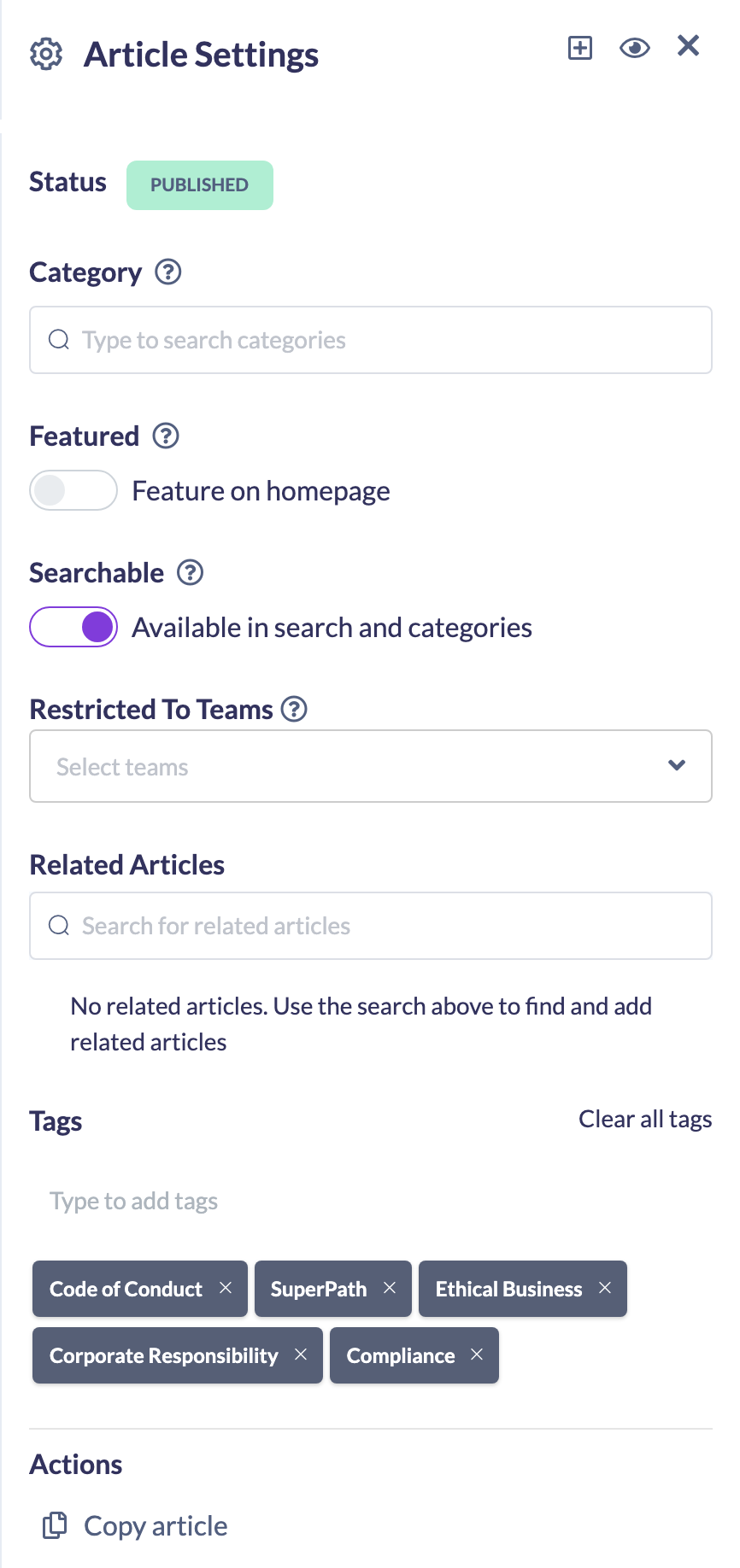
- In the Article Settings panel, find the Tags section.
- Click the tags field (placeholder Type to add tags) and type a tag, then confirm it to add it. Repeat for each tag you want.
- Tags save automatically — there's no separate save button in the settings panel.
Remove tags
To remove an individual tag, delete it from the tags field. To clear every tag at once, click the Clear all tags link that appears above the field when tags exist.
Things to keep in mind
- Tags are free text — there's no fixed list, so keep spelling and wording consistent across articles so they group together as you'd expect.
- Tags are used for search and filtering; they don't control which category the article belongs to or whether it's featured.
FAQs
How do I add several tags?
Type each tag into the Type to add tags field and confirm it, one after another.
How do I remove all tags quickly?
Click Clear all tags above the tags field — this link only appears once at least one tag has been added.
What are tags used for?
They support search and filtering, making it easier to find related articles.
Who can do this
Owners, Admins, Managers and Content Managers can edit Knowledge articles and manage their tags. People Managers, Instructors, Employees and Restricted users have read-only access to Knowledge and cannot.
Updated on: 19/07/2026
Thank you!