
How to Assign a Knowledge Article to a Category
How to Assign a Knowledge Article to a Category
In this article:
- Overview
- Open the article settings
- Assign a category
- Things to keep in mind
- FAQs
- Who can do this
Overview
Assigning a Knowledge article to a Category controls where it appears in your Knowledge Base, so learners can browse to it under the right heading. You set the Category from the article's settings panel inside the editor, and you can optionally place the article under a sub-category. This article covers how to do that. To create or rename the categories themselves, see Create Knowledge Categories.
Open the article settings
- Open the Knowledge article you want to edit so it loads in the editor.
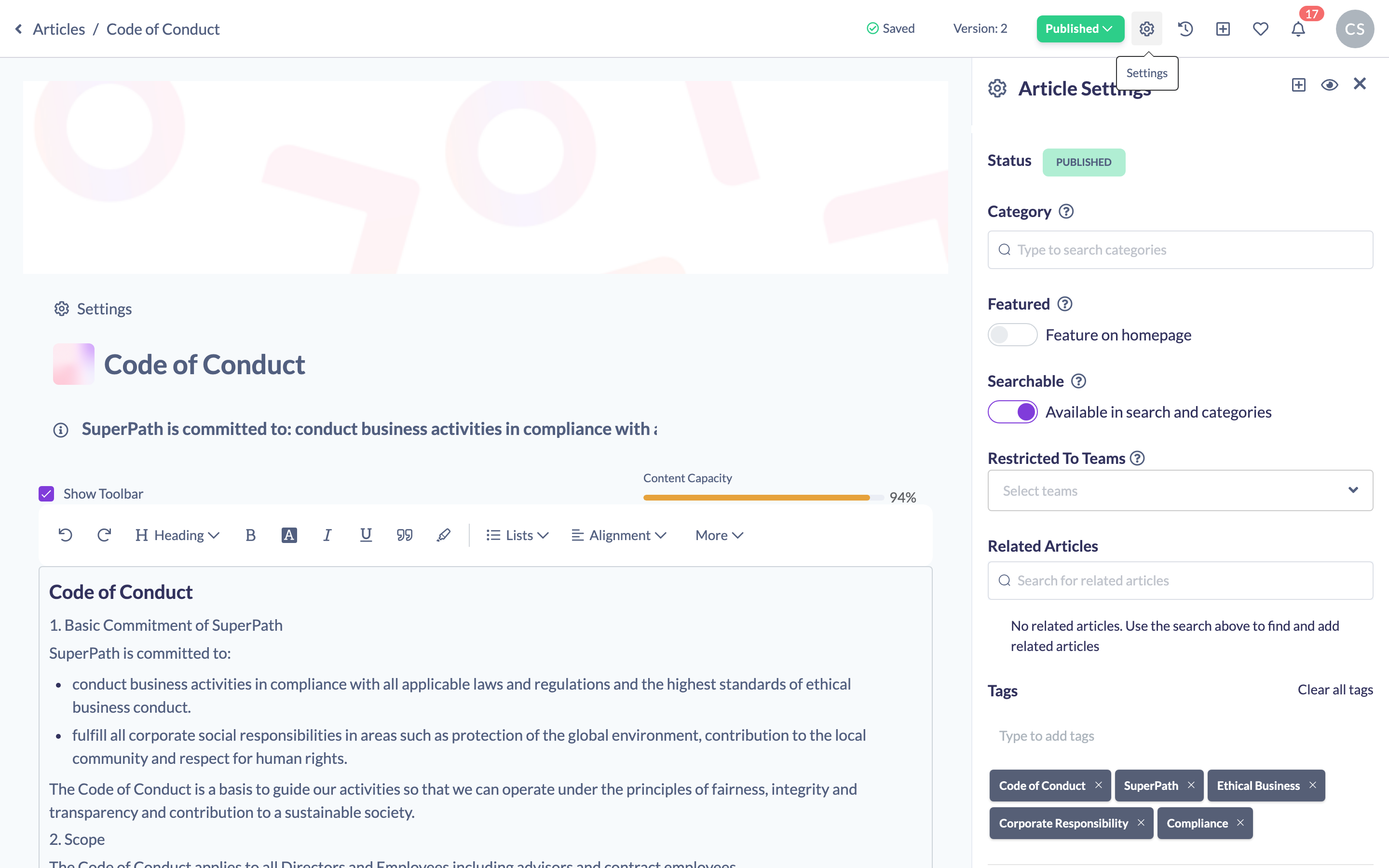
- In the top navigation, click the cog icon (tooltip Settings) to open the Article Settings panel on the right.
Assign a category
- In the Article Settings panel, find the Category section.
- Click the category selector and start typing to search, then click the category you want to assign. If you pick a sub-category, the article is placed under its parent.
- Your choice saves automatically — there's no separate save button in the settings panel.
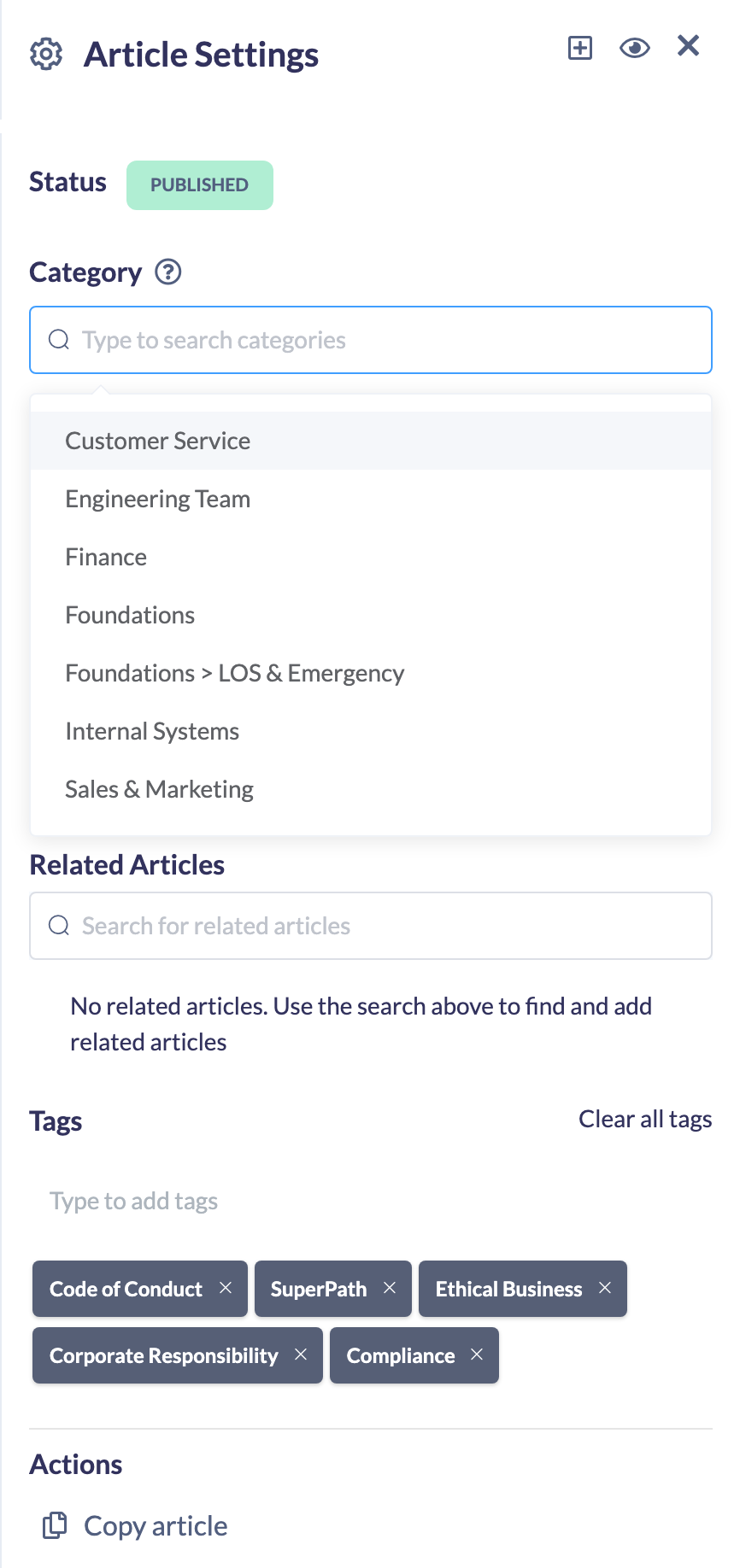
Tip: The Category section shows a help icon that reminds you categories are created and edited under Manage Categories in Settings. If the category you need doesn't exist yet, create it there first — see Create Knowledge Categories.
Things to keep in mind
- Categories are chosen from the list you've already set up; you can't create a new category from within the article settings panel.
- Selecting a sub-category files the article under that sub-category's parent category.
- Whether the article then appears on the Knowledge Homepage depends on the category's own homepage visibility and the article being searchable — assigning a category alone does not feature it.
FAQs
Can I create a new category while editing an article?
No. Categories are created and edited under Manage Categories in Settings. Once created, they appear in the category selector in the article settings.
Can an article belong to more than one category?
No. Each article is assigned to a single category (optionally a sub-category within it).
Where do I find the category selector?
Open the article in the editor, click the cog (Settings) in the top navigation, and look for the Category section in the Article Settings panel.
Who can do this
Owners, Admins, Managers and Content Managers can edit Knowledge articles and assign them to categories. People Managers, Instructors, Employees and Restricted users have read-only access to Knowledge and cannot.
Updated on: 19/07/2026
Thank you!