
How to Choose Which Columns to Export
How to Choose Which Columns to Export
In this article:
- Overview
- How to choose columns in the export dialog
- Things to keep in mind
- FAQs
- Who can do this
Overview
When you export a report to CSV, SuperPath lets you pick exactly which columns end up in the file. This keeps your export focused — include only the fields you need, or grab everything at once.
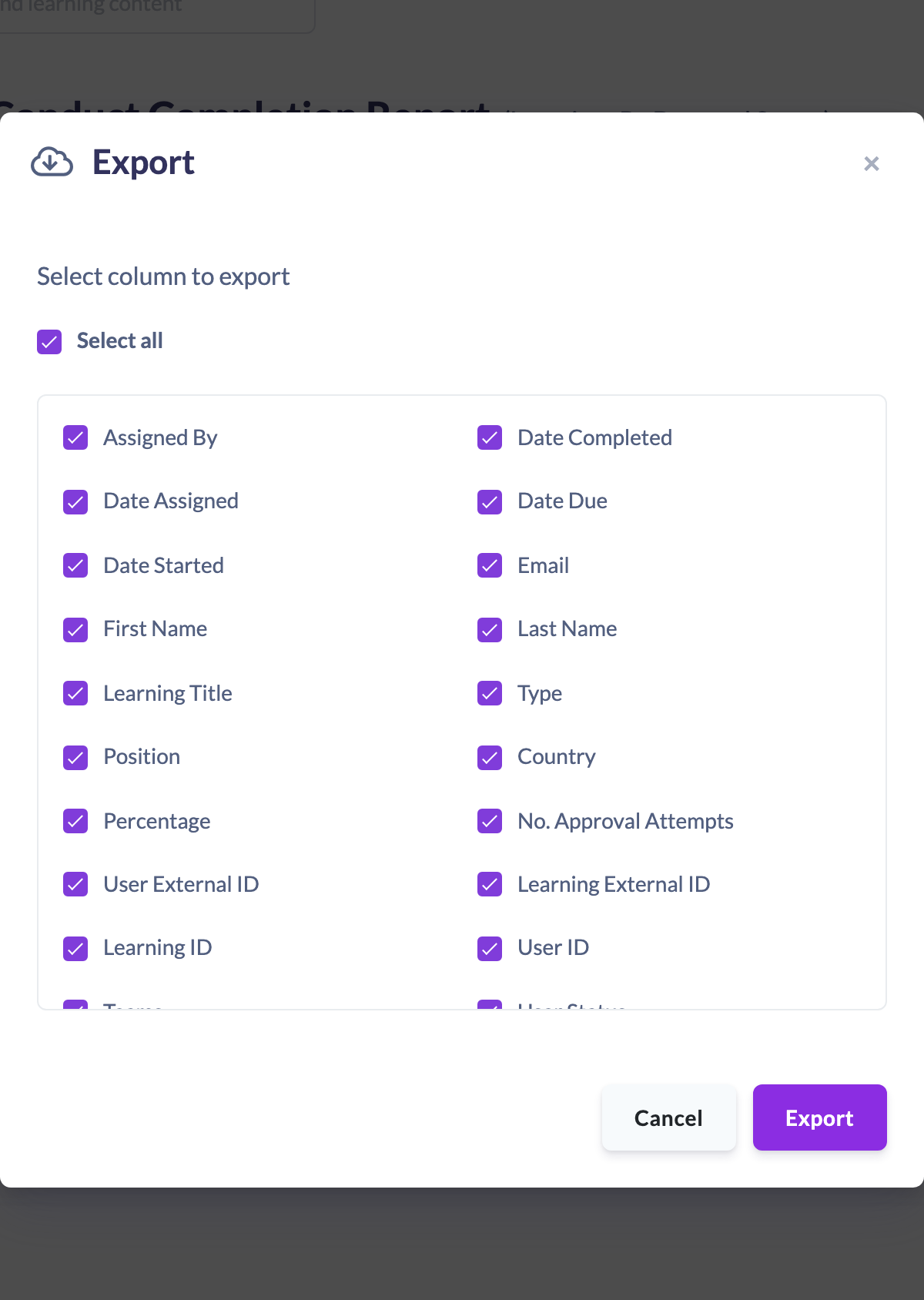
How to choose columns in the export dialog
- On a report, run it so results are showing, then click Export.
- The Export dialog opens with the message Select column to export and a list of the report's columns, each with a checkbox.
- Tick or untick individual columns to control what the CSV includes.
- To include every column, tick Select all at the top. Untick it (or untick columns individually) to narrow the list.
- When you're happy with the selection, click Export.
The CSV is generated with only the columns you selected, in the order shown.
Things to keep in mind
- The columns on offer depend on the report type — for example the Learners Report offers fields like First Name, Last Name, Email and progress counts, while Learnings By Date and Status offers Learning Title, Status, dates, Teams, Score and more.
- On reports that list people, Custom Fields with Include in reports turned on appear in the list as extra columns, named after the field. They're ticked by default like the other columns.
- The Export button stays disabled until at least one column is selected.
- Select all is a shortcut — it simply ticks every column; you can still untick any you don't want afterwards.
FAQs
Can I reorder the columns?
The CSV uses the report's built-in column order. You can choose which columns to include, but not reorder them in the dialog.
Why are the columns different on another report?
Each report type exposes its own set of fields, so the column list you see reflects the report you're exporting.
What if I want everything?
Tick Select all before clicking Export to include every available column.
Who can do this
Owners, Admins, Managers and People Managers can reach the Reports area and use the export column picker. Content Managers, Instructors, Employees and Restricted users do not have access to the Reports area.
Updated on: 29/09/2026
Thank you!