
How to Create a Workflow with the AI Assistant
How to Create a Workflow with the AI Assistant
In this article:
- Overview
- How to ask for a Workflow
- The questions the AI Assistant asks
- The triggers it can use
- The conditions it can put on a trigger
- The actions it can take
- The confirmation card
- Turning the Workflow on
- Editing the Workflow afterwards
- Undoing it
- What it will not do
- Things to keep in mind
- FAQs
- Who can do this
Overview
A Workflow is a standing rule: when something happens in your account, do something for the person it happened to. Normally you build one in the Workflow editor under Settings → Workflows. The AI Assistant can build one for you instead. You describe the automation in plain English, it maps your description onto a real Workflow, reads the whole thing back to you in sentences, and creates it only after you confirm.
A Workflow the AI Assistant creates always arrives switched off. That is the single most important thing to know about this. It cannot act on anybody, ever, until a person opens Settings → Workflows and turns it on. The confirmation card says so in its own words before you confirm: "It is created switched off, so nothing happens until you turn it on yourself on the Workflows settings page." So a Workflow the AI Assistant misread is a wrong row on a settings page, not a wrong action taken against your people.
Everything else about Workflows works exactly as it does when you build one by hand, so this article covers only the AI Assistant side of it. For what Workflows are and what each trigger and action does, see Workflows, How to Choose a Workflow Trigger and How to Choose a Workflow Action. For how confirming and undoing work across all AI Assistant changes, see How the AI Assistant Makes Changes.
Note: Workflows have to be switched on for your account before any of this applies. If they are not, the AI Assistant tells you so in its first sentence and stops there. It will not interview you about the automation first or draft one anyway. This is not a switch your own settings page offers, so contact SuperPath Support if you would like Workflows on your account.
How to ask for a Workflow
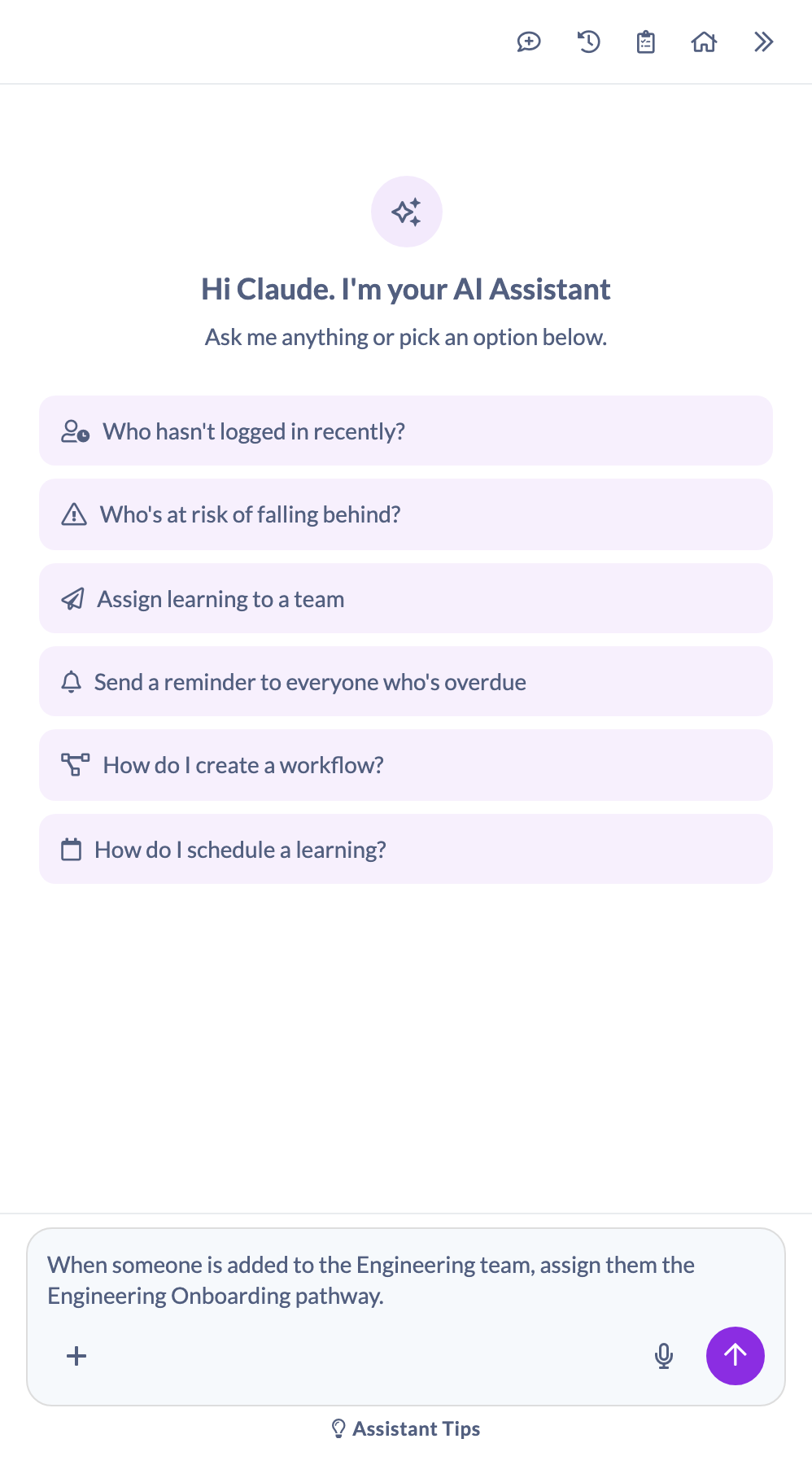
- Open the AI Assistant with Ask AI at the top of any screen, or press ⌘ + K (Mac) or Ctrl + K (Windows). See How to Use the AI Assistant.
- Describe the automation in your own words. Say what should set it off and what should then happen.
- Answer any questions it puts to you on a card in the conversation.
- Read the confirmation card, then click Confirm, or Cancel if it has got something wrong.
- Go to Settings → Workflows and turn the new Workflow on when you are ready.
There is no syntax to learn. Realistic ways to ask:
- "When somebody new joins and their position is Engineer, add them to the Engineering team."
- "When anyone completes the Fire Safety course, assign them the Fire Safety Feedback assessment and make it due 7 days later."
- "Every time someone is added to the Sales team, email their manager to let them know their onboarding has started."
- "When a person finishes the Leadership pathway, give them the Leadership Review event."
- "When someone is added to the Clinical Staff team and their position is Nurse, Carer or Enrolled Nurse, assign them the Clinical Induction pathway."
- "Whenever somebody's details change and they are either a Nurse or based in New Zealand, add them to the Trans-Tasman Nursing team."
Name the records you mean as exactly as you can. The AI Assistant looks up every Pathway, course, Event, assessment, Roadmap, Team, Role and person you name and refuses rather than guesses if it cannot find one, so "the Fire Safety course" works and "that safety thing" usually earns you a question.
The questions the AI Assistant asks
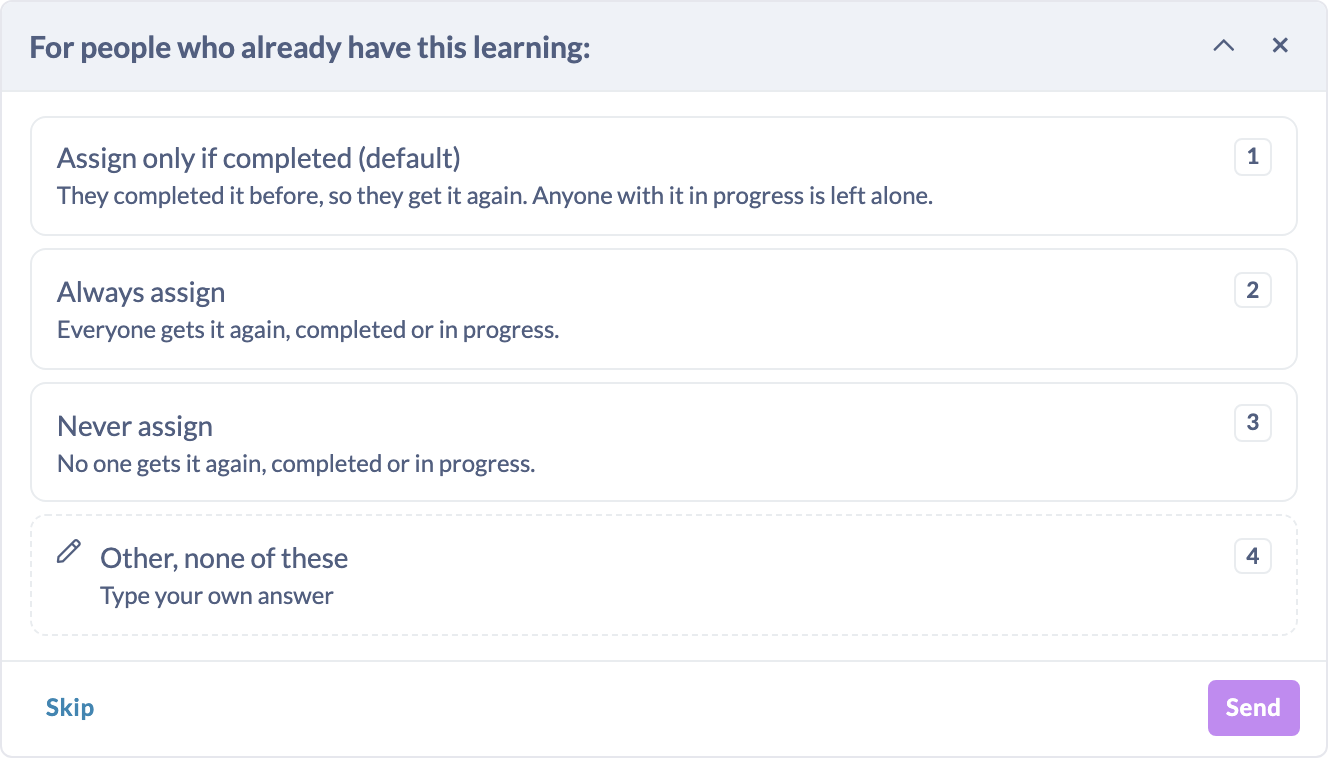
Where your description leaves a gap, the AI Assistant asks rather than filling it in. Questions arrive as a card in the conversation with a short list of answers to pick from, one question at a time. The gaps it will not guess at:
- Which record you meant. If a name matches more than one Pathway, course, Team or person, it asks which one.
- What to do about people who already have the learning. This one is asked whenever the Workflow assigns a Pathway, course, Event or assessment, and the three answers are the platform's own, word for word from the Workflow editor. The question reads For people who already have this learning: and the choices are Assign only if completed (default) ("They completed it before, so they get it again. Anyone with it in progress is left alone."), Always assign ("Everyone gets it again, completed or in progress.") and Never assign ("No one gets it again, completed or in progress."). This question has no Other row, because the platform accepts exactly those three answers.
- Who a message goes to, and how it is sent. For a Workflow that sends a message, the AI Assistant will not infer either. Getting a recipient or a channel wrong means the wrong people are contacted every single time the rule fires, so it asks.
- Which detail should start it, for a Workflow that runs when somebody's details change. The platform requires at least one condition on that trigger, or it would fire on every edit to everybody.
The AI Assistant writes the heading and the body of a Workflow message itself. It will not ask you to draft the wording first and it will not offer you a choice of drafts in chat, because the confirmation card shows you both in full before anything is saved.
The triggers it can use
The AI Assistant can use every one of the eight triggers the Workflow editor offers, and nothing else.
Trigger | What sets it off | Names a record? |
|---|---|---|
Person joins | Somebody is added to your account | No |
Profile is updated | Somebody's details are changed | No |
Person is added to team | Somebody is added to a Team | A Team |
Pathway is completed | Somebody completes a Pathway | A Pathway |
Content is completed | Somebody completes a piece of Library content | A course or other content item |
Event is attended | Somebody completes an Event | An Event |
Form is submitted | Somebody completes a Form | A Form |
Roadmap is completed | Somebody completes a Roadmap | A Roadmap |
For the six triggers that name a record, you can leave the record out and have the Workflow respond to all of them. Say so plainly if that is what you want, because it is a much larger rule than most people picture. The AI Assistant flags it on the confirmation card as a consequence: "No particular course was named, so this runs every time it happens, for all of them."
Ask for anything outside the eight and it tells you so rather than approximating: "That is not something a workflow can start from. It can start when somebody is added to the account, when their details change, when they are added to a team, or when they finish a pathway, course, event, assessment or roadmap."
The conditions it can put on a trigger
A condition narrows the trigger so the Workflow runs only for people or items that match. Each trigger only accepts the conditions its own event actually carries, and the AI Assistant refuses the rest rather than saving a Workflow that would never fire.
Trigger | Conditions available |
|---|---|
Person joins, Profile is updated, Person is added to team | Position, Role, Manager, Country, State |
Pathway is completed | Level, Tag, Instructor |
Content is completed | Level, Type, Tag |
Roadmap is completed | Level, Tag |
Event is attended, Form is submitted | None |
The Assistant can't use your Custom Fields as conditions yet. If you ask for one, it tells you so. Add Custom Field conditions yourself on Settings → Workflows.
Every condition is an exact match. A condition can name one value, tested as "is", or up to 10 values, tested as "is any of", so one condition covers several job titles, roles or countries. Add more than one condition and they are combined with "and" by default, so all of them have to hold. Say that any one of them is enough, as in "either a Nurse or based in New Zealand", and they are combined with "or" instead. The AI Assistant reads them back to you by name and value, as in "Only if Position is any of Nurse or Carer and Country is Australia."
The choice between "and" and "or" covers every condition in the Workflow, exactly as it does in the Workflow editor. To say "(this and this) or that", ask for two Workflows.
Ask for a condition the trigger cannot carry and you get told why, not a Workflow that quietly does nothing: "A workflow that starts with 'completedEvent' cannot be narrowed by tags. That event does not carry it, so the workflow would save and then never run."
The actions it can take
Again, all eight of the Workflow editor's actions, and nothing else.
Action | What it does | Due date | Yearly repeat | Already has it? |
|---|---|---|---|---|
Assign a pathway | Assigns a Pathway | Yes | Yes | Yes |
Assign a content | Assigns a course or other Library item | Yes | Yes | Yes |
Assign an event | Assigns an Event | Yes | Yes | Yes |
Assign a form | Assigns a Form | Yes | Yes | Yes |
Assign a roadmap | Assigns one named level of a Roadmap | No | No | No |
Add to team | Adds the person to a Team | No | No | No |
Change user role | Changes the person's Role | No | No | No |
Send a notification | Sends a message you can see in full first | No | No | No |
A due date can be either a number of days after the Workflow assigns the learning, or a fixed calendar date. A repeat re-assigns the learning every year, optionally for a set number of times in all. Both are available only on the four assign actions in the table above, because those are the only actions the platform actually reads them on. Ask for a due date on one of the others and the AI Assistant explains rather than storing something that would be ignored: "A workflow that does 'addToTeam' cannot carry a due date, because the platform ignores one there. Set the due date on the learning itself instead."
For a Roadmap you name the Roadmap and the level within it. A level somebody already holds is never assigned twice, and a level in progress is reused in place, which is why the already-has-it question is not asked for Roadmaps.
For Send a notification, the AI Assistant writes the heading and the message, and you choose who gets it and how. There are four kinds of recipient and you can combine them: the person it happened to, their manager, named people, and everyone in a named Team. Name a group it cannot resolve to real people or Teams and it refuses instead of picking something nearby: "'the HR team' is not somebody a workflow message can be sent to. It can go to the person the event happened to, their manager, named people, or named teams." The three channels are an in-app notification, email and Slack, and you need at least one.
Note: However a Workflow message is sent, it also lands in each recipient's notifications inside SuperPath. The AI Assistant says this on the card whenever you have not asked for the in-app notification explicitly, so the readback never understates where the message ends up.
The confirmation card
Nothing is created until you confirm. The card is headed New workflow with a Confirm badge, and it is the whole safety check for a Workflow, because a rule that fires later has no group of people to count in advance and no result to inspect afterwards. Read it properly.
It shows the automation twice: once as a plain-English paragraph, and again broken into labelled rows.
- When the trigger, naming the record, as in "somebody completes the course Fire Safety" or "somebody is added to any team".
- Only if each condition, as "Position is Engineer" or "Position is any of Nurse or Carer", joined with "and", or with "or" when one condition is enough. Omitted when there are no conditions.
- Then the action, naming the record, as in "assign them the assessment Fire Safety Feedback". For a message it names the heading, who receives it and how it is sent.
- Due date and Repeats, when you asked for either.
- Status, which always reads Switched off.
Underneath, an orange callout lists anything else that follows from the rule as written: that no particular record was named and it will therefore run for all of them, that a Role change alters what those people can see and do every time it runs, or that a real email leaves the platform on every run and cannot be recalled. Any qualification, such as the in-app note above, appears as a plain line below that.
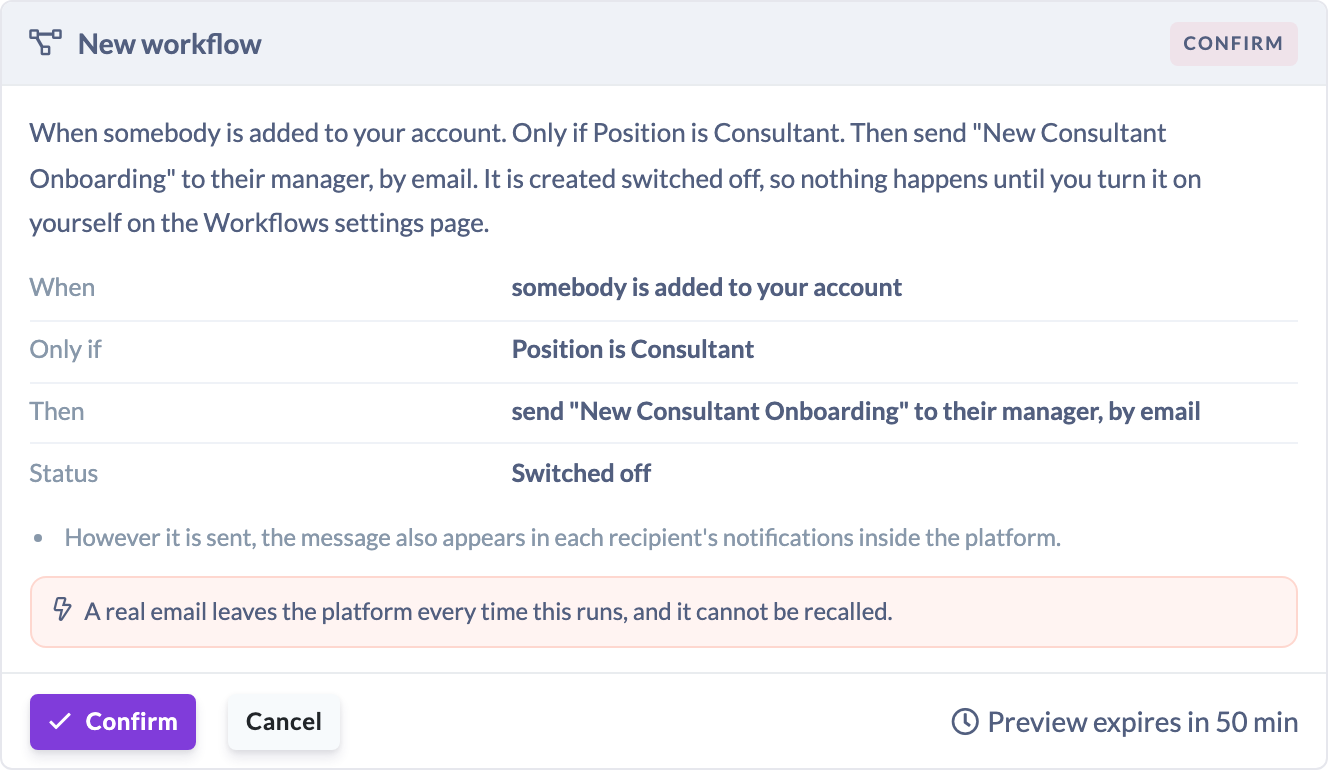
There is no People affected row on a Workflow card, and that is deliberate. A Workflow acts on people nobody has met yet, so a count there would either be nought, which means nothing, or a guess about the future.
Click Confirm to create it, or Cancel to throw it away. Nothing changes if you cancel. The preview expires after an hour, and the card counts down to that in its bottom corner, so if you leave it sitting you will be asked to run the preview again.
After you confirm, the card becomes a receipt with a Confirmed badge reading "Created, switched off: [the when and then sentence]. Turn it on on the Workflows settings page when you are ready." The receipt carries an Open in workflow editor link straight to the new Workflow.
Turning the Workflow on
The new Workflow is in Settings → Workflows with its Status column showing Disabled. To start it running, click the play icon in its row. See How to Pause or Activate a Workflow for the detail, including the fact that a Workflow does not go back and process events that happened while it was switched off.
This is the one step the AI Assistant will never do for you. It has no way to switch a Workflow on, so the decision to arm an automation is always a person's.
Tip: Read the Workflow in the list before you turn it on. Its When and Then text and its condition rows are the same information the confirmation card showed you, now rendered by the settings page itself, which makes it an easy second look.
Editing the Workflow afterwards
Once it exists, a Workflow the AI Assistant built is an ordinary Workflow. Click it in Settings → Workflows and the normal Workflow editor opens, pre-filled, and you can change the trigger, the action, the conditions, the due date, the repeat and the assignment rules exactly as you would on one you built yourself. See How to Edit a Workflow.
The AI Assistant cannot make that edit for you. It can create a Workflow and it can undo its own creation, but it cannot change or delete a Workflow that already exists. Ask it to and it will explain how you would do it.
Undoing it
The receipt carries an Undo button for 7 days, with the time remaining beside it, as in "Undoable for 6 more days". Undo here deletes the Workflow the AI Assistant created. You can also undo it later from the Assistant activity page, which lists every change with its own undo control. See The AI Assistant Activity Log and, for the general mechanics, How the AI Assistant Makes Changes.
There is one refusal worth knowing about. The AI Assistant will not delete a Workflow that somebody has switched on since it was created. A Workflow you turned on is one you adopted, it may have been running for days, and deleting it would be a second change nobody approved. So the undo stops and tells you:
"That workflow has been switched on since it was created, so the assistant will not delete it. You can turn it off or delete it yourself on the Workflows settings page."
After 7 days the button is gone, and asking for it back gets you "The 7-day window for undoing this action has closed." Pause or delete it yourself from Settings → Workflows in either case.
What it will not do
The AI Assistant builds Workflows from a fixed list of triggers, conditions and actions, and refuses anything outside it rather than approximating. In practice that means:
- One trigger and one action per Workflow. To do two things off the same event, ask for two Workflows.
- No trigger, condition or action that the Workflow editor does not offer. The lists above are the whole vocabulary.
- No condition on an Event or a Form completion. Those events carry nothing to narrow on.
- No more than 10 values in one condition. Ask for more and you are told so: "A condition can list up to 10 values, and Position was given 12. Narrow the list, or build a second workflow for the rest."
- No mixing "and" with "or". The conditions in one Workflow either all have to hold or any one is enough.
- No due date and no repeat except on the four assign actions, and the AI Assistant stages yearly repeats only. To repeat every few years, change Every on the Workflow afterwards.
- No start date. Ask for a start date and set it on the learning itself, or add it in the Workflow editor afterwards.
- No button or link inside a Workflow message. A call-to-action needs a web address, and the AI Assistant will not invent one.
- A Workflow that runs when somebody's details change must carry at least one condition. Without one it would fire on every edit to everybody, so the platform refuses it and the AI Assistant asks you which change should start it.
- A Workflow whose condition is somebody's Role cannot also change their Role. The change would start the Workflow again. You will be told plainly and asked what you want to happen instead.
- It will not edit, pause, activate or delete an existing Workflow.
- It will not turn the new Workflow on.
Things to keep in mind
- Every Workflow the AI Assistant creates is switched off and stays that way until a person turns it on in Settings → Workflows.
- Nothing is created until you press Confirm. Cancelling changes nothing at all.
- The readback on the confirmation card is the real check. There is no group of people to preview and no result to inspect afterwards, so a mistake you do not catch on the card is a mistake you catch on the settings page instead.
- The card names records rather than ids, so read the record names carefully. A Workflow pointed at the wrong course is a Workflow that will keep being wrong.
- Leaving out the specific Pathway, course, Event, Form, Roadmap or Team makes the Workflow respond to all of them. Only do that on purpose.
- Notifying people when the Workflow assigns learning is on, as it is on a new Workflow in the editor. Change it in the Workflow editor if you would rather it were off.
- If the Workflow is renamed at the record level between preparing and confirming, the Workflow is created against the current name. It is read fresh at confirm time.
- Creating a Workflow is not available to Managers or People Managers even where the AI Assistant itself is. See Who can do this.
- Workflows have to be switched on for your account. Contact SuperPath Support if they are not, because this one is not on your settings page.
- AI can make mistakes. The switched-off state exists precisely because of that, so use it and read the Workflow once more before you arm it.
FAQs
Will the Workflow start running as soon as I confirm it?
No. It is created switched off and does nothing to anybody until you turn it on yourself in Settings → Workflows. This is not something you can ask the AI Assistant to skip.
Can the AI Assistant turn it on for me?
No. Switching a Workflow on is always a person's decision, and the AI Assistant has no way to do it.
Why is it asking me about people who already have the learning?
Because a Workflow fires again and again, often at people who already hold the learning, so the answer genuinely changes what happens. The three choices are the Workflow editor's own: Assign only if completed (default), Always assign and Never assign.
Why won't it set a due date on my "add to team" Workflow?
Because the platform ignores a due date on that action, so storing one would promise something that never happens. Due dates and yearly repeats work on Assign a pathway, Assign a content, Assign an event and Assign a form.
Can it build one Workflow for several job titles?
Yes. Name them all in one request, as in "their position is Nurse, Carer or Enrolled Nurse", and the AI Assistant puts them in a single "is any of" condition, up to 10 values.
Can it build a Workflow that does two things?
No. A Workflow performs exactly one action, whether you build it by hand or ask for it. Ask for a second Workflow off the same trigger.
I asked for a monthly repeat and it offered yearly. Why?
Yearly is the only repeat SuperPath's Workflows offer, so the AI Assistant tells you that rather than quietly reinterpreting your request as something else.
Can it edit a Workflow I already have?
No. It can create one and undo its own creation. Editing, pausing, activating and deleting are done in Settings → Workflows. See How to Edit a Workflow.
Why won't it undo the Workflow it made?
Because somebody has switched it on since. Turning it on makes it yours, and it may have been acting on people already, so the AI Assistant leaves it alone and asks you to pause or delete it yourself.
How long do I have to undo it?
7 days from confirming, as long as it is still switched off. The receipt and the Assistant activity page both show the time left.
Where do I check what it built?
Settings → Workflows. The receipt also has an Open in workflow editor link that takes you straight there.
Who can do this
Creating a Workflow with the AI Assistant is limited to Owners and Admins, plus the internal SuperPath Admin role used by SuperPath support. That is stricter than the AI Assistant itself: Managers and People Managers can use the AI Assistant when your organisation's Who can use the AI Assistant setting is Admins and managers, but they are never offered Workflow creation, because only Owners and Admins hold Workflow permissions at all. Content Managers, Instructors, Employees and Restricted users cannot use the AI Assistant on either setting.
Confirming and undoing follow the same rule, and the Workflow is created and deleted as whoever presses the button rather than as the AI Assistant. Turning the AI Assistant on and choosing its access level is done in Settings → Features by an Owner or Admin. See Managing AI Features.
Updated on: 27/10/2026
Thank you!