
How to Delete a Knowledge Article
How to Delete a Knowledge Article
In this article:
- Overview
- Delete from the article editor
- Delete from the Manage Articles list
- Things to keep in mind
- FAQs
- Who can do this
Overview
When a Knowledge Article is no longer needed, you can delete it permanently. There are two places to do this — from within the article's editor, and from the Manage Articles list. Both remove the article for good, so if you only want to hide an article from learners temporarily, unpublish it instead of deleting it.
Delete from the article editor
- In the sidebar, go to Knowledge.
- On the Knowledge hub, click Manage Articles, then open the article you want to delete.
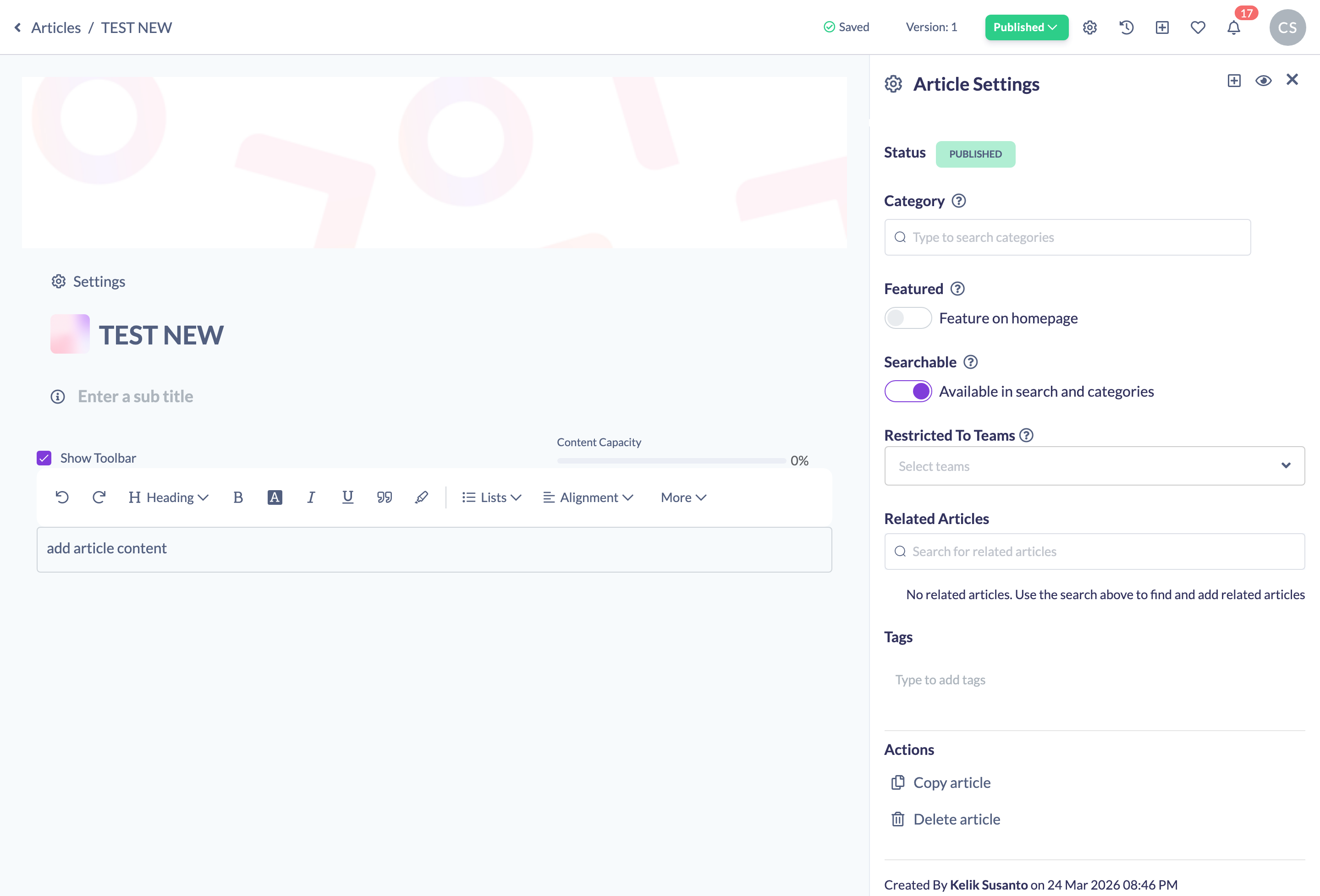
- In the top navigation bar of the editor, open the settings panel.
- In the settings panel, scroll to the Actions section and click the delete (trash) option.
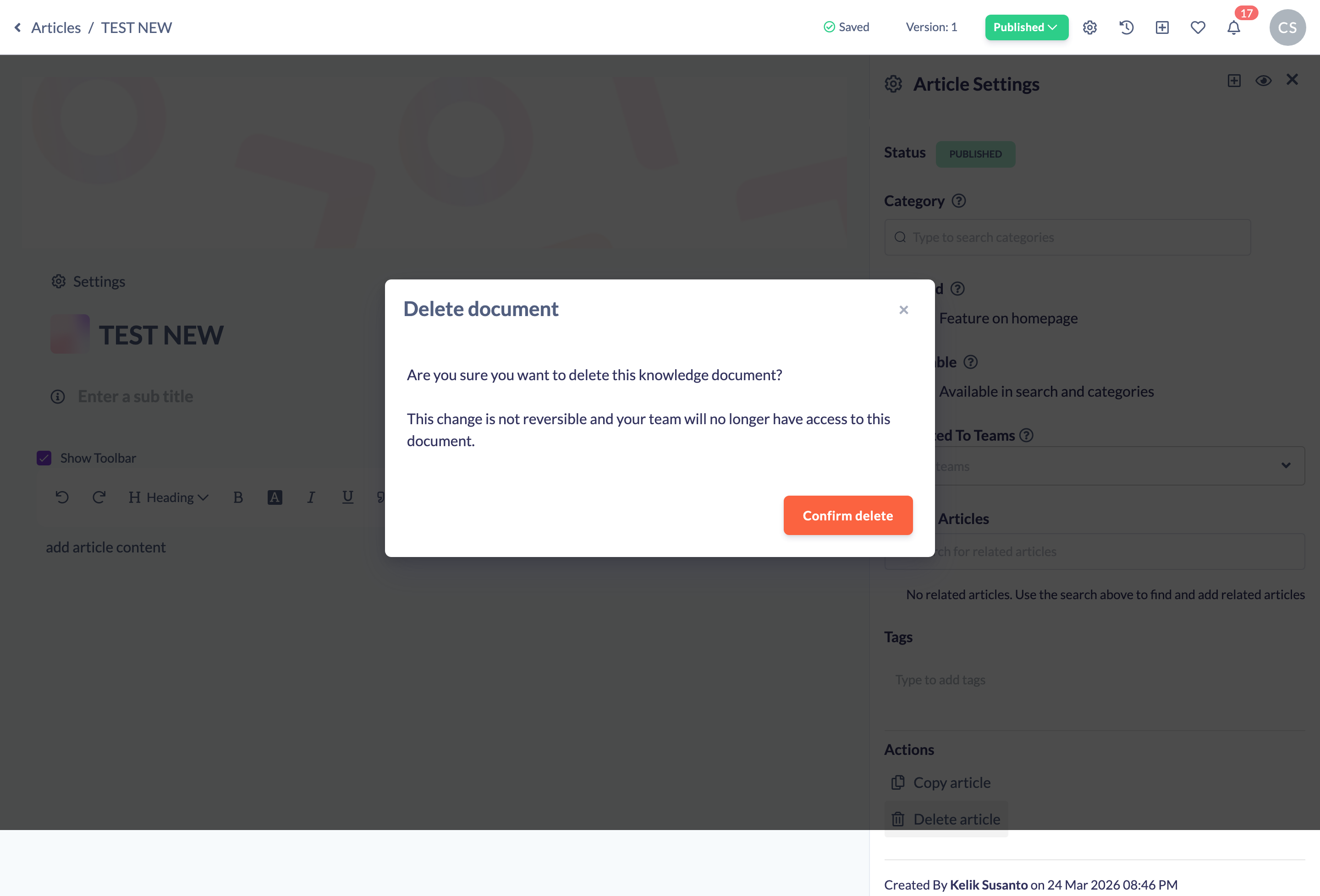
- A confirmation appears warning that the change is not reversible and that your team will no longer have access to the document. Click Confirm delete to remove the article.
Once deleted, you're taken back to the Knowledge area.
Delete from the Manage Articles list
- In the sidebar, go to Knowledge, then click Manage Articles.
- Find the article you want to delete in the list.
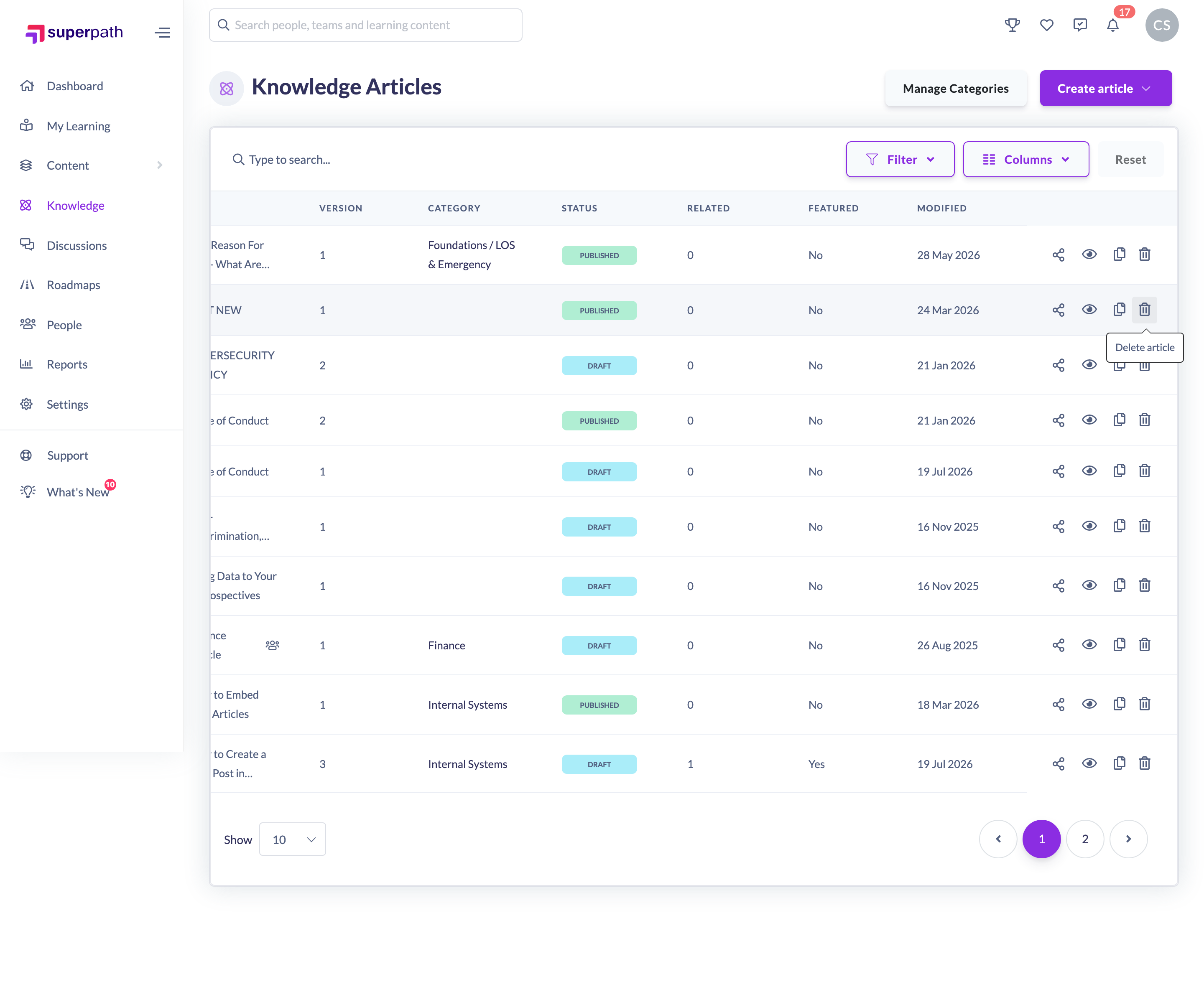
- In the actions at the end of that row, click the delete (trash) icon.
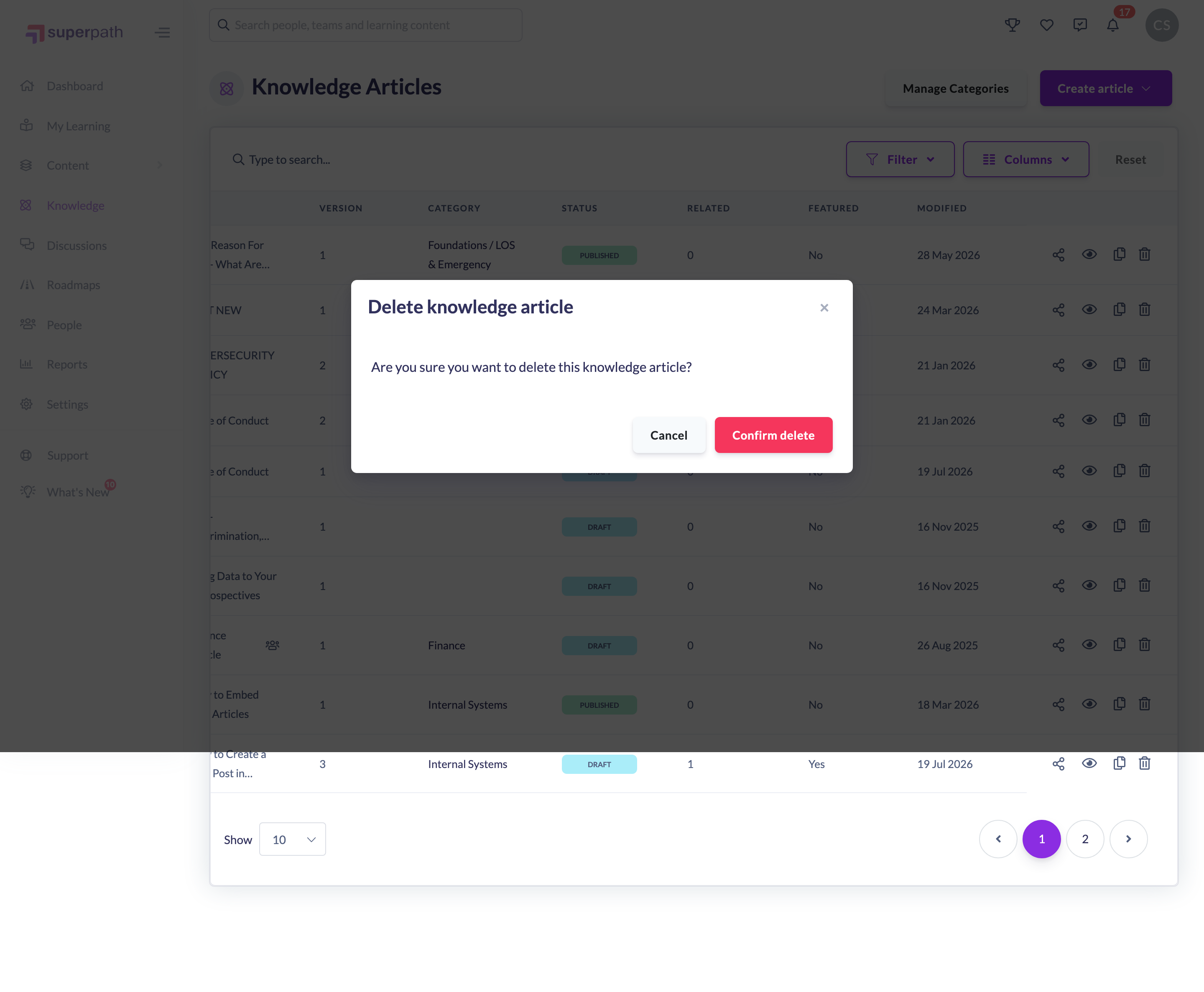
- In the Delete knowledge article confirmation, click Confirm delete to remove the article.
The article is removed from the list straight away.
Note: Deleting a Knowledge Article is permanent and cannot be undone. If you might need the content again, unpublish the article instead — that hides it from learners while keeping it in your Knowledge base.
Things to keep in mind
- Deleting is not reversible — once an article is gone, it can't be restored, and your team will no longer have access to it.
- Both entry points do the same thing: the editor and the Manage Articles list both delete the same article permanently.
- The delete control only appears for users who have permission to delete Knowledge Articles.
- To remove an article from learners' view without losing it, unpublish it rather than deleting it.
FAQs
Can I undo a deletion?
No. Deleting a Knowledge Article is permanent. If you're unsure, unpublish the article instead so you can bring it back later.
What's the difference between deleting and unpublishing?
Unpublishing hides the article from learners but keeps it in your Knowledge base. Deleting removes it entirely and cannot be reversed.
Why can't I see the delete option?
The delete control is only shown to users whose role allows them to delete Knowledge Articles. If you don't see it, your role has read-only access to Knowledge.
Who can do this
Owners, Admins, Managers and Content Managers can delete Knowledge Articles. People Managers, Instructors, Employees and Restricted users have read-only access to Knowledge and cannot.
Updated on: 19/07/2026
Thank you!