
How to Delete a Knowledge Category
How to Delete a Knowledge Category
In this article:
- Overview
- Delete a category
- Things to keep in mind
- FAQs
- Who can do this
Overview
Knowledge categories help you organise your articles and give learners a clear way into your content. If a category is no longer needed, you can delete it from the Knowledge categories settings. Deleting a category has knock-on effects for its sub-categories and any articles filed under it, so it's worth reading the warning before you confirm. This article explains how, and what to expect. To create or edit categories instead, see Create Knowledge Categories and Edit Knowledge Category.
Delete a category
- Go to Settings → Features.
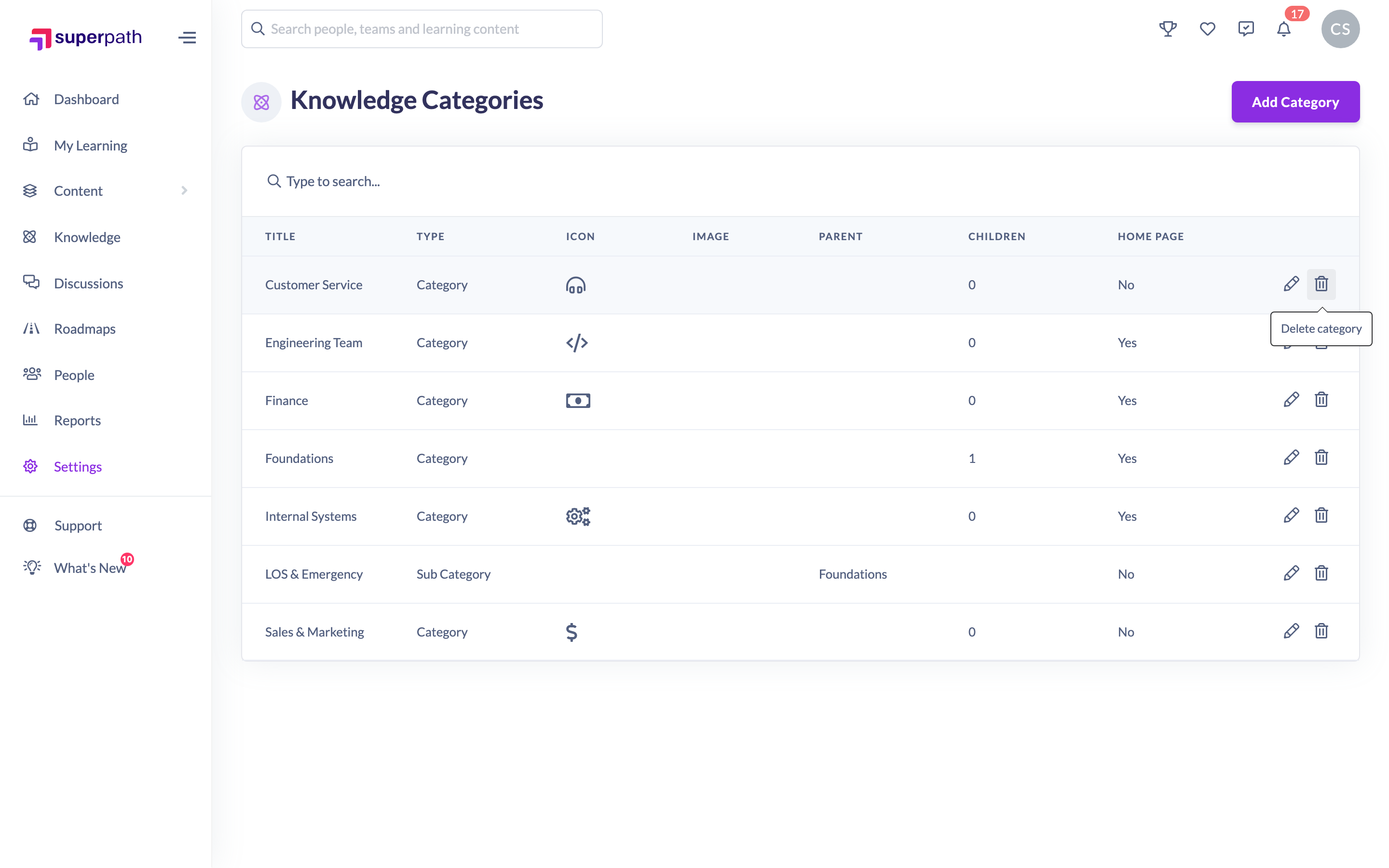
- In the Knowledge categories section, click Manage Knowledge Categories.
- In the categories table, find the category you want to remove.
- In that row, click the trash icon (tooltip Delete category).
- A confirmation window appears asking Are you sure you want to delete this category?. Read the warning, which explains that any sub-categories belonging to this category will also be deleted, and that any learning content associated with the deleted categories will be updated to remove the category association.
- Click Confirm delete to remove the category, or Cancel to keep it.
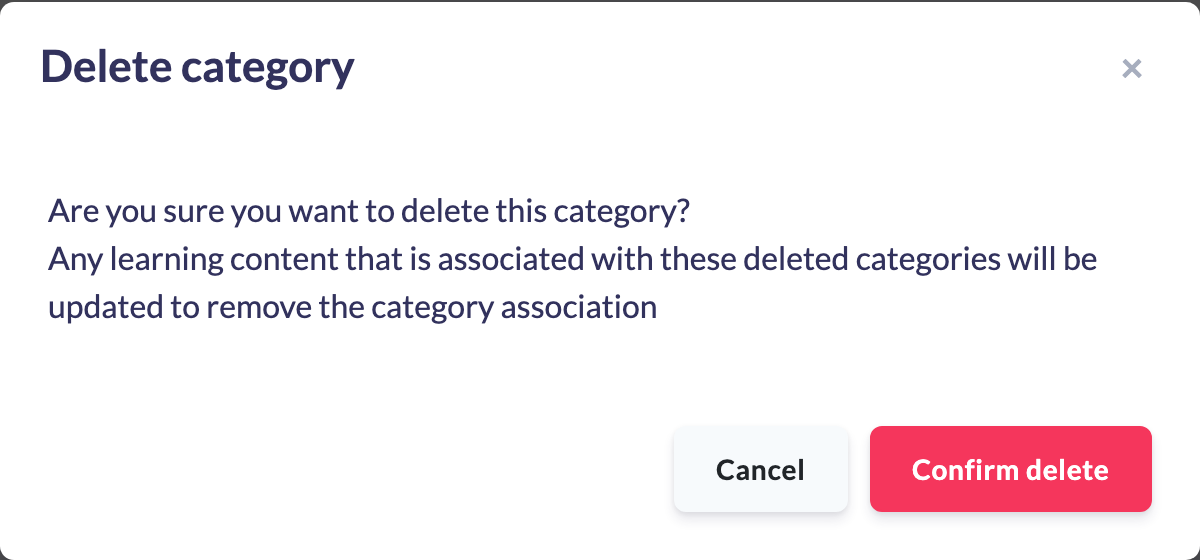
Once confirmed, the category is removed and the list refreshes.
Note: Deleting a category cannot be undone. If you only want to hide a category from the Knowledge Homepage, edit it and turn off the Show on Knowledge Homepage toggle instead of deleting it.
Things to keep in mind
- Deleting a top-level category also deletes all of its sub-categories.
- Articles filed under a deleted category are not deleted — they simply lose their category association and remain in your Knowledge Base.
- Knowledge categories can only be managed on a desktop or tablet, not on a mobile device.
FAQs
What happens to the articles in a category I delete?
The articles are not deleted. They stay in your Knowledge Base but lose their association with the deleted category, so you may want to reassign them to another category afterwards.
Does deleting a category also delete its sub-categories?
Yes. Deleting a top-level category removes all of the sub-categories underneath it as well.
Can I undo a category deletion?
No. Deletion is permanent, so if you're unsure it's safer to hide the category from the homepage instead.
I just want to stop a category showing on the homepage — do I have to delete it?
No. Edit the category and turn off the Show on Knowledge Homepage toggle, then save. The category stays in place but no longer appears on the homepage.
Who can do this
Knowledge categories are managed under Settings, which is available only to Owners and Admins. Managers, Content Managers, People Managers, Instructors, Employees and Restricted users cannot access Settings and so cannot delete Knowledge categories.
Updated on: 19/07/2026
Thank you!