
How to Delete a Saved Report
How to Delete a Saved Report
In this article:
- Overview
- How to delete a saved report
- Things to keep in mind
- FAQs
- Who can do this
Overview
If a saved report is no longer needed, you can remove it from the Saved Reports tab. Deleting removes the saved setup only — it does not delete any learners, learnings or completion data.
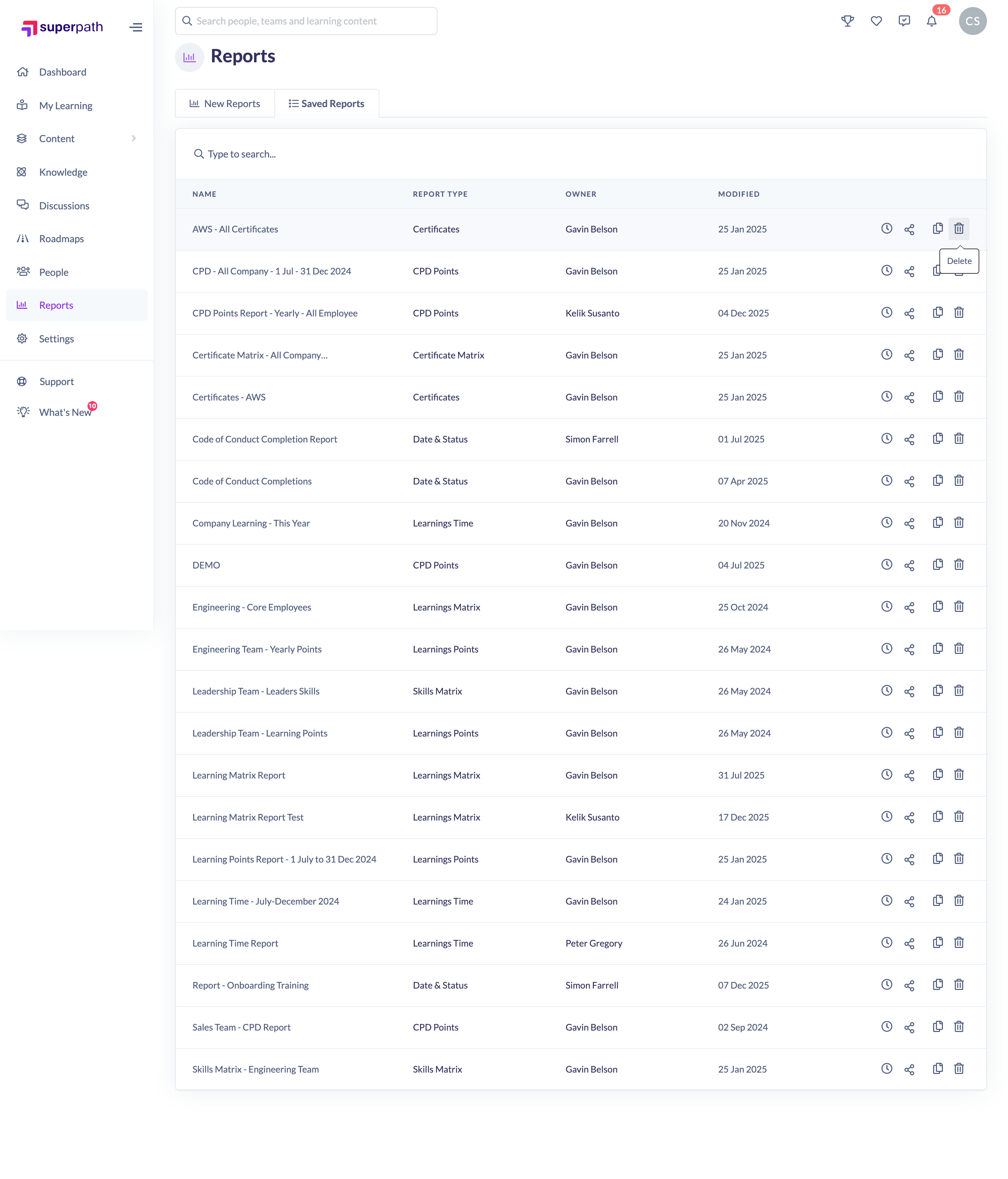
How to delete a saved report
- In the left-hand menu, go to Reports.
- Click the Saved Reports tab.
- Find the report you want to remove.
- In the row's actions on the right, click the Delete (trash) icon.
- In the Delete saved report dialog, confirm by clicking Confirm delete.
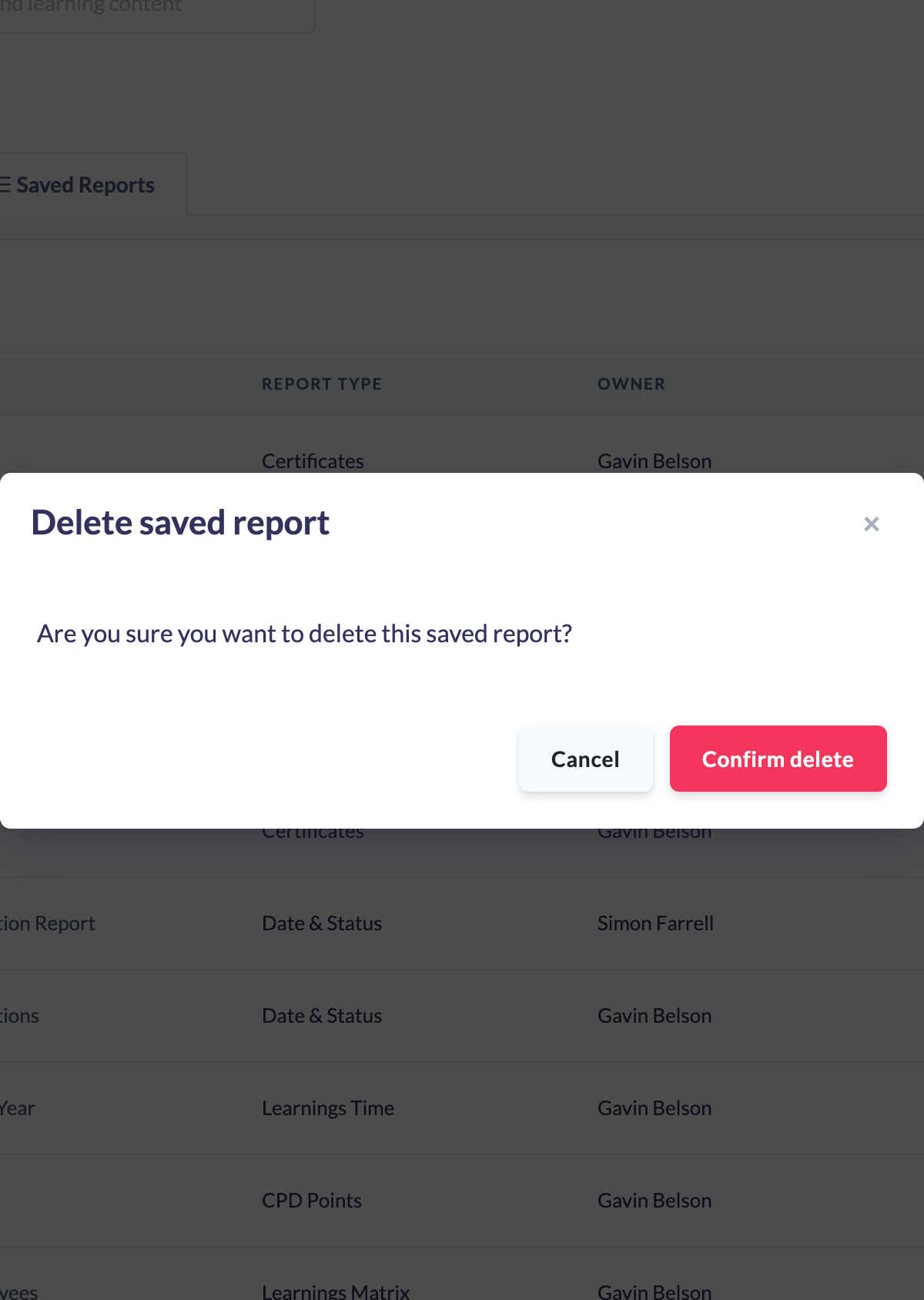
SuperPath removes the report from the list and confirms with a success message.
Things to keep in mind
- Deleting a saved report removes only the saved criteria — it does not affect learners, their assignments or any completion data.
- Any scheduled sends set up from that report stop, because they rely on the saved report.
- The delete control only appears for roles allowed to delete reports (see Who can do this).
FAQs
Does deleting the report delete the underlying data?
No. Only the saved report setup is removed. All learner, learning and completion records are untouched.
Can I undo a deletion?
No. Deleting is permanent, so delete only when you're sure. If you might need it again, consider duplicating it elsewhere first.
Why can't I see a delete icon on some reports?
The delete control is only shown to roles permitted to delete saved reports. If you don't see it, ask an Owner, Admin or Manager to remove the report.
Who can do this
Owners, Admins and Managers can delete a saved report. People Managers can reach the Reports area but the delete control is hidden for them, so they can't delete reports. Content Managers, Instructors, Employees and Restricted users do not have access to the Reports area.
Updated on: 18/07/2026
Thank you!