
How to Delete a Scheduled Report
How to Delete a Scheduled Report
In this article:
- Overview
- How to view existing schedules
- How to delete a scheduled report
- Sending yourself the latest report
- Changing a schedule
- Things to keep in mind
- FAQs
- Who can do this
Overview
Once you've set a report to send automatically, you can review its existing schedules and remove any you no longer need. Schedules are managed from the same dialog you use to create them, on the Saved Reports tab.
How to view existing schedules
- In the left-hand menu, go to Reports and click the Saved Reports tab.
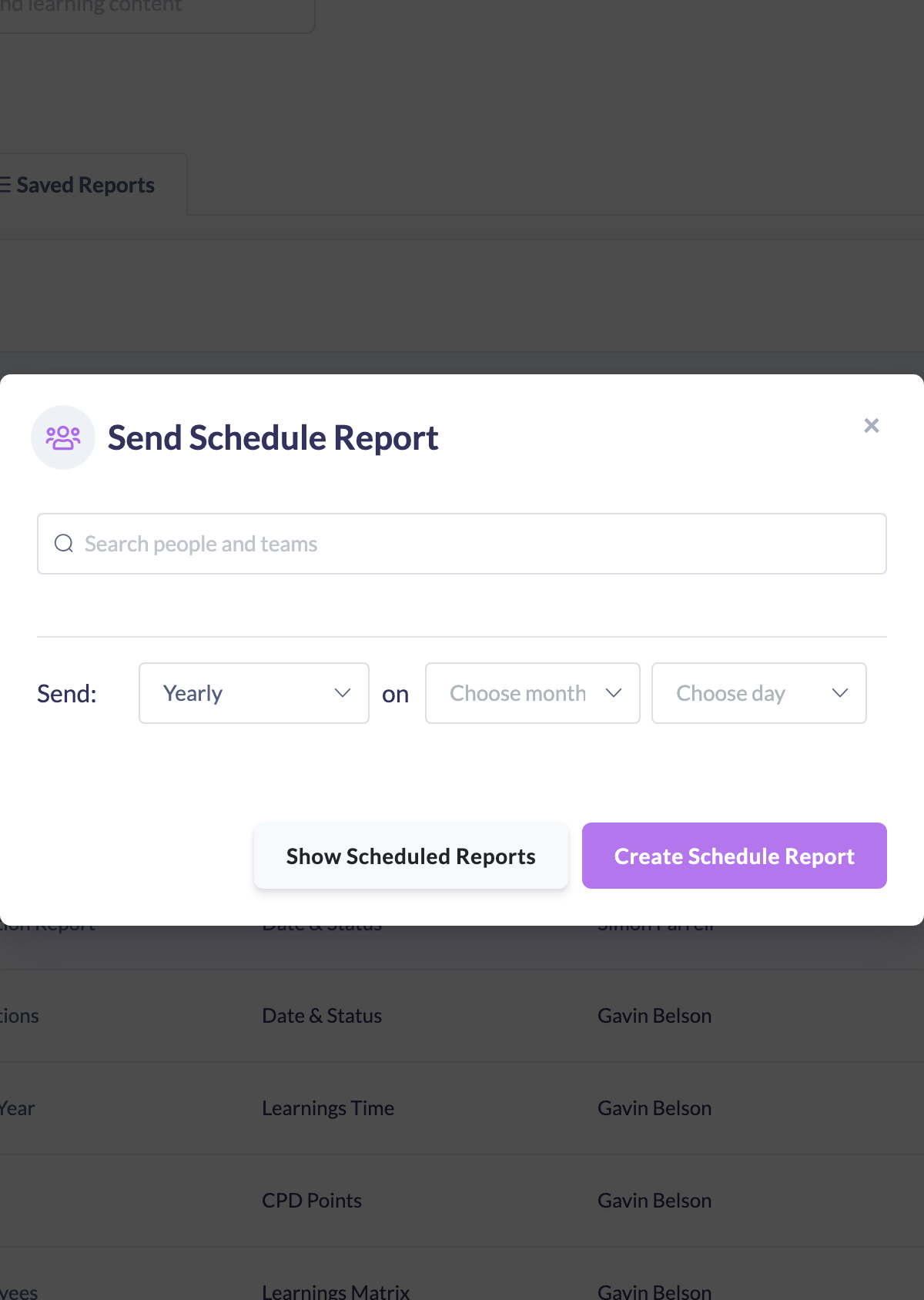
- In the report's row actions, click the Schedule a Report (clock) icon.
- In the dialog, click Show Scheduled Reports.
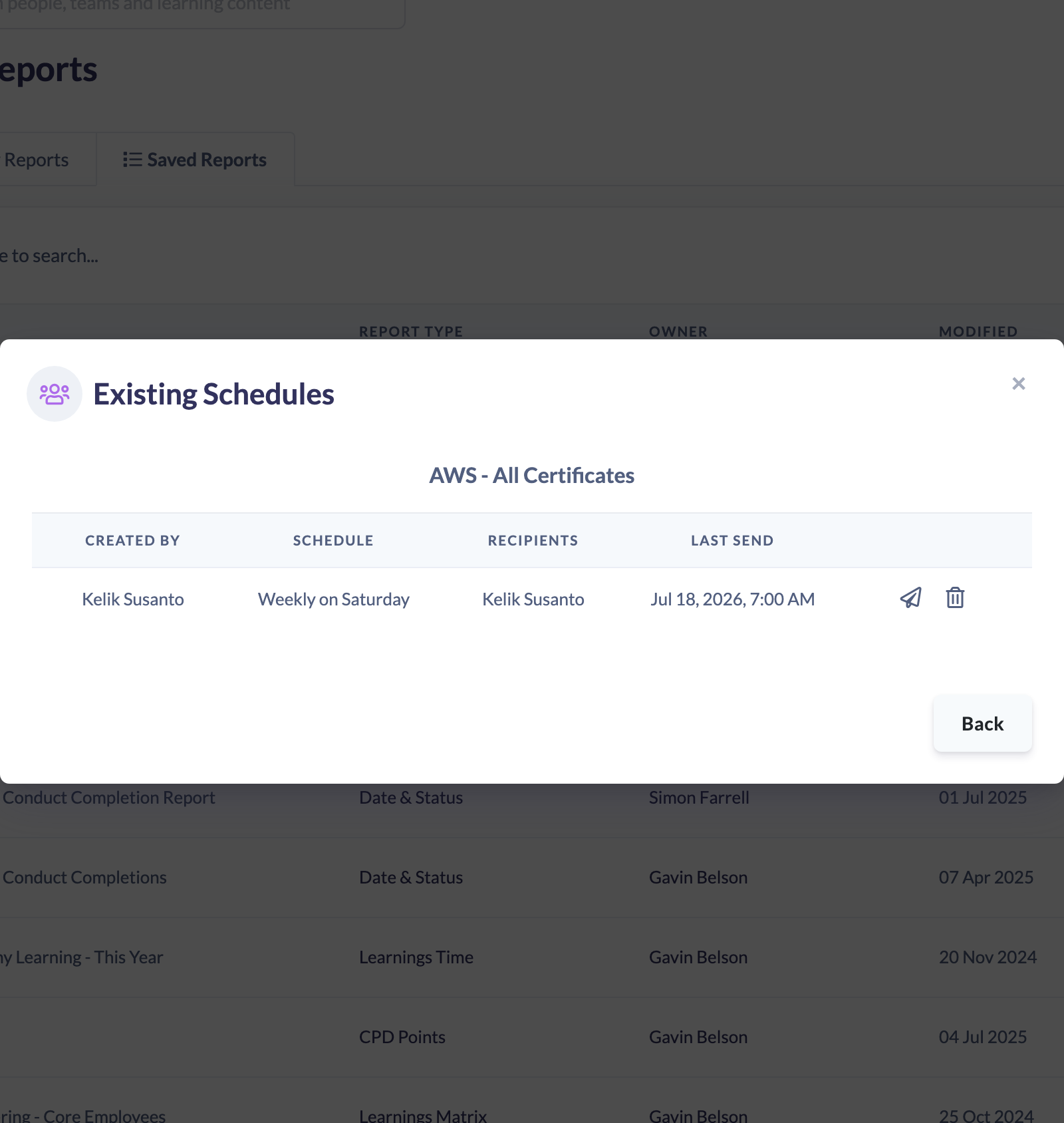
The Existing Schedules table lists each schedule for that report, showing who created it, its Schedule, the Recipients and the Last Send date.
How to delete a scheduled report
- Open Show Scheduled Reports as above.
- Find the schedule you want to stop.
- Click the Delete (trash) icon on its row.
- In the Delete Scheduled Report dialog, confirm by clicking Confirm delete.

SuperPath removes the schedule and confirms with Scheduled report deleted successfully. No further emails go out for that schedule.
Sending yourself the latest report
Each schedule row also has a Send me the latest report (paper-plane) icon. Clicking it emails a fresh link to the most recently generated report file to you — useful if you need the current file straight away without waiting for the next scheduled send.
Changing a schedule
There is no in-place edit for a schedule. To change how often a report sends or who receives it, delete the existing schedule and create a new one (see How to Schedule a Report to Send Automatically).
Things to keep in mind
- Deleting a schedule stops future emails only — it does not affect the saved report or any report files already sent.
- A saved report can have several schedules; deleting one leaves the others running.
- Deleting the underlying saved report stops all of its schedules.
FAQs
Can I edit a schedule instead of deleting it?
There's no edit option. Delete the schedule and create a new one with the settings you want.
Does deleting a schedule delete reports already emailed?
No. Links already sent are unaffected; deleting only stops future sends.
What does the paper-plane icon do?
It sends you a fresh link to the latest generated report file for that schedule.
Who can do this
Owners, Admins, Managers and People Managers can reach the Reports area and delete scheduled reports. Content Managers, Instructors, Employees and Restricted users do not have access to the Reports area.
Updated on: 18/07/2026
Thank you!