
How to Delete an Activity Feed Post
How to Delete an Activity Feed Post
In this article:
- Overview
- How to delete a post
- Things to keep in mind
- FAQs
- Who can do this
Overview
Sometimes an activity feed post isn't something you want on display — an accidental completion, or an update that isn't relevant. Owners and Admins can remove any post from the feed. Deletion applies to everyone: once a post is removed, it's gone from the feed for all users.
How to delete a post
- Open your Dashboard and find the post in the activity feed.
- Click the ⋮ menu at the top-right of the post.
- Choose Delete.
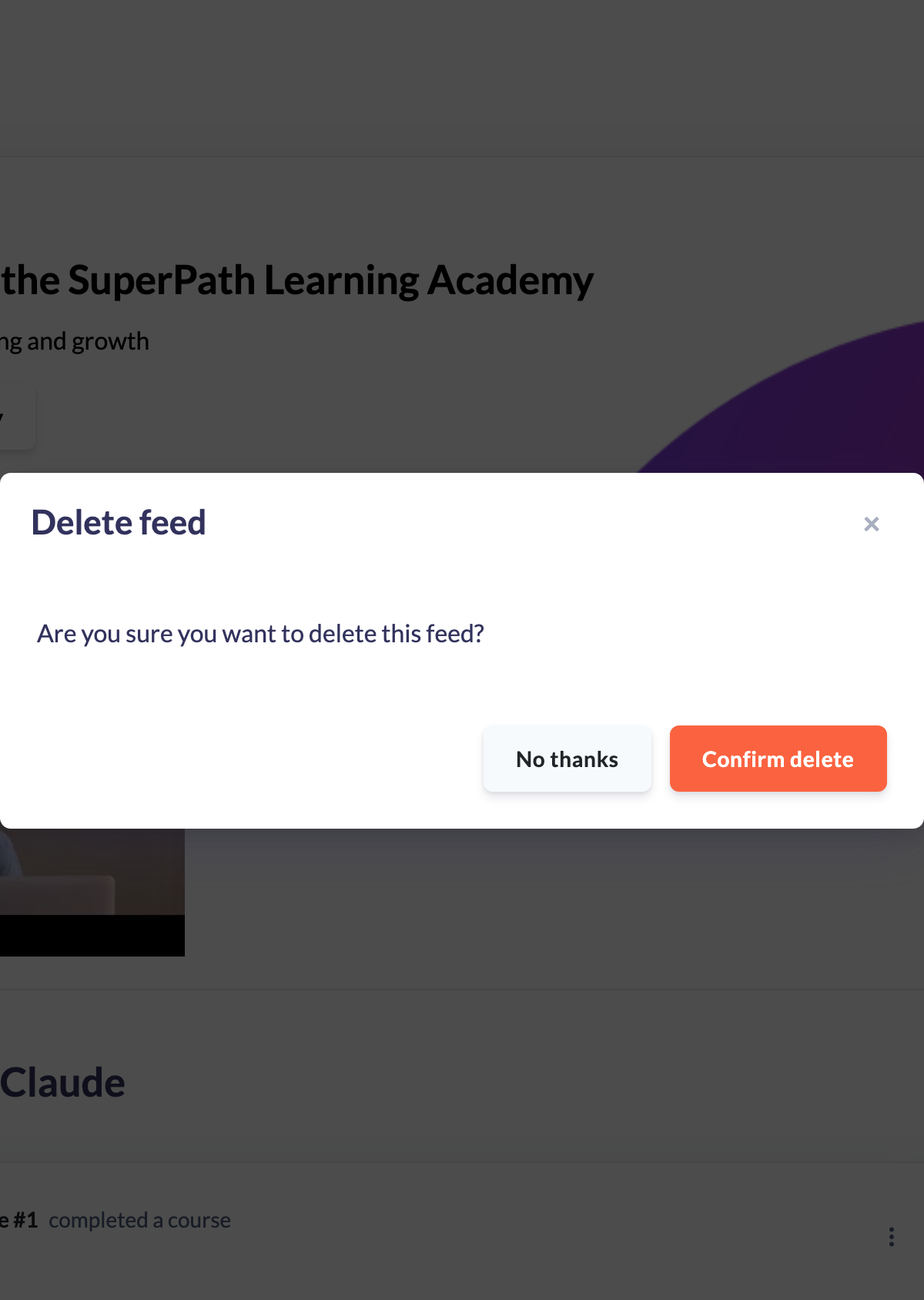
- In the Delete feed confirmation, review "Are you sure you want to delete this feed?" and click Confirm delete.
- The post is removed and the feed refreshes.
Note: The ⋮ menu only appears on posts you're allowed to delete, so if you don't see it you don't have permission to remove that post.
Things to keep in mind
- Deleting a post removes it from the feed for everyone, not just your own view.
- There's no undo — if you're unsure, choose No thanks on the confirmation instead of Confirm delete.
- Deleting the feed post removes the post itself; it doesn't undo the underlying activity (for example, it doesn't un-complete a learning).
FAQs
Can I delete my own posts?
Only if you're an Owner or Admin. There's no separate "delete my own posts" permission — the ability to delete feed posts is limited to Owners and Admins, who can remove any post.
Does deleting a post also delete the activity?
No. It removes the feed entry only. The underlying record (such as a completed learning) is unaffected.
Can I get a deleted post back?
No — deletion is permanent, so confirm only when you're sure.
Who can do this
Only Owners and Admins can delete activity feed posts, and they can delete any post. Managers, People Managers, Content Managers, Instructors, Employees and Restricted users cannot delete feed posts — the ⋮ delete menu doesn't appear for them.
Updated on: 18/07/2026
Thank you!