
How to Duplicate a Knowledge Article
How to Duplicate a Knowledge Article
In this article:
- Overview
- Duplicate from the Manage Articles list
- Duplicate from the article editor
- Things to keep in mind
- FAQs
- Who can do this
Overview
Duplicating a Knowledge Article gives you a copy to work from, so you can reuse an existing article as a starting point rather than building a new one from scratch. This is handy when you want to create a variation of an article, or use one as a template for similar content. You can duplicate an article either from the Manage Articles list or from within the article editor.
Duplicate from the Manage Articles list
- In the sidebar, go to Knowledge, then click Manage Articles.
- Find the article you want to copy in the list.
- In the actions at the end of that row, click the copy icon.
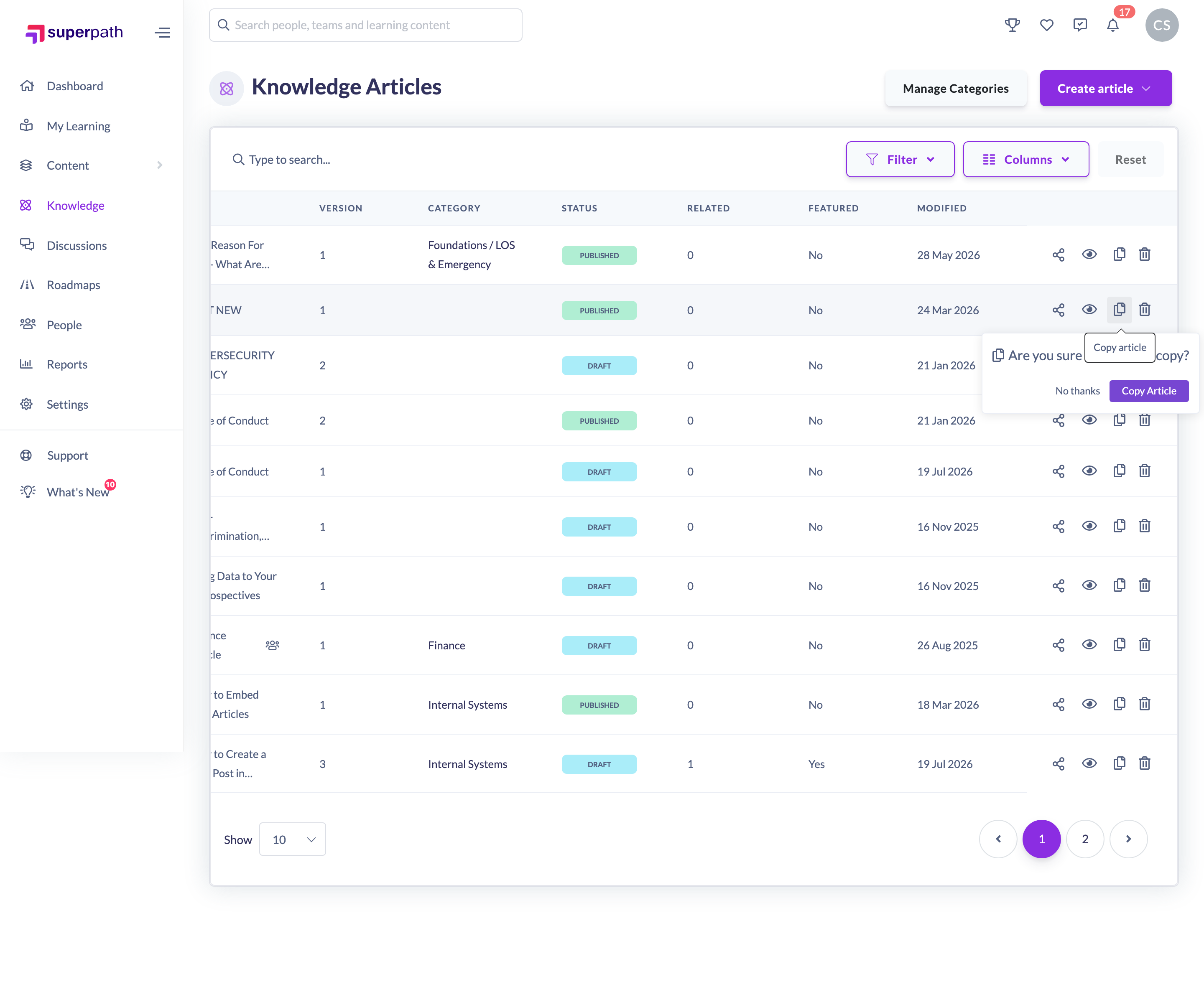
- A short confirmation appears asking Are you sure you want to copy?. Click Copy article to confirm, or No thanks to cancel.
- SuperPath creates the copy and opens the new article in the editor in a new browser tab, ready for you to edit.
Tip: The copy opens in a new tab, so your Manage Articles list stays open in the original tab. Give the new article a clear title and update its content before publishing so learners can tell the two apart.
Duplicate from the article editor
You can also copy the article you're currently working on, without going back to the list.
- Open the article in the editor and click the settings (cog) button in the top navigation bar to open the Article Settings panel.
- Under Actions, click Copy article.
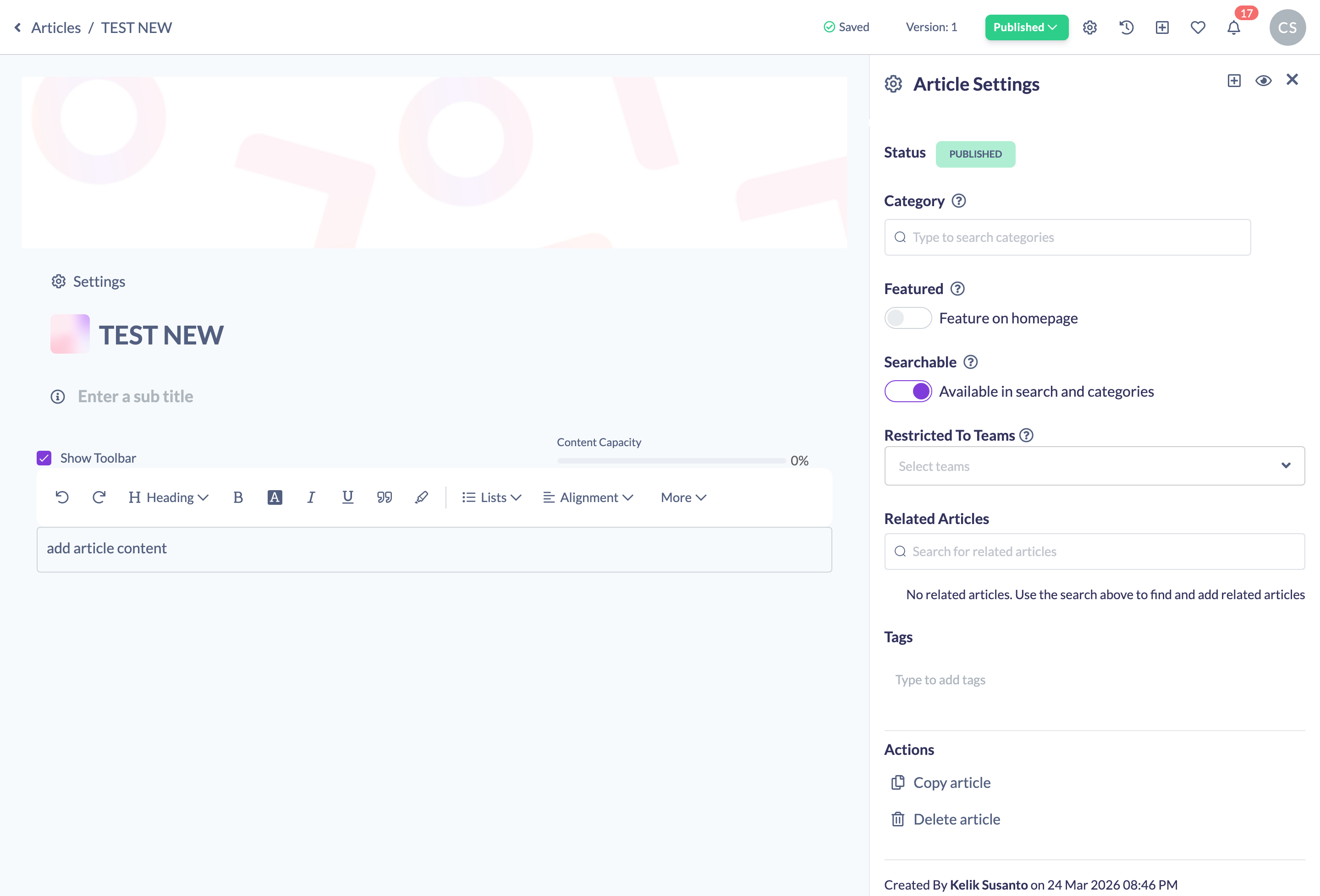
- A confirmation window appears asking you to confirm the copy. Confirm it, and SuperPath creates the copy and opens it in the editor in a new browser tab.
Things to keep in mind
- The duplicated article opens in a new browser tab — if your browser blocks pop-ups, you may need to allow them for SuperPath to see the new copy.
- A duplicate is a new, separate article. Editing the copy does not change the original, and vice versa.
- The copy option only appears for users who have permission to create Knowledge Articles.
FAQs
Where does the copy open?
In the article editor, in a new browser tab, so you can start editing it right away.
Does duplicating change the original article?
No. The copy is completely separate — changes to one don't affect the other.
Why can't I see the copy option?
The copy control is only shown to users whose role allows them to create Knowledge Articles. If you don't see it, your role has read-only access to Knowledge.
Who can do this
Owners, Admins, Managers and Content Managers can duplicate Knowledge Articles. People Managers, Instructors, Employees and Restricted users have read-only access to Knowledge and cannot.
Updated on: 19/07/2026
Thank you!