
How to Duplicate a Saved Report
How to Duplicate a Saved Report
In this article:
- Overview
- How to duplicate a saved report
- Things to keep in mind
- FAQs
- Who can do this
Overview
Duplicating a saved report gives you a copy you can tweak without changing the original. It's the quickest way to spin off a variation — the same report type and criteria, ready to adjust for a different team, date range or set of learnings.
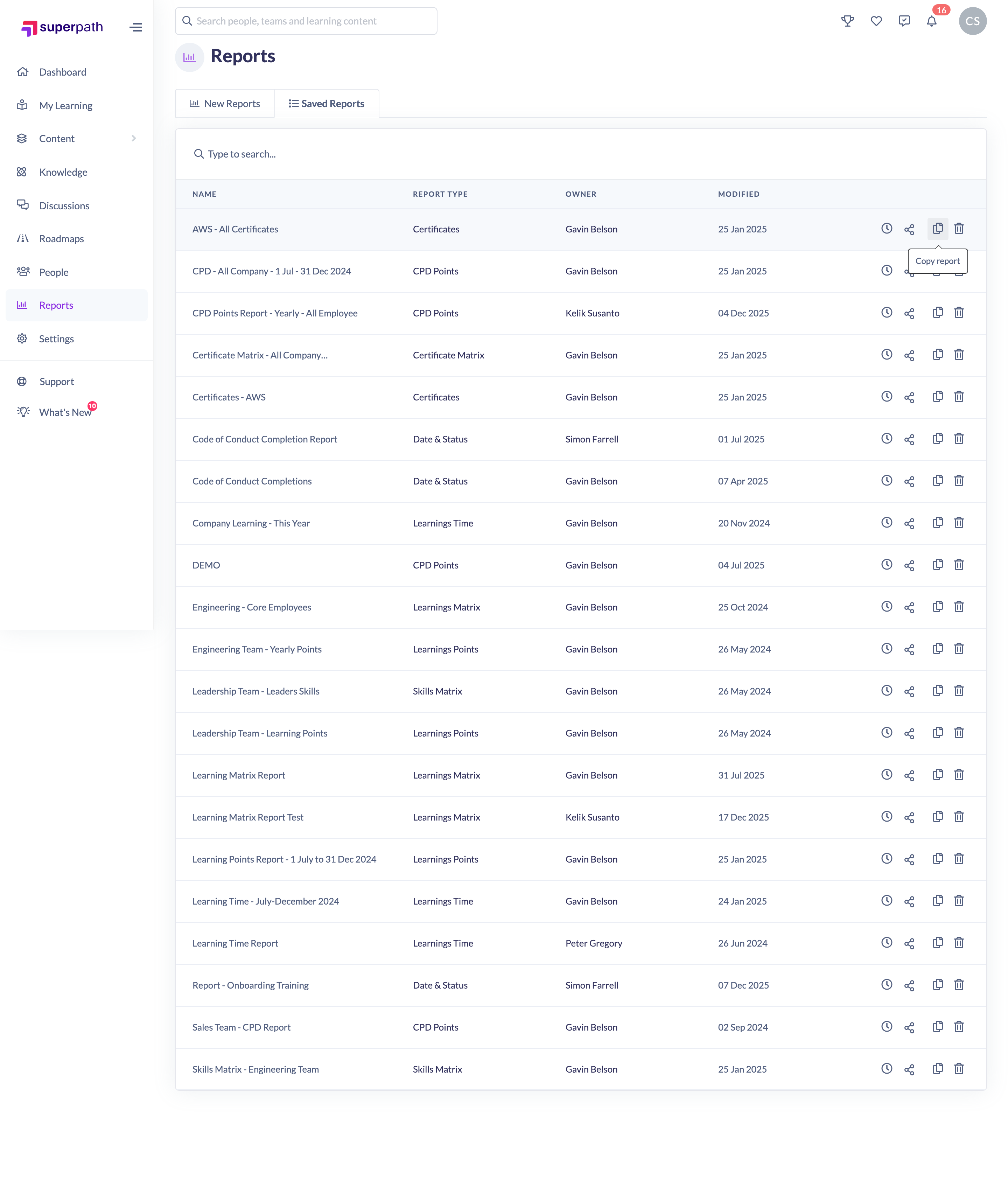
How to duplicate a saved report
- In the left-hand menu, go to Reports.
- Click the Saved Reports tab.
- Find the report you want to copy.
- In the row's actions on the right, click the Copy report icon.
SuperPath creates a copy named Copy of <original name> and it appears in the list straight away.
Things to keep in mind
- The copy keeps the original's report type and criteria, and is named Copy of <original name> — open it and click Save Report to rename it.
- Duplicating does not change or affect the original report.
- Like any saved report, the copy stores criteria rather than a frozen result set, so it re-runs against live data when opened.
FAQs
Can I rename the copy?
Yes. Open the duplicated report, change your criteria if you wish, and click Save Report to give it a new name.
Does duplicating copy the collaborators too?
The copy is created from the original's setup. Check the copy's collaborators and adjust them using Manage Collaborators if needed.
Will the copy affect the original?
No. The two are independent saved reports once the copy is made.
Who can do this
Owners, Admins, Managers and People Managers can reach the Reports area and duplicate saved reports. Content Managers, Instructors, Employees and Restricted users do not have access to the Reports area.
Updated on: 18/07/2026
Thank you!