
How to Edit an Announcement
How to Edit an Announcement
In this article:
- Overview
- How to edit an announcement
- What you can change
- Things to keep in mind
- FAQs
- Who can do this
Overview
Announcements appear on your learners' dashboards when they log in, so it's worth keeping them accurate. You can edit an existing announcement at any time to update its wording, swap the image or video, change which teams see it, or adjust where it sits in the order.
How to edit an announcement
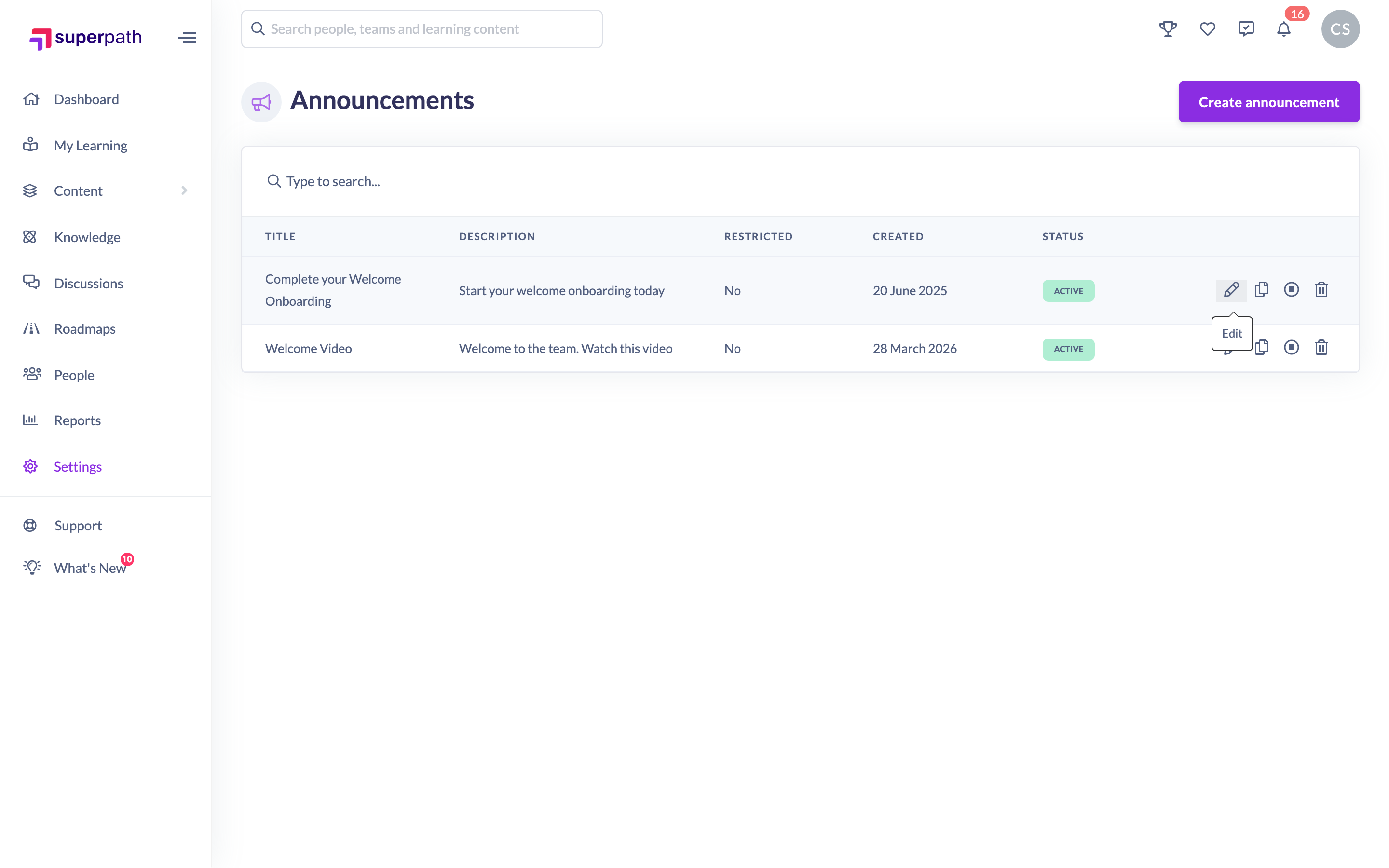
- Go to Settings → Features and, under the Dashboard section, open Manage announcements.
- Find the announcement you want in the list (use the search box if you have many).
- In the announcement's row, click the Edit icon (the pencil).
- Update the fields you want to change in the Edit Announcement modal.
- Click Save.

What you can change
The Edit Announcement modal lets you update:
- Title and Description.
- Display Order — the number that controls where this announcement sits on the dashboard (see How to Reorder Announcements).
- Restrict to Teams — limit the announcement to specific teams, or leave it open to everyone.
- Image — the banner image shown on the dashboard.
- Button Link and Button Text — an optional call-to-action button (see How to Add a Call-to-Action Button to an Announcement).
- Video URL — an optional video (see How to Add a Video Announcement).
Things to keep in mind
- Save stays disabled until the announcement has a title, a description, and either an image or a video.
- When a video URL is set, the image is not displayed on the dashboard.
- Editing doesn't change whether the announcement is active or disabled — use the disable/enable actions in the row for that.
- Changes appear on learners' dashboards the next time they load them.
FAQs
Where do I manage announcements?
Under Settings → Features, in the Dashboard section, via Manage announcements.
Why can't I save my changes?
Saving needs a title, a description, and either an image or a video. Fill in whichever is missing.
Can I limit who sees an announcement?
Yes — use Restrict to Teams in the modal to target specific teams.
Who can do this
Owners and Admins can edit announcements. Managers, Content Managers, People Managers, Instructors, Employees and Restricted users cannot.
Updated on: 18/07/2026
Thank you!