
How to Edit an Event's Details
How to Edit an Event's Details
In this article:
- Overview
- How to open the event editor
- Editing the core details
- Saving your changes
- Things to keep in mind
- FAQs
- Who can do this
Overview
Every Event in SuperPath has a single editor where you set its title, description, location and other details. It is the same surface you use whether you are polishing a brand-new Event or updating one that is already running, and everything lives on the Event's Details tab.
This article covers the core text details — the title, description, location and external event link. Scheduling and images each have their own guides: see How to set an event's date, time and timezone, How to add a cover image to an event, and How to add a thumbnail and library image to an event.
How to open the event editor
- Go to Events in the left-hand menu.
- Click the Event you want to edit in the list. This opens the Event on its Details tab, ready to edit.
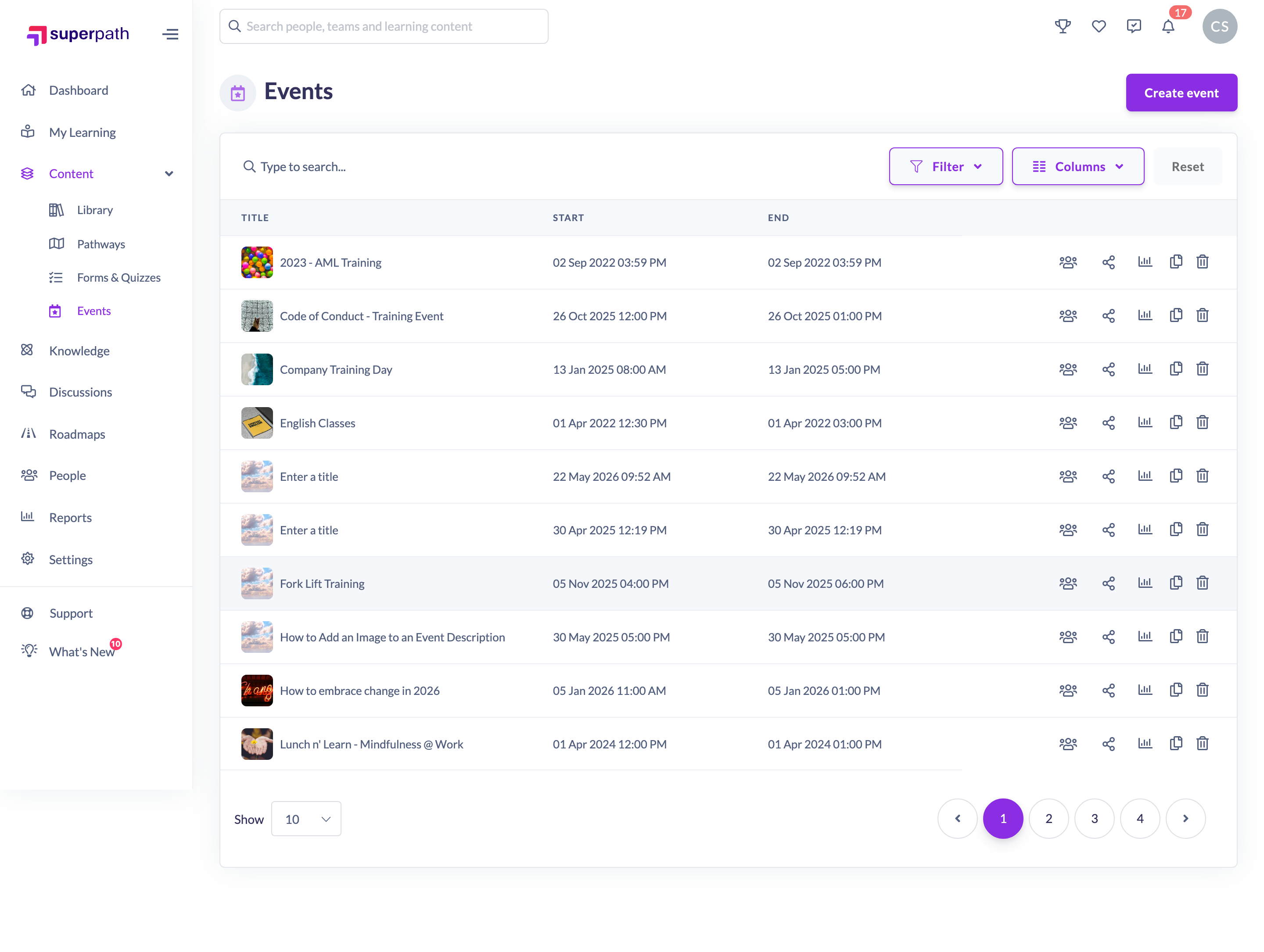
Note: Opening an Event to edit it is a desktop action — the editor is not available on mobile.
Editing the core details
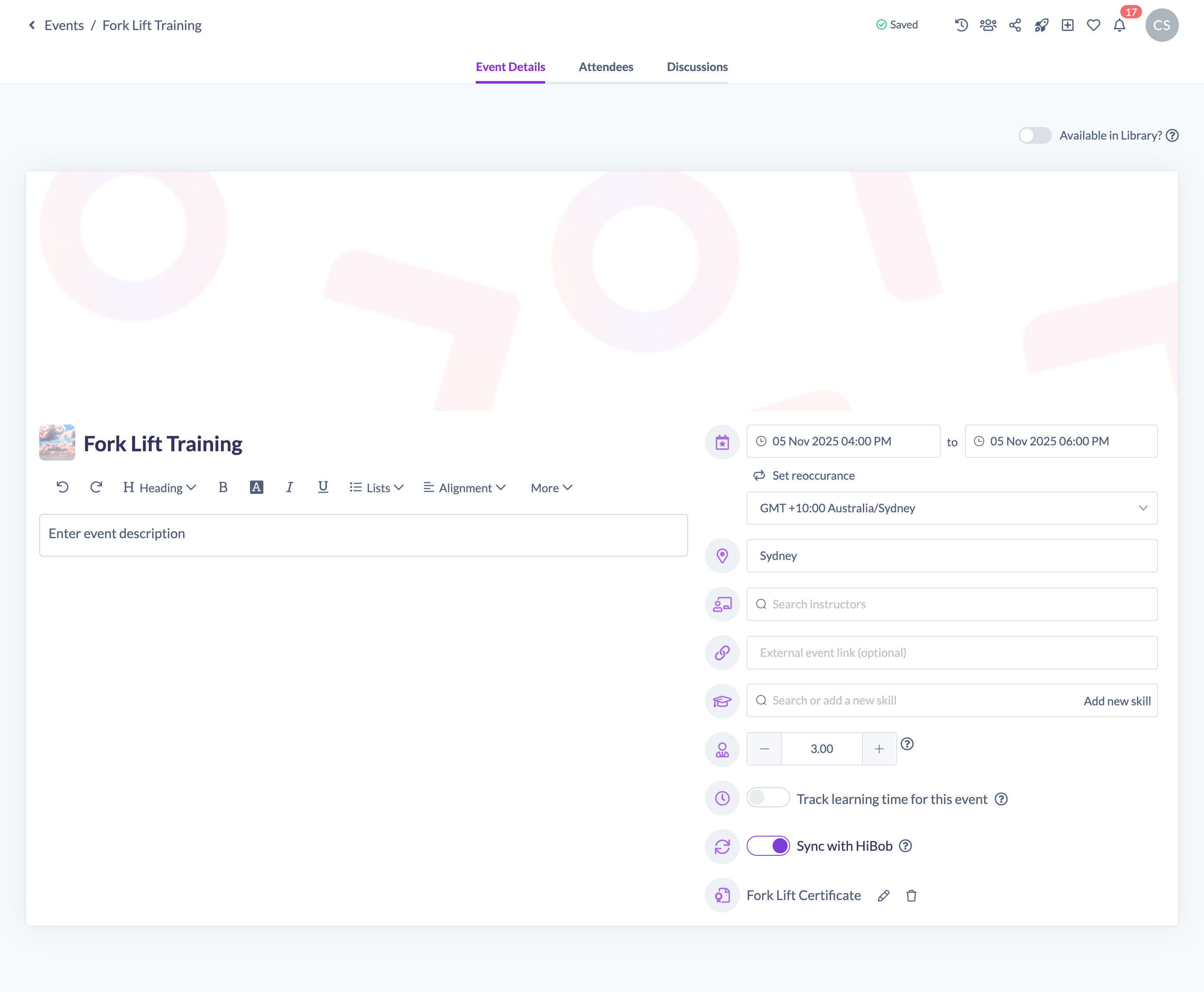
The core text details sit on the Event card:
- Title — the name of the Event. Click the title field near the top of the card and type. A title is required, so if you clear it you will see a "This field is required" message and won't be able to save until you add one back.
- Description — a rich-text field for the full details of the Event, such as the agenda, outcomes or joining instructions. Use the toolbar to format text, add lists and more.
- Location — a free-text field labelled Add a location (optional). This can be a physical address, a room name, or a meeting link. You can also generate a Google Meet link straight into this field — see How to generate a Google Meet link for an event.
- External event link — a field labelled External event link (optional) for a URL where learners can find out more or register (for example an external booking page). When the Event is viewed, this shows as a clickable link.
Saving your changes
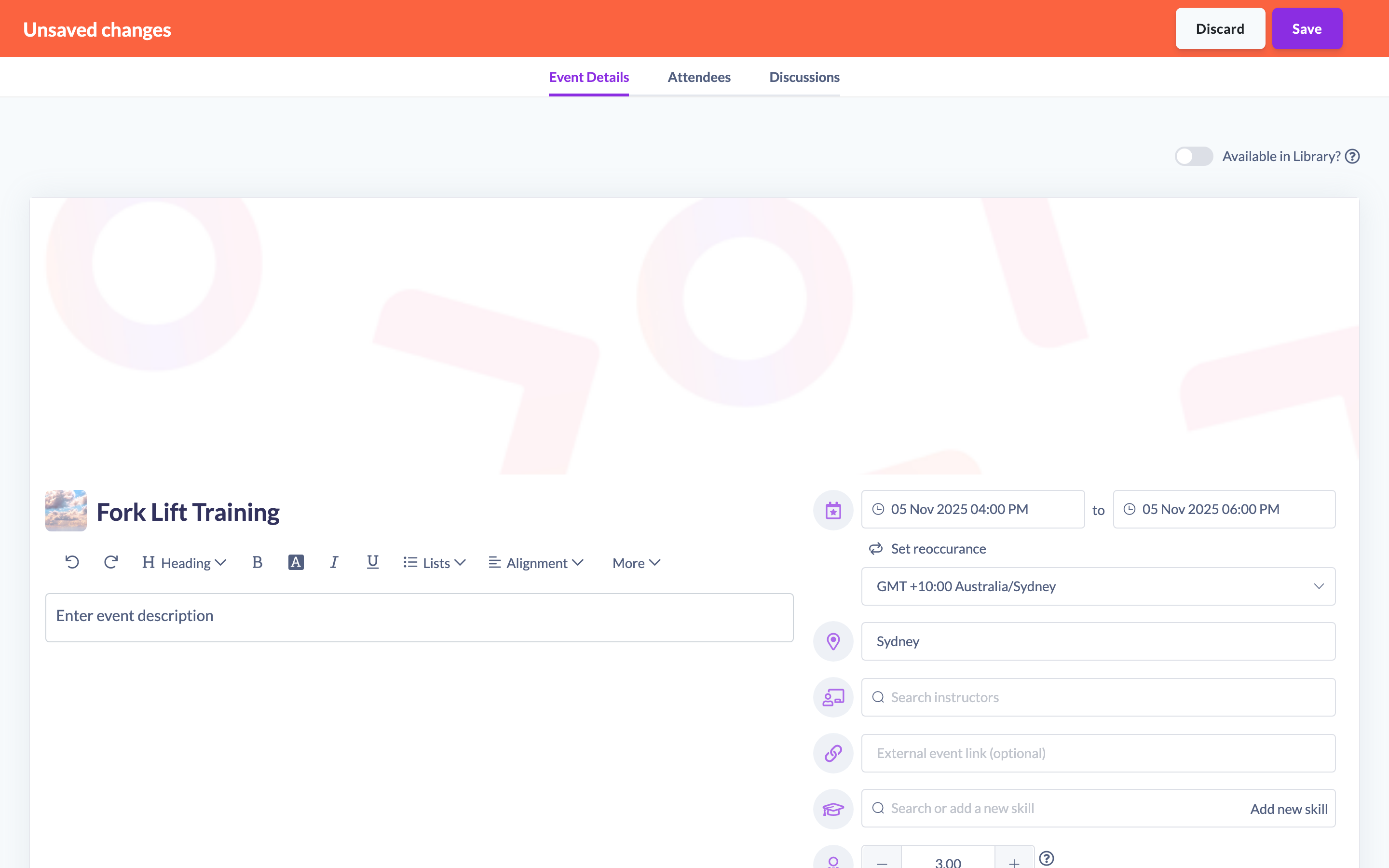
As you edit, SuperPath tracks your changes and shows an Unsaved changes bar at the top of the page.
- Make your edits to the title, description, location or link.
- In the Unsaved changes bar, click Save to apply them.
- If you'd rather undo everything since you opened the Event, click Discard and confirm.
Things to keep in mind
- Changes to the core details are staged, not saved automatically — they only take effect once you click Save in the Unsaved changes bar.
- A title is always required; you cannot save an Event with an empty title.
- The location and external event link are both optional — leave them blank if they don't apply.
FAQs
Do my edits save automatically?
No. Changes to the core details are held until you click Save in the Unsaved changes bar. Use Discard to undo them.
Where do I change the date, image or make the Event repeat?
Those are covered in their own guides: How to set an event's date, time and timezone, How to add a cover image to an event, and How to make an event recurring.
Can learners see the external event link?
Yes. When set, it appears as a clickable link on the Event.
Who can do this
Owners, Admins, Managers, Content Managers and Instructors can edit an Event's details. People Managers, Employees and Restricted users cannot — they have read-only access to Events.
Updated on: 19/07/2026
Thank you!