
How to Export a Report to CSV
How to Export a Report to CSV
In this article:
- Overview
- How to export a report
- Things to keep in mind
- FAQs
- Who can do this
Overview
Most reports in SuperPath can be exported to a CSV file so you can work with the data in a spreadsheet, share it, or feed it into another system. The export uses whatever the report currently shows and lets you pick which columns to include.
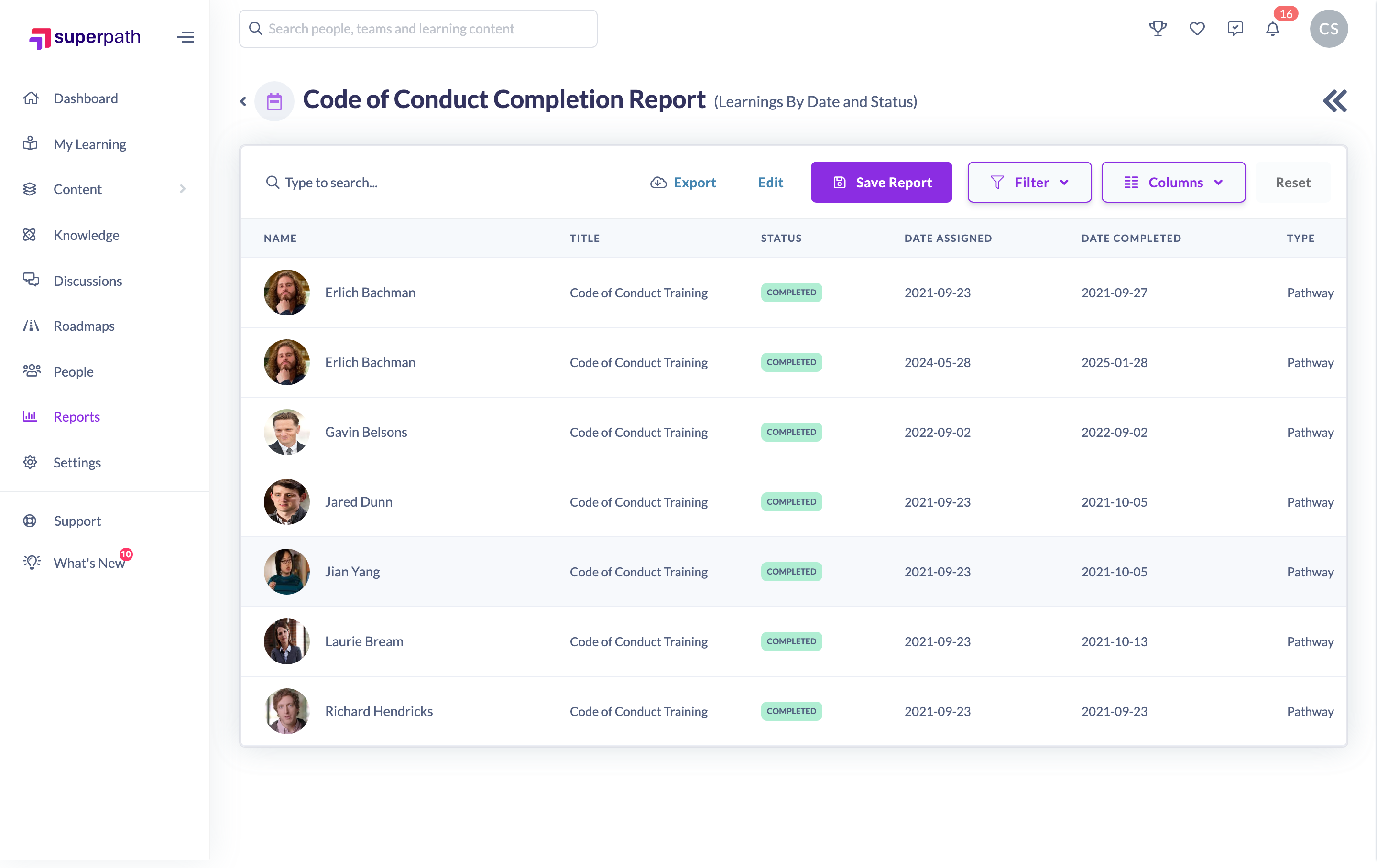
How to export a report
- In the left-hand menu, go to Reports and open the report you want.
- Set your criteria and run the report so results are shown on screen.
- Click Export in the toolbar above the results.
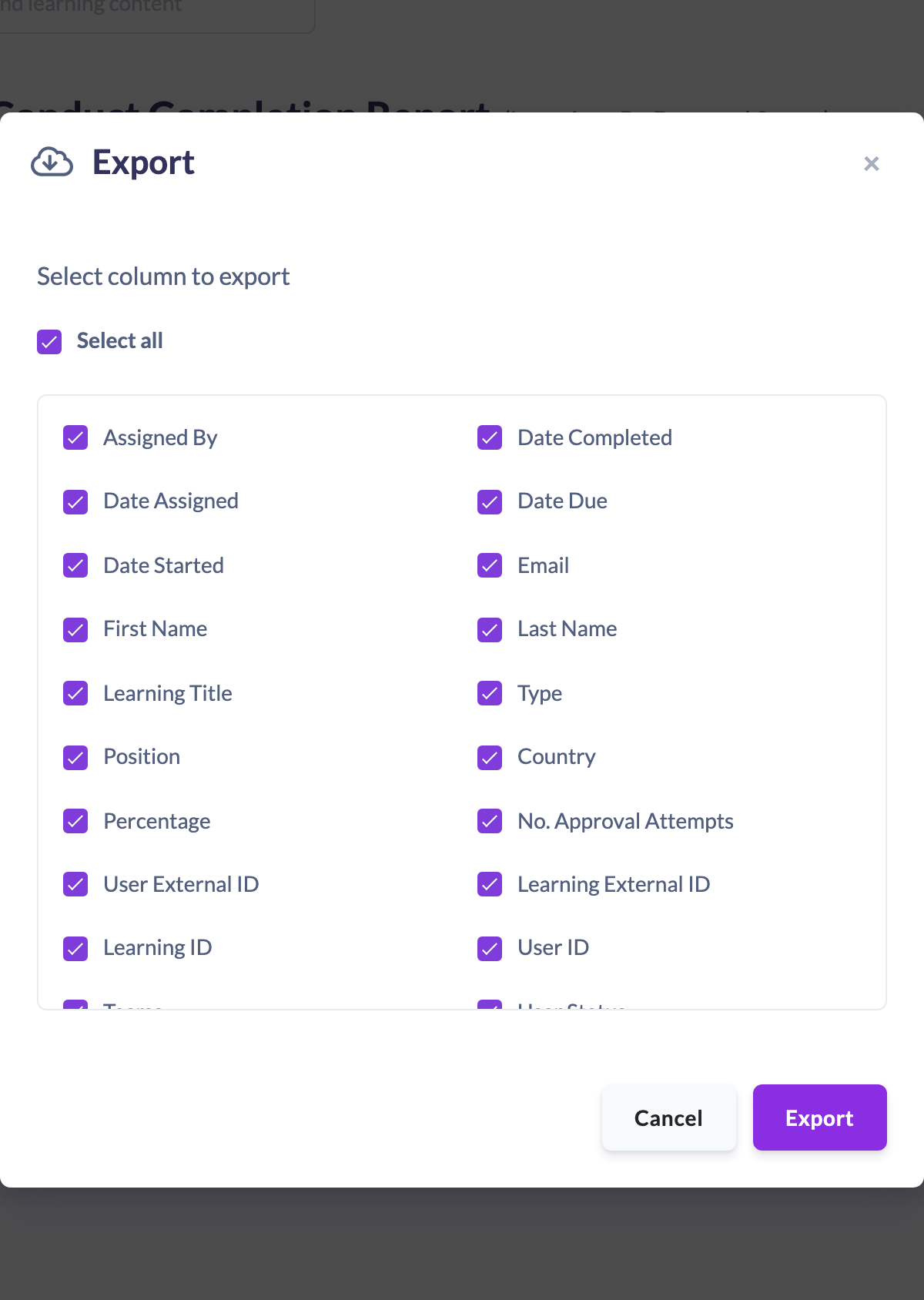
- In the Export dialog, choose the columns you want (see How to Choose Which Columns to Export).
- Click Export.
SuperPath downloads a CSV file to your device and shows an Export successful message.
Things to keep in mind
- The CSV is built in your browser from the report data currently loaded, so run the report first and check the on-screen results reflect what you want to export.
- You choose the columns before exporting — the Export button is only enabled once at least one column is selected.
- The available columns depend on the report type; a Learners Report and a Learnings By Date and Status report offer different columns.
- On reports that list people, any Custom Fields with Include in reports turned on are offered as extra columns. Which ones you see depends on each field's access level (see Managing Custom Fields).
- This is a one-off download. To have a report emailed on a repeating schedule, use Schedule a Report instead.
FAQs
Which reports can I export?
The reports under Reports provide an Export button above their results, including the Learners Report, Learning Content Report and Learnings By Date and Status, among others.
Does exporting include everyone or just the current page?
The export is built from the report's loaded data set, not just the page you're viewing. Set your criteria so the report contains the records you need before exporting.
Can I include Custom Fields in the export?
Yes, on reports that list people. An Owner turns on Include in reports for the field in Settings → Custom Fields, and it then appears as a column you can tick in the Export dialog.
Can I control which columns appear?
Yes. The Export dialog has a column picker — see How to Choose Which Columns to Export.
Who can do this
Owners, Admins, Managers and People Managers can reach the Reports area and export reports (Managers and People Managers see data for their own teams and reports). Content Managers, Instructors, Employees and Restricted users do not have access to the Reports area.
Updated on: 29/09/2026
Thank you!