
How to Filter a Report by Date Range
How to Filter a Report by Date Range
In this article:
- Overview
- How to filter by date
- Using a custom date range
- Things to keep in mind
- FAQs
- Who can do this
Overview
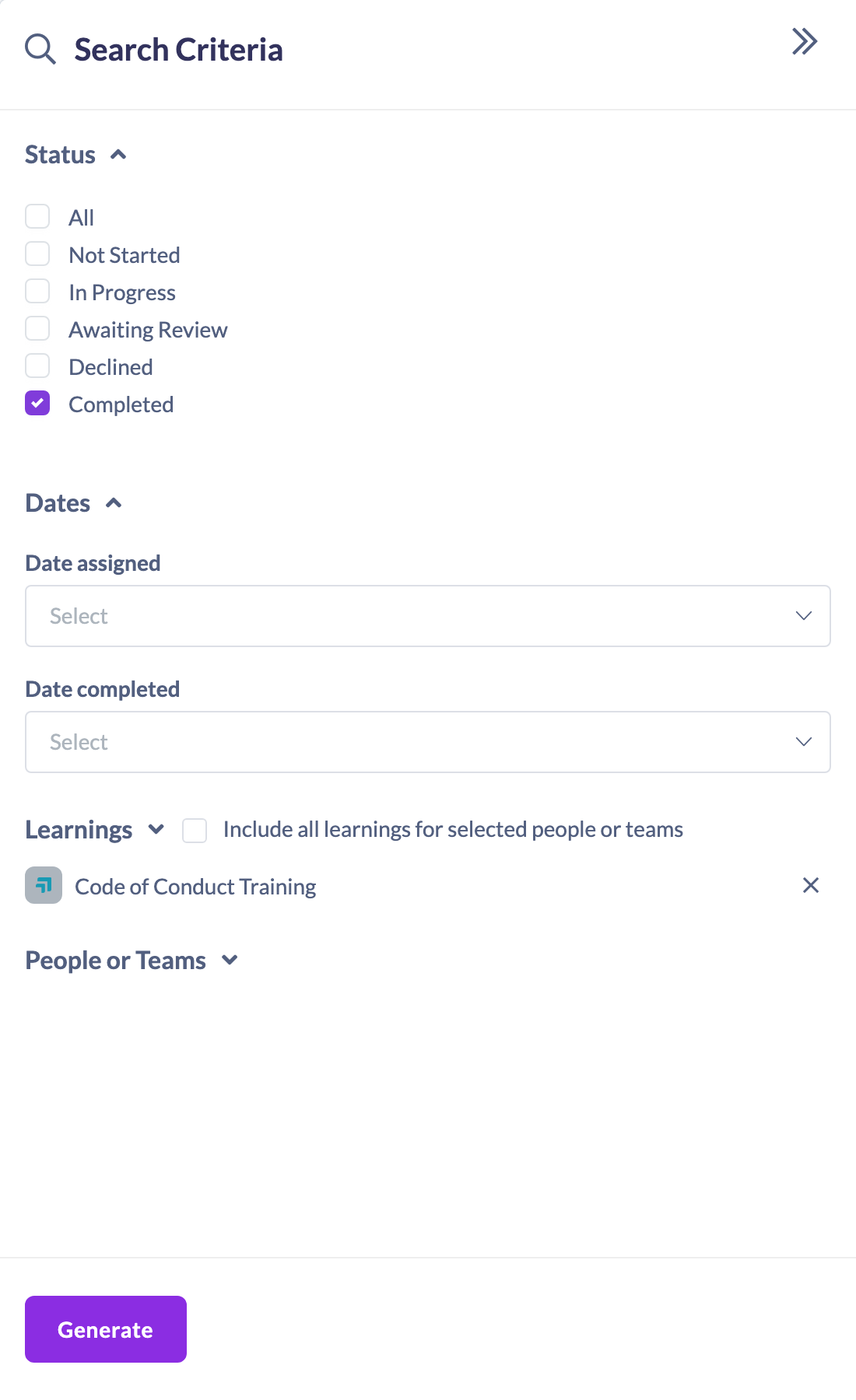
The Learnings By Date and Status report can be narrowed to a date range — for example learnings assigned last month, or completions this quarter. You set this in the Dates section of the Search Criteria panel.
How to filter by date
- In the left-hand menu, go to Reports and open the Learnings By Date and Status report.
- In the Search Criteria panel, open the Dates section.
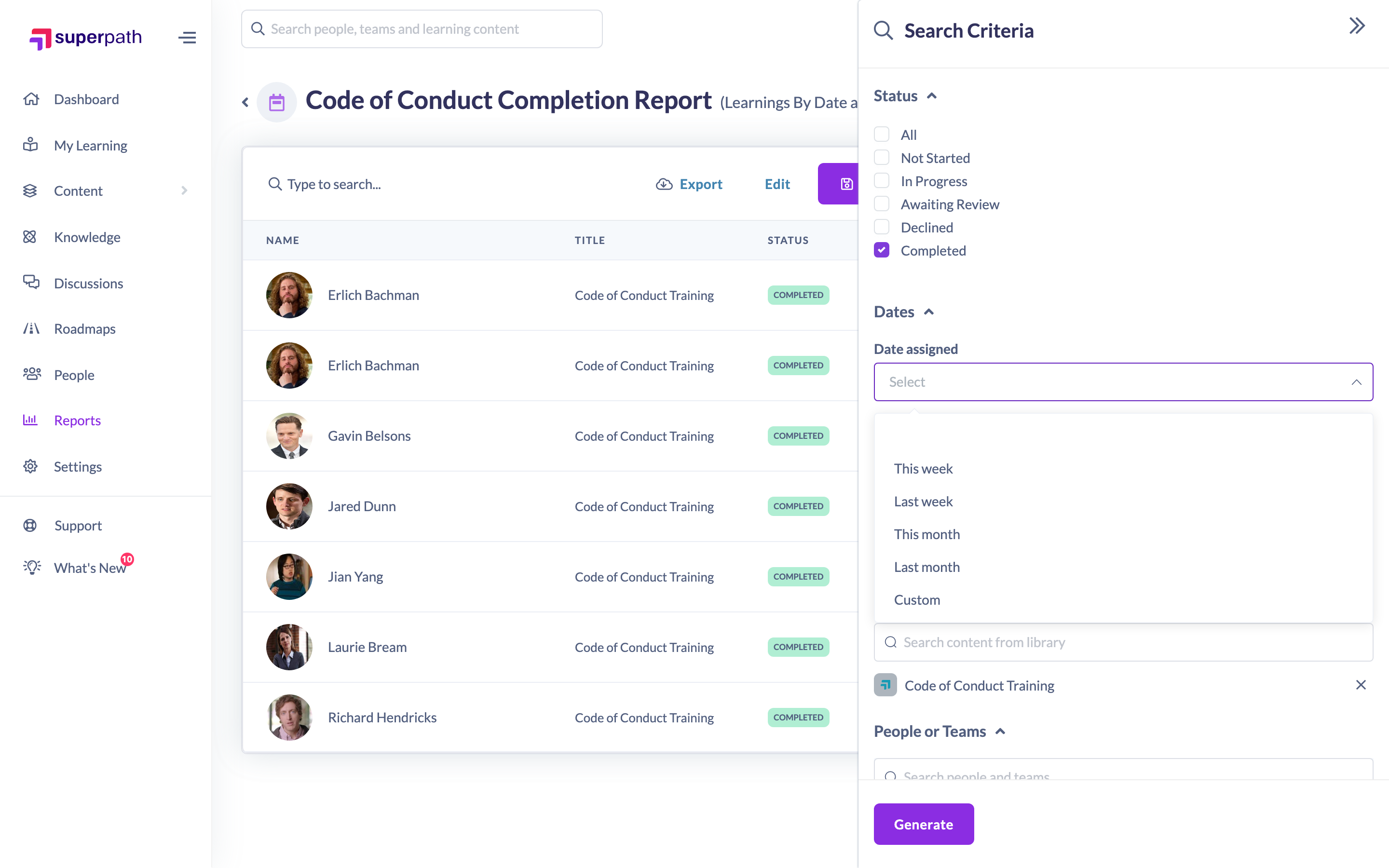
- Use the Date assigned dropdown to limit by when learnings were assigned, choosing This week, Last week, This month, Last month or Custom.
- If your Status selection includes All or Completed, a Date completed dropdown is available too — set it the same way to limit by completion date.
- Set any other criteria you need, then click Generate.
Using a custom date range
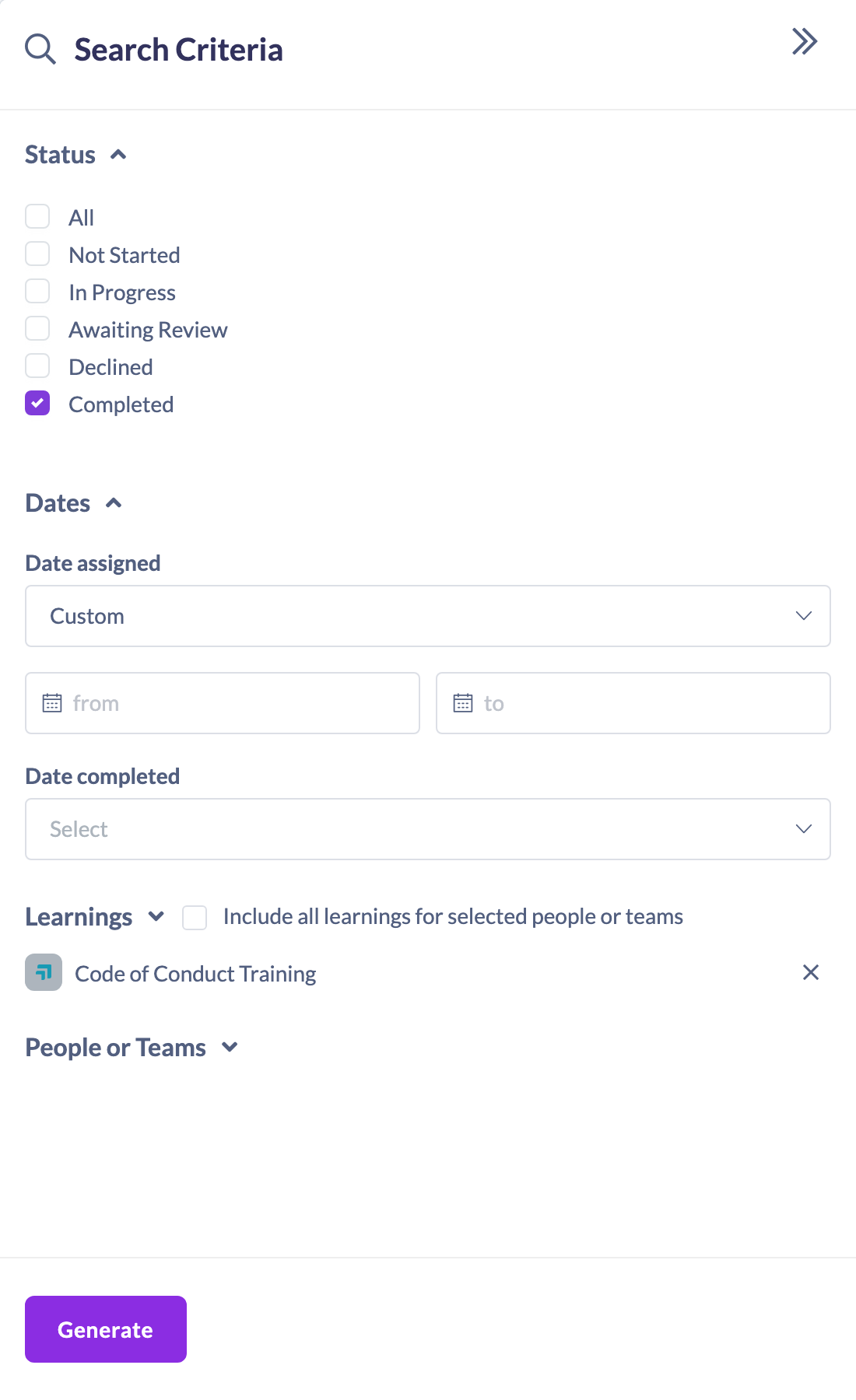
Choosing Custom in either the Date assigned or Date completed dropdown reveals from and to date pickers. Pick the start and end dates for your range, then click Generate to run the report for exactly those dates.
Things to keep in mind
- Date assigned and Date completed are separate filters — you can use either or both.
- The Date completed filter only appears when your Status selection includes All or Completed.
- The preset options (This week, Last week, This month, Last month) are relative to today, so the range shifts as time passes; use Custom to pin exact dates.
FAQs
What's the difference between Date assigned and Date completed?
Date assigned filters on when a learning was given to a learner; Date completed filters on when they finished it.
Why can't I see the Date completed filter?
It only appears when your Status selection includes All or Completed, since completion dates only apply to completed learnings.
How do I report on an exact period like a specific fortnight?
Choose Custom in the relevant date dropdown and set the from and to dates.
Who can do this
Owners, Admins, Managers and People Managers can reach the Reports area and filter this report by date (Managers and People Managers see data for their own teams). Content Managers, Instructors, Employees and Restricted users do not have access to the Reports area.
Updated on: 18/07/2026
Thank you!