
How to Filter a Report by Learning Status
How to Filter a Report by Learning Status
In this article:
- Overview
- How to filter by status
- What each status means
- Things to keep in mind
- FAQs
- Who can do this
Overview
The Learnings By Date and Status report lets you filter results by where learners are up to — for example only those who haven't started, or only completions. You set this in the Search Criteria panel on the right of the report.

How to filter by status
- In the left-hand menu, go to Reports and open the Learnings By Date and Status report.
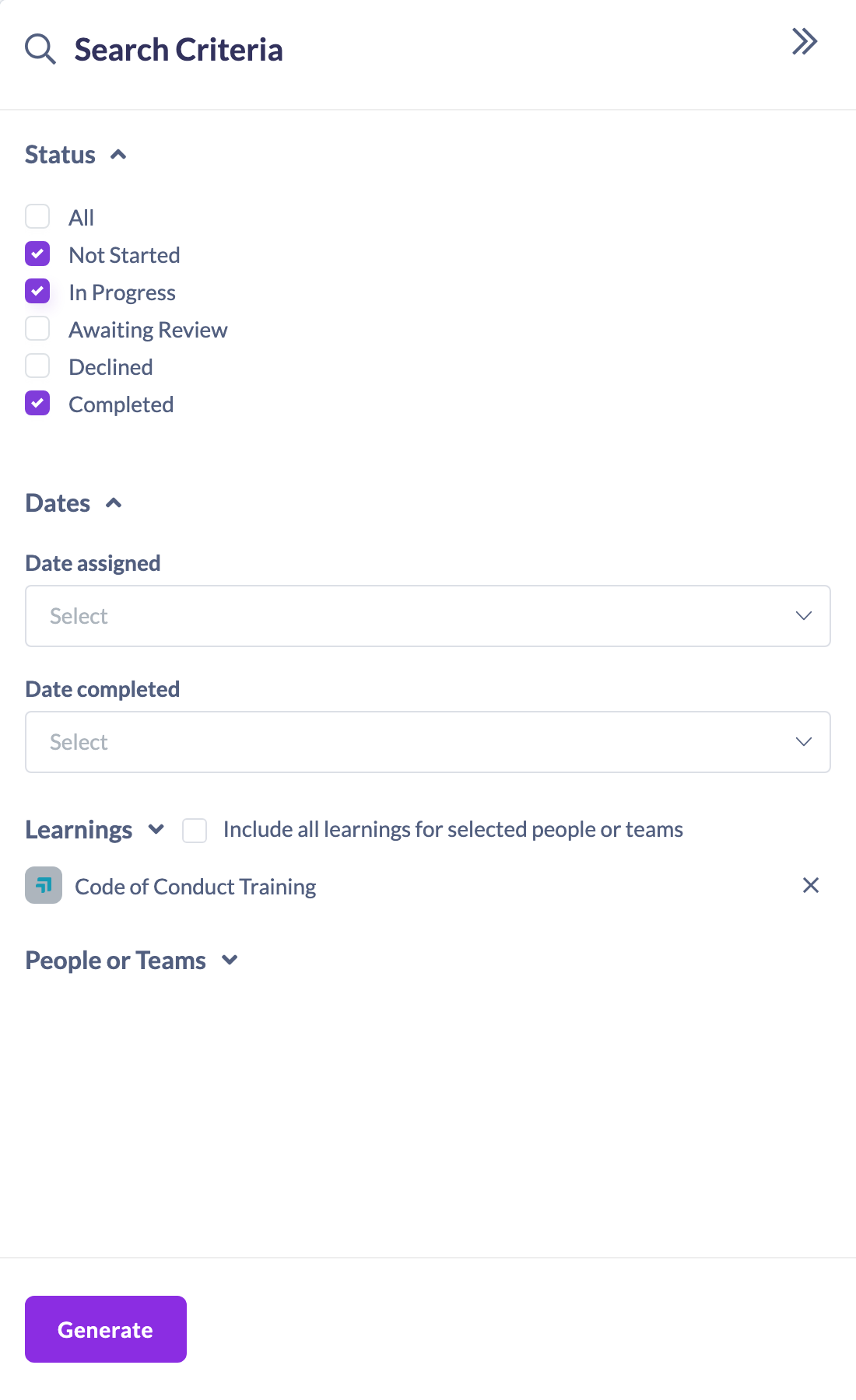
- In the Search Criteria panel on the right, find the Status section.
- Tick the statuses you want to include: All, Not Started, In Progress, Awaiting Review, Declined or Completed.
- Set any other criteria you need (people or teams, learnings, dates).
- Click Generate to run the report with your chosen statuses.
What each status means
- All — includes every status.
- Not Started — assigned but not yet begun.
- In Progress — started but not finished.
- Awaiting Review — submitted and waiting on approval.
- Declined — a submission that was not approved.
- Completed — finished.
Things to keep in mind
- You can tick more than one status to combine them in a single report.
- Choosing All or Completed enables the Date completed filter, so you can narrow completions to a date range (see How to Filter a Report by Date Range).
- Status filtering is part of the Learnings By Date and Status report — other reports have their own criteria.
FAQs
Can I report on more than one status at once?
Yes. Tick each status you want and click Generate; the report includes all of them.
Why does the Date completed filter only appear sometimes?
The Date completed filter becomes available when your status selection includes All or Completed, since only then are completion dates relevant.
Where do I find this report?
Under Reports, open the Learnings By Date and Status report.
Who can do this
Owners, Admins, Managers and People Managers can reach the Reports area and filter this report by status (Managers and People Managers see data for their own teams). Content Managers, Instructors, Employees and Restricted users do not have access to the Reports area.
Updated on: 18/07/2026
Thank you!