
How to Make a Knowledge Article Searchable
How to Make a Knowledge Article Searchable
In this article:
- Overview
- Open the article settings
- Make the article searchable
- Things to keep in mind
- FAQs
- Who can do this
Overview
The Searchable setting controls whether a Knowledge article surfaces in Knowledge search and categories, or stays private and reachable only by its direct link. You control this from the article's settings panel inside the editor. This article covers how to do that.
Open the article settings
- Open the Knowledge article you want to edit so it loads in the editor.
- In the top navigation, click the cog icon (tooltip Settings) to open the Article Settings panel on the right.
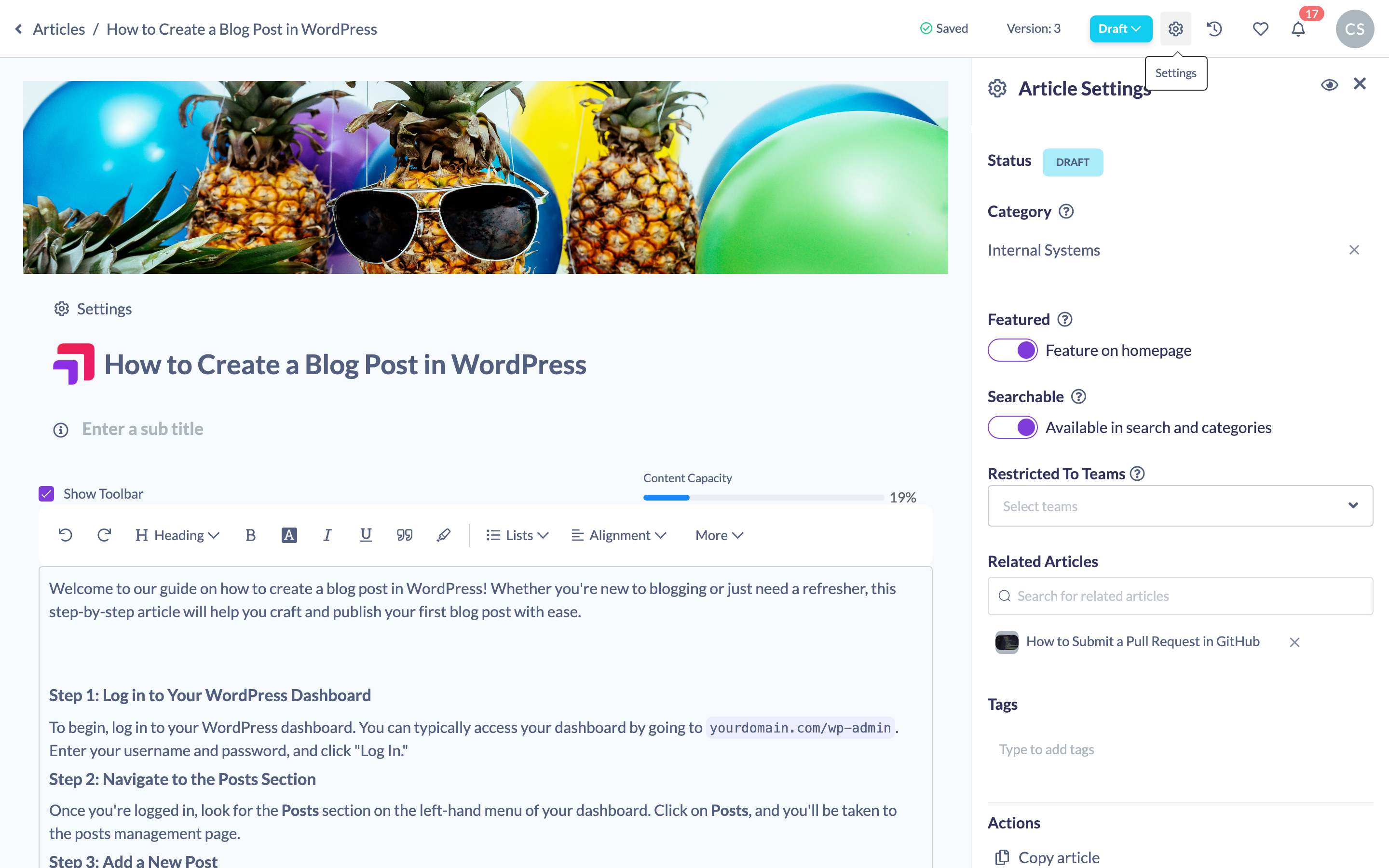
Make the article searchable
- In the Article Settings panel, find the Searchable section.
- Turn on the switch labelled Available in search and categories to make the article discoverable, or turn it off to keep it private.
- Your choice saves automatically — there's no separate save button in the settings panel.
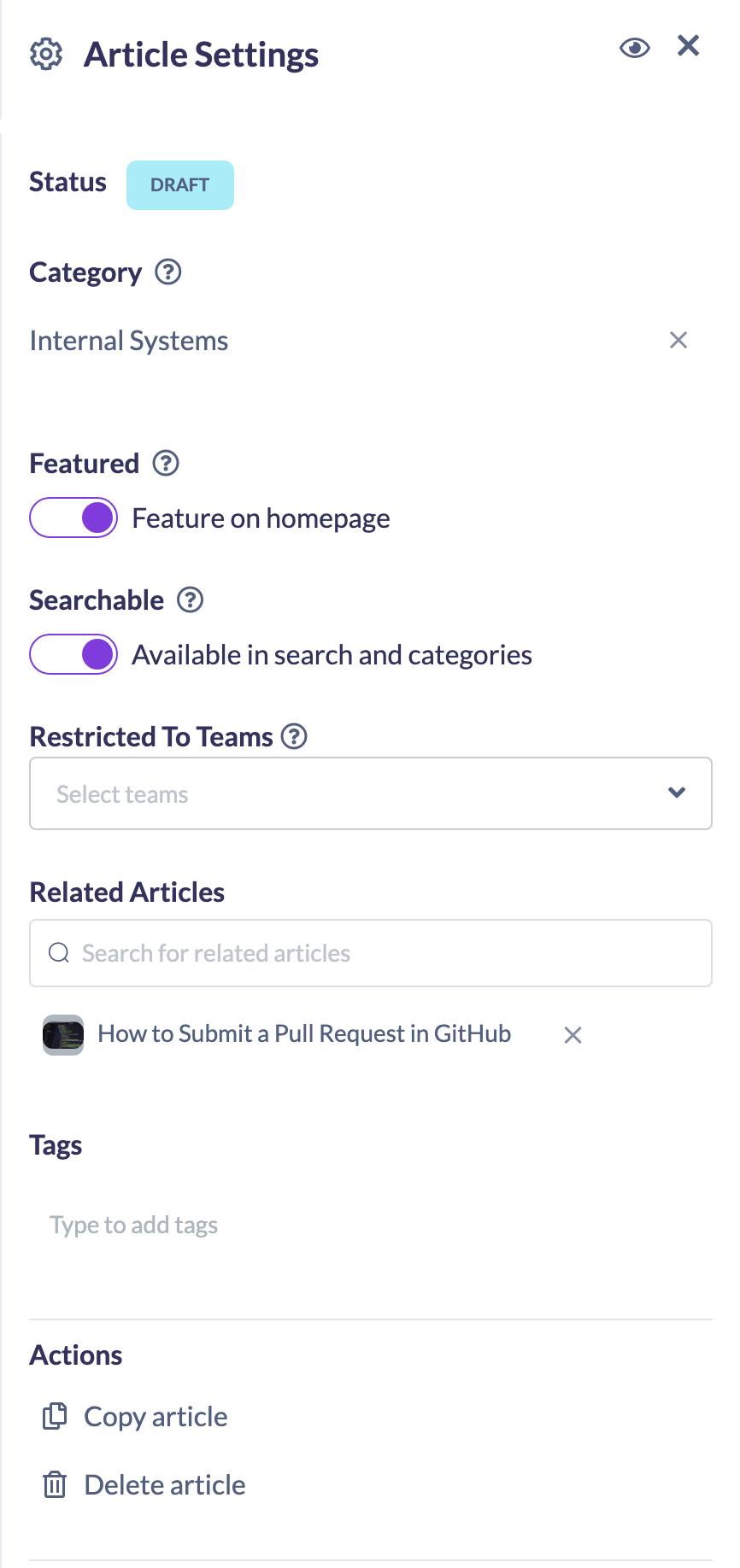
Note: As the panel's help icon explains, switching this on lets the article appear in search. Switching it off makes the article private and accessible only by its link once published — it won't surface in Knowledge search or category listings.
Things to keep in mind
- When Searchable is off, the article is still reachable by anyone you share its direct link with once it's published; it simply won't appear in search results or category listings.
- Making an article searchable does not feature it on the homepage — that's a separate setting. See How to Feature a Knowledge Article on the Homepage.
FAQs
What happens if I turn Searchable off?
The article becomes private: it won't appear in Knowledge search or category listings, and is accessible only by its direct link once published.
Does turning Searchable off unpublish the article?
No. It only affects discoverability in search and categories, not the article's published status.
Where is this setting?
Open the article in the editor, click the cog (Settings) in the top navigation, and look for the Searchable section in the Article Settings panel.
Who can do this
Owners, Admins, Managers and Content Managers can edit Knowledge articles and change whether they're searchable. People Managers, Instructors, Employees and Restricted users have read-only access to Knowledge and cannot.
Updated on: 19/07/2026
Thank you!