
How to Make an Event Recurring
How to Make an Event Recurring
In this article:
- Overview
- How to set a recurrence
- How to edit or remove a recurrence
- Saving your changes
- Things to keep in mind
- FAQs
- Who can do this
Overview
For Events that happen on a schedule — a weekly catch-up, a monthly workshop, an annual review — you can set a recurrence so the Event records how often it repeats. The recurrence is shown as a plain-language summary on the Event and is included in calendar invites.
You set recurrence in the Event editor, on the Event's Details tab. To open it, go to Events in the left-hand menu and click the Event you want to edit.
How to set a recurrence
You need a start date on the Event before you can add a recurrence.
- Make sure the Event has a start date (see How to set an event's date, time and timezone).
- Under the dates, click Set reoccurance.
- In the Set recurrence for dialog, use Repeat every to choose the interval — a number, plus day, week, month or year.
- If you chose week, tick the days of the week the Event should repeat on under Repeat on.
- If you chose month, use the Repeat on dropdown to repeat on a set day of the month (for example "Monthly on day 12") or on a set weekday (for example "Monthly on the 2nd Tuesday").
- Under Ends, choose when the recurrence stops: Never, On a specific date, or After a set number of occurrences.
- Click Save in the dialog.
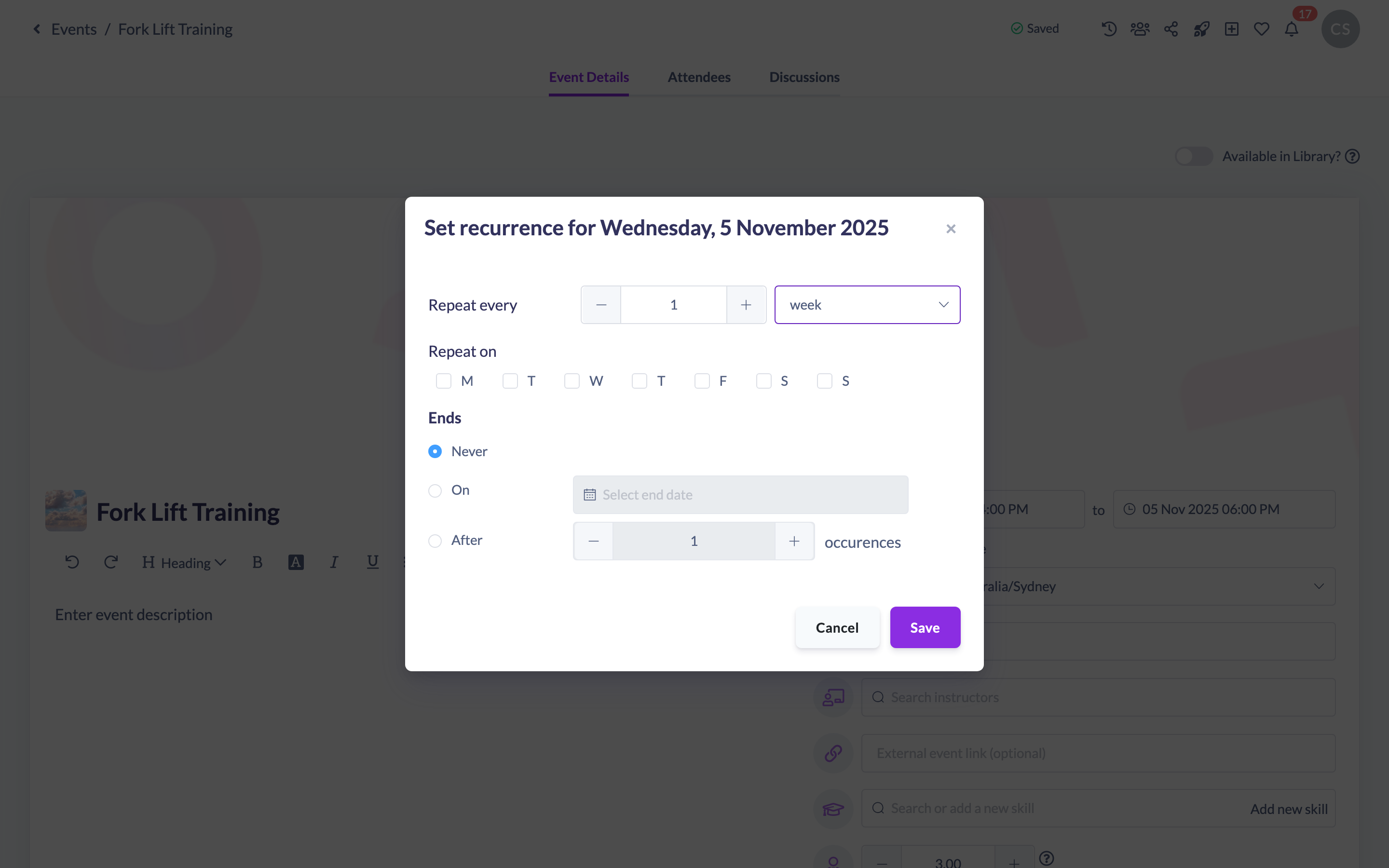
Tip: The recurrence options change with the interval you pick — the day-of-week checkboxes only appear for weekly recurrences, and the day-of-month dropdown only appears for monthly ones.
How to edit or remove a recurrence
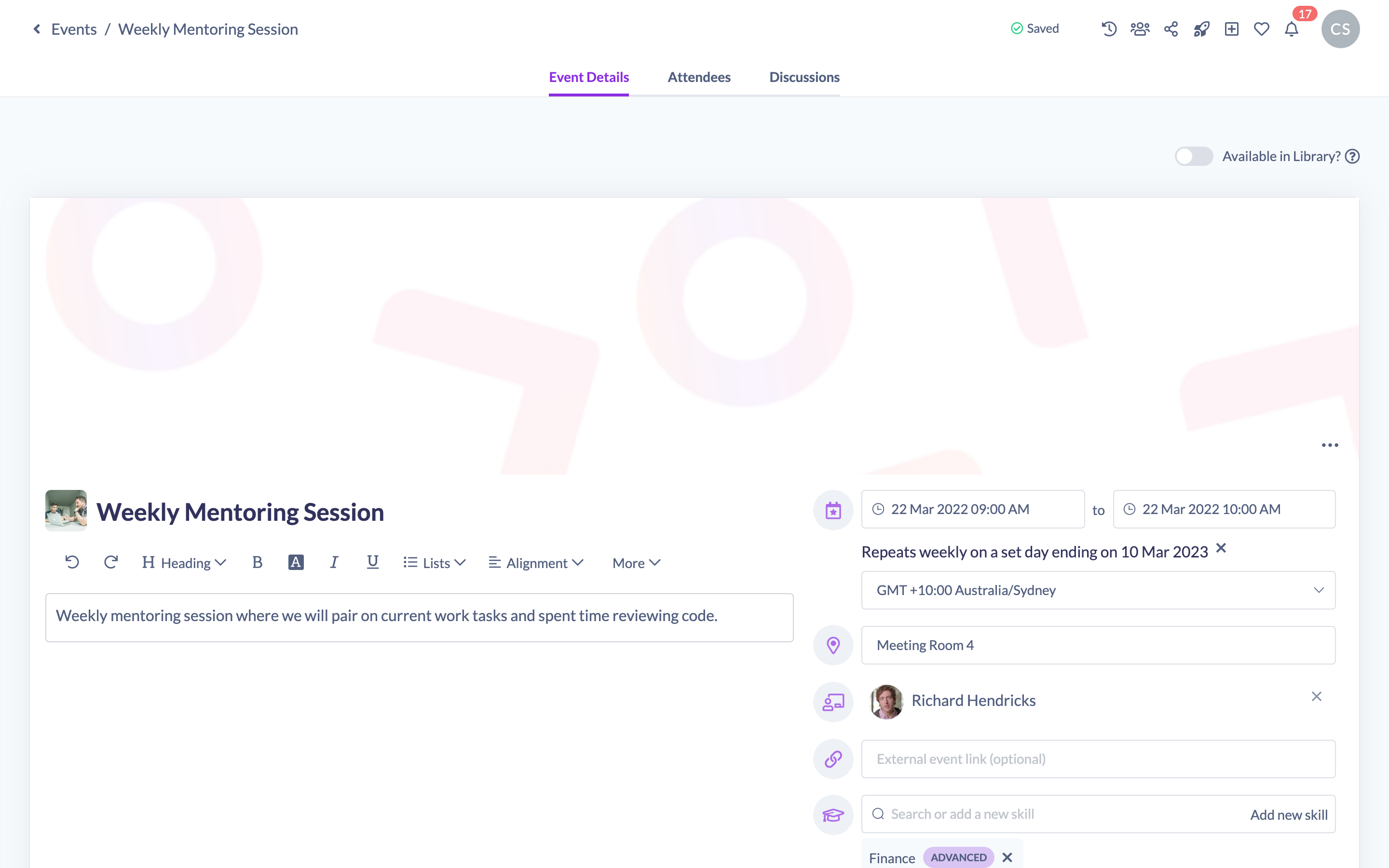
Once an Event is recurring, its recurrence summary is shown under the dates.
- To edit it, click the recurrence summary text to reopen the dialog.
- To remove it, click the remove recurrence control next to the summary and confirm Are you sure to delete this recurrence?
Saving your changes
Setting, editing or removing a recurrence stages the change — it isn't final until you save the Event.
- Set up the recurrence in the dialog and click Save in the dialog.
- In the Unsaved changes bar at the top of the page, click Save to apply it to the Event.
- To undo, click Discard and confirm.
Things to keep in mind
- You must set a start date before you can add a recurrence.
- For a weekly recurrence you must select at least one day of the week, or SuperPath will prompt you to pick one before saving the dialog.
- Confirming the dialog only stages the recurrence — click Save in the Unsaved changes bar to apply it to the Event.
FAQs
Why can't I see the Set reoccurance button?
The button only appears once the Event has a start date. Add a start date first.
How do I stop an Event repeating?
Open the Event, click the remove recurrence control next to the recurrence summary, confirm, then click Save.
Can I change how often an Event repeats later?
Yes. Click the recurrence summary on the Event to reopen the dialog and adjust the settings.
Who can do this
Owners, Admins, Managers, Content Managers and Instructors can set or change an Event's recurrence. People Managers, Employees and Restricted users cannot — they have read-only access to Events.
Updated on: 19/07/2026
Thank you!