
How to Mark an Assignment Complete From a Quick Report
How to Mark an Assignment Complete From a Quick Report
In this article:
- Overview
- How to mark one learner complete
- How to mark learners complete in bulk
- Setting a score and pass result
- Things to keep in mind
- FAQs
- Who can do this
Overview
Sometimes a learner has finished something outside the platform, or you need to close off an assignment on their behalf. From a quick report you can mark a learner's assignment as complete directly — optionally recording the date they completed it, and, for graded items, a score and pass result. You can do this for a single learner or for several at once.
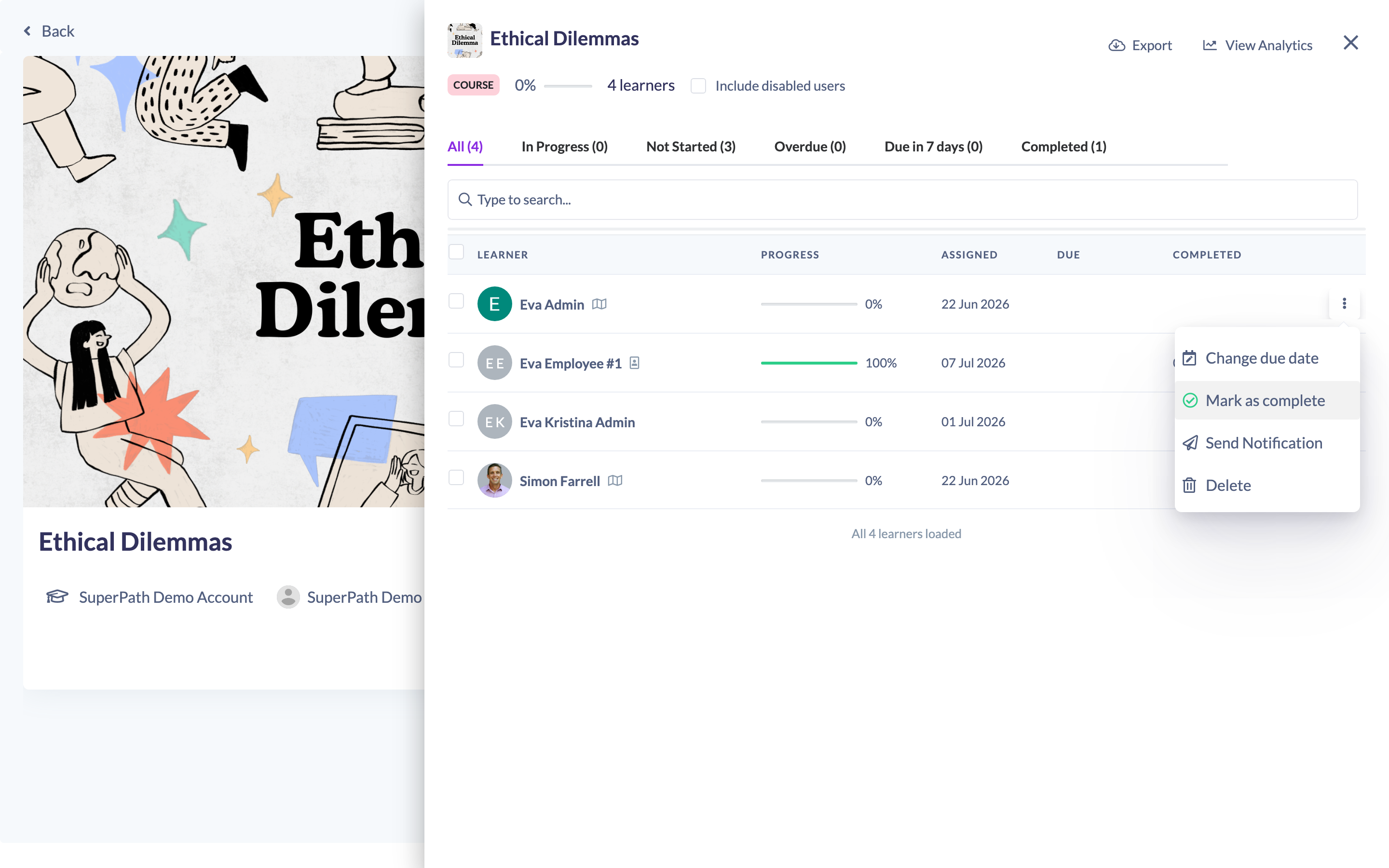
How to mark one learner complete
- Open the quick report for the item (click the View learners icon on a Library content item, Pathway, Event or Form).
- Find the learner in the list.
- In their row, click the Mark as complete icon (the check-circle icon).
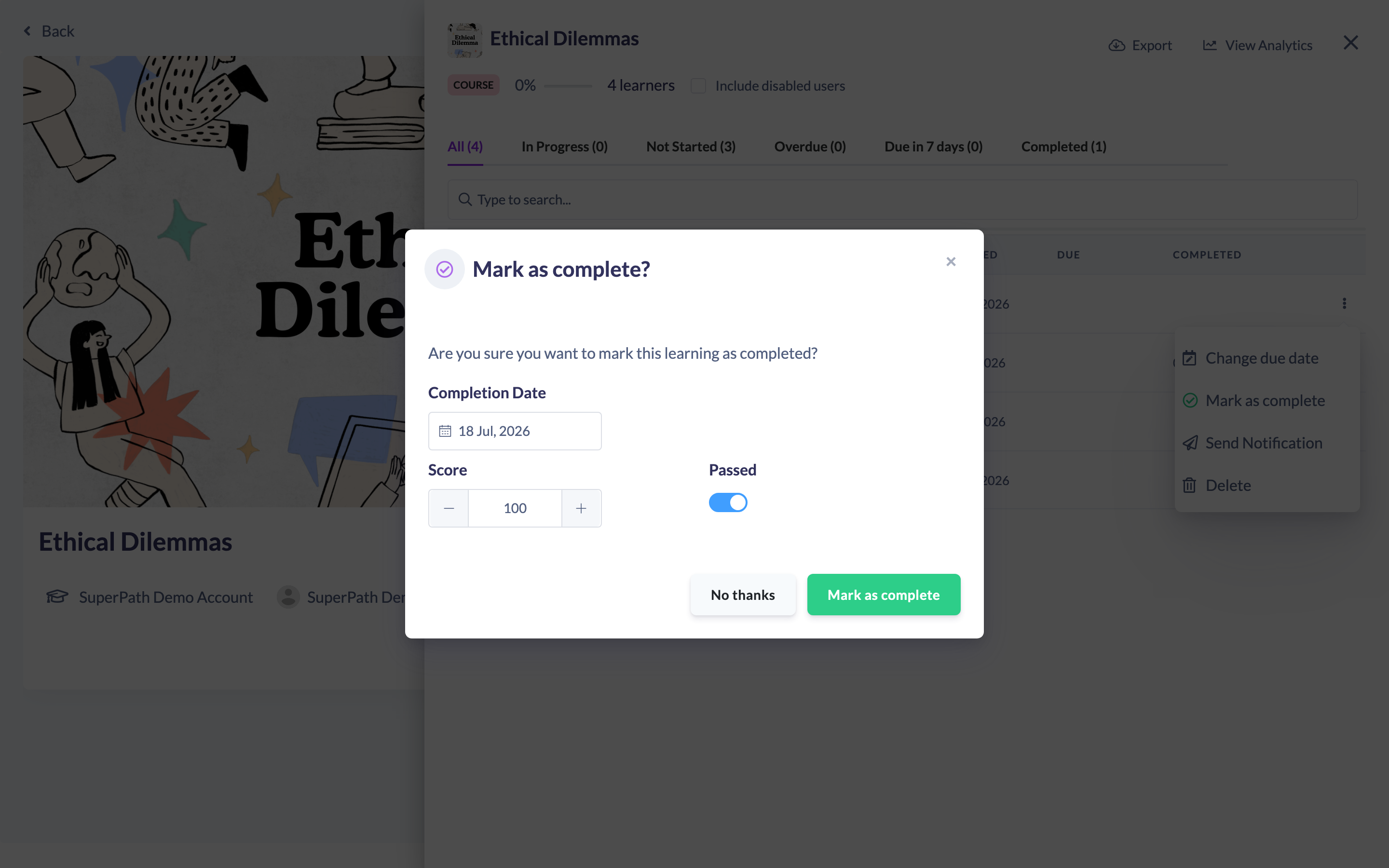
- In the Mark as complete? modal, optionally set a Completion Date.
- Click Mark as complete.
The learner's status changes to completed and their progress shows 100%.
How to mark learners complete in bulk
- In the quick report, tick the checkbox on each learner you want to complete (or use the select-all checkbox).
- Open the Bulk Actions dropdown above the table.
- Choose Mark as complete.
- Optionally set a completion date, then click Mark as complete.
Setting a score and pass result
For graded items (such as a quiz), the modal also shows a Score field (0–100) and a Passed toggle so you can record the outcome. These fields only appear when the item supports a score and pass result. For a bulk action, the score and pass fields appear only when every selected learner's item supports them.
Things to keep in mind
- Marking complete is limited to Owners and Admins.
- The option isn't available for a learner who is already completed, or for Roadmap items.
- The completion date can be today or a past date — future dates are disabled.
- Changes take effect immediately and update the learner's record and progress.
FAQs
Do I have to set a completion date?
No — the completion date is optional. If you leave it blank, the item is completed as of now.
When do the Score and Passed fields appear?
Only for items that are graded (such as quizzes). For bulk actions, they appear only if every selected item supports a score and pass result.
Can other roles mark learners complete?
No — this action is restricted to Owners and Admins.
Who can do this
Only Owners and Admins can mark an assignment complete from a quick report. The action is hidden for all other roles, and it never appears for items that are already completed or for Roadmap items.
Updated on: 18/07/2026
Thank you!