
How to Open a Saved Report
How to Open a Saved Report
In this article:
- Overview
- How to open a saved report
- Finding a report in a long list
- Things to keep in mind
- FAQs
- Who can do this
Overview
Saved reports live on the Saved Reports tab under Reports. Opening one re-runs it against current data using the criteria you saved, so you always see up-to-date figures without rebuilding the report.
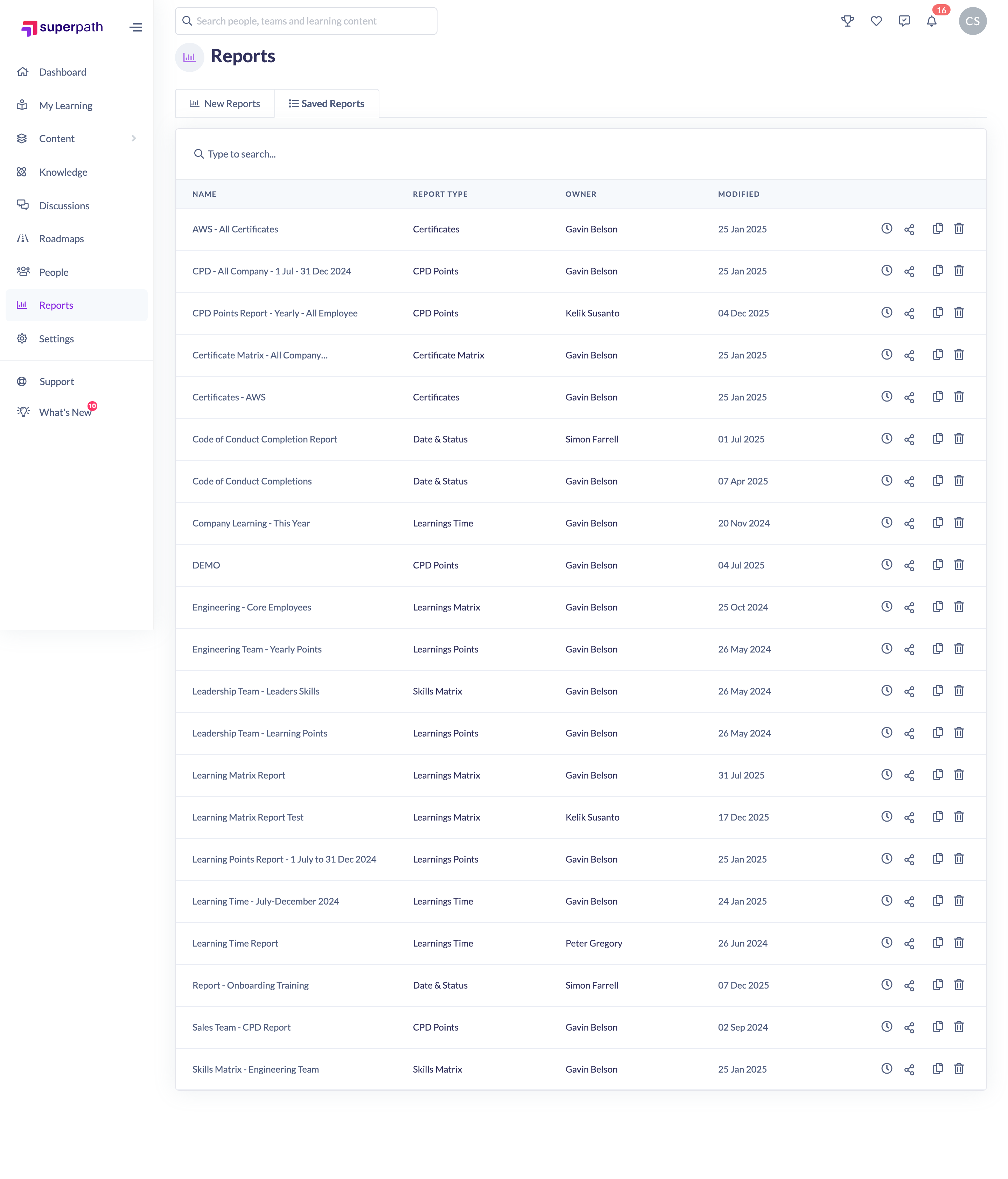
How to open a saved report
- In the left-hand menu, go to Reports.
- Click the Saved Reports tab.
- Find the report you want in the list. Each row shows its Name, Report Type, Owner and the date it was last Modified.
- Click the report's name (or its row) to open it.
SuperPath opens the report and re-runs it, showing the current results for your saved criteria.
Finding a report in a long list
Use the search box at the top of the Saved Reports tab to filter by name, report type or owner. You can also click a column header — Name, Report Type, Owner or Modified — to sort the list.
Things to keep in mind
- Opening a saved report runs it again against live data — you're not viewing a frozen snapshot.
- Managers and People Managers see only the saved reports they own or collaborate on; Owners and Admins see all saved reports in the organisation.
- If you no longer have access to a report someone shared with you, it will not appear in your list.
FAQs
Why do the numbers differ from the last time I opened the report?
A saved report stores your criteria, not the results. Each time you open it, SuperPath re-runs it against current data, so the figures update as learners progress.
I can't see a report a colleague mentioned — why?
Unless you're an Owner or Admin, you only see saved reports you own or that have been shared with you as a collaborator. Ask the owner to add you.
Can I change the criteria after opening it?
Yes. Adjust the filters and click Save Report to update the saved report, or leave it as is to keep the original.
Who can do this
Owners, Admins, Managers and People Managers can reach the Reports area and open saved reports (Managers and People Managers see only their own and shared reports). Content Managers, Instructors, Employees and Restricted users do not have access to the Reports area.
Updated on: 18/07/2026
Thank you!