
How to Publish a Knowledge Article
How to Publish a Knowledge Article
In this article:
- Overview
- Publish, unpublish or draft an article
- What each status means
- Why an article becomes unpublished after edits
- Things to keep in mind
- FAQs
- Who can do this
Overview
A Knowledge Article is only visible to your learners once it is published. Publishing is controlled from a single status button at the top of the article editor, which lets you move an article between three states — Published, Unpublished and Draft — so you can control exactly when your content goes live and when it is hidden while you work on it.
Publish, unpublish or draft an article
- In the sidebar, go to Knowledge.
- On the Knowledge hub, click Manage Articles, then open the article you want to work on.
- In the top navigation bar of the editor, find the status button. Its label shows the article's current state — Published, Unpublished or Draft.
- Click the button to open the dropdown, then choose the state you want.
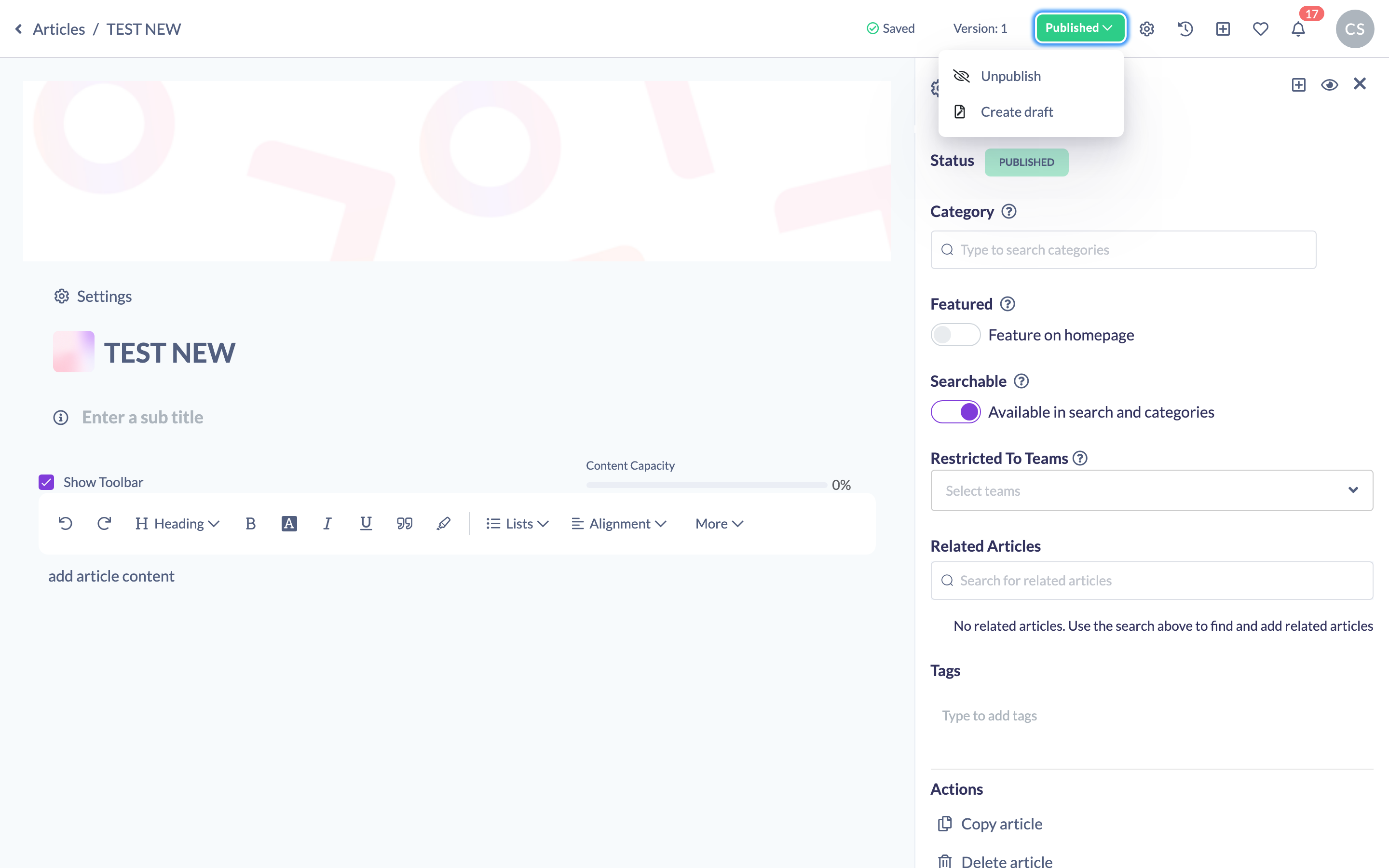
The dropdown only shows the states the article is not already in, so you'll see the relevant options for where the article is now:
- Publish — makes the article live and visible to your learners.
- Unpublish — hides the article from learners while keeping it in your Knowledge base.
- Create draft — moves the article into a working draft so you can make changes without affecting the live version.
What each status means
- Published — the article is live and visible to learners (subject to any team restrictions you've set on it).
- Unpublished — the article is hidden from learners. It stays in your Knowledge base and can be published again at any time.
- Draft — the article is a work in progress and is not visible to learners. Your changes are saved against the draft rather than the public version.
Why an article becomes unpublished after edits
When a published article moves to Unpublished or Draft — whether you chose it from the dropdown, or because your changes were saved as a draft rather than to the live version — SuperPath shows a short message explaining what happened. It confirms that your changes are saved in draft and won't update the public version, and reminds you to re-publish once you've finished so the changes become visible to everyone in your organisation.
The message includes a Don't show this again option. Tick it if you'd rather not see this reminder in future.
Tip: After making changes to a published article, remember to re-publish it. Until you do, learners will continue to see the previously published version and won't see your latest edits.
Things to keep in mind
- Publishing status is set per article — there is no bulk publish. Each article is published, unpublished or drafted individually from its editor.
- Unpublishing an article hides it from learners but does not delete it. To remove an article permanently, delete it instead.
- Team restrictions still apply to a published article — publishing makes it visible to learners, but only those in any teams you've restricted it to (if you've set restrictions).
FAQs
What's the difference between unpublishing and deleting?
Unpublishing hides an article from learners while keeping it in your Knowledge base, so you can publish it again later. Deleting removes the article permanently and is not reversible.
Will my edits go live straight away?
Not automatically. Changes are saved against the draft, and the live version only updates when you re-publish the article.
Why did my article become unpublished by itself?
When you edit a published article, your changes are held in draft so the live version isn't affected mid-edit. The status message explains this, and you re-publish when you're ready for the changes to go live.
Who can do this
Owners, Admins, Managers and Content Managers can publish, unpublish and draft Knowledge Articles. People Managers, Instructors, Employees and Restricted users have read-only access to Knowledge and cannot.
Updated on: 19/07/2026
Thank you!