
How to Read the My Dashboard Activity Feed
How to Read the My Dashboard Activity Feed
In this article:
- Overview
- How to open your dashboard
- What appears in the feed
- Interacting with a post
- New updates
- Things to keep in mind
- FAQs
- Who can do this
Overview
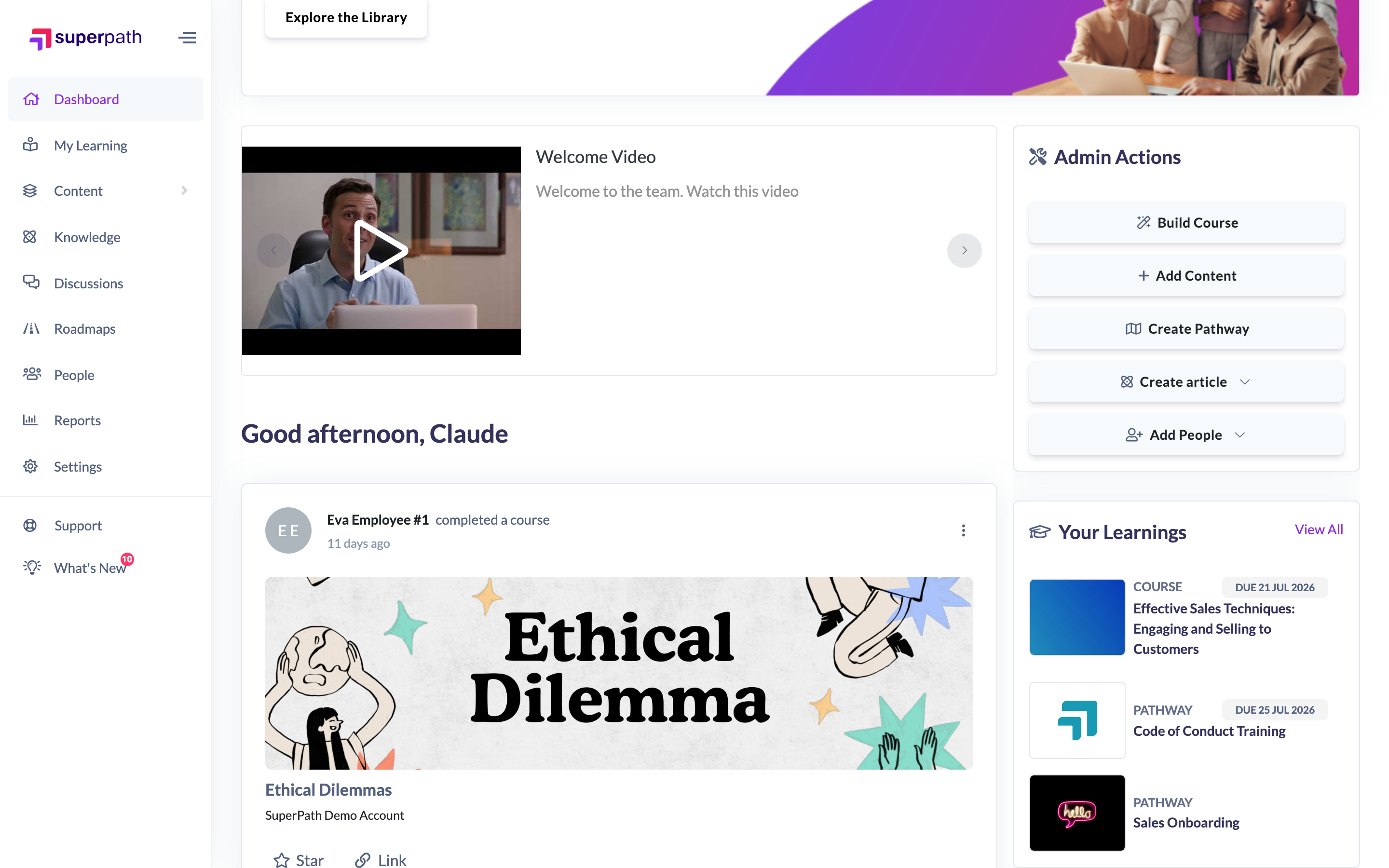
My Dashboard is your personal home screen, and the activity feed is its centrepiece — a running stream of what's happening across your platform: people joining, learnings being completed, Pathways completed, and new content or Pathways being added. It's a social, at-a-glance way to keep up with learning activity in your organisation.
How to open your dashboard
- From the left-hand menu, open Dashboard.
- My Dashboard opens with a time-of-day greeting and your activity feed.
On a wider screen you'll also see a right-hand column with upcoming items, and — depending on your platform's settings — a leaderboard, your team, and (for Owners and Admins) quick actions.
What appears in the feed
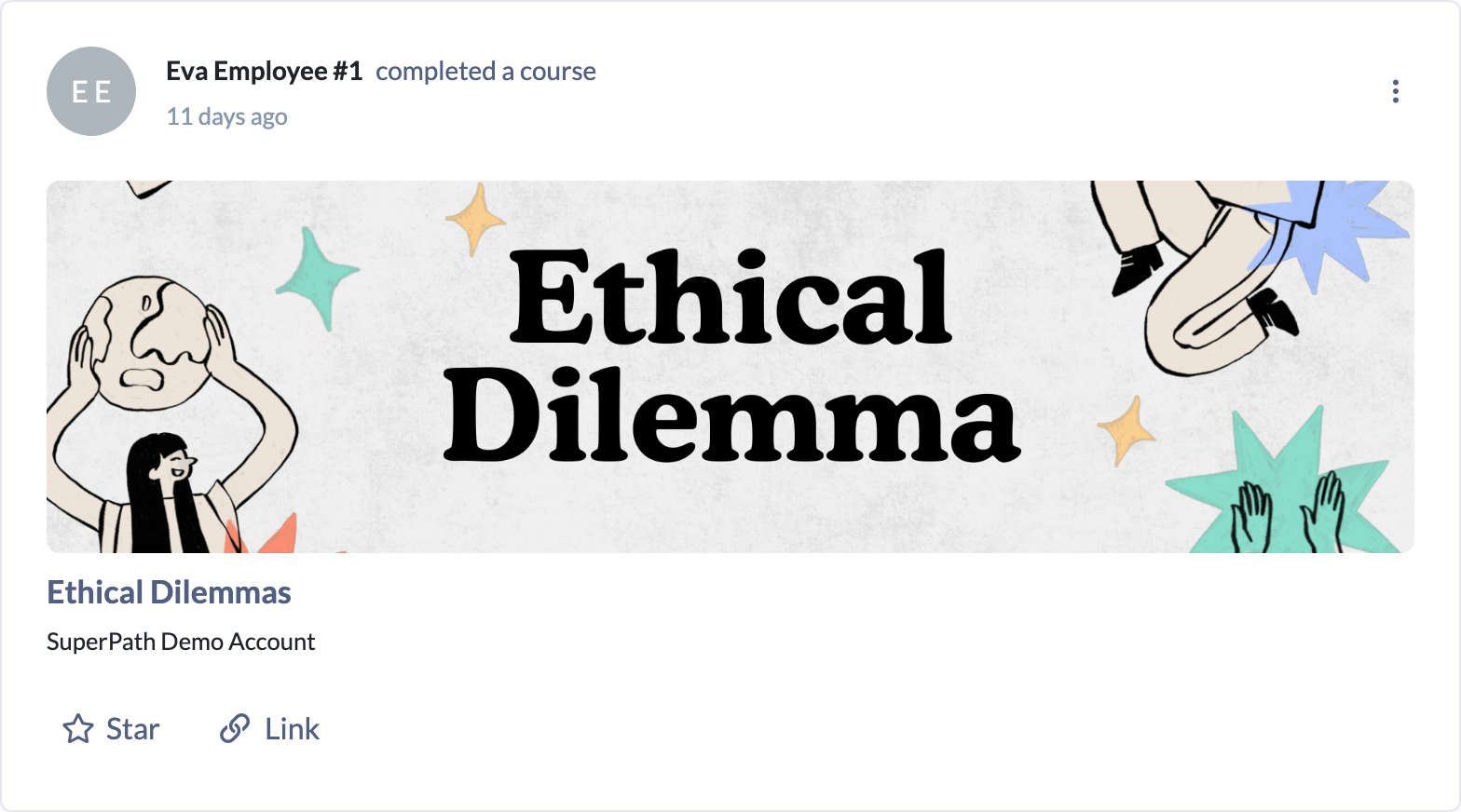
Each post describes one activity, with the person, what they did, and how long ago. Post types include:
- Someone joining your platform (shown with a welcome banner).
- A learner completing an assignment — for example, reading an article, watching a video, completing a course, or completing a Form.
- A learner completing a Pathway.
- New content or a new Pathway being added.
Where a post links to an item (such as completed content or a public Pathway), you can click the title to open it.
Interacting with a post
Under each post you'll find a row of actions:
- Star — like a post (see How to Star (Like) an Activity Feed Post). The star count is shown alongside.
- Comment — join the conversation, if comments are enabled for your platform.
- Link — copy a direct link to the post (see How to Copy a Link to an Activity Feed Post).
Owners and Admins also see a ⋮ menu to delete a post.
New updates
The feed updates in real time. When new activity arrives while you're viewing, a New updates available button appears at the top — click it to load the latest posts. The feed also loads older posts automatically as you scroll to the bottom.
Things to keep in mind
- The activity feed only appears when the social feed is enabled for your platform; if it's off, the dashboard won't show a feed.
- The whole dashboard is only available when the dashboard is enabled for your platform.
- Comments under posts only appear when comments in the feed are enabled.
- If there's no recent activity, you'll see "It looks like we have no learning updates for you".
FAQs
Why is my feed empty?
Either there's been no recent activity, or the social feed is switched off for your platform. When it's off, no feed is shown on the dashboard.
How do I see brand-new activity?
When new posts arrive, a New updates available button appears at the top of the feed — click it to refresh. Older posts load automatically as you scroll down.
Can I open the item a post is about?
Yes, where the post links to something (like completed content or a public Pathway) you can click its title to open it.
Who can do this
My Dashboard and its activity feed are available to all signed-in users except Restricted users, who are taken to My Learning instead. The dashboard also has to be enabled for your platform, and the feed itself only appears when the social feed is enabled. Reading and starring posts, and copying a post's link, are open to anyone who can see the feed; only Owners and Admins can delete a post.
Updated on: 18/07/2026
Thank you!