
How to Save a Report
How to Save a Report
In this article:
- Overview
- How to save a report
- What "saving" stores
- Which reports can be saved
- Things to keep in mind
- FAQs
- Who can do this
Overview
When you have built a report with the filters and criteria you care about, you can save it so you don't have to rebuild it every time. A saved report keeps your setup — the report type and its criteria — and appears on the Saved Reports tab under Reports, ready to reopen, share, duplicate or schedule.
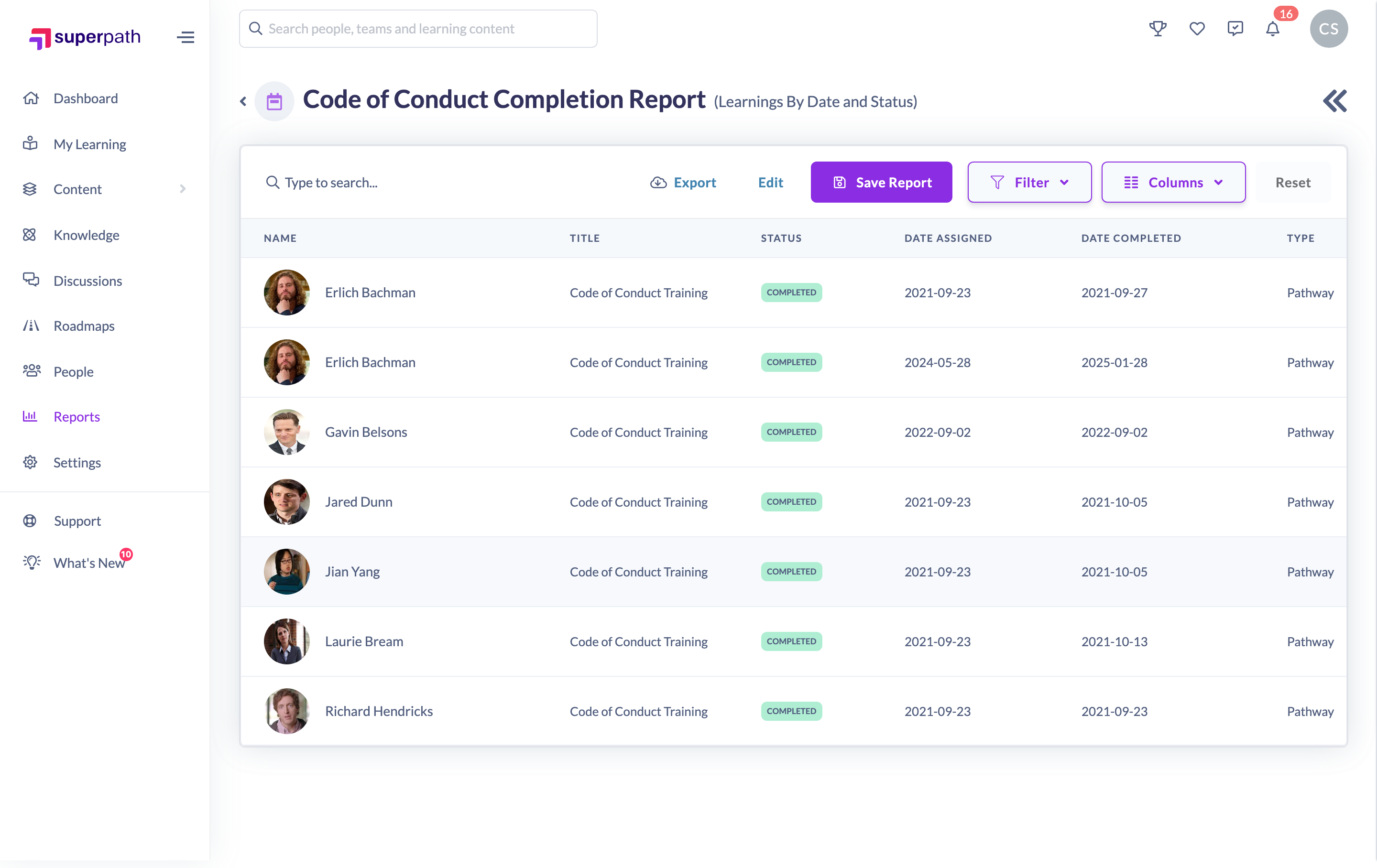
How to save a report
- In the left-hand menu, go to Reports.
- Open the report you want (for example Learnings By Date and Status) and set your criteria, then click Generate to run it.
- In the toolbar above the results, click Save Report.
- In the Report Name dialog, type a name for the report.
- Click Save.
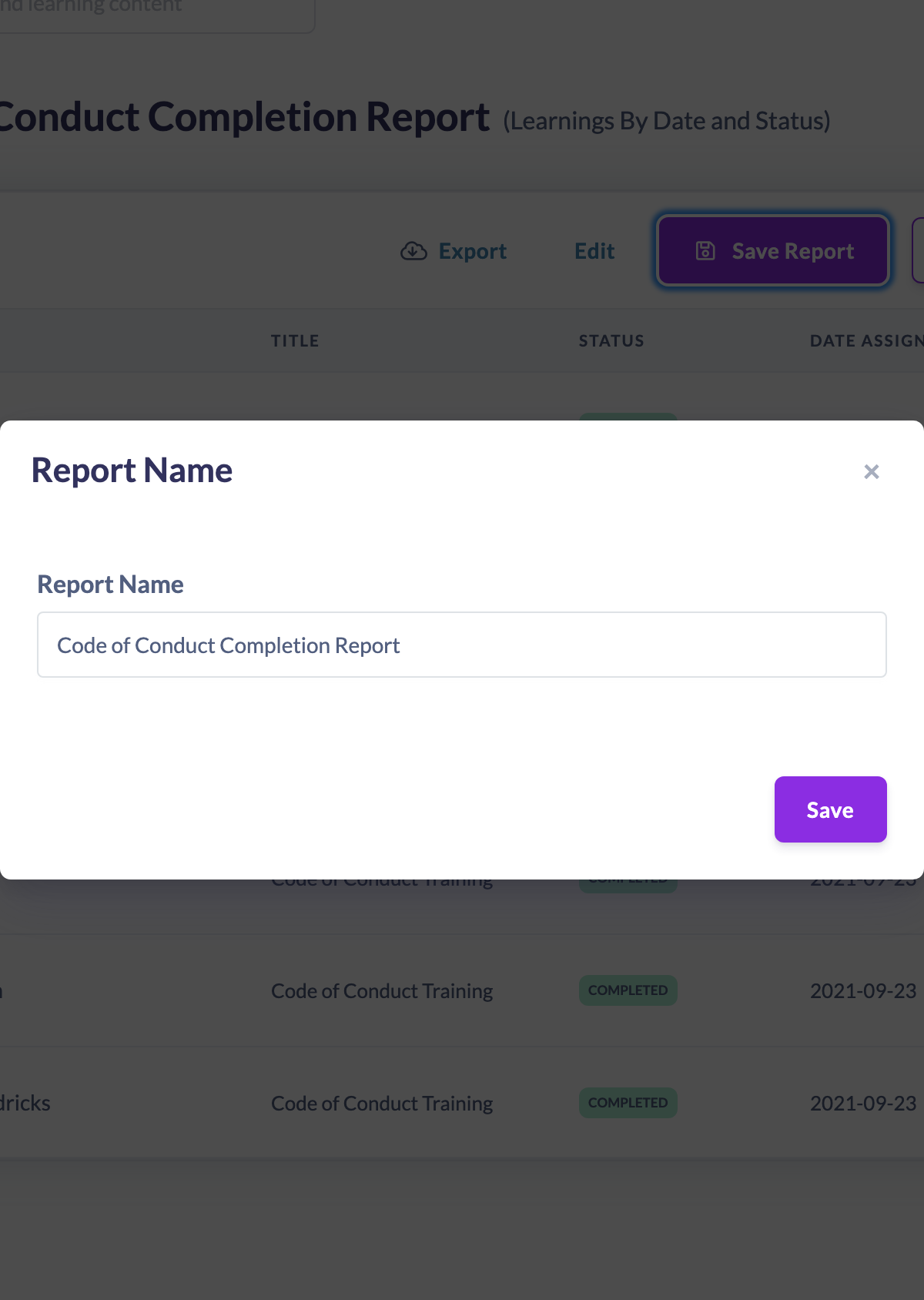
Your report now appears on the Saved Reports tab at Reports → Saved Reports.
Note: If you opened an existing saved report and click Save Report, SuperPath updates that same saved report rather than creating a new one.
What "saving" stores
A saved report stores the report's name, its type, and the criteria you chose (the filters, date ranges, statuses, and the people, teams or learnings you selected) — not a frozen copy of the results. Each time you open a saved report, SuperPath re-runs it against current data, so the figures are always up to date.
Which reports can be saved
The Save Report button appears on the report types that support saving: Learnings By Date and Status, Skills Matrix, Certificate Matrix, Learnings Matrix, Learning Time, Learning Points, CPD Points, Certificates, Knowledge Articles and Knowledge People. The Learners Report and Learning Content Report can be exported but not saved.
Things to keep in mind
- Saving stores your criteria, not the data — reopening a saved report runs it again against live data.
- The person who saves the report becomes its owner and is shown in the Owner column on the Saved Reports tab.
- Managers and People Managers see only the saved reports they own or collaborate on; Owners and Admins see all saved reports in the organisation.
FAQs
Does saving a report freeze the results at that point in time?
No. A saved report stores your criteria and re-runs against current data every time you open it, so the numbers always reflect the latest information.
Where do my saved reports live?
On the Saved Reports tab under Reports. From there you can open, duplicate, share, schedule or delete them.
Can I change a saved report later?
Yes. Open it, adjust the criteria and click Save Report again to update it in place.
Who can do this
Owners, Admins, Managers and People Managers can reach the Reports area and save reports. Content Managers, Instructors, Employees and Restricted users do not have access to the Reports area, so they cannot save reports.
Updated on: 18/07/2026
Thank you!