
How to Schedule a Report to Send Automatically
How to Schedule a Report to Send Automatically
In this article:
- Overview
- Before you start
- How to schedule a report
- Choosing how often it sends
- Things to keep in mind
- FAQs
- Who can do this
Overview
Scheduling turns a saved report into an automatic email. On the schedule you choose, SuperPath re-runs the report, generates a CSV, and emails a link to the recipients you picked — so the right people get up-to-date numbers without anyone remembering to run the report.
Before you start
Scheduling works from a saved report, so save your report first (see How to Save a Report). The schedule is tied to that saved report.
How to schedule a report
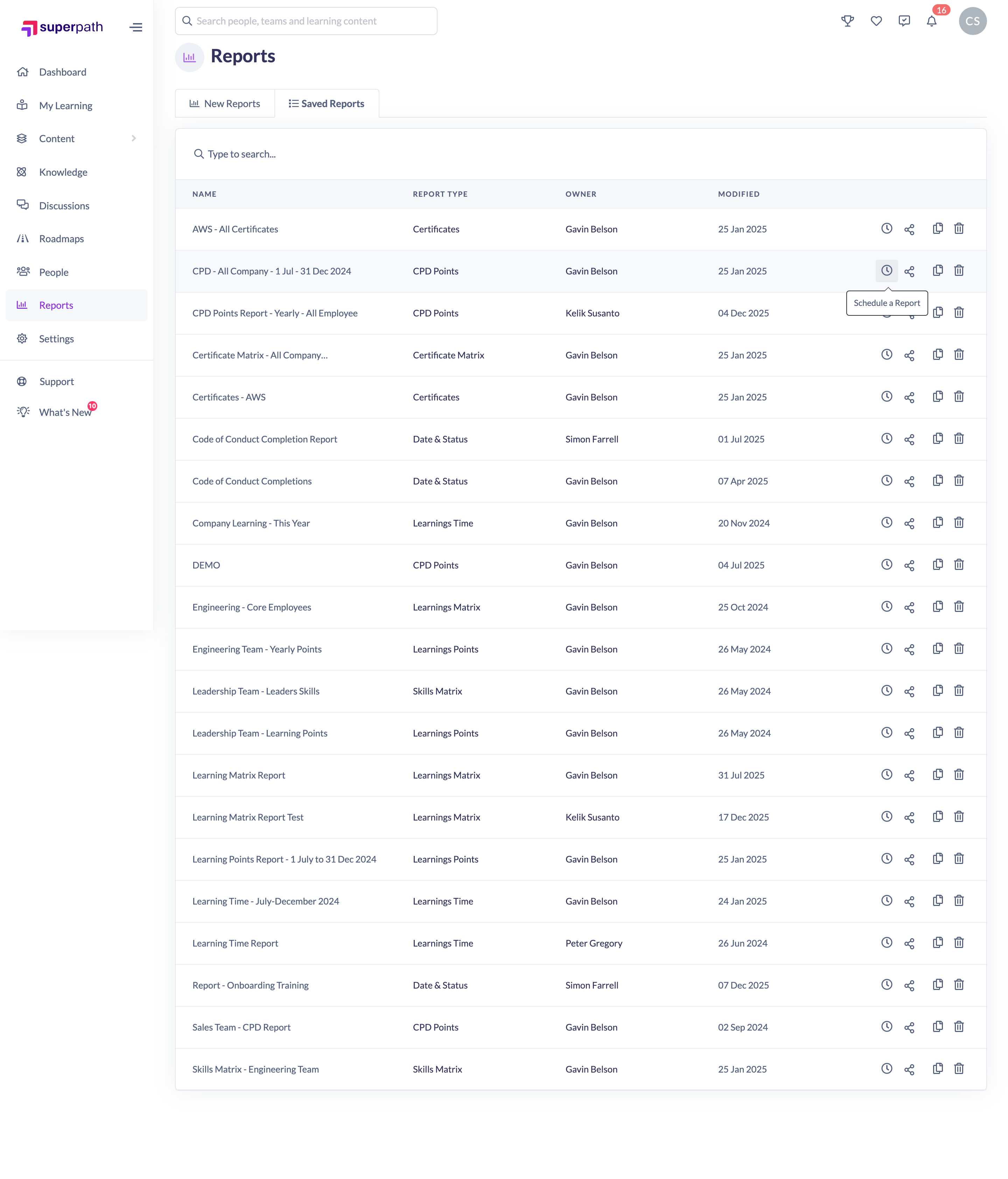
- In the left-hand menu, go to Reports and click the Saved Reports tab.
- In the report's row actions, click the Schedule a Report (clock) icon.
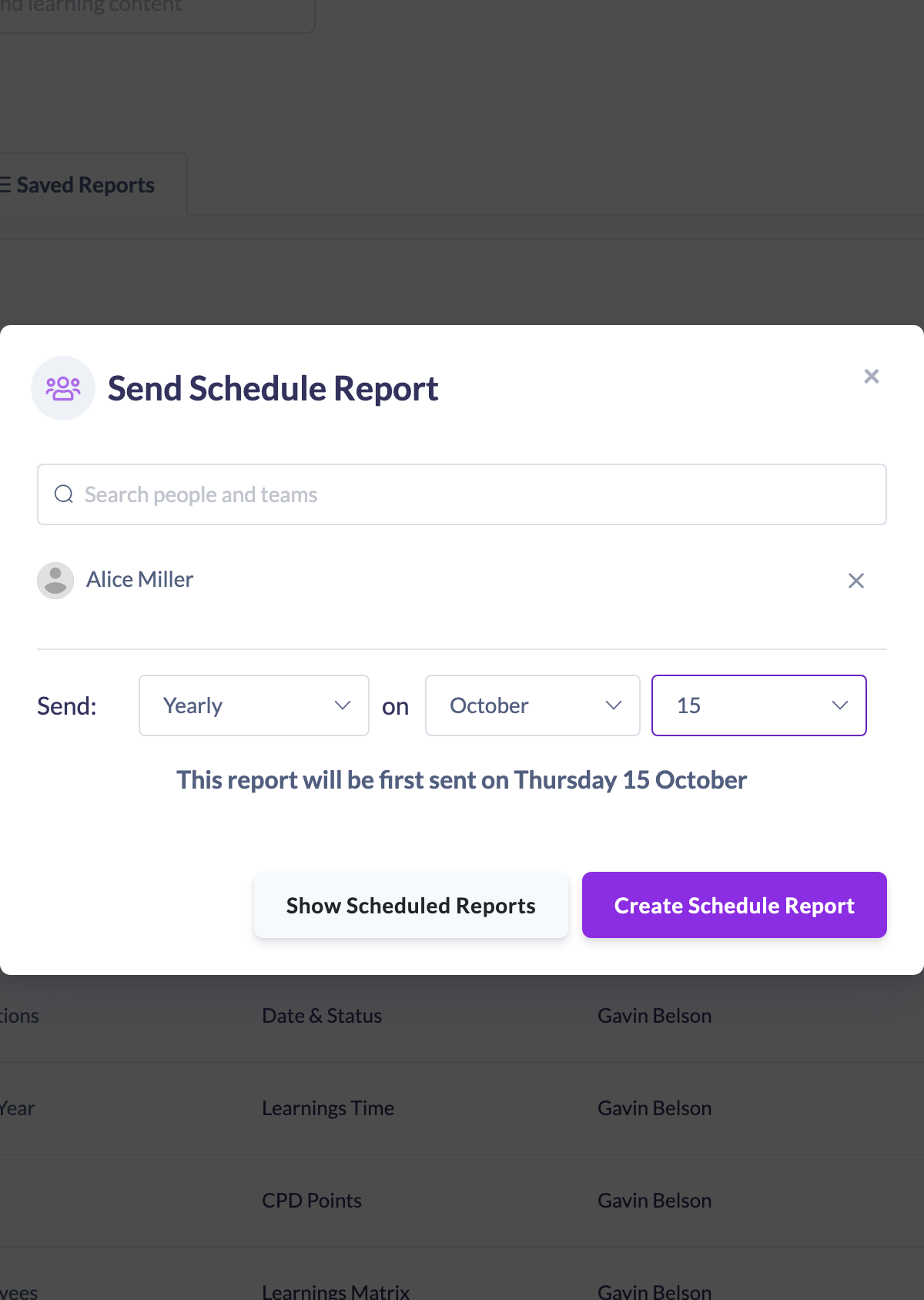
- In the Send Schedule Report dialog, use the Search people and teams box to add recipients — the people and teams who should receive the report.
- Under Send, choose how often it should go out and on which day (see below).
- Check the This report will be first sent on… line to confirm the first send date.
- Click Create Schedule Report.
SuperPath confirms with Scheduled report created successfully.
Choosing how often it sends
The Send dropdown offers:
- Weekly — then choose the day of the week.
- Monthly — then choose which occurrence and weekday (for example the first Monday).
- Monthly on day — then choose a specific day of the month.
- Yearly — then choose the month and day.
As you set these, the dialog shows the first send date so you can confirm it before creating the schedule.
Things to keep in mind
- Recipients receive an email with a link to the report file each time it runs — the report re-runs against live data at send time, so figures are current.
- Report links in the email are valid for 3 days; recipients can request a fresh link if one expires (see How to Access a Scheduled Report From the Email Link).
- A saved report can have more than one schedule — for example a weekly send to one team and a monthly send to another.
- Deleting the underlying saved report stops its schedules.
- The CSV includes a column for each Custom Field with Include in reports turned on. Which fields are included follows the access of the person who created the schedule, not each recipient.
FAQs
Do recipients need a SuperPath login?
Yes. The email links open the report in SuperPath, and a recipient must be signed in as themselves to access it.
Can I schedule any report?
You schedule a saved report, so first save the report you want, then add a schedule from the Saved Reports tab.
How do I see or remove schedules I've set up?
In the schedule dialog, click Show Scheduled Reports to see existing schedules and remove them — see How to Delete a Scheduled Report.
Who can do this
Owners, Admins, Managers and People Managers can reach the Reports area and schedule a saved report. Content Managers, Instructors, Employees and Restricted users do not have access to the Reports area.
Updated on: 29/09/2026
Thank you!