
How to Search the Knowledge Base
How to Search the Knowledge Base
In this article:
- Overview
- Search from the Knowledge Homepage
- Browse by category
- Things to keep in mind
- FAQs
- Who can do this
Overview
The Knowledge Base is your organisation's central store of articles, guides and reference material. When you're looking for something specific, the quickest way to find it is the search box on the Knowledge Homepage. You can also browse the categories and featured articles laid out on the homepage. This article explains both.
Search from the Knowledge Homepage
- Click Knowledge in the side menu to open the Knowledge Homepage.
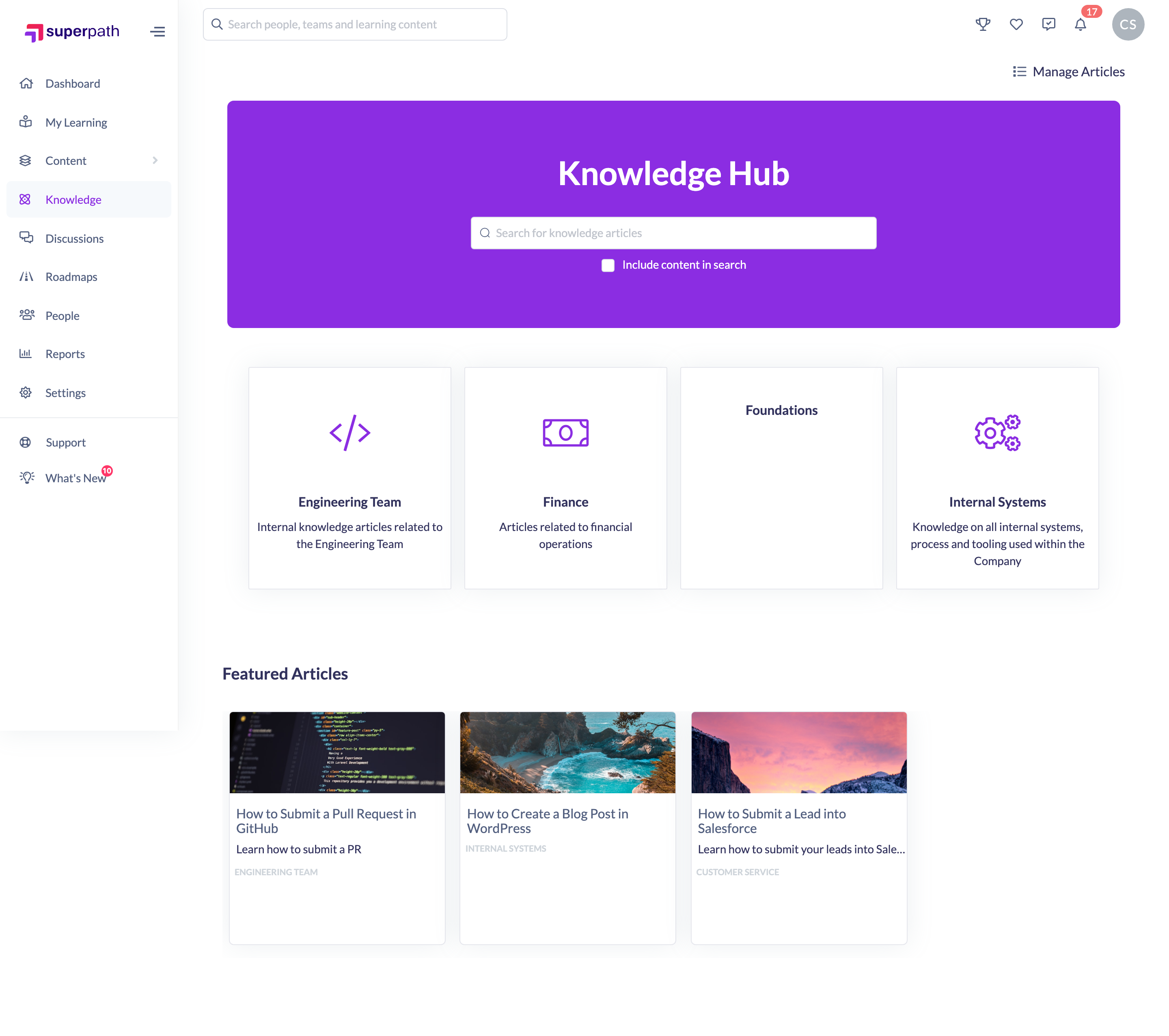
- Click the Search for knowledge articles box in the banner at the top of the page.
- Start typing. As you type, a list of matching articles appears beneath the box.
- To open an article straight away, click it in the suggestions list — you'll be taken directly to that article.
- To see a full page of results instead, press Enter. You'll land on the Knowledge search results page listing every matching article.

By default the search matches article titles. Tick Include content in search before you type if you also want the suggestions to match words found inside the body of your articles, not just their titles.
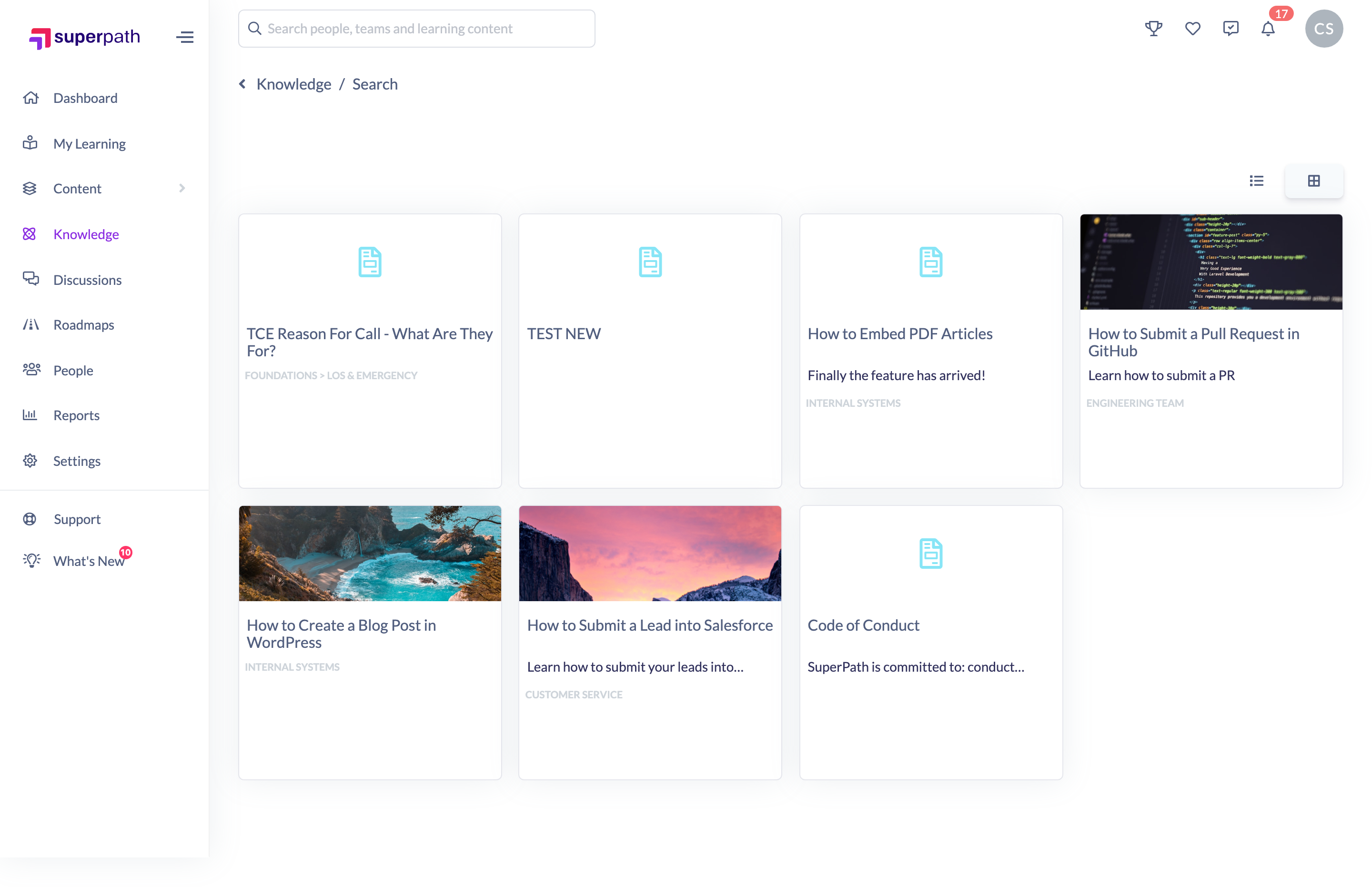
Tip: From the results page you can switch between a tile view and a list view using the view buttons above the results, and click Show more to load additional matches.
Browse by category
If you'd rather explore than search, the Knowledge Homepage also shows category cards and a Featured Articles row.
- Click Knowledge in the side menu.
- Click a category card to open that category and see the articles inside it.
- Or click any article in the Featured Articles row to open it directly.
Things to keep in mind
- Only categories that an administrator has chosen to show on the homepage appear as category cards.
- You'll only ever see articles you're allowed to see. Articles that are restricted to specific Teams are filtered out automatically for people who aren't in those Teams.
- Search results are not filtered by category or tag on the results page — use the homepage category cards to browse a specific category.
- The Knowledge Base must be enabled for your account for the Knowledge menu item to appear.
FAQs
What's the difference between clicking a suggestion and pressing Enter?
Clicking a suggestion opens that specific article immediately. Pressing Enter takes you to the results page, which lists all the articles that match your search.
Why can't I find an article a colleague can see?
Some articles are restricted to specific Teams. If you're not a member of the relevant Team, that article won't appear in your search results or category listings.
Does search look inside the article, or only at the title?
By default it matches titles. Tick Include content in search before typing to also match text inside the body of your articles.
Can I filter my search results by category or tag?
Not on the results page. To narrow things down to a single category, use the category cards on the Knowledge Homepage.
Who can do this
Anyone with access to the Knowledge Base can search it, including Owners, Admins, Managers, Content Managers, People Managers, Instructors and Employees. Restricted users cannot access the Knowledge Base. What each person can find is always limited by any Team restrictions on individual articles.
Updated on: 19/07/2026
Thank you!