
How to Send a Bulk Notification to Selected Learners
How to Send a Bulk Notification to Selected Learners
In this article:
- Overview
- How to send a bulk notification
- Confirming and sending
- If some notifications fail
- Things to keep in mind
- FAQs
- Who can do this
Overview
From a quick report you can message several learners at once — for example, reminding everyone who's overdue on a course to finish it. You select the learners you want, compose one message, and SuperPath sends it to all of them, personalising it per recipient. This builds on sending to a single learner (see How to Send a Notification to Learners From a Report).
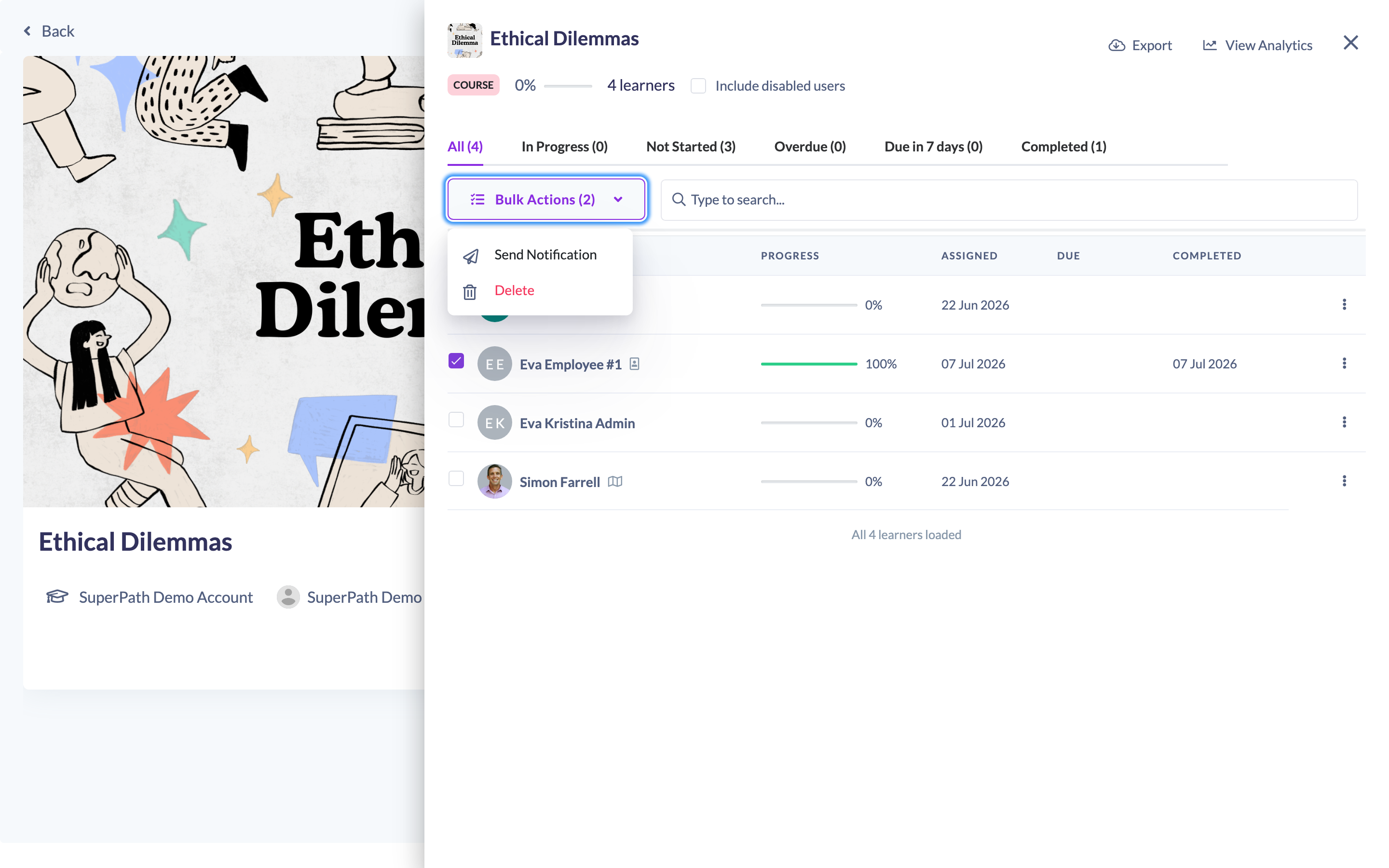
How to send a bulk notification
- Open the quick report for the item (click the View learners icon on the item).
- Tick the checkbox on each learner you want to message. You can filter or search the list first, and use the select-all checkbox to select the whole visible set.
- Open the Bulk Actions dropdown that appears above the table.
- Choose Send Notification.
- In the Send Notification modal, enter a Notification title and write your Message body. Use the Insert variable menu to personalise it (recipient name, learning title, your name or platform name).
- Click Send.
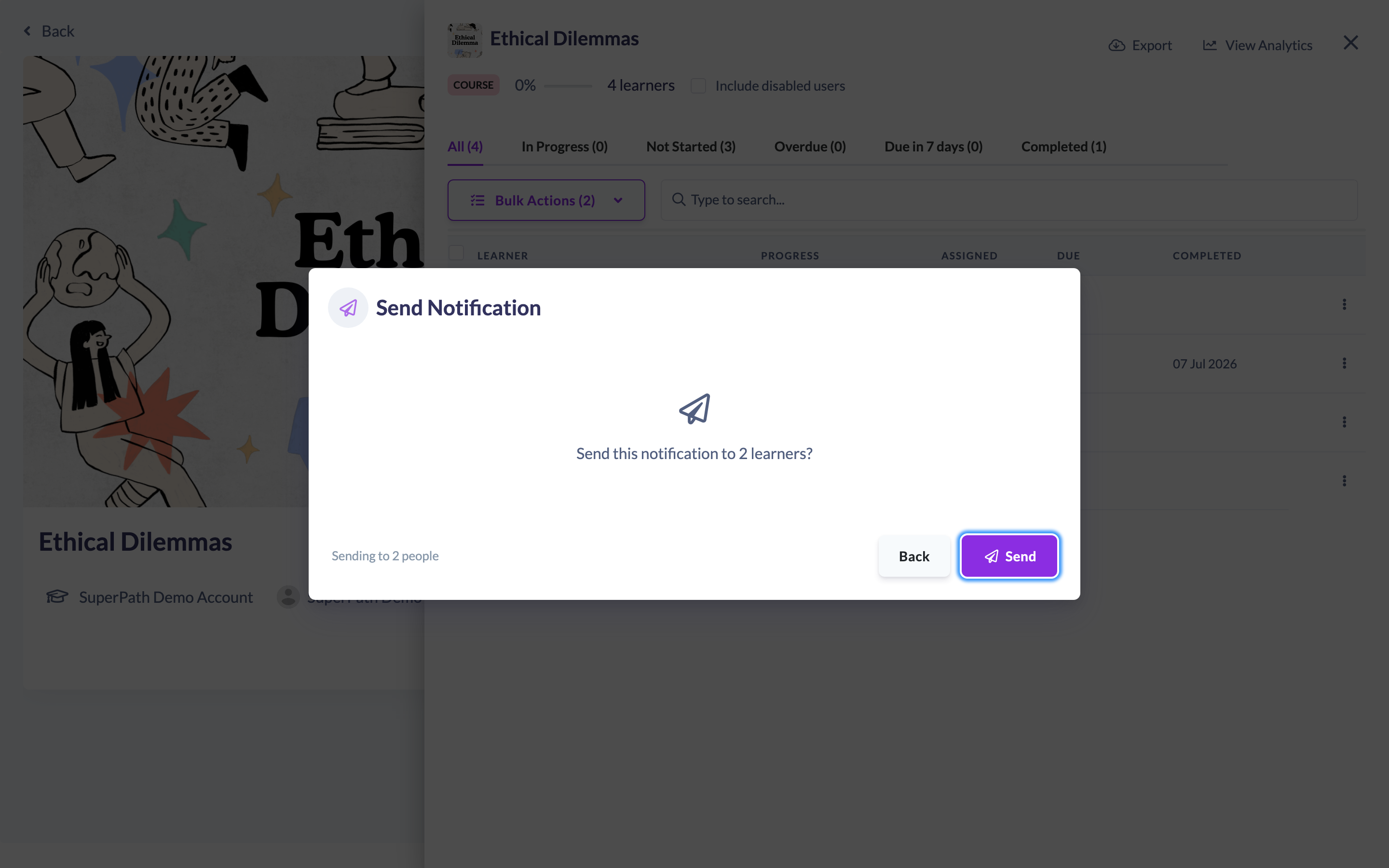
Confirming and sending
When you're sending to more than one learner, SuperPath shows a confirmation step — "Send this notification to N learners?" — before anything goes out. Click Send to confirm, or Back to keep editing. If you've selected a large number of learners (more than 100), you'll also see a warning asking you to confirm you want to email them all.
If some notifications fail
If the message can't be delivered to some recipients (for example, a learner outside your scope), SuperPath shows a results screen listing which recipients failed and why, while confirming how many were sent successfully. The rest still go through.
Things to keep in mind
- You need both a title and a message body before you can send.
- Each recipient's message is personalised from the variables you insert.
- Managers and People Managers can only send to learners within their scope; recipients outside it are reported as failed on the results screen.
- The notification is delivered by email, Slack and in-app push, with a View learning button linking each learner to the item.
FAQs
How many learners can I message at once?
There's no hard limit, but sending to more than 100 learners prompts an extra warning so you can confirm.
What happens if one learner can't be notified?
The others are still sent, and a results screen tells you which recipients failed and why.
Can I personalise a bulk message?
Yes — use the Insert variable menu, and each learner receives a message filled in with their own details.
Who can do this
Owners, Admins, Managers, People Managers and Content Managers can send bulk notifications. Managers and People Managers can only send to learners within their scope. Instructors, Employees and Restricted users cannot.
Updated on: 18/07/2026
Thank you!