
How to Send a Notification to Learners From a Report
How to Send a Notification to Learners From a Report
In this article:
- Overview
- How to send a notification to one learner
- Writing the message and using variables
- How the notification is delivered
- Things to keep in mind
- FAQs
- Who can do this
Overview
When you're reviewing who's assigned a learning item, you can send a learner a message straight from the report — for example a nudge to finish an overdue course, or context about why something matters. You compose a title and a formatted message, and SuperPath delivers it to that learner with a link back to the learning. This article covers sending to a single learner; to message several at once, see How to Send a Bulk Notification to Selected Learners.
How to send a notification to one learner
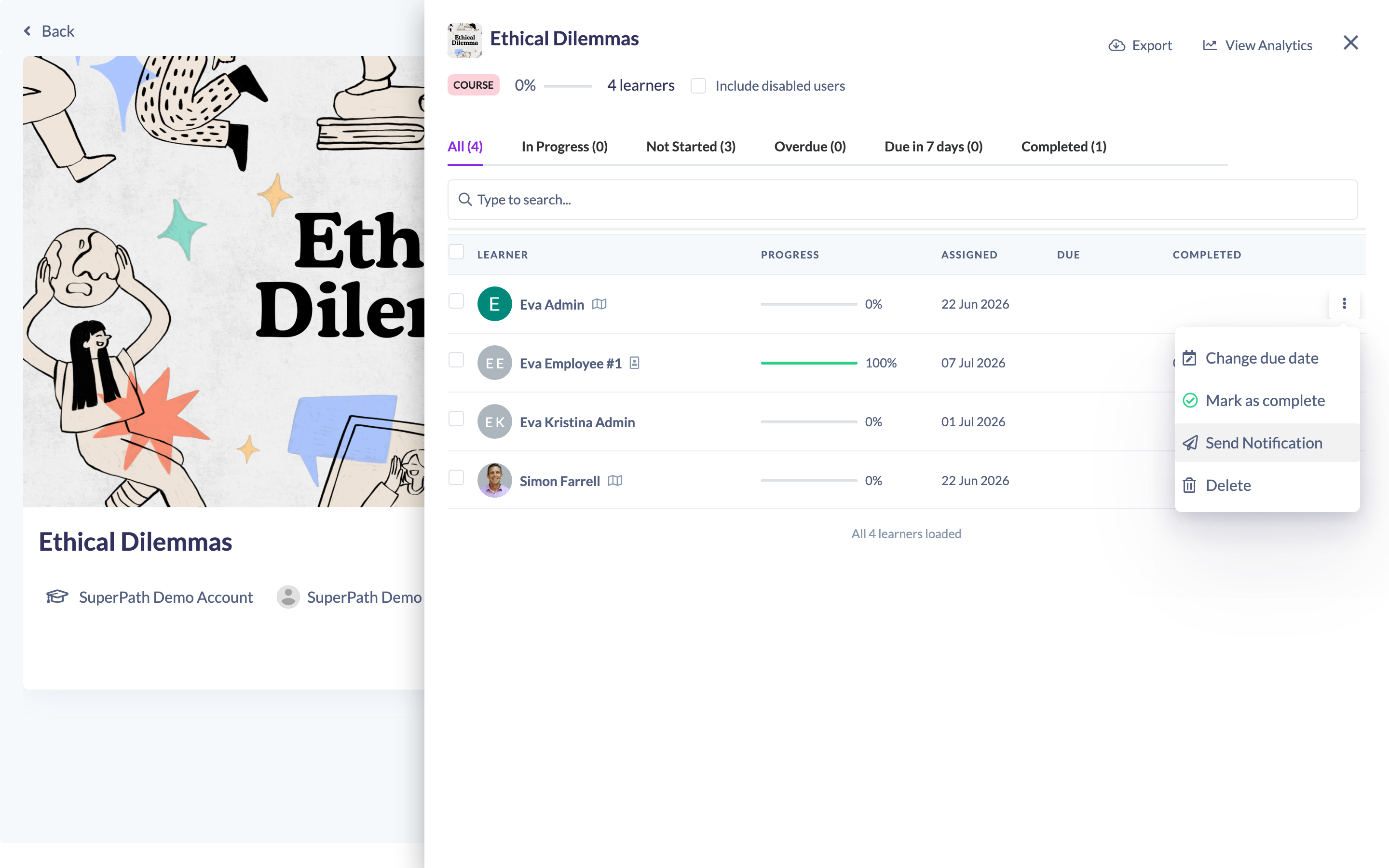
- Open the quick report for the item (click the View learners icon on the item), or open a learner's profile and go to their learnings.
- Find the learner you want to message.
- In their row, click the Send Notification icon (the paper-plane icon).
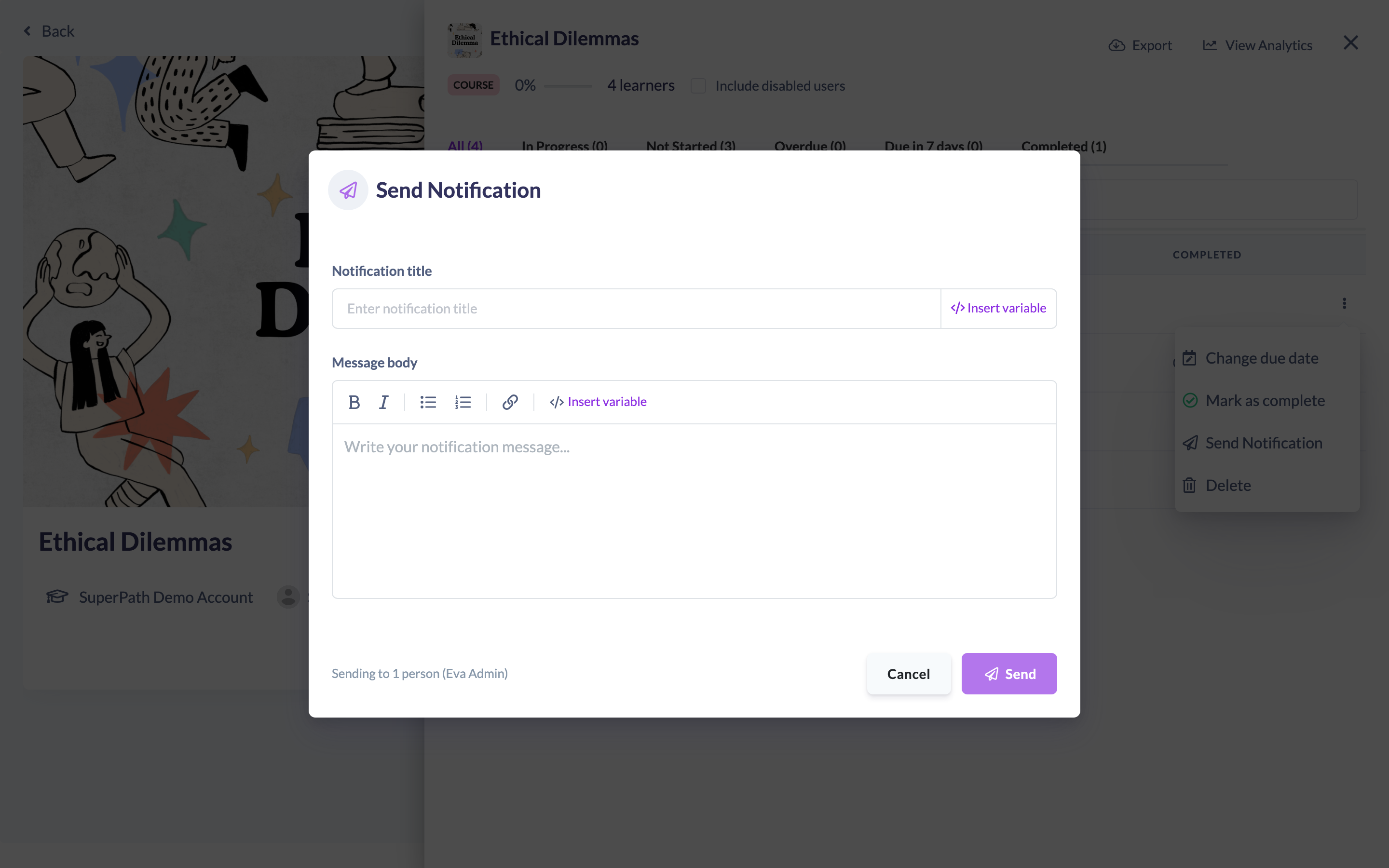
- In the Send Notification modal, enter a Notification title and write your Message body.
- Click Send.
You'll see a confirmation once the notification has been sent.
Writing the message and using variables
The message body has a small formatting toolbar for bold, italic, bullet and numbered lists, and links. Both the title and the body have an Insert variable menu so the message personalises itself for each recipient. Available variables include:
- Recipient — first name, last name and full name.
- Learning — the learning title.
- Sender — your name.
- Platform — your platform name.
Inserted variables appear as a small pill (for example {{recipientFirstName}}) and are filled in with the learner's details when the notification is sent.
How the notification is delivered
The notification is sent to the learner by email, Slack and in-app push (depending on how they receive notifications), and it includes a View learning button that takes them straight to the item.
Things to keep in mind
- You need both a title and a message body before the Send button becomes available.
- Managers and People Managers can only notify learners within their scope — a recipient outside your scope won't be sent the message.
- The View learning link points at the specific assignment, pathway step or roadmap the learner was notified about.
FAQs
Can I personalise the message?
Yes — use the Insert variable menu in the title or body to add the recipient's name, the learning title, your name or the platform name.
Where else can I send a notification from?
As well as the quick report, you can send one from a learner's profile learnings list using the same Send Notification action.
How does the learner receive it?
By email, Slack and in-app push, with a button that links them to the learning.
Who can do this
Owners, Admins, Managers, People Managers and Content Managers can send a notification to a learner. Managers and People Managers can only send to learners within their scope. Instructors, Employees and Restricted users cannot send learner notifications.
Updated on: 18/07/2026
Thank you!