
How to Star (Like) an Activity Feed Post
How to Star (Like) an Activity Feed Post
In this article:
- Overview
- How to star a post
- How to remove a star
- Things to keep in mind
- FAQs
- Who can do this
Overview
Starring is the activity feed's version of a "like" — a quick way to show appreciation for someone's learning milestone. Starred posts show a running star count, so it's easy to see which updates are getting recognition.
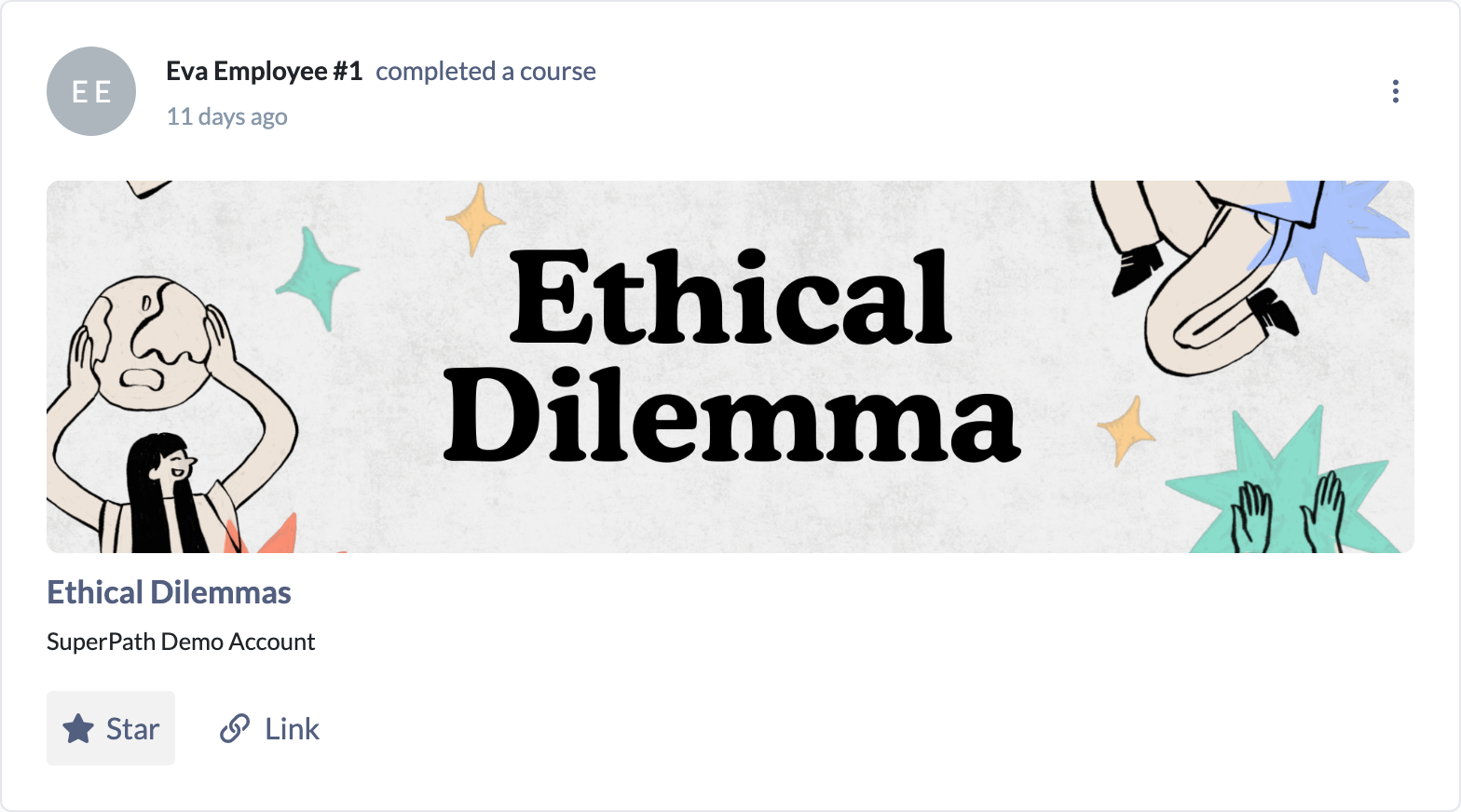
How to star a post
- Open your Dashboard and find the post in the activity feed.
- Click the Star action beneath the post.
- The star fills in and the post's star count goes up by one.
How to remove a star
- On a post you've already starred (the star is filled in), click Star again.
- The star empties and the count goes back down.
Starring is a toggle — click once to add your star, click again to remove it.
Things to keep in mind
- Starring is only available where the activity feed is shown, which depends on the social feed being enabled for your platform.
- The number next to a post is the total stars from everyone, not just you.
- Your own star turns the icon solid so you can tell at a glance whether you've already starred a post.
FAQs
What does the star count mean?
It's the total number of stars a post has received from all users — a simple measure of how much recognition it's had.
Can I un-star a post?
Yes. Click Star again on a post you've starred and your star is removed.
Is a star the same as a like?
Yes. SuperPath uses a star as the feed's like control.
Who can do this
Anyone who can see the activity feed can star and un-star posts. That's all signed-in users with the dashboard and social feed enabled — Restricted users, who don't have the dashboard, are the exception.
Updated on: 18/07/2026
Thank you!