
How to Sync an Event With Your HRIS
How to Sync an Event With Your HRIS
In this article:
- Overview
- How to turn on HRIS sync for an event
- Things to keep in mind
- FAQs
- Who can do this
Overview
If your organisation has connected an HRIS integration, you can sync an individual Event with it. When sync is turned on, completing the Event pushes the completed learning record back to your HRIS, so your people system stays up to date without any manual data entry.
How to turn on HRIS sync for an event
- Go to Events and click the Event you want to edit.
- On the Event Details tab, find the sync row (marked with a sync icon). It reads Sync with followed by the name of your connected HRIS.
- Toggle the switch on to enable syncing for this Event.
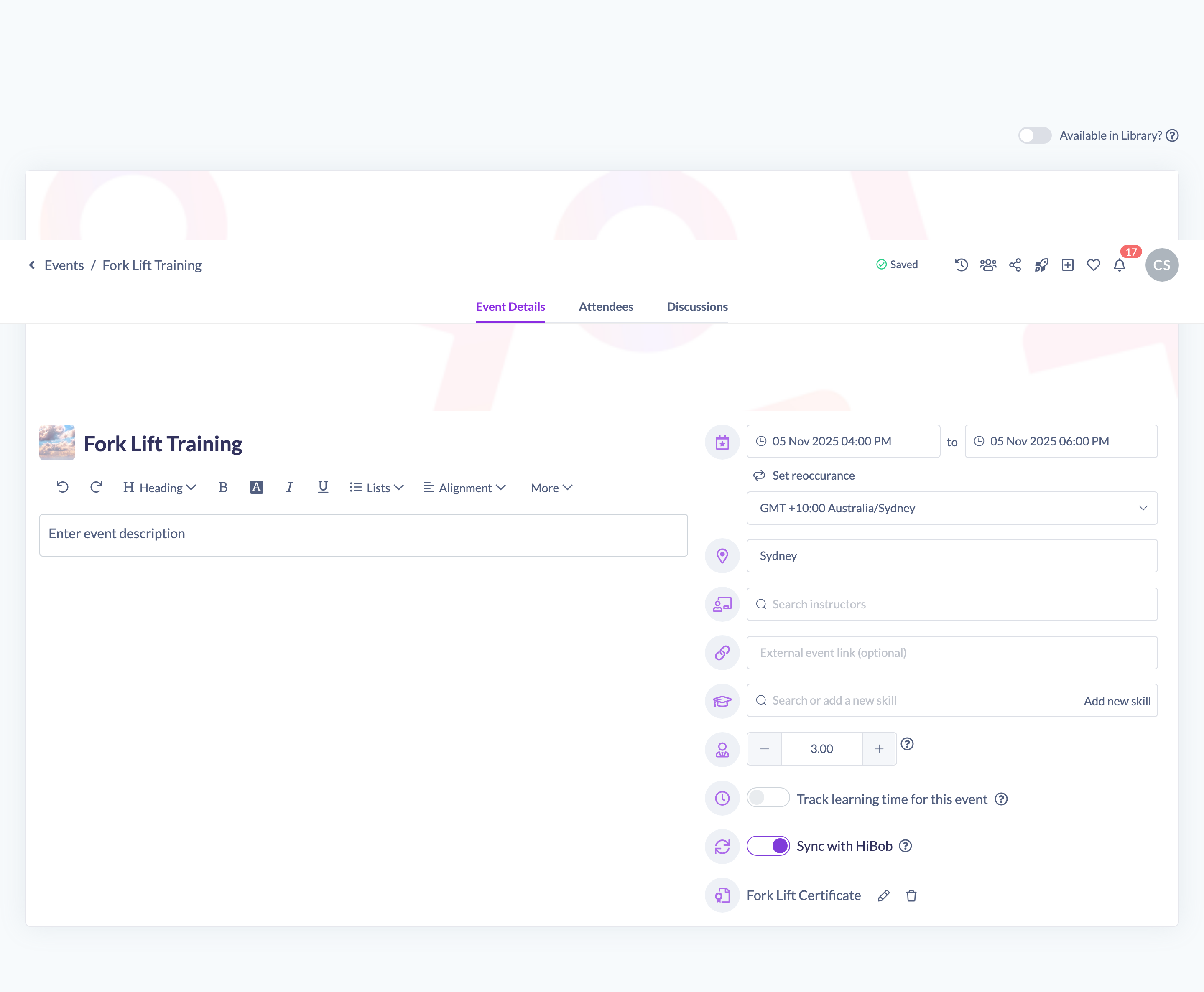
Your change is saved automatically. Hover the question-mark icon next to the toggle for a reminder of what syncing does.
Note: The Sync with option only appears when an HRIS integration is connected to your organisation. If you don't see it on the Event, no HRIS is connected yet.
Things to keep in mind
- Sync is set per Event — turn it on for each Event you want reflected in your HRIS.
- Syncing pushes the completed learning back to your HRIS; it happens when an attendee completes the Event.
- When you duplicate an Event, the sync setting is carried over to the new copy.
- Connecting an HRIS integration is done in your organisation's integration settings, not on the Event itself.
FAQs
Why can't I see the sync option on my event?
The toggle only shows when an HRIS integration is connected for your organisation. Once one is connected, the Sync with row appears on the Event Details tab in edit mode.
What gets sent to the HRIS?
The completed learning for the Event is pushed back to your HRIS when an attendee completes it.
Who can do this
Owners, Admins, Managers, Content Managers and Instructors can edit Events and turn HRIS sync on or off. People Managers, Employees and Restricted users have read-only access to Events and cannot change this setting. Connecting the HRIS integration itself is typically limited to Owners and Admins in integration settings.
Updated on: 19/07/2026
Thank you!