
How to View and Export Event Attendees
How to View and Export Event Attendees
In this article:
- Overview
- How to view attendees
- How to export attendees to CSV
- Things to keep in mind
- FAQs
- Who can do this
Overview
The Attendees tab shows everyone who has the Event as part of their learning — whether it was assigned to them, added through a Pathway, or self-registered from the Library. For each attendee you can see their status, when they were assigned, and when they completed the Event, and you can export the whole list to a CSV file.
How to view attendees
- Go to Events and click the Event you want to review.
- At the top of the Event, click the Attendees tab.
- The list shows each attendee with their Name, Status (Attended or Not Attended), Date assigned and Date completed.
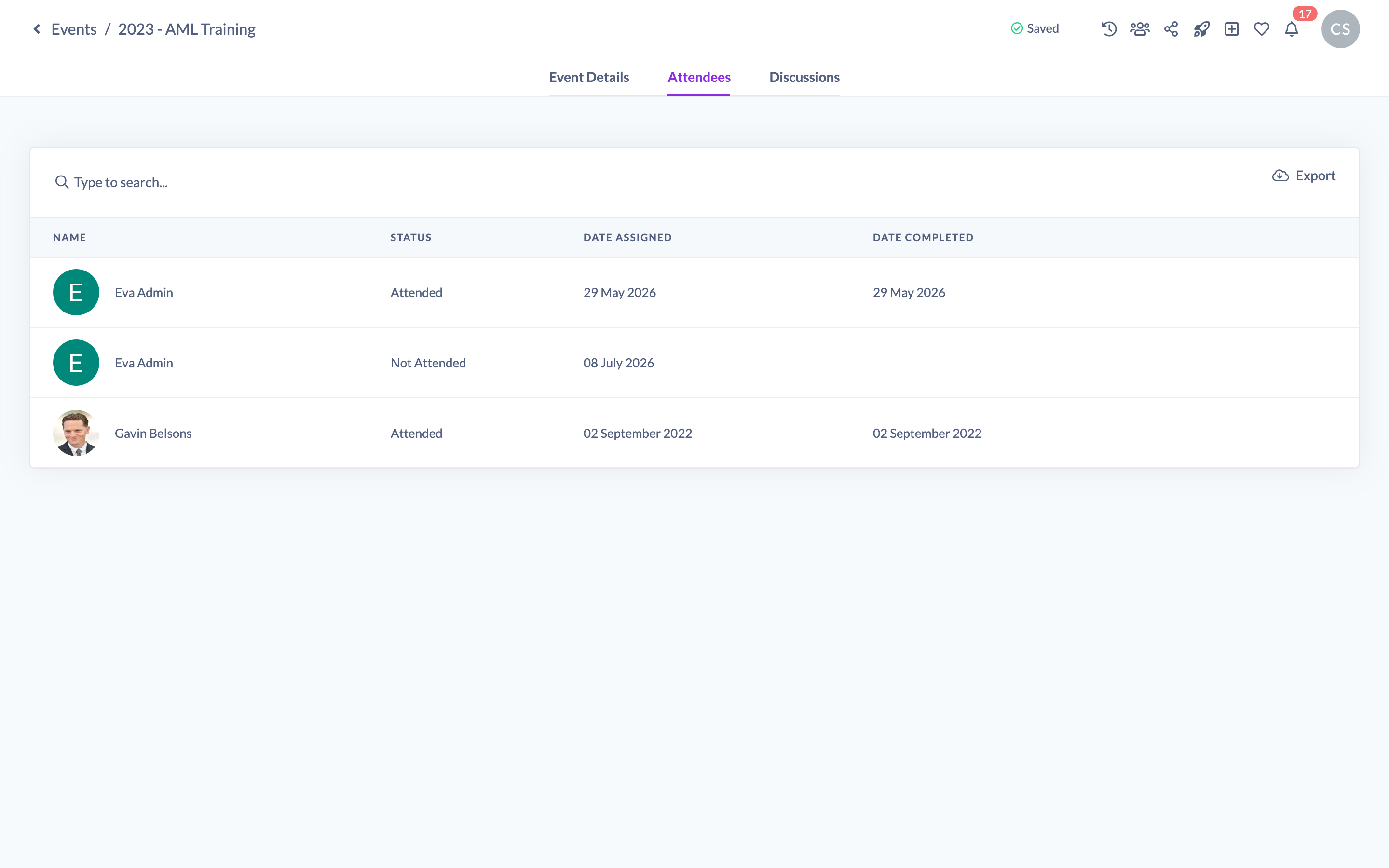
Use the search box above the list to filter attendees by name, status or completion date.
Note: Status shows as Attended once the attendee has completed the Event, and Not Attended until then.
How to export attendees to CSV
- Open the Event and go to the Attendees tab.
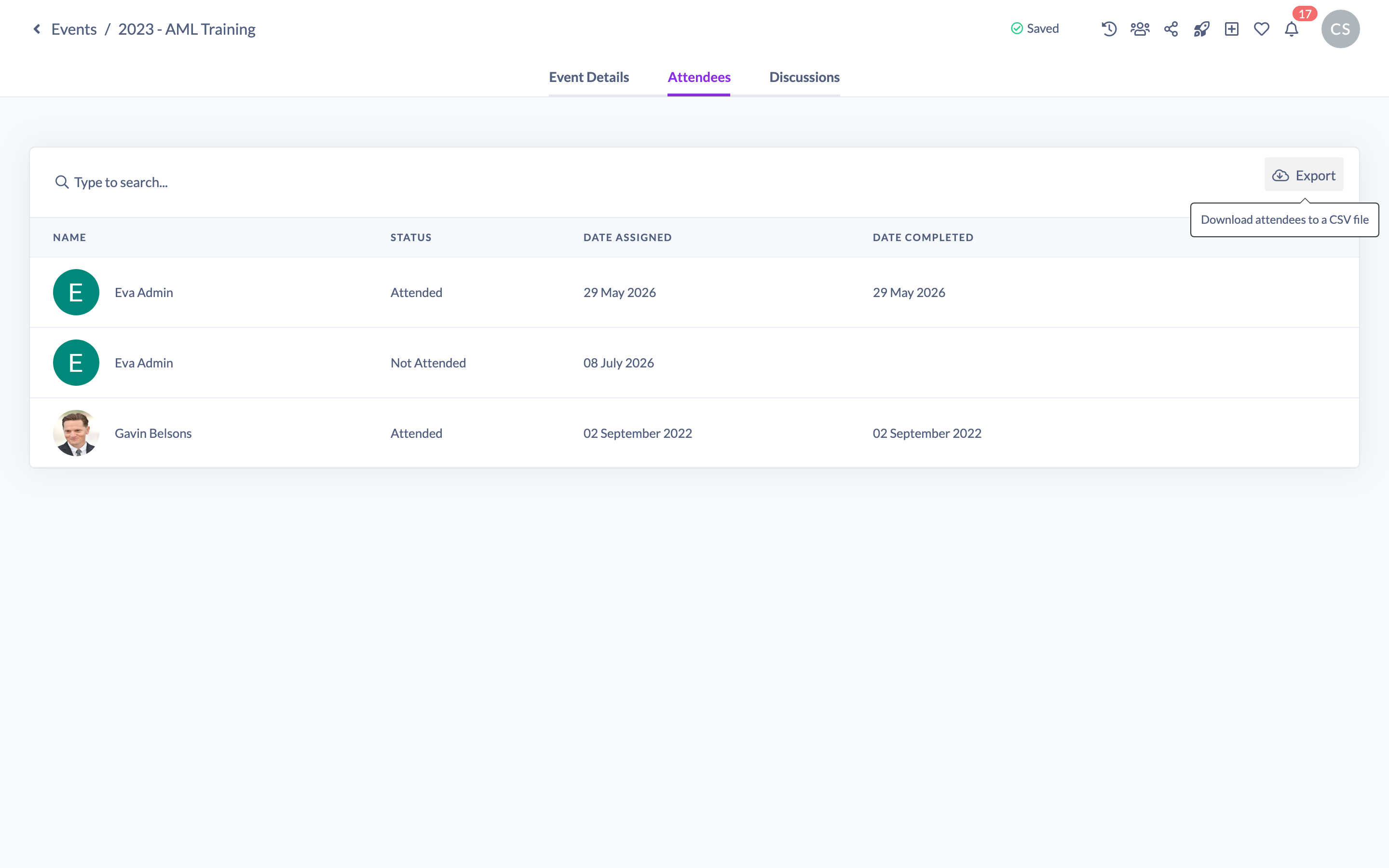
- Click the Export button (cloud-download icon) at the top-right of the list.
- A CSV file downloads to your device containing each attendee's title, first name, last name, email, status, date completed and date assigned.
Things to keep in mind
- If no one has the Event yet, the Attendees tab shows an empty state prompting you to assign the Event or add it to a Pathway — there is nothing to export until at least one person is an attendee.
- The export is generated in your browser from the attendees currently loaded, and downloads immediately — there is no email or background job.
- The CSV always contains the full attendee list, not just the rows matching your current search filter.
FAQs
Who counts as an attendee?
Anyone the Event has been assigned to, anyone who received it through a Pathway, and anyone who self-registered from the Library.
How do I mark someone as having attended?
Attendance is derived from completion — an attendee shows as Attended once the Event is completed for them, so there is no separate manual check-in step.
Who can do this
Owners, Admins, Managers, Content Managers and Instructors can open an Event and view and export its attendees. People Managers, Employees and Restricted users do not have access to the Events management area.
Updated on: 19/07/2026
Thank you!