
How to View Learners for an Event
How to View Learners for an Event
In this article:
- Overview
- How to view learners for an event
- Things to keep in mind
- FAQs
- Who can do this
Overview
The View learners action gives you a quick report on who has an Event, straight from the Events list — no need to open the Event first. It opens a drawer showing each learner and their progress, so you can check completion at a glance.
How to view learners for an event
- Go to Events to open your Events list.
- Find the Event you want to check and, in its row, click the View learners action (chart icon).
- The learner report drawer slides in from the side, showing the learners for that Event and their status.

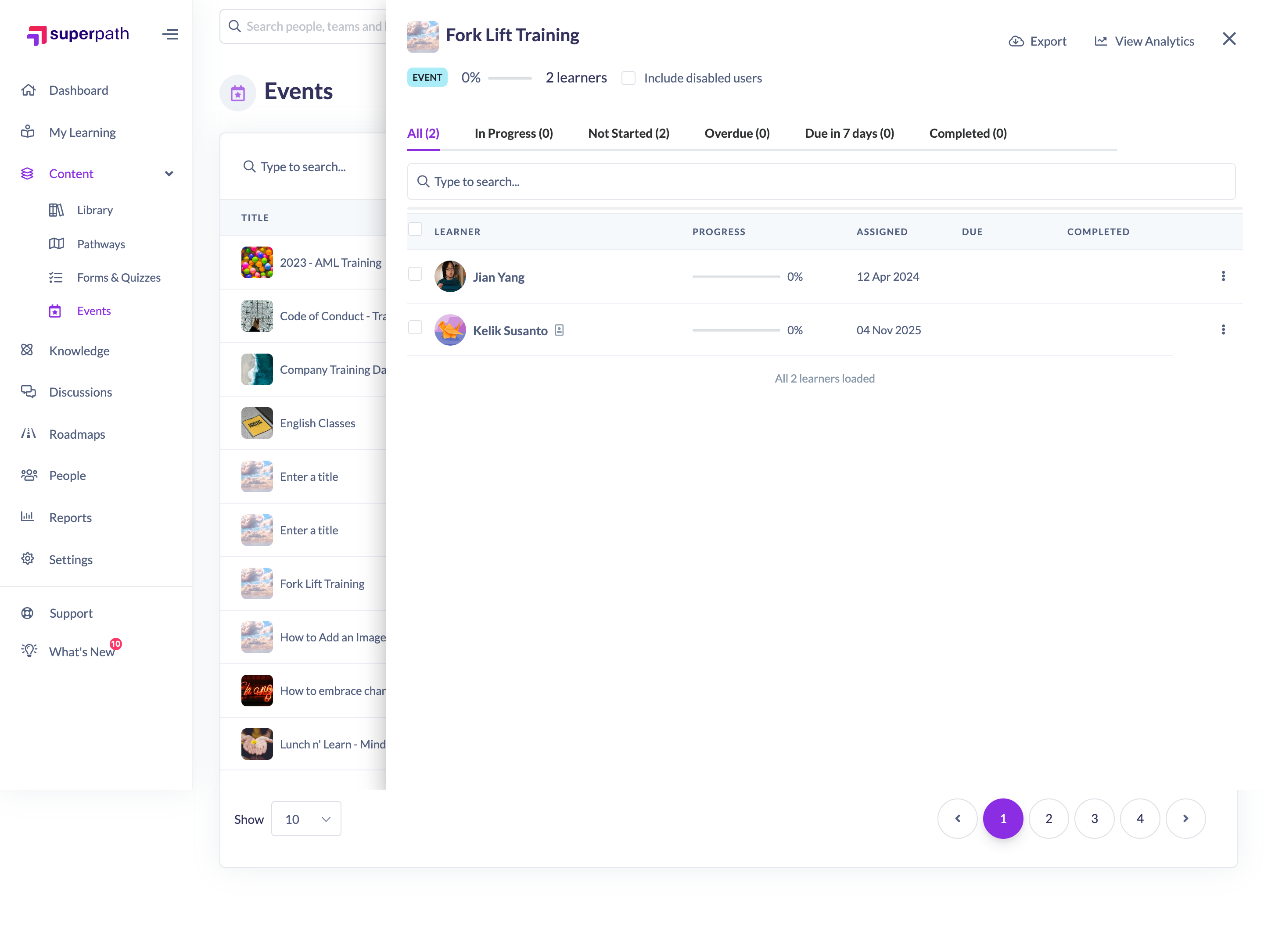
Close the drawer when you're done to return to the Events list.
Tip: Use the drawer's option to include disabled users if you need to see learners whose accounts have since been deactivated.
Things to keep in mind
- The drawer loads its learner data when you open it, so figures reflect the latest progress.
- This is a quick, read-only report from the list — for the full attendee view with export, open the Event and use the Attendees tab.
FAQs
What's the difference between View learners and the Attendees tab?
View learners is a quick report drawer you open from the Events list. The Attendees tab, inside the Event, shows the same people with columns for status and dates and lets you export the list to CSV.
Can I see learners whose accounts are disabled?
Yes — the drawer includes an option to show disabled users.
Who can do this
Owners, Admins, Managers, Content Managers and Instructors can view learners for an Event. People Managers, Employees and Restricted users do not have access to the Events management area.
Updated on: 19/07/2026
Thank you!