
Learning Content Report
Learning Content Report
In this article:
- Overview
- How to run the report
- What the report shows
- Viewing who's enrolled
- Exporting
- Things to keep in mind
- FAQs
- Who can do this
Overview
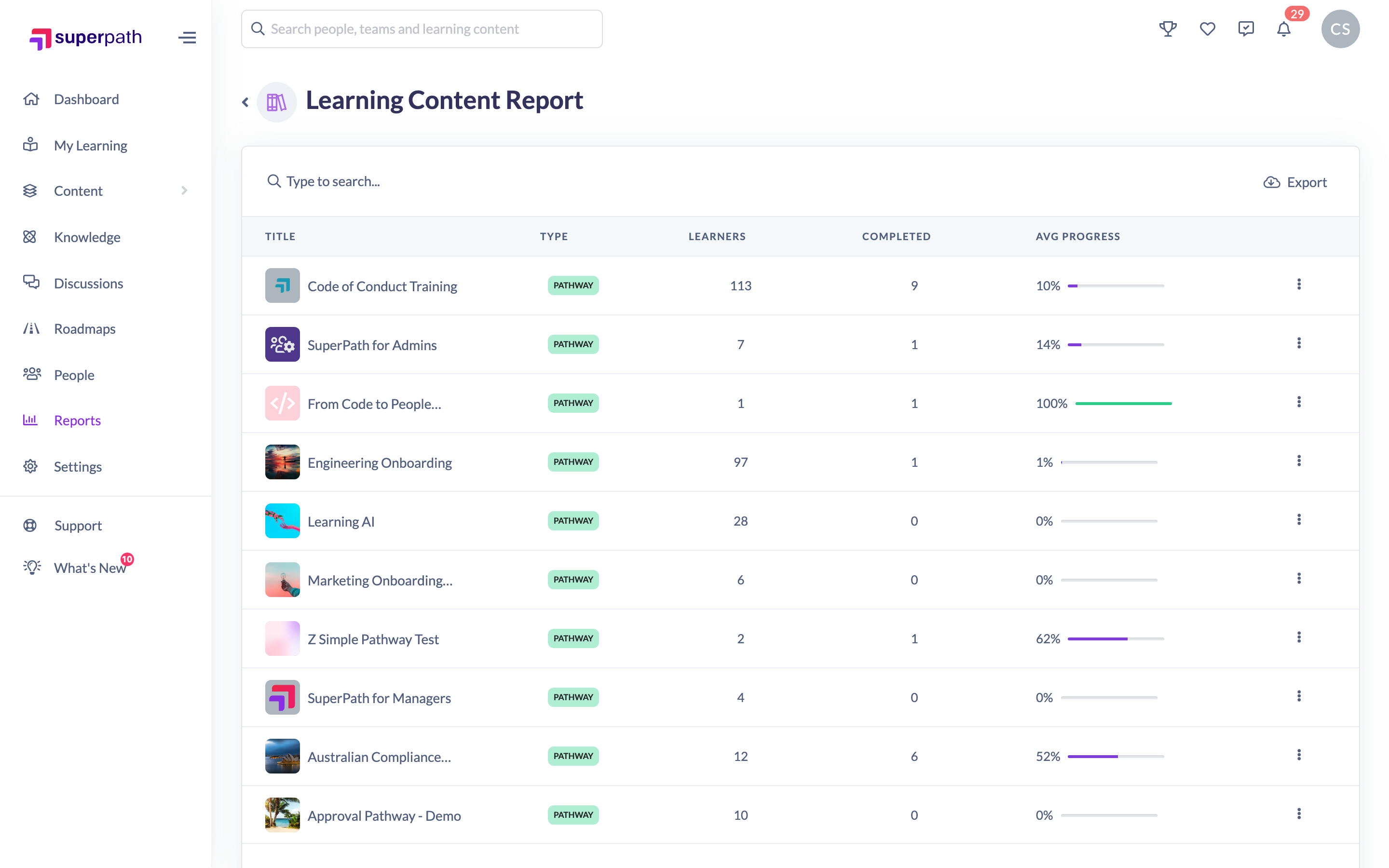
The Learning Content Report flips the Learners Report around: instead of a row per person, it gives you a row per piece of Learning. For each item you can see its type, how many learners are enrolled, how many have completed it and the average progress — so you can gauge how each piece of content is performing and drill into who's enrolled.
How to run the report
- In the left-hand menu, open Reports.
- On the Reports page, click the Learning Content Report tile.
- The report opens showing all of your Learning content. Use the search box to type a title and filter the list to matching items.
What the report shows
The results table has one row per Learning item, with these columns:
- Title — the Learning item.
- Type — Content (and its sub-type), Event or Pathway.
- Learners — how many people are enrolled.
- Completed — how many have completed it.
- Avg Progress — the average progress across enrolled learners, shown as a bar.
Sort by any column, or use the row's actions menu to open the item or view its learners.
Viewing who's enrolled
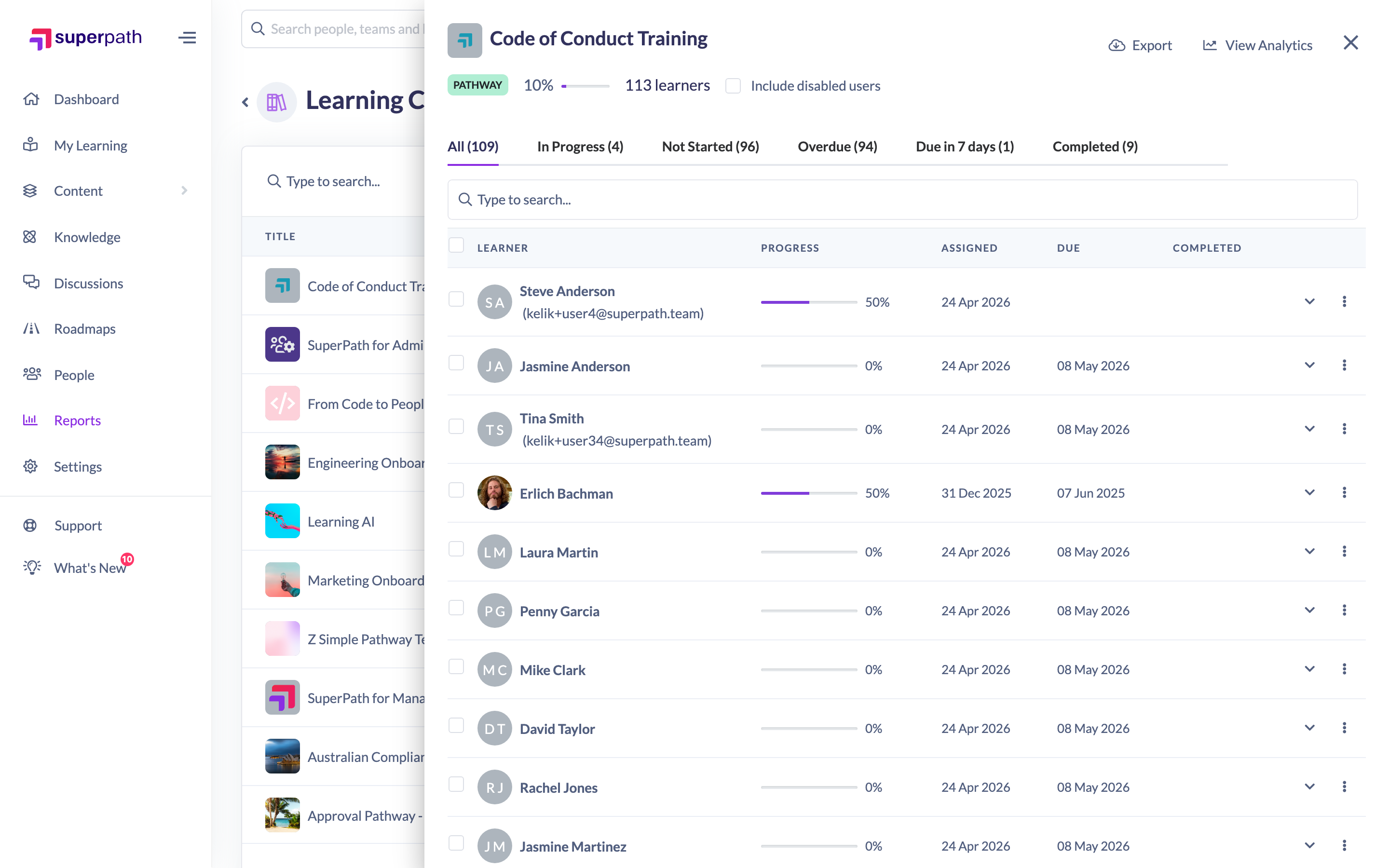
Click a Learning item to open a panel listing everyone enrolled in it. Use the tabs across the top — All, In Progress, Not Started, Overdue, Due in 7 days and Completed — to focus on a particular status.
Exporting
- From the list — click the Export button above the table to choose which columns to include and download a CSV of all Learning content (see How to Export a Report to CSV and How to Choose Which Columns to Export). The export can include Title, Length, Length Unit, Type, Sub Type, No. Learners, Avg Progress and Completed.
- For one item — open a Learning item's panel and use the Export button there to download just that item's enrolled learners.
Things to keep in mind
- This report is not available on large accounts; where it is, it opens showing all Learning content.
- Managers and People Managers see only the Learning content assigned to their own direct reports; Owners and Admins see everything across the platform.
- Custom Fields aren't added to this report, because each row is a Learning rather than a person. To see Custom Field values alongside learning progress, use the Learnings By Date and Status report.
FAQs
How is this different from the Learners Report?
The Learners Report is organised by person — what each learner is doing. The Learning Content Report is organised by content — how each item is performing across all its learners.
Can I see exactly who completed an item?
Yes — click the item to open its panel and select the Completed tab.
Why can't I find this report?
The Learning Content Report isn't shown on large accounts. If you don't see the tile, your account may fall into that category — contact support if you're unsure.
Who can do this
The Learning Content Report is reached from the Reports page, which is available to Owners, Admins, Managers and People Managers (and isn't available on large accounts). Managers and People Managers see only the Learning assigned to their own direct reports, while Owners and Admins see everything. Content Managers, Instructors, Employees and Restricted users don't have access to the Reports area.
Updated on: 29/09/2026
Thank you!