
The Guided Setup Walkthrough
The Guided Setup Walkthrough
In this article:
- Overview
- Before you start
- How to start the walkthrough
- Step 1: your general details
- Step 2: features
- Step 3: the Library
- Confirming your settings
- Step 4: the look of your platform
- Leaving and coming back
- What the walkthrough does not cover
- What to do next when it finishes
- Things to keep in mind
- FAQs
- Who can do this
Overview
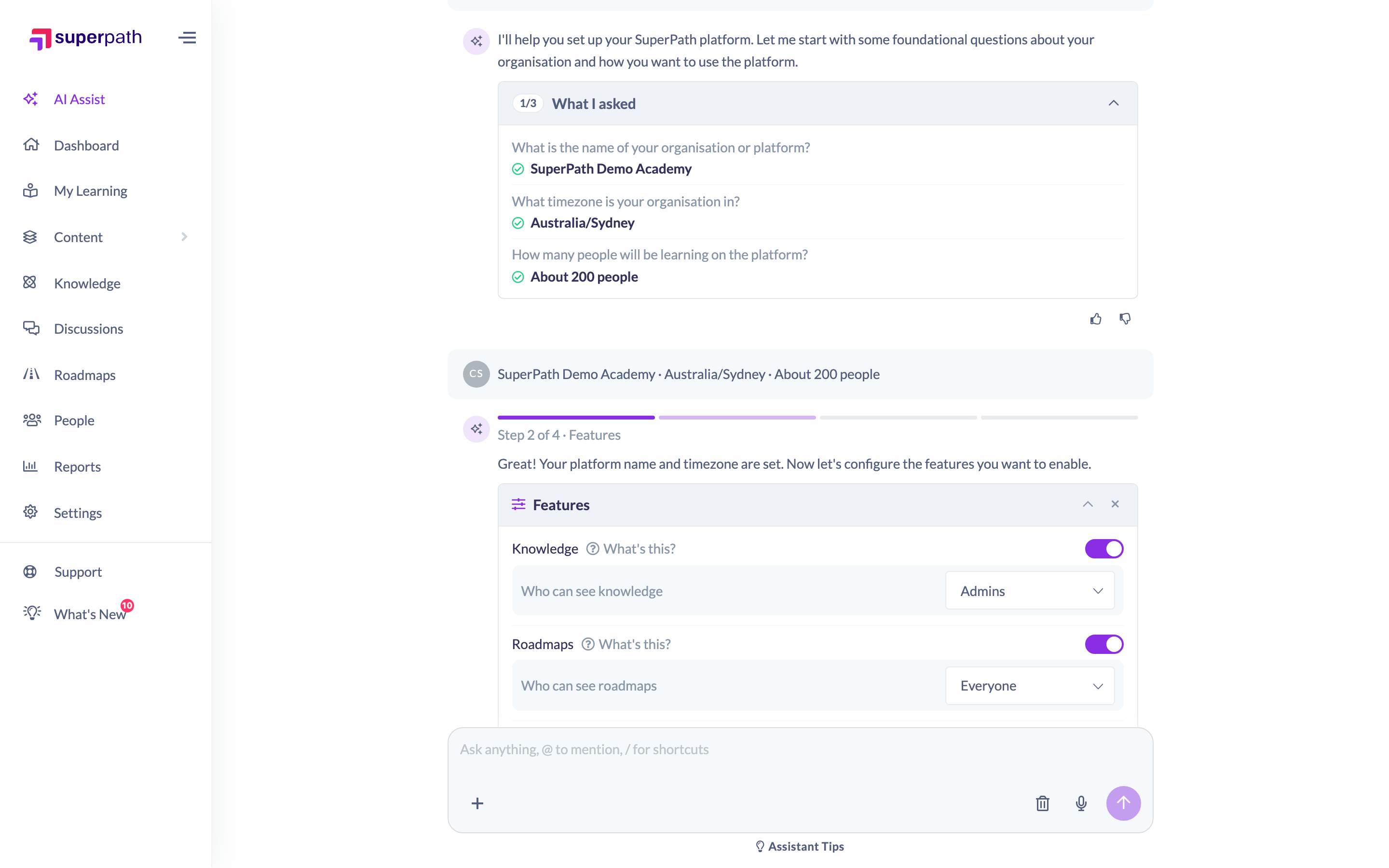
The guided setup walkthrough is a short conversation with the AI Assistant that gets a brand new account ready to use. It asks what your platform should be called, which features you want switched on, who can see them, who can see your Library, and what your platform should look like. Four steps, one question card at each, and no more than three questions per step.
You could set all of this yourself in Settings. The walkthrough is worth using because it puts the decisions in the order they make sense, explains in plain language what each feature actually does before you switch it on, suggests the safest option for every "who can see this" question, and then gathers everything you chose into a single confirmation you can undo in one go. You never have to go looking for the right tab.
Nothing the assistant prepares happens until you confirm it. The walkthrough only ever asks you two things to confirm: your settings, and then your new look. Recording your progress through a step changes nothing at all.
Before you start
- The AI Assistant needs to be switched on for your organisation, in Settings → Features under AI features. See Managing AI Features.
- You need to be an Owner or an Admin. Managers and People Managers cannot run the walkthrough even when they are allowed to use the assistant for everything else. See Who can do this at the end of this article.
- Only one walkthrough runs in an account at a time. If somebody has already started one, the assistant tells you rather than beginning a second.
- If your account came to you through a SuperPath partner, your provider decides which settings areas you look after yourself. Any area they keep is left out of the walkthrough completely, so you may be offered three steps or fewer, and everything below about a step you are not offered simply does not apply.
How to start the walkthrough
There are three ways in, and they all end up in the same conversation.
From the card on the AI Assistant home page. Open AI Assist in the left-hand menu, or click Ask AI in the top bar (or press ⌘ + K on a Mac, Ctrl + K on Windows) and then the house icon in the panel header.
- Look under Needs your attention for the card titled Set up your platform with the assistant. It reads "The assistant can walk you through the essentials in a few minutes. You choose everything, and nothing is applied until you confirm it."
- Click Start the setup walkthrough.
- The conversation opens and the assistant begins with the first step.
That card is deliberately narrow in who sees it. It appears only for an Owner or Admin, only while the account is less than 30 days old, and only while nobody in the account has ever opened the assistant. Once somebody has used the assistant, or the account is older than that, the card stops offering itself. The walkthrough is still available, through either of the other two routes below.
From the starter chip. On the AI Assistant home page, click the Set up my platform chip above the cards. This chip is shown while your account still has no logo of its own, which is the platform's way of telling that the look has never been set.
By asking. Type it in your own words, for example "Set up my platform. Walk me through the essentials step by step." There is no time window on this one, so it is the route to use if you want the walkthrough months after signing up.
Good to know: Ask for a walkthrough twice and you get the one you already started, not a second one. If you left one unfinished, the assistant names that conversation and tells you to carry on in it. If a colleague has one in progress, it says so and asks you to let them finish or hand it over, so the two of you do not set the same things twice.
Step 1: your general details
The first step asks exactly two things, in the platform's own words, on one question card:
- What would you like to call your learning platform? This becomes your platform name.
- Which time zone does your organisation work in? This becomes the time zone your account keeps.
Both are open questions, so you type your answer rather than picking from a list. Use Skip on any question you would rather not answer, and the assistant carries on with a sensible default and tells you which one it used.
Neither answer is applied yet. Both are gathered up for the settings confirmation later on.
Note: The platform name and the time zone are the two settings the assistant will only change from inside the walkthrough. Outside it, the assistant points you at Settings → General to change them yourself.
Step 2: features
The second step is a single card headed Features, holding six switches you set together rather than one at a time.
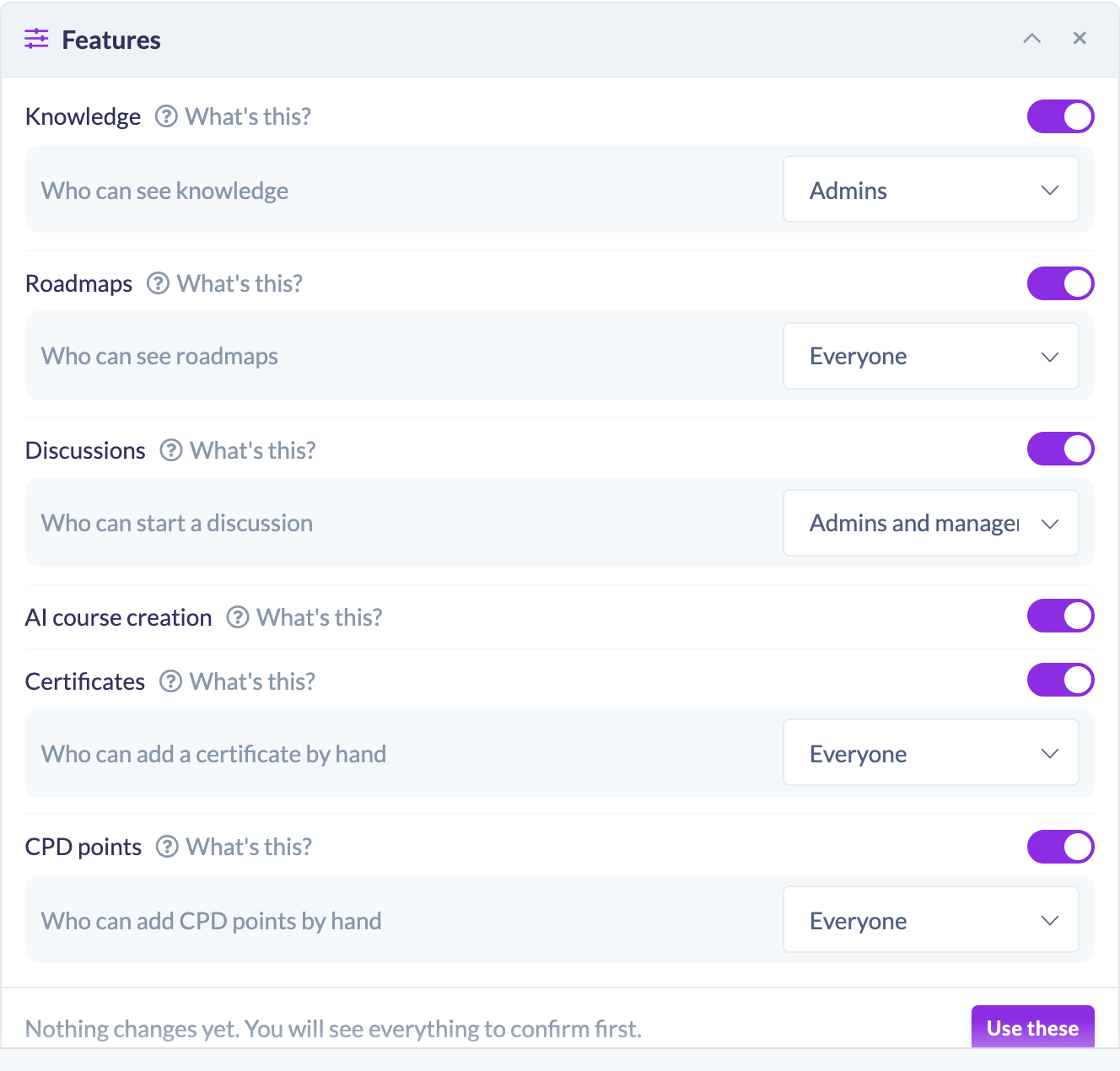
Feature | The question that comes with it |
|---|---|
Knowledge | Who can see knowledge |
Roadmaps | Who can see roadmaps |
Discussions | Who can start a discussion |
AI course creation | None. See the note below. |
Certificates | Who can add a certificate by hand |
CPD points | Who can add CPD points by hand |
How the card behaves:
- Each switch opens on what your account is set to right now, so the card is always an honest picture of your platform rather than a blank form. A row you do not touch is recorded as Left as it is.
- What's this? beside a row explains what the feature does before you decide. Knowledge, for example, is described as a searchable library of articles your people can read at any time, for the things they look up rather than complete.
- The "who can" question appears only once you have switched a feature on, because an access level for a feature that is off has nothing to govern. Each one offers Admins, Admins and managers and Everyone, and starts on Admins, which is the narrowest choice.
- The footer reads "Nothing changes yet. You will see everything to confirm first." Click Use these when you are happy. Changing nothing is a perfectly good answer to the card.
AI course creation is the one exception on this card. Your answer is recorded, but the walkthrough never applies it, because switching it on also connects the product that writes the courses and creates an integration record for it, and the assistant cannot undo that for you. So if you say yes, the assistant tells you plainly that this is the one switch that is yours to flip, and links you to Settings → Features to do it.
Step 3: the Library
The third step asks one thing: who can see your Library. The choices are the same three as above, Admins, Admins and managers and Everyone.
This is the last question in the walkthrough. Everything you have said so far now comes back to you as one confirmation.
Confirming your settings
When the questions are done, the assistant puts your general details, your feature switches and their access levels, and your Library setting on a single confirmation card. Nothing has been applied to your platform yet.
- Read the card. It lists every setting it is about to change, with what it is now and what it will become.
- Click Confirm.
- The settings are applied and you get a receipt. The whole batch can be undone in one go, from the receipt or from the Activity log, for 7 days.
While that card is waiting, the progress bar reads Waiting for you to confirm the settings with a padlock, so it is clear the walkthrough is paused on you rather than still asking questions. Confirm it and the assistant says briefly what is now set and moves straight on to the last step, without asking whether you want to continue.
Confirmation cards are previews, and a preview is only good for an hour. If you leave the card too long it expires and the assistant prepares it again. See How the AI Assistant Makes Changes and The AI Assistant Activity Log.
Step 4: the look of your platform
The last step is your branding, and it gets its own confirmation.
- The assistant offers a website address, worked out from your own email address, and asks you to confirm it or give a different one. You do not have to type a URL out of the blue.
- It reads that site and shows you a card of everything it found: logos, browser icons, pictures for your sign-in page and dashboard banner, and the colours on the page. Every row also offers to keep what you have now, and lets you upload your own image, pick one from Unsplash, your asset library or Canva, or have the platform create one.
- Pick what you want and the assistant prepares it.
- Click Confirm on the card that follows.
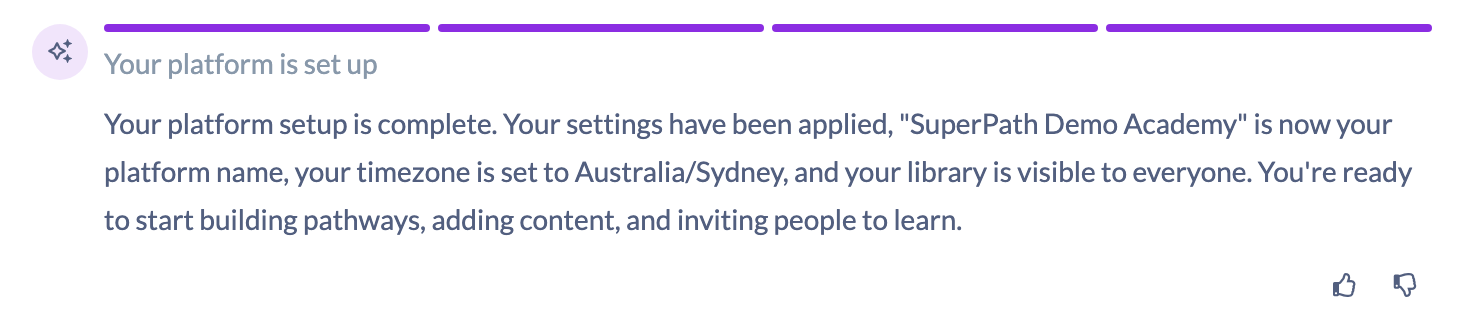
When that lands, the walkthrough is finished. The progress bar reads Your platform is set up, and the assistant tells you that both your settings and your new look have been applied. For more on branding on its own, see How to Change Your Branding with the AI Assistant.
Leaving and coming back
You can close the tab at any point. The assistant records each step as it finishes it, along with what you told it, so nothing has to be asked twice.
- Come back to the AI Assistant home page and you will see a card titled Your setup walkthrough is not finished yet, reading "Everything you have answered so far is saved. Reopen it and carry on from where you stopped." Click Pick up where you left off and the conversation reopens exactly where you were.
- That card ignores the 30 day window that governs the first offer. An unfinished walkthrough is a fact about your account rather than a guess, so the offer to finish it stays available.
- The card is only ever shown to the person whose walkthrough it is.
- Answers already given are not asked again. The assistant carries on with the next step rather than starting over or reintroducing itself.
One thing does not survive a reload: the Features card. Nothing is sent from it until you click Use these, so if you reload with the switches half set, the card comes back showing your account's own settings again with nothing chosen. There is no half-answered card to resume.
What the walkthrough does not cover
The walkthrough is deliberately short. It will not raise these of its own accord, because they are not decisions anyone needs to make in their first ten minutes:
- Sign-in methods. Which ways people can sign in is something you set once, when the platform is ready for real people. See the General articles on signing in with Google, Microsoft and your company SSO.
- Access expiry. Whether people's access to the platform should expire after a set time. This lives in Settings → Features.
- Learning requests. Whether your people can request learning. This lives in Settings → Library.
- Gamification and badges. Points, leaderboards and badges can be switched on whenever you want them, in Settings → Gamification.
If you ask for one of these during the walkthrough, the assistant will do it. That is you deciding, which is different from the assistant interviewing you about it.
Your HR system is not a step either. The assistant does not connect HR systems. Connecting one is genuinely involved and its settings keep growing, so it is done on the page that is always current: Settings → Integrations. Raise it mid walkthrough and the assistant will tell you where to go, and if it knows which system you use, it fetches the right help article for it in the same reply, then carries on with the step you were on. The HR systems SuperPath integrates with are BambooHR, Deputy, Employment Hero, foundU and HiBob.
What to do next when it finishes
The turn that finishes the walkthrough offers a set of tiles, each of which starts real work with the assistant rather than dropping you on a settings page:
- Build your first pathway "A few questions, then a structure, then a draft. About 10 minutes, right here in chat." See How to Build a Pathway with the AI Assistant.
- The AI course builder card, offered only once AI course creation is switched on. It opens the course builder.
- Turn a competency matrix into a roadmap "Upload the spreadsheet and I will map it, right here in chat." Offered when Roadmaps are on. See How to Build a Roadmap with the AI Assistant.
- Add your first team "Then I can assign learning to it."
- Connect Canva "Design richer content without leaving SuperPath. You come straight back here when Canva is done." Offered until Canva is connected.
- Connect your HR system "Bring your people across automatically. You set this up in Settings." This one is a link to Settings → Integrations, and is offered only if you can see that tab.
- Invite your team "I will prepare the invitations. Nothing is sent until you confirm."
Underneath them: "Any order you like. If you leave, I will keep your place." The tiles stay on that turn in the transcript, so you can scroll back to them a week later and pick one up.
Things to keep in mind
- The walkthrough is four steps and two confirmations. It will not offer to confirm settings one at a time as it goes.
- On a partner-provided account it can be shorter. A step your provider looks after is never offered, never announced and never counted in the progress bar, and the walkthrough may end on one confirmation instead of two.
- Nothing is applied because a step is finished. Recording progress is bookkeeping. Every setting is applied by a confirmation you click.
- Every question is skippable. Skip one and the assistant continues with a sensible default and says which default it used.
- The set of questions is fixed by the platform, not chosen by the assistant. It cannot add a question to the General card or a row to the Features card.
- AI course creation is asked about but never applied by the walkthrough. It is the one switch you turn on yourself, in Settings → Features.
- One walkthrough per account at a time. A second request reopens the first.
- A walkthrough cannot run in a conversation that is already building something else, such as a draft Pathway. Start a new conversation for it and the other work is left exactly as it is.
- Finishing the walkthrough does not lock it. It can be run again from scratch, and your applied settings and the receipts in the Activity log are the record of the run that happened.
- The settings batch and the branding change can each be undone for 7 days, from their receipt or from the Activity log.
FAQs
Can the walkthrough change something without asking me?
No. It gathers answers, and every change is applied by a confirmation card you click. There are exactly two in the walkthrough: your settings, then your new look.
Where has the setup checklist gone?
The old setup checklist has been retired and replaced by this walkthrough. Instead of ticking items off a list, you answer a few questions and the assistant applies your choices for you.
How many steps is it?
Four steps that ask you something: General, Features, Library and Theme. The progress bar counts those four. The settings confirmation sits between the Library and the Theme, so it is a card you read rather than a step that asks you anything.
Why is the progress bar showing a padlock?
Because the settings confirmation is up and the walkthrough is waiting on you. Confirm the card and it moves on to the last step.
I closed the tab. Have I lost my answers?
No. Each step is recorded as it finishes, along with what you told the assistant. Come back to the AI Assistant home page and use Pick up where you left off.
Why can I not see the card offering the walkthrough?
It is shown only to Owners and Admins, only while the account is less than 30 days old, and only until somebody in the account has opened the assistant for the first time. You can still start the walkthrough by asking for it in your own words.
Can two of us run it at the same time?
No, and that is deliberate: two walkthroughs would mean two sets of answers about one account. Whoever asked second is told that one is already in progress.
Why will it not ask me about sign-in methods, access expiry or learning requests?
They are outside what the walkthrough covers on purpose, because none of them is a first-ten-minutes decision. If you ask for one, the assistant will happily change it for you where it can.
Will it connect our HR system for me?
No. The assistant deliberately does not connect HR systems. It sends you to Settings → Integrations, and pulls up the right help article for your system on the way.
Why is AI course creation on the Features card if it will not be switched on?
Because it is worth deciding about while you are setting up. Switching it on also connects the product that writes the courses, which the assistant cannot undo for you, so it hands that one switch back to you with a link to the settings page.
Can I undo everything the walkthrough did?
The settings batch can be undone in one go, and the branding change can be undone too, each for 7 days from the receipt or the Activity log. Anything you switched on yourself afterwards is yours to switch back.
Can I run it again later?
Yes. Nothing records that a walkthrough has been completed, so asking again simply starts a fresh one.
Who can do this
Owners, Admins and SuperPath Admins can run the guided setup walkthrough. Everybody else cannot, including Managers and People Managers who are otherwise allowed to use the AI Assistant when your organisation's Who can use the AI Assistant setting is Admins and managers. The walkthrough is a tighter gate than the assistant itself, and for a plain reason: everything it sets is an account-wide setting, and no manager role may change those, so a manager taken through it could only ever be walked to a refusal. Content Managers, Instructors, Employees and Restricted users cannot use the AI Assistant at all.
Turning the AI Assistant on, and choosing who may use it, is done in Settings → Features by an Owner or Admin. See Managing AI Features. For the assistant more generally, see How to Use the AI Assistant and The AI Assistant Home Page, and for the changes it makes see How the AI Assistant Makes Changes, The AI Assistant Activity Log, How to Assign Learning with the AI Assistant, How to Create a Workflow with the AI Assistant and How to Change Account Settings with the AI Assistant.
Updated on: 11/09/2026
Thank you!